> ## Documentation Index
> Fetch the complete documentation index at: https://docs.upmind.com/llms.txt
> Use this file to discover all available pages before exploring further.
# How to sell WHM/cPanel hosting
> Configure and sell cPanel hosting products with Upmind.
The Web Hosting management interface is currently being simplified. Quick actions will be available for the most common features, including bulk management of domains and web servers.
However, the steps below will continue to work, and the future interface is completely compatible with anything you do here.
## cPanel Overview
[cPanel](https://cpanel.net) is the most popular hosting control panel on the market. It is software that sits on top of a web server and provides a user interface for managing websites and email.
cPanel servers can be used for shared and reseller hosting customers.
* If you have a WHM Reseller account, you are able to sell and manage cPanel shared Web Hosting.
* If you have a WHM Root account, you are able to provision cPanel shared Web Hosting *and* cPanel reseller Web Hosting.
To begin selling web hosting through Upmind on top of a cPanel server, you must have an active cPanel WHM login.
## What you will need
* A WHM account, which can be either a root access account or a reseller account.
* An [Upmind account](https://upmind.com/start).
### Generate an API Token in WHM
In WHM, you need to generate an API Token. This is done in your WHM under **Development** > **Manage API Tokens**.
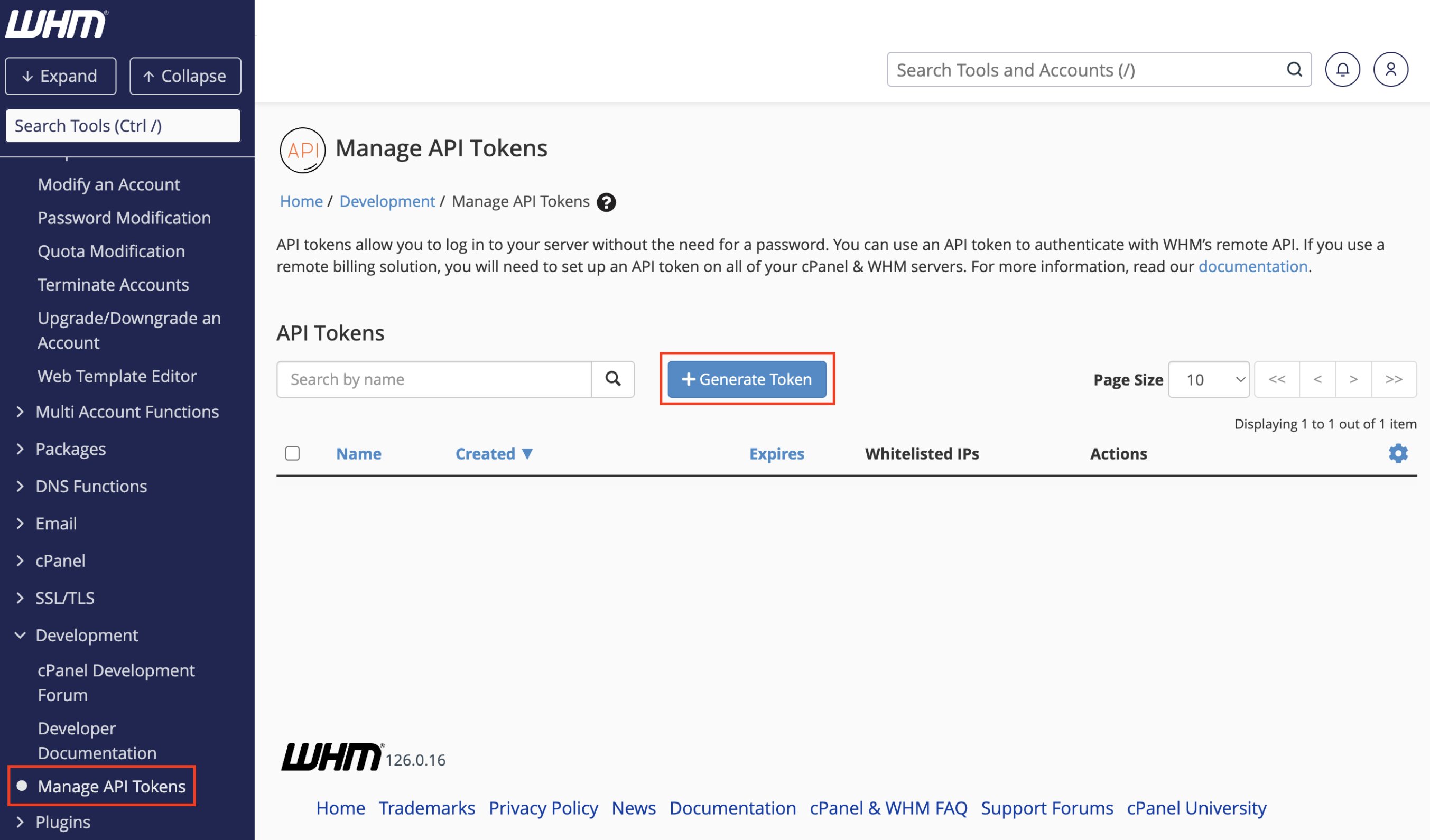 When creating an API token, make sure to select all the necessary permissions. We recommend not setting an expiry date.
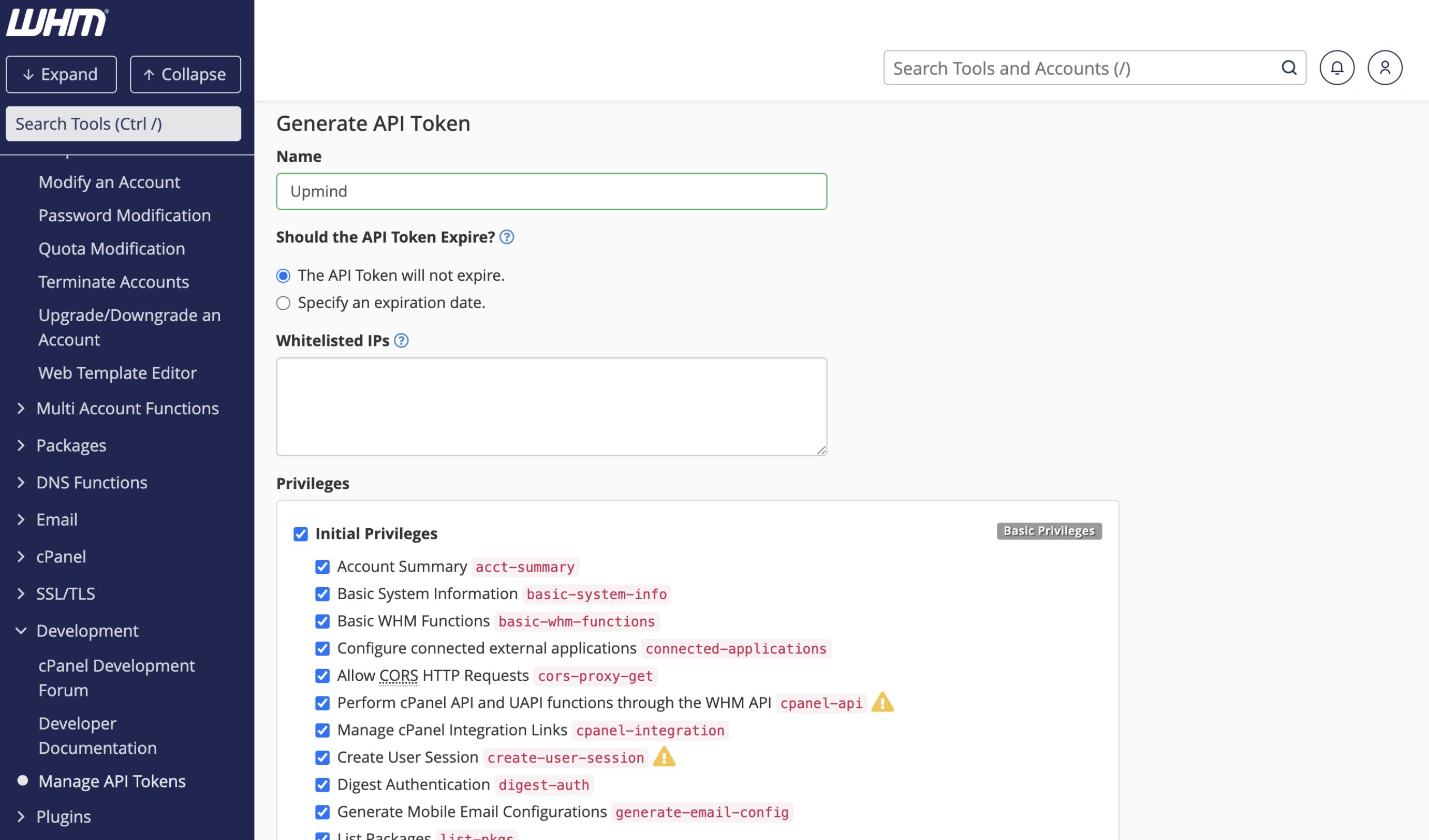 Once the API Token is generated, make sure to note and copy the API token so it can be pasted into the Upmind configuration.
### Adding a cPanel Server to Upmind
In Upmind, you should add cPanel as a provision configuration. You can do this in either of the following ways:
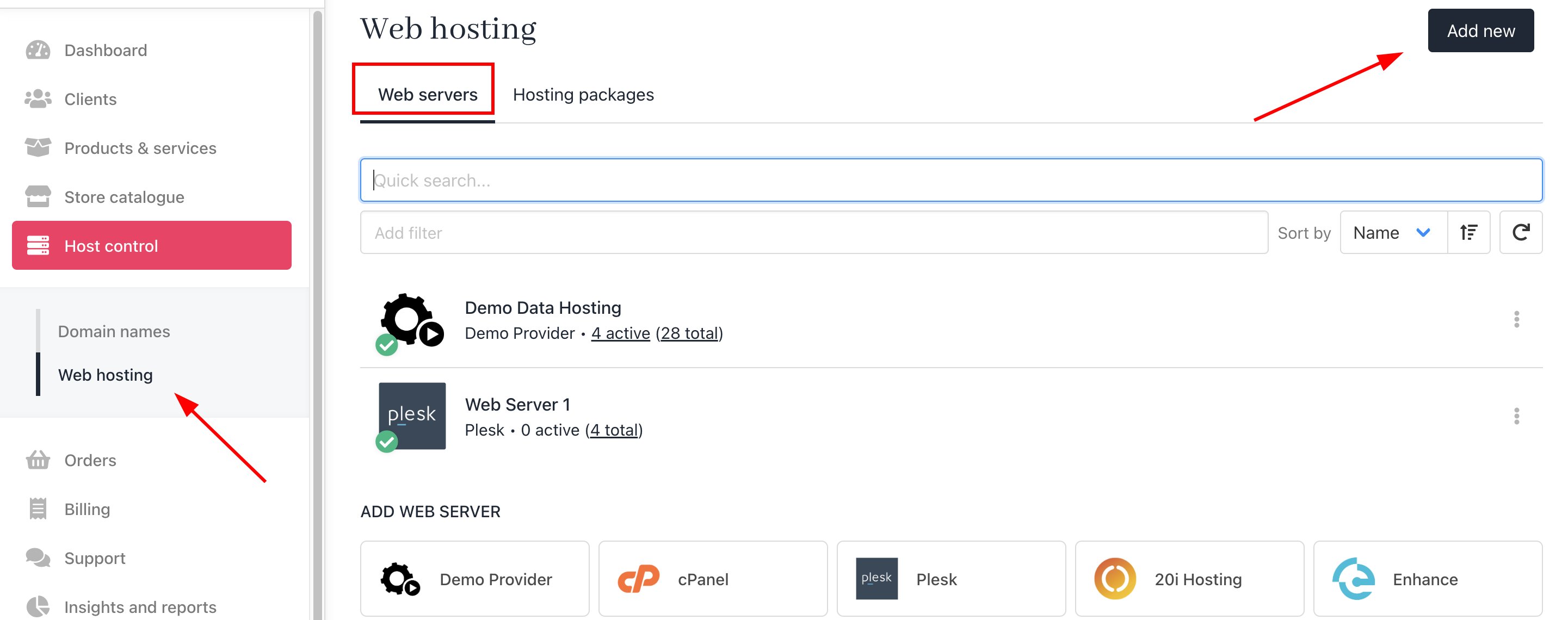
* On the sidebar, go to **Host Control** > **Web Hosting** > **Web Servers** > **Add New.** You can also select it from below.
Once the API Token is generated, make sure to note and copy the API token so it can be pasted into the Upmind configuration.
### Adding a cPanel Server to Upmind
In Upmind, you should add cPanel as a provision configuration. You can do this in either of the following ways:
* On the sidebar, go to **Host Control** > **Web Hosting** > **Web Servers** > **Add New.** You can also select it from below.
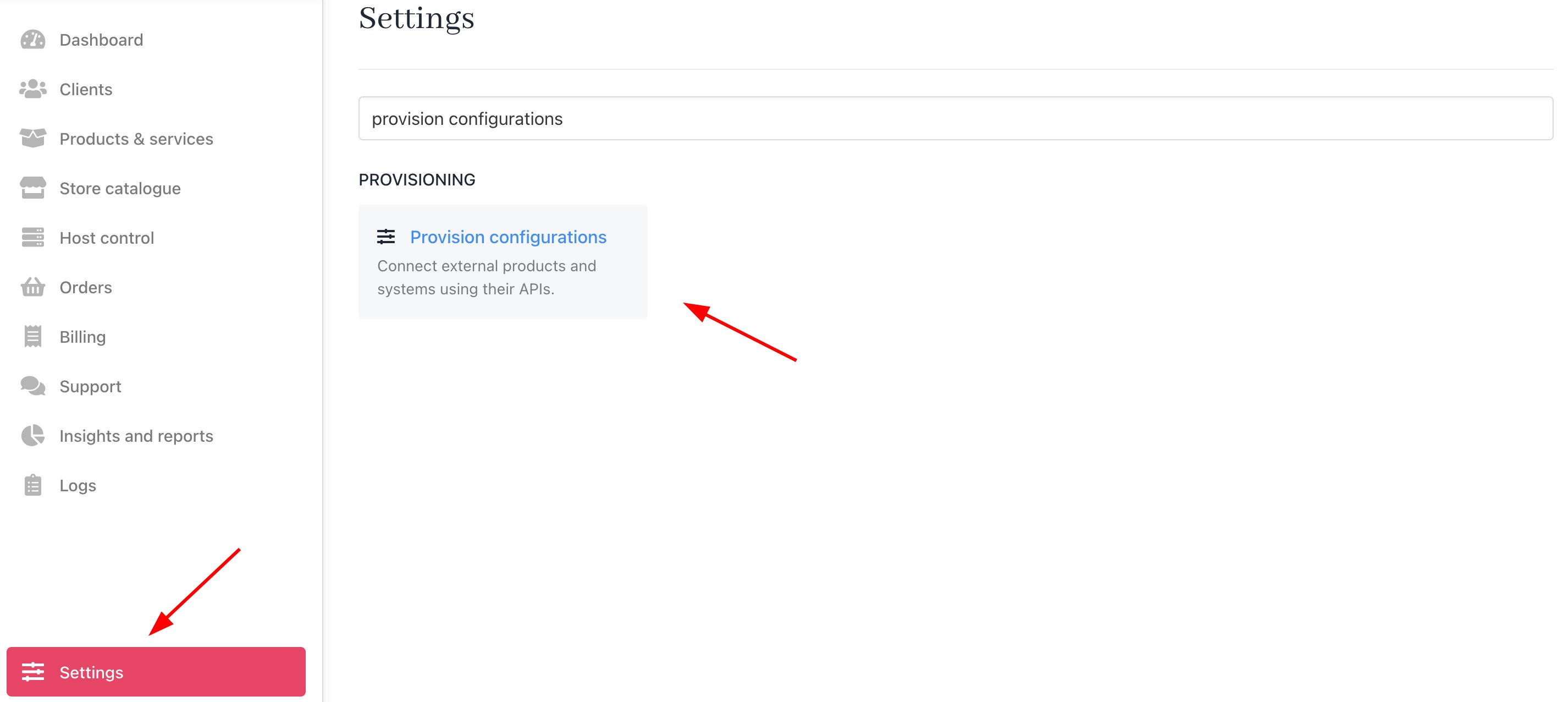
 * On the sidebar, go to **Settings** > **Provision Configurations** under **Provisioning** > **Add New Configuration.**
 You should fill it out as follows:
1. Enter a **Name** for the server, typically something like cPanel or the server's hostname (e.g. `server.yourdomain.com`). Choose **Web Hosting** or any provision category name you've created. Select **cPanel** as the Provider.
You should fill it out as follows:
1. Enter a **Name** for the server, typically something like cPanel or the server's hostname (e.g. `server.yourdomain.com`). Choose **Web Hosting** or any provision category name you've created. Select **cPanel** as the Provider.
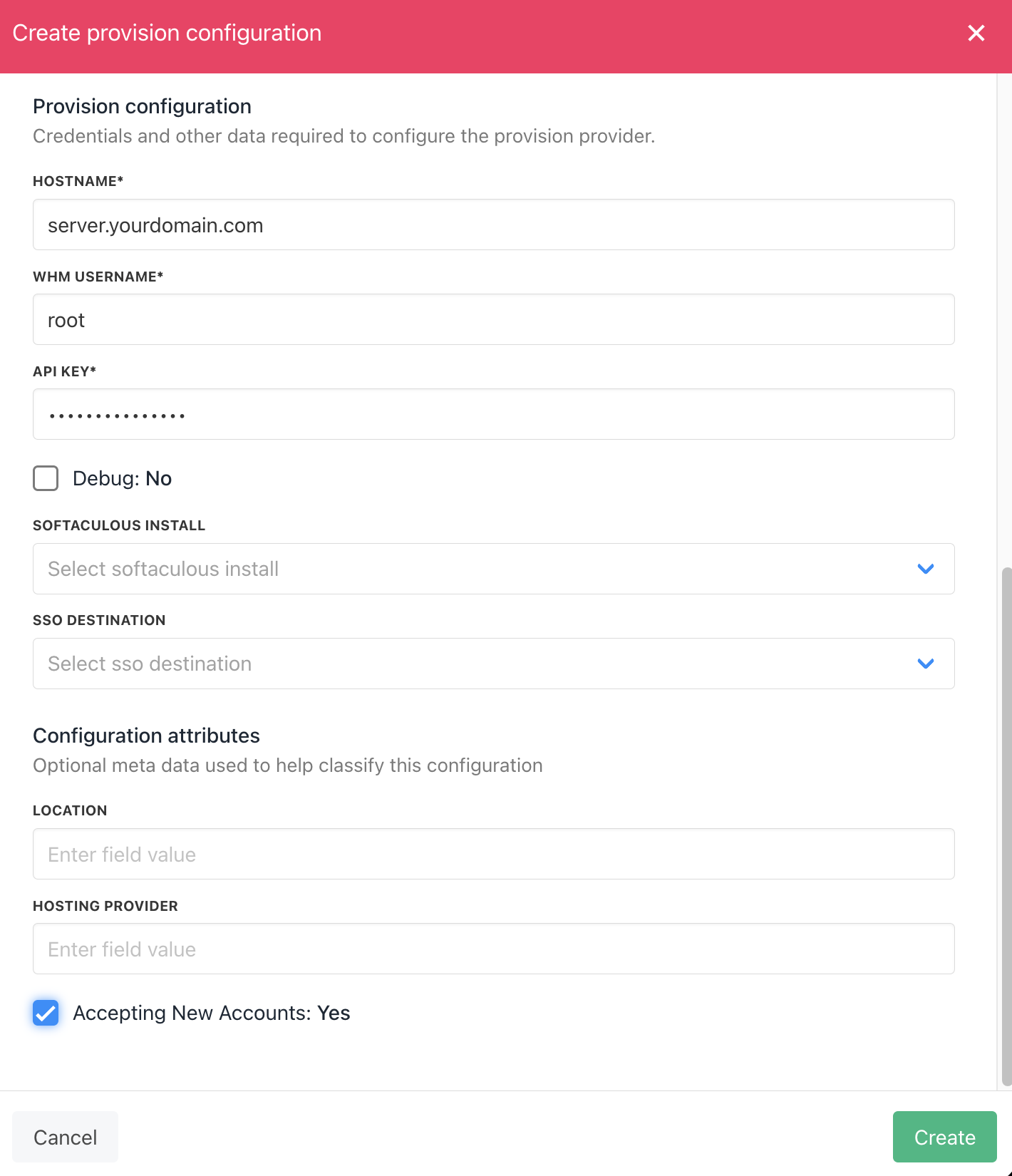
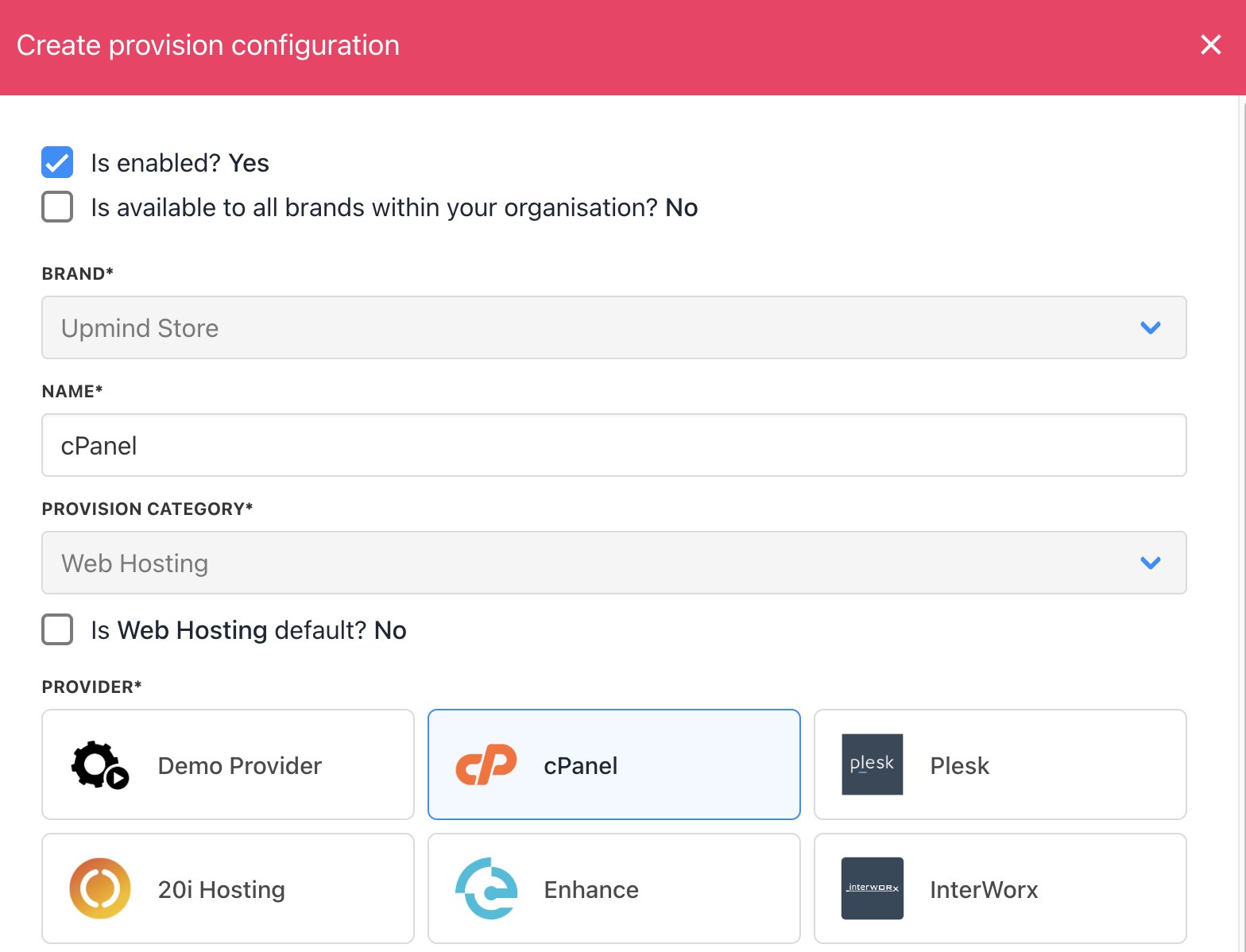 2. The **Hostname** should be a resolvable hostname for your web server (e.g. `server.yourdomain.com`).
3. Your **WHM Username** is the username you use to log in to WHM. This may be `root` or your reseller username if a reseller account.
4. Enter the **API Key** you have generated in WHM.
5. You can fill out optional metadata for this provider configuration. This allows Upmind to automatically deploy to specific servers. Read more about [dynamic deployment](/using-upmind/provisioning/dynamic-deployement).
6. Finally, tick **Accepting New Accounts** if you wish to enable this server. Then click **Create**.
2. The **Hostname** should be a resolvable hostname for your web server (e.g. `server.yourdomain.com`).
3. Your **WHM Username** is the username you use to log in to WHM. This may be `root` or your reseller username if a reseller account.
4. Enter the **API Key** you have generated in WHM.
5. You can fill out optional metadata for this provider configuration. This allows Upmind to automatically deploy to specific servers. Read more about [dynamic deployment](/using-upmind/provisioning/dynamic-deployement).
6. Finally, tick **Accepting New Accounts** if you wish to enable this server. Then click **Create**.
 ## Create packages
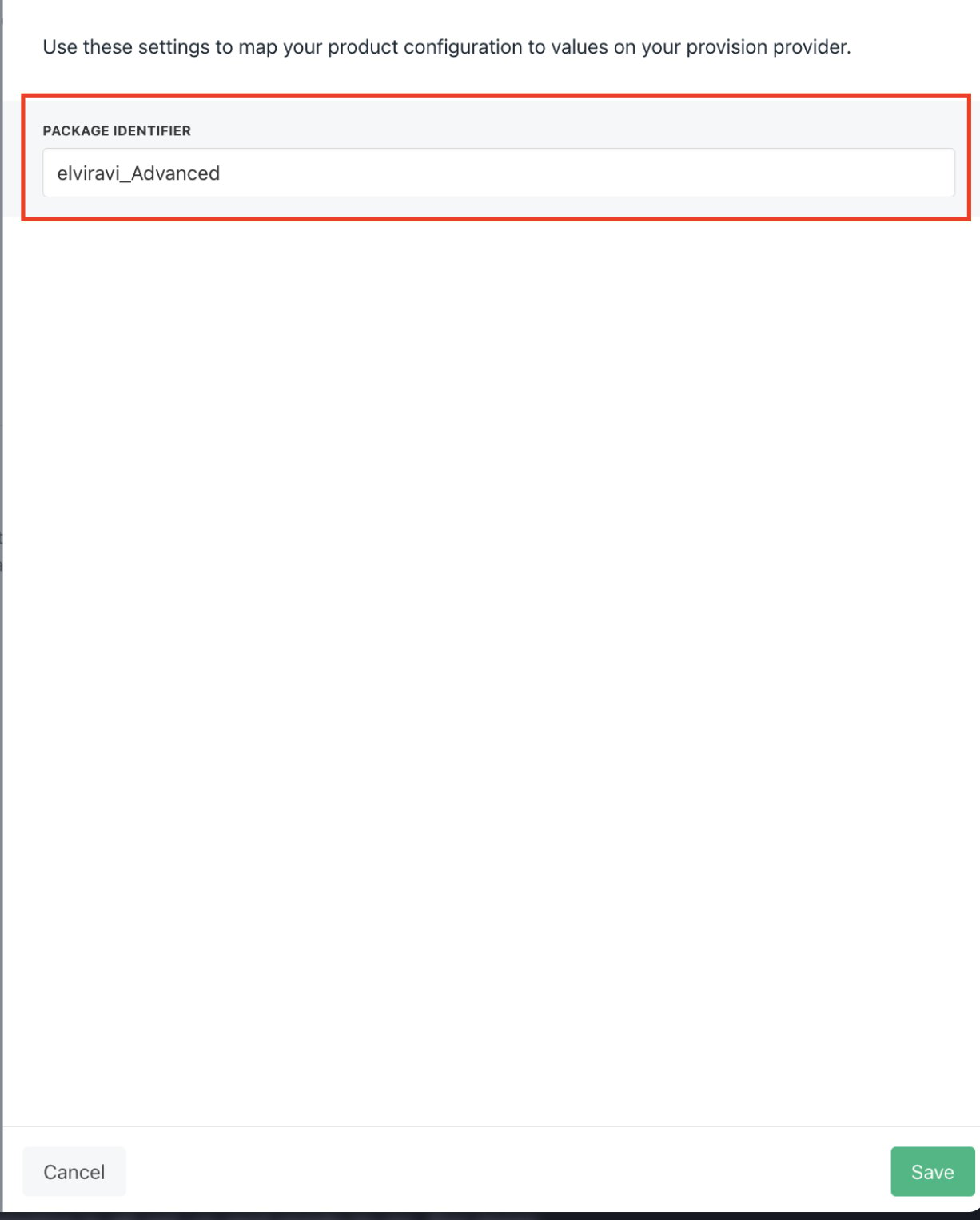
When you create hosting packages in Upmind, you need to choose cPanel as a provision provider. You will be asked for the **Package Identifier**. It's recommended to use the cPanel package **name** (case sensitive).
### Get cPanel Package Identifier
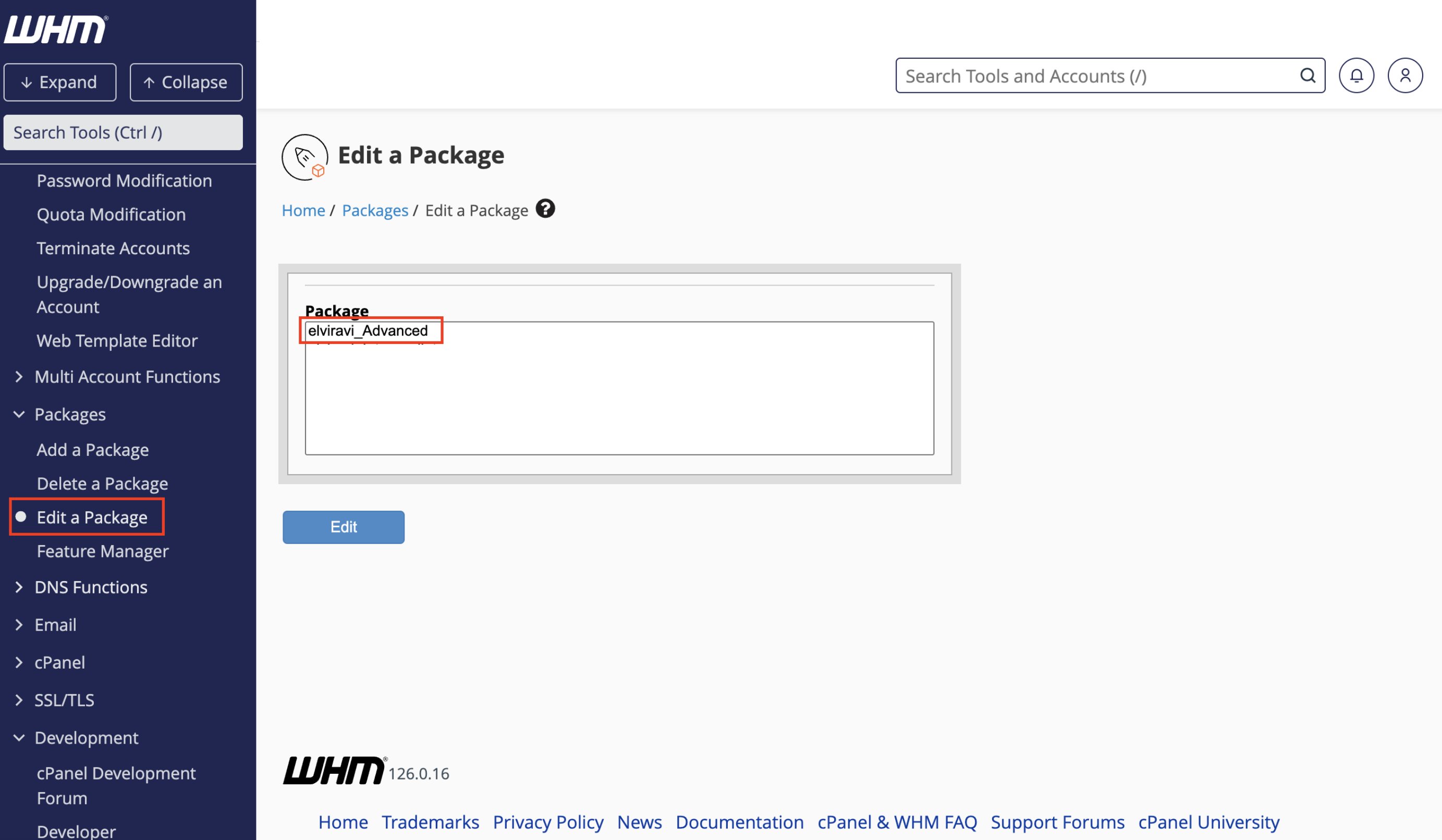
In your WHM control panel, go to **Packages** > **Add a Package** to create a new one, or click on **Edit Packages** if you already have one.
* The package name is the identifier you set when creating the package, usually in the format `username_packagename`.
* This is the value you’ll need to enter in Upmind when configuring the hosting product.
## Create packages
When you create hosting packages in Upmind, you need to choose cPanel as a provision provider. You will be asked for the **Package Identifier**. It's recommended to use the cPanel package **name** (case sensitive).
### Get cPanel Package Identifier
In your WHM control panel, go to **Packages** > **Add a Package** to create a new one, or click on **Edit Packages** if you already have one.
* The package name is the identifier you set when creating the package, usually in the format `username_packagename`.
* This is the value you’ll need to enter in Upmind when configuring the hosting product.
 ### Configure Upmind products
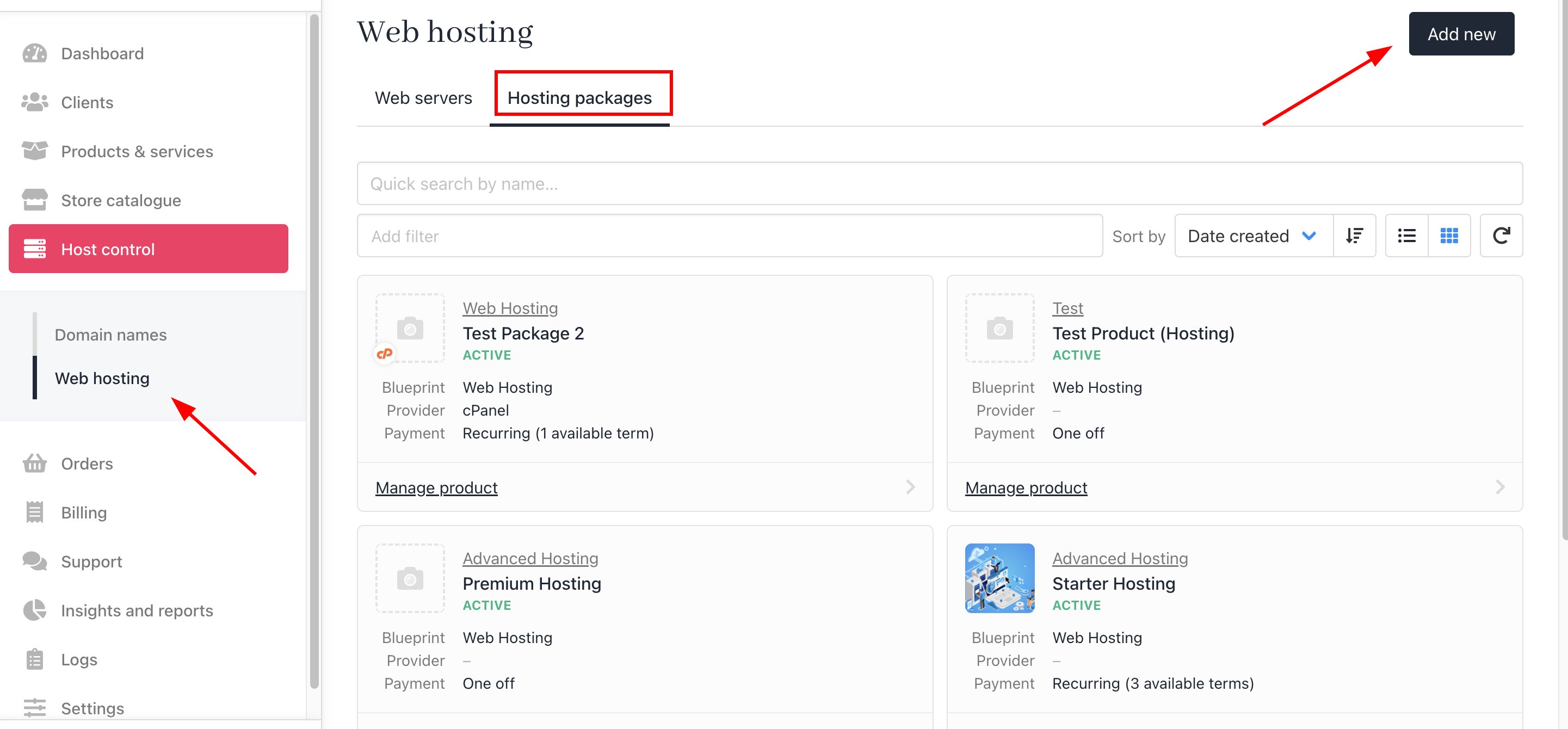
In your Upmind admin area, under **Host control** > **Web hosting** click on the **Hosting packages** tab and click the **Add new** button to start configuring a new hosting package.
### Configure Upmind products
In your Upmind admin area, under **Host control** > **Web hosting** click on the **Hosting packages** tab and click the **Add new** button to start configuring a new hosting package.
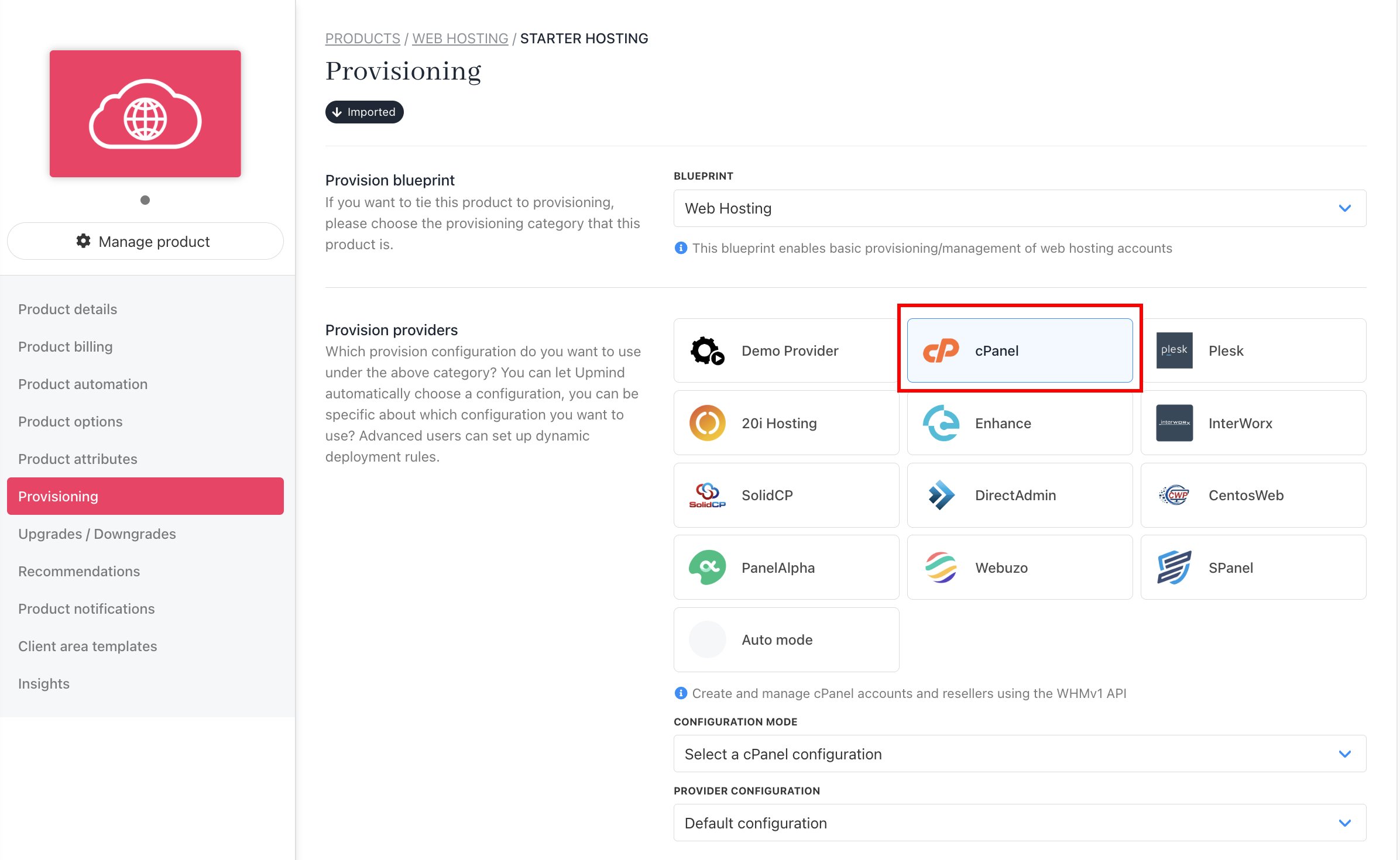
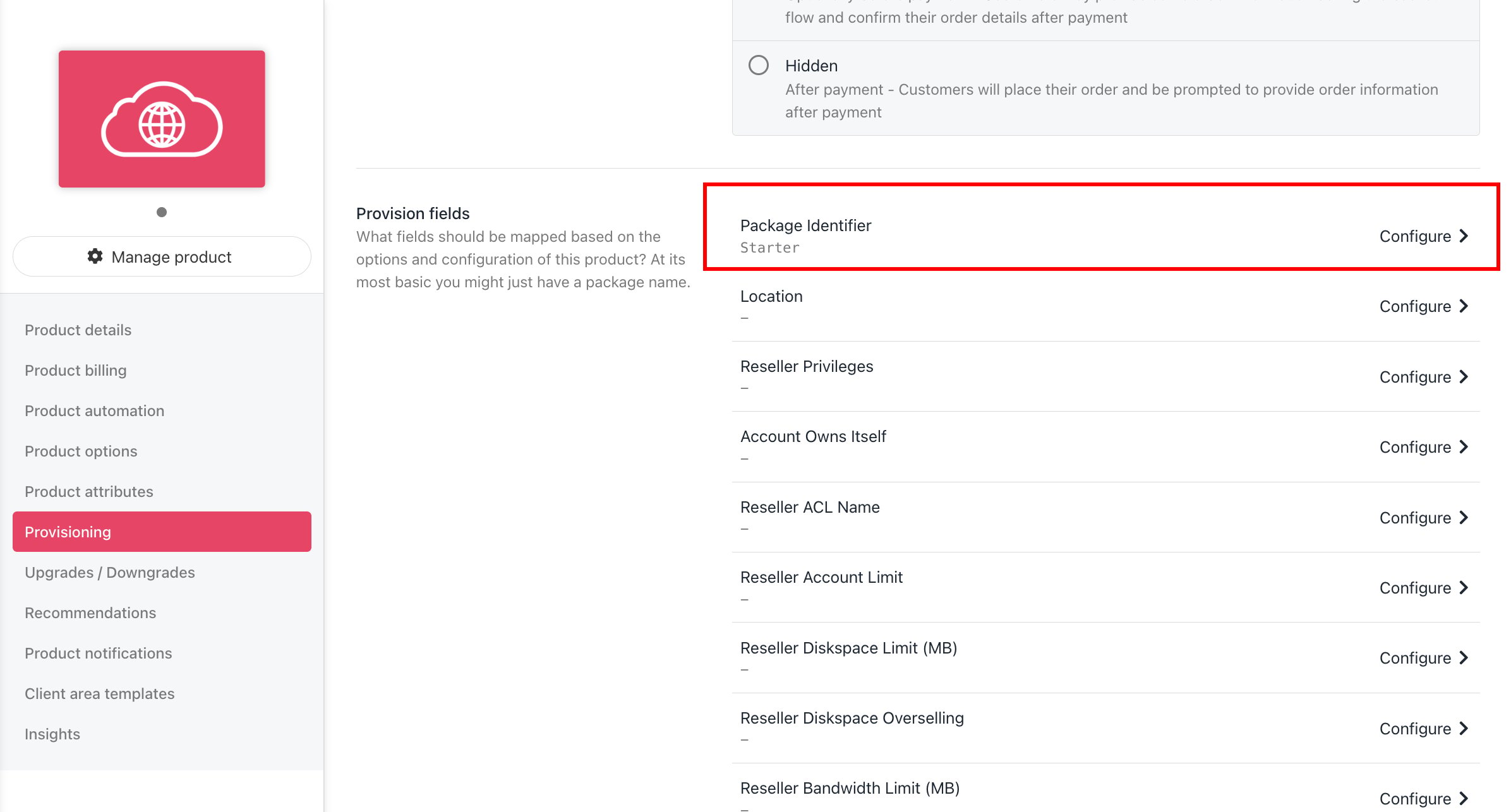
 Now go to the product's Provisioning page and set the **Provision provider** to cPanel, and set the **Package Identifier** provision field to match your cPanel package **name**.
 At this point, your cPanel product provisioning is all set up and ready to go. For more information on setting up and selling hosting products in Upmind, refer to our first step and [Web Hosting Quick Start](/for-web-hosts/quick-start-guide-for-hosting-companies-or-resellers) guides.
## Common cPanel errors
Below are some frequent errors you might encounter when using cPanel with Upmind, along with simple explanations and solutions to help you resolve them quickly.
1. **Error Create Account: Forbidden Access Denied** - Please ensure the hostname, username, and API key are entered correctly in the **Settings** > **Provision configurations**.
2. **Error If "xxxx" is not a valid package name, at /usr/local/Whostmg** - You need to create a package in your [Web Host Manager interface](/for-web-hosts/quick-start-guide-for-hosting-companies-or-resellers), and this needs to match the package identifier you enter in **Settings** > **Product Catalogue** > **\[Product]** > **Provisioning** > **Package Identifier** in Upmind.
3. **Error: You cannot create a session for the user 'xxx' because they do not exist** - The cPanel account username is incorrect, or the account does not exist on the server.
At this point, your cPanel product provisioning is all set up and ready to go. For more information on setting up and selling hosting products in Upmind, refer to our first step and [Web Hosting Quick Start](/for-web-hosts/quick-start-guide-for-hosting-companies-or-resellers) guides.
## Common cPanel errors
Below are some frequent errors you might encounter when using cPanel with Upmind, along with simple explanations and solutions to help you resolve them quickly.
1. **Error Create Account: Forbidden Access Denied** - Please ensure the hostname, username, and API key are entered correctly in the **Settings** > **Provision configurations**.
2. **Error If "xxxx" is not a valid package name, at /usr/local/Whostmg** - You need to create a package in your [Web Host Manager interface](/for-web-hosts/quick-start-guide-for-hosting-companies-or-resellers), and this needs to match the package identifier you enter in **Settings** > **Product Catalogue** > **\[Product]** > **Provisioning** > **Package Identifier** in Upmind.
3. **Error: You cannot create a session for the user 'xxx' because they do not exist** - The cPanel account username is incorrect, or the account does not exist on the server.