> ## Documentation Index
> Fetch the complete documentation index at: https://docs.upmind.com/llms.txt
> Use this file to discover all available pages before exploring further.

# How to Sell SPanel Hosting

> Configure and sell SPanel hosting products with Upmind.

[SPanel](https://www.spanel.io/) is a hosting control panel by ScalaHosting that helps hosting providers manage servers, websites, and user accounts on VPS and cloud environments through a centralised interface.

## Getting SPanel credentials

1. To generate an API Key, go to **Server Management** > **Manage API Tokens**.

2. Click **Create API Token**.

3. Select:

   * **API Token Type: Admin**

   * **Enable SSO: On**

   * **Admin Token Privileges: Unrestricted (all)**
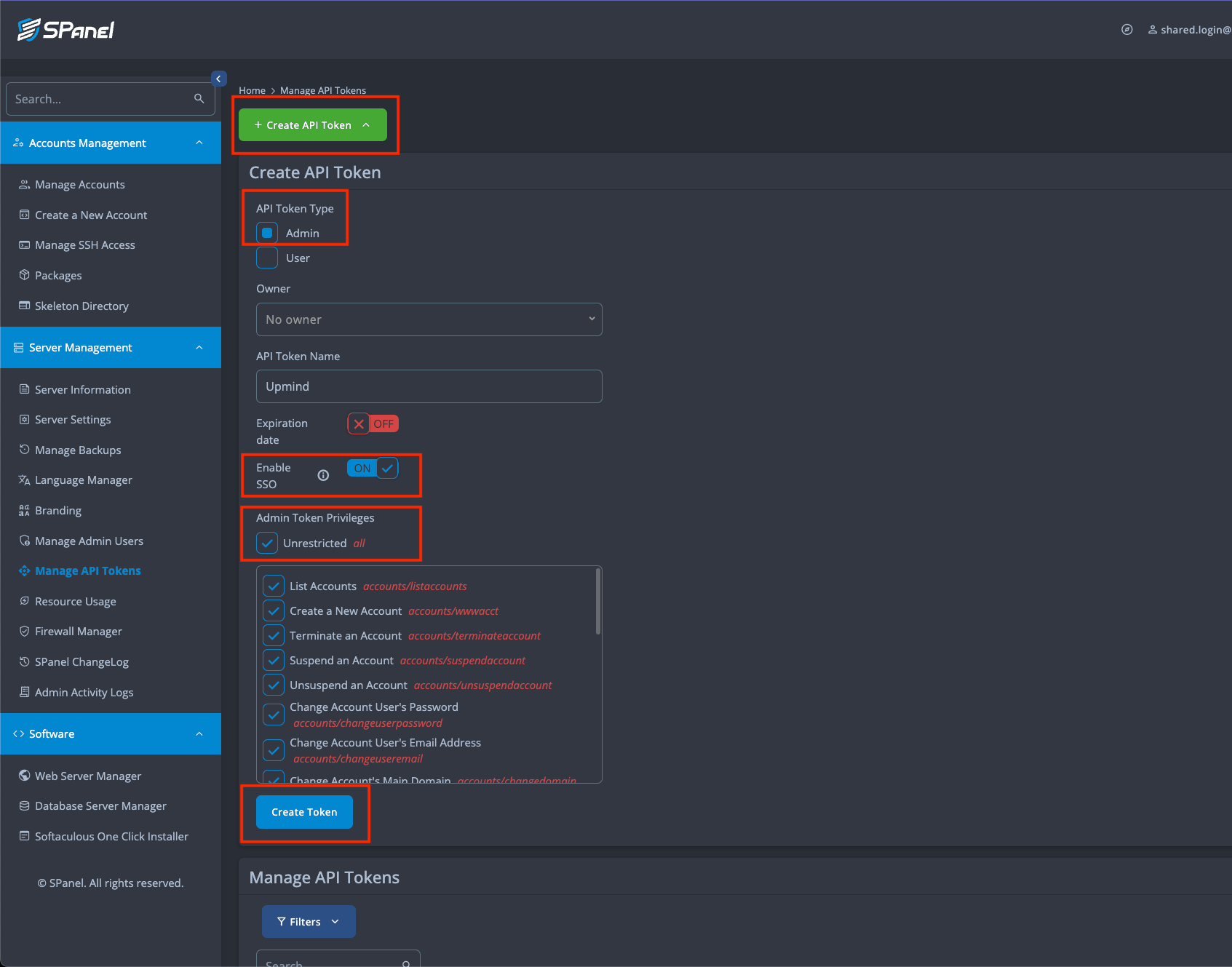
<Frame caption="Select the following requirements">
  <img src="https://mintcdn.com/upmind/A-RwNPXmK_xnEEqe/images/fb/709d3a11391c9e4c.png?fit=max&auto=format&n=A-RwNPXmK_xnEEqe&q=85&s=45cd9f34e893745e06b55704da2de87b" alt="Select the following requirements" width="1693" height="1329" data-path="images/fb/709d3a11391c9e4c.png" />
</Frame>

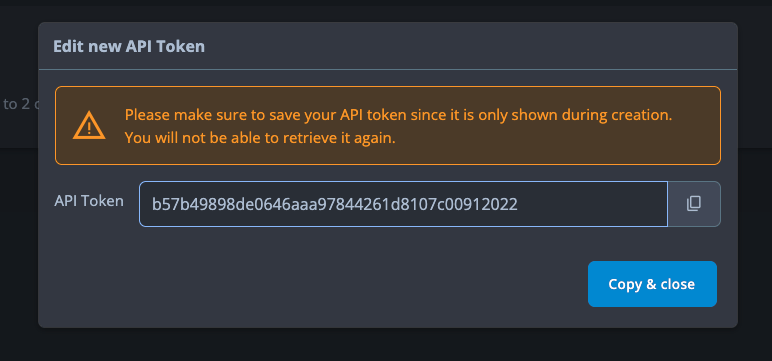
4. Create and copy the API Token.

<Frame caption="Copy the API Key">
  <img src="https://mintcdn.com/upmind/wRuKrNY12tQZY8Rr/images/fb/390fe58218236712.png?fit=max&auto=format&n=wRuKrNY12tQZY8Rr&q=85&s=c43015cf2359e187828902434533b91e" alt="Copy the API Key" width="772" height="361" data-path="images/fb/390fe58218236712.png" />
</Frame>

## Configuring SPanel provisioning in Upmind

1. In Upmind, go to **Settings** > **Provision Configurations**.
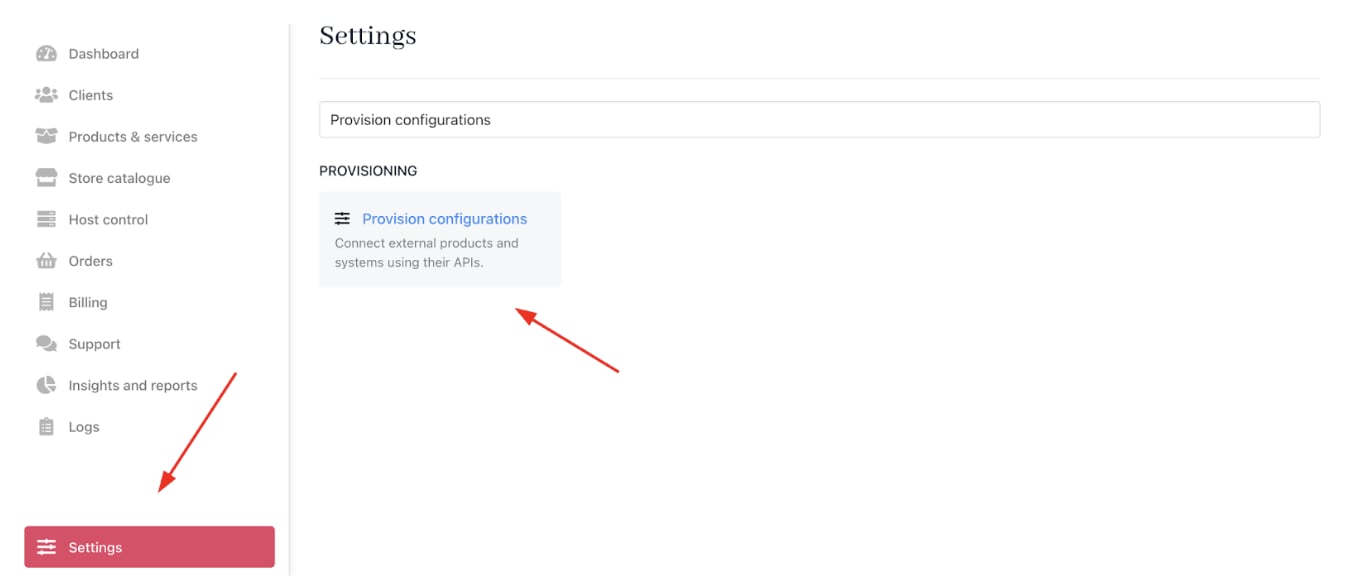
<Frame caption="Settings > Provision configurations">
  <img src="https://mintcdn.com/upmind/92wYnpdR_k6AjH3x/images/fb/545d2769c80c048d.png?fit=max&auto=format&n=92wYnpdR_k6AjH3x&q=85&s=8703bcea53a7e2c3a0c23c1e8bc2882f" alt="Settings > Provision configurations" data-og-width="1354" width="1354" data-og-height="586" height="586" data-path="images/fb/545d2769c80c048d.png" data-optimize="true" data-opv="3" srcset="https://mintcdn.com/upmind/92wYnpdR_k6AjH3x/images/fb/545d2769c80c048d.png?w=280&fit=max&auto=format&n=92wYnpdR_k6AjH3x&q=85&s=90d06da1bace940a17dbbdf995042efb 280w, https://mintcdn.com/upmind/92wYnpdR_k6AjH3x/images/fb/545d2769c80c048d.png?w=560&fit=max&auto=format&n=92wYnpdR_k6AjH3x&q=85&s=e16ff90f46ecd9e320c7bc5c32613a8e 560w, https://mintcdn.com/upmind/92wYnpdR_k6AjH3x/images/fb/545d2769c80c048d.png?w=840&fit=max&auto=format&n=92wYnpdR_k6AjH3x&q=85&s=520205bbef56310e3d36d0ad2428cd22 840w, https://mintcdn.com/upmind/92wYnpdR_k6AjH3x/images/fb/545d2769c80c048d.png?w=1100&fit=max&auto=format&n=92wYnpdR_k6AjH3x&q=85&s=0292ed8683f8b609fe3569364fc8258b 1100w, https://mintcdn.com/upmind/92wYnpdR_k6AjH3x/images/fb/545d2769c80c048d.png?w=1650&fit=max&auto=format&n=92wYnpdR_k6AjH3x&q=85&s=497d421104c5ccc73a235dbaa16d1530 1650w, https://mintcdn.com/upmind/92wYnpdR_k6AjH3x/images/fb/545d2769c80c048d.png?w=2500&fit=max&auto=format&n=92wYnpdR_k6AjH3x&q=85&s=aeb9cd4fe4af22af30ff40736658b468 2500w" />
</Frame>

2. Click on **Add New Configuration**.

<Frame caption="Add new configuration">
  <img src="https://mintcdn.com/upmind/h8h5zREaX7k8Y-3x/images/fb/1209409db83cf81e.png?fit=max&auto=format&n=h8h5zREaX7k8Y-3x&q=85&s=69f76fa983cbde0fbb8ec5a965d1d088" alt="Add new configuration" width="1468" height="212" data-path="images/fb/1209409db83cf81e.png" />
</Frame>

3. Provide a **Name** (e.g., SPanel Hosting Provision).

4. Select **Web Hosting** as the product type.

5. Choose **SPanel** as the provisioning provider.
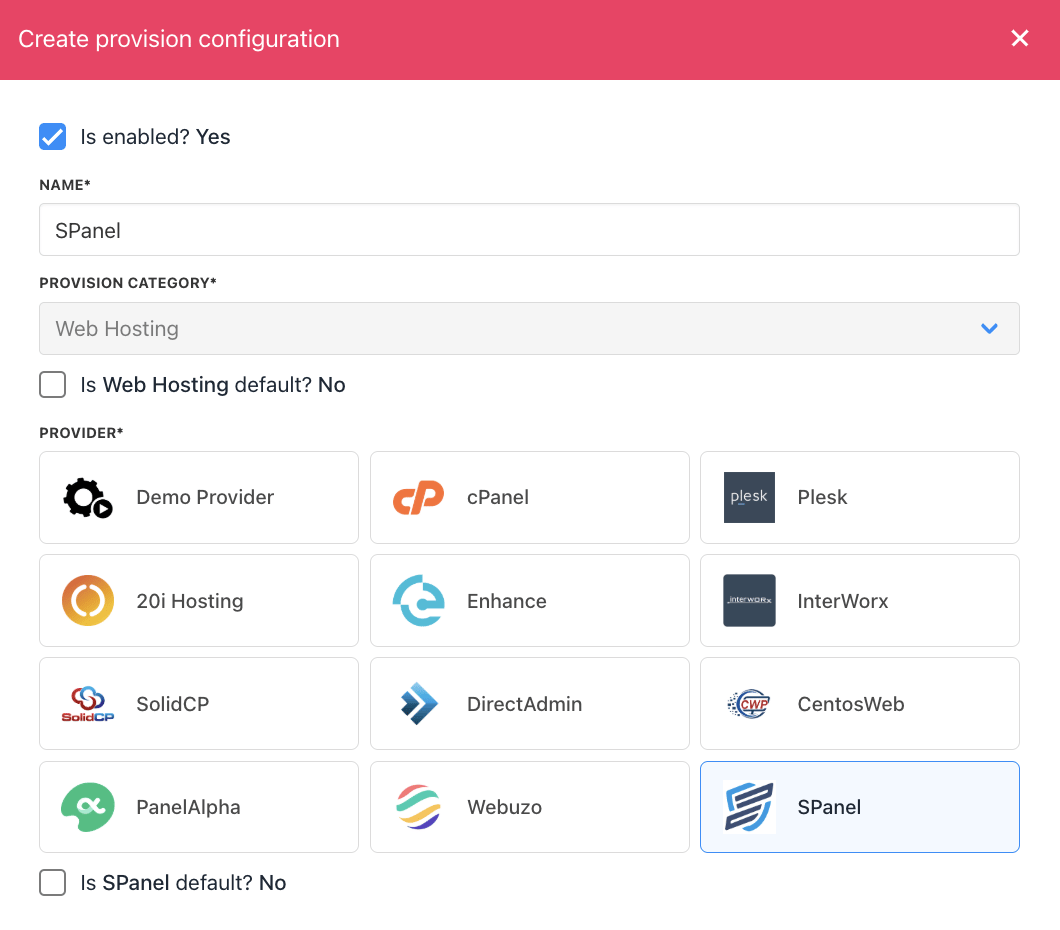
<Frame caption="Choose SPanel">
  <img src="https://mintcdn.com/upmind/6knUVC8F1nK4E5CY/images/fb/c3e18451a4bbd608.png?fit=max&auto=format&n=6knUVC8F1nK4E5CY&q=85&s=fa54e201806ed7f61e2650c0ff1b1509" alt="Choose SPanel" width="1060" height="930" data-path="images/fb/c3e18451a4bbd608.png" />
</Frame>

6. Complete the following details:

* Your server’s **Hostname** and **Username**.

* Paste the **API Token** obtained from **SPanel**.

7. Click **Create**.
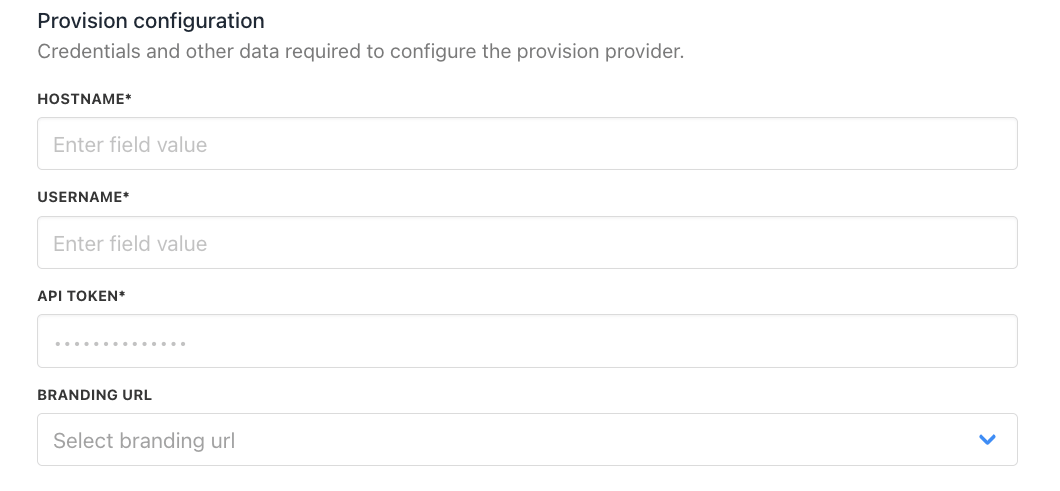
<Frame caption="Enter provision configurations">
  <img src="https://mintcdn.com/upmind/VnCXiz5rboywDnvn/images/fb/d44c22387429ea53.png?fit=max&auto=format&n=VnCXiz5rboywDnvn&q=85&s=2c892705c5ccaa31e4a78c99be3e775b" alt="Enter provision configurations" width="1060" height="491" data-path="images/fb/d44c22387429ea53.png" />
</Frame>

## Setting up SPanel products

Once you have set up your SPanel product, you will need a package identifier to configure it in Upmind.

1. Log in to the SPanel admin dashboard.

2. Navigate to **Accounts Management** > **Packages.**

3. Copy the **package name** you want to use.

4. In Upmind, when creating a product, paste this value as the Package Identifier in the provisioning settings to match the SPanel package you created.
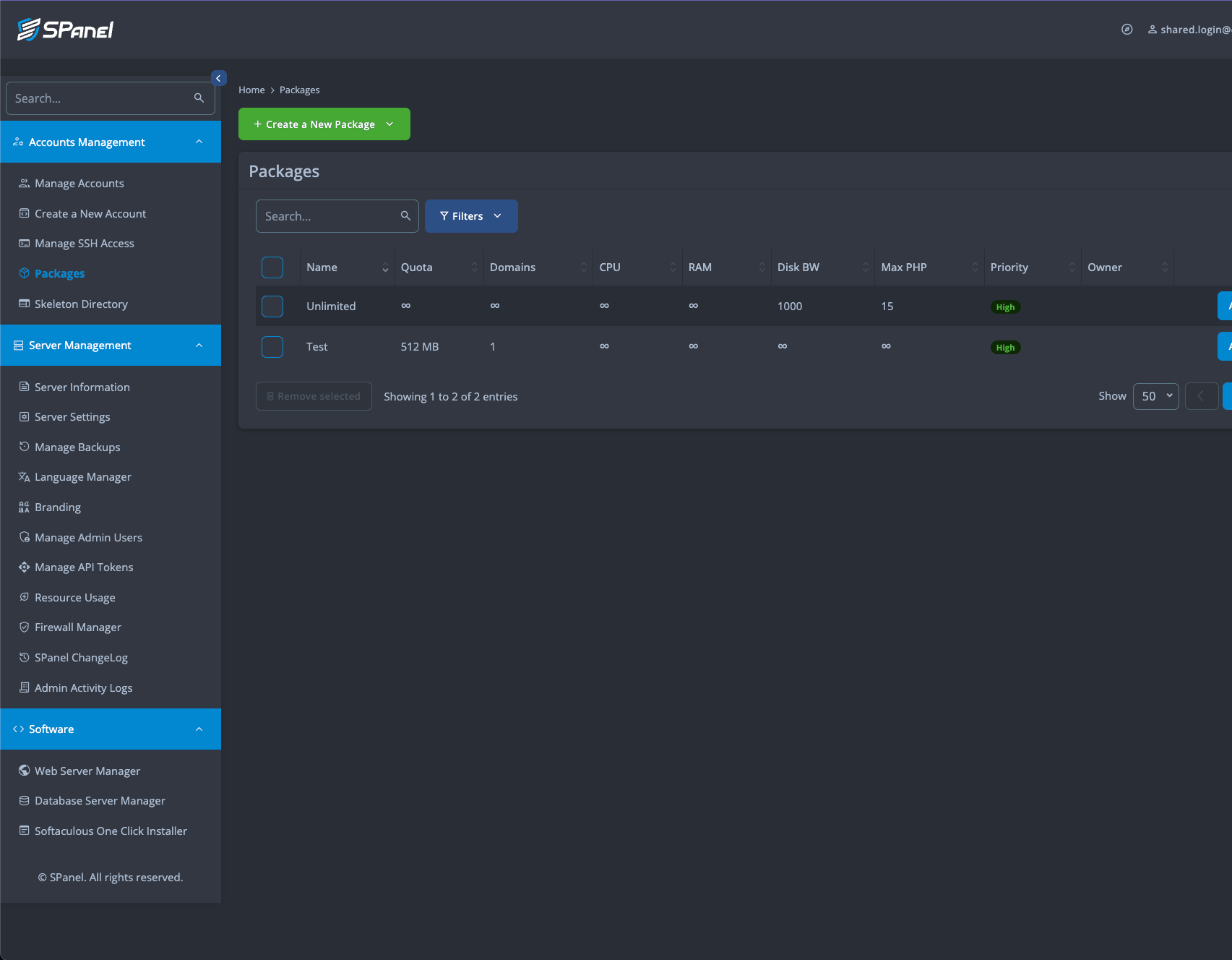
<Frame caption="Account Management > Packages">
  <img src="https://mintcdn.com/upmind/6knUVC8F1nK4E5CY/images/fb/c193e119e86d9458.png?fit=max&auto=format&n=6knUVC8F1nK4E5CY&q=85&s=d28d2b6f5308e0e9f3bda017af3116f1" alt="Account Management > Packages" data-og-width="1705" width="1705" data-og-height="1328" height="1328" data-path="images/fb/c193e119e86d9458.png" data-optimize="true" data-opv="3" srcset="https://mintcdn.com/upmind/6knUVC8F1nK4E5CY/images/fb/c193e119e86d9458.png?w=280&fit=max&auto=format&n=6knUVC8F1nK4E5CY&q=85&s=eb91e45ec7e6453bd55f2e8239db3022 280w, https://mintcdn.com/upmind/6knUVC8F1nK4E5CY/images/fb/c193e119e86d9458.png?w=560&fit=max&auto=format&n=6knUVC8F1nK4E5CY&q=85&s=fae5b49ca8bbbb7368822415c22b0caf 560w, https://mintcdn.com/upmind/6knUVC8F1nK4E5CY/images/fb/c193e119e86d9458.png?w=840&fit=max&auto=format&n=6knUVC8F1nK4E5CY&q=85&s=bef63032f30ebf57918fdfc1f3dcddb6 840w, https://mintcdn.com/upmind/6knUVC8F1nK4E5CY/images/fb/c193e119e86d9458.png?w=1100&fit=max&auto=format&n=6knUVC8F1nK4E5CY&q=85&s=bc65a55cb4b5eb8c3c6f126cfe85e3e4 1100w, https://mintcdn.com/upmind/6knUVC8F1nK4E5CY/images/fb/c193e119e86d9458.png?w=1650&fit=max&auto=format&n=6knUVC8F1nK4E5CY&q=85&s=0d26973537cfa026e6fb276c007072af 1650w, https://mintcdn.com/upmind/6knUVC8F1nK4E5CY/images/fb/c193e119e86d9458.png?w=2500&fit=max&auto=format&n=6knUVC8F1nK4E5CY&q=85&s=3d0bf94dc1af64b1c19cc34c95951511 2500w" />
</Frame>

## Creating SPanel hosting products in Upmind

1. Go to **Host Control** > **Web Hosting** in Upmind.
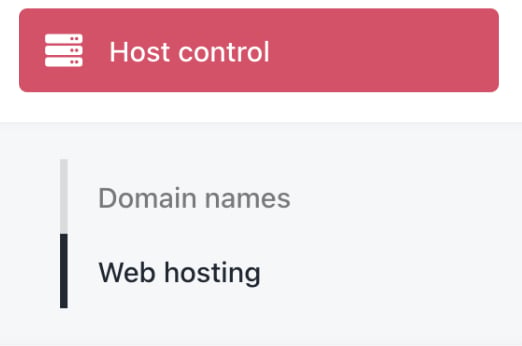
<Frame caption="Host control > Web hosting">
  <img src="https://mintcdn.com/upmind/c5sDUwEs8YpzGbjA/images/fb/96ed2eb73b9d16ae.png?fit=max&auto=format&n=c5sDUwEs8YpzGbjA&q=85&s=a4f767d06b879577425208070e49c5df" alt="Host control > Web hosting" data-og-width="522" width="522" data-og-height="346" height="346" data-path="images/fb/96ed2eb73b9d16ae.png" data-optimize="true" data-opv="3" srcset="https://mintcdn.com/upmind/c5sDUwEs8YpzGbjA/images/fb/96ed2eb73b9d16ae.png?w=280&fit=max&auto=format&n=c5sDUwEs8YpzGbjA&q=85&s=9f40a156041936cda64ce7b080eb9012 280w, https://mintcdn.com/upmind/c5sDUwEs8YpzGbjA/images/fb/96ed2eb73b9d16ae.png?w=560&fit=max&auto=format&n=c5sDUwEs8YpzGbjA&q=85&s=63c40bc5d5b18b08dbe8b89bf9000056 560w, https://mintcdn.com/upmind/c5sDUwEs8YpzGbjA/images/fb/96ed2eb73b9d16ae.png?w=840&fit=max&auto=format&n=c5sDUwEs8YpzGbjA&q=85&s=e9c424b8aca57a38ea8af8fbbee213e8 840w, https://mintcdn.com/upmind/c5sDUwEs8YpzGbjA/images/fb/96ed2eb73b9d16ae.png?w=1100&fit=max&auto=format&n=c5sDUwEs8YpzGbjA&q=85&s=d1320ea8b58a64cbc8dccc1e4ef1ce29 1100w, https://mintcdn.com/upmind/c5sDUwEs8YpzGbjA/images/fb/96ed2eb73b9d16ae.png?w=1650&fit=max&auto=format&n=c5sDUwEs8YpzGbjA&q=85&s=acc9ef746b6ee80a41b21c86546604a1 1650w, https://mintcdn.com/upmind/c5sDUwEs8YpzGbjA/images/fb/96ed2eb73b9d16ae.png?w=2500&fit=max&auto=format&n=c5sDUwEs8YpzGbjA&q=85&s=8fbccd4fb3d57e22e1d46dd53f78dac3 2500w" />
</Frame>

2. Click **Add New**.

<Frame caption="Add new">
  <img src="https://mintcdn.com/upmind/JUoAg6onJmXk_-rR/images/fb/dea5aff1bc61b24b.png?fit=max&auto=format&n=JUoAg6onJmXk_-rR&q=85&s=042e9b3ca3c2ed172df06ad5ee223848" alt="Add new" width="1672" height="242" data-path="images/fb/dea5aff1bc61b24b.png" />
</Frame>

3. Choose a category and fill in the details. Then click **Create**.
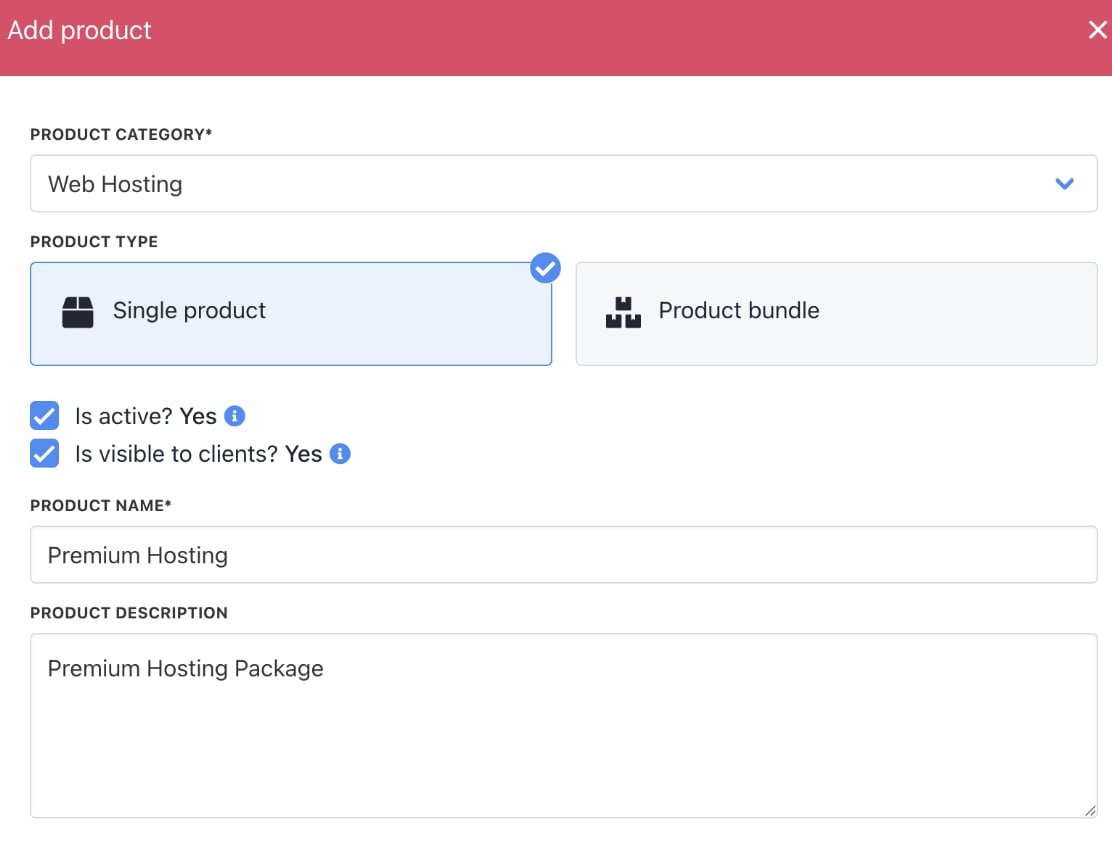
<Frame caption="Fill in product details">
  <img src="https://mintcdn.com/upmind/1xguIfYUrfespmVI/images/fb/7d6c86aa497c620c.png?fit=max&auto=format&n=1xguIfYUrfespmVI&q=85&s=cd3552b370f059281689ebb3c63eebce" alt="Fill in product details" width="1112" height="842" data-path="images/fb/7d6c86aa497c620c.png" />
</Frame>

4. On **Provisioning**, set the **Provision Provider** to **SPanel**.

5. Choose the **Configuration Mode** and **Provider Configuration**.
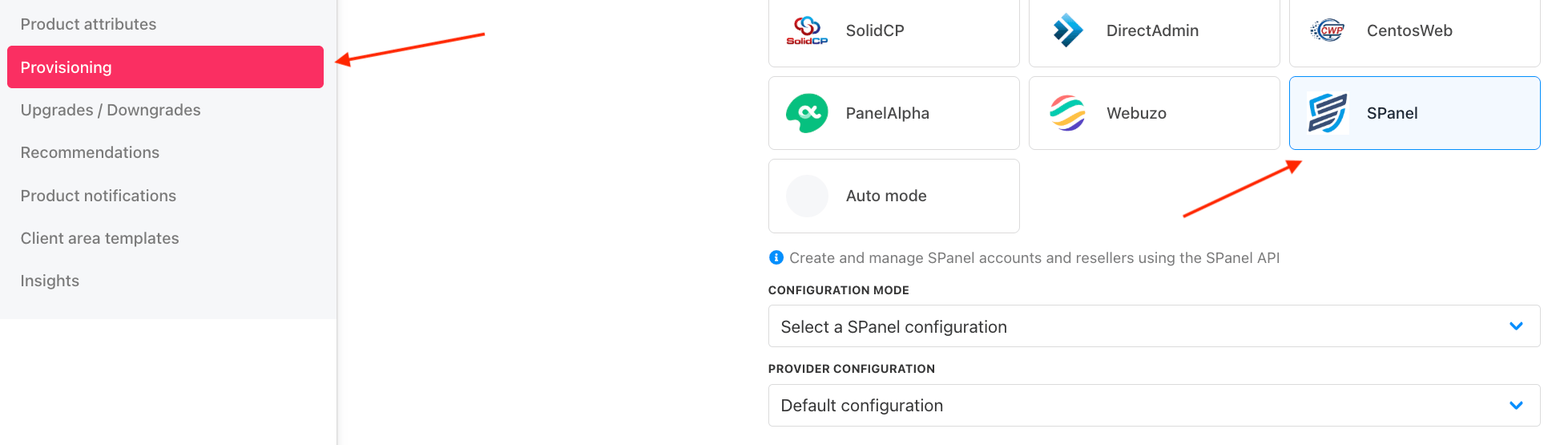
<Frame caption="Set provision provider">
  <img src="https://mintcdn.com/upmind/z5ofg3t7by4uN44v/images/fb/ee6624c327a81ecb.png?fit=max&auto=format&n=z5ofg3t7by4uN44v&q=85&s=758fe30c9d2316ca9b85dcf1ffd83e8a" alt="Set provision provider" width="1957" height="555" data-path="images/fb/ee6624c327a81ecb.png" />
</Frame>

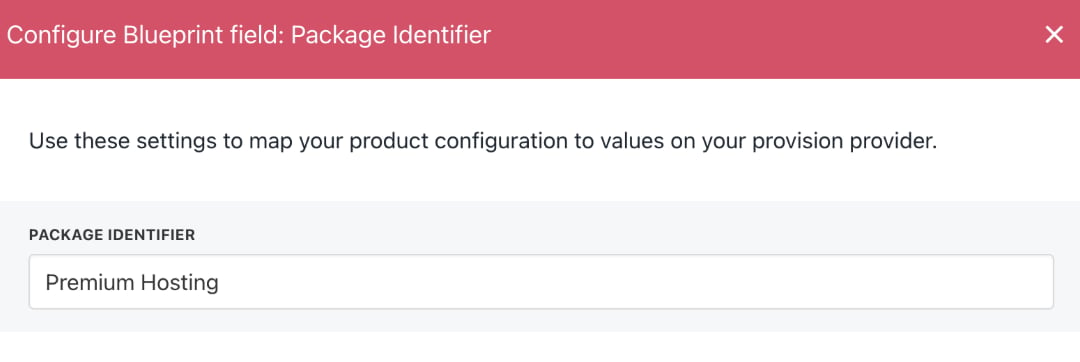
6. Enter the **Package Identifier** exactly as it appears in **SPanel** (matching the package name).

7. Complete other product details like name, pricing, billing cycle, and permissions.
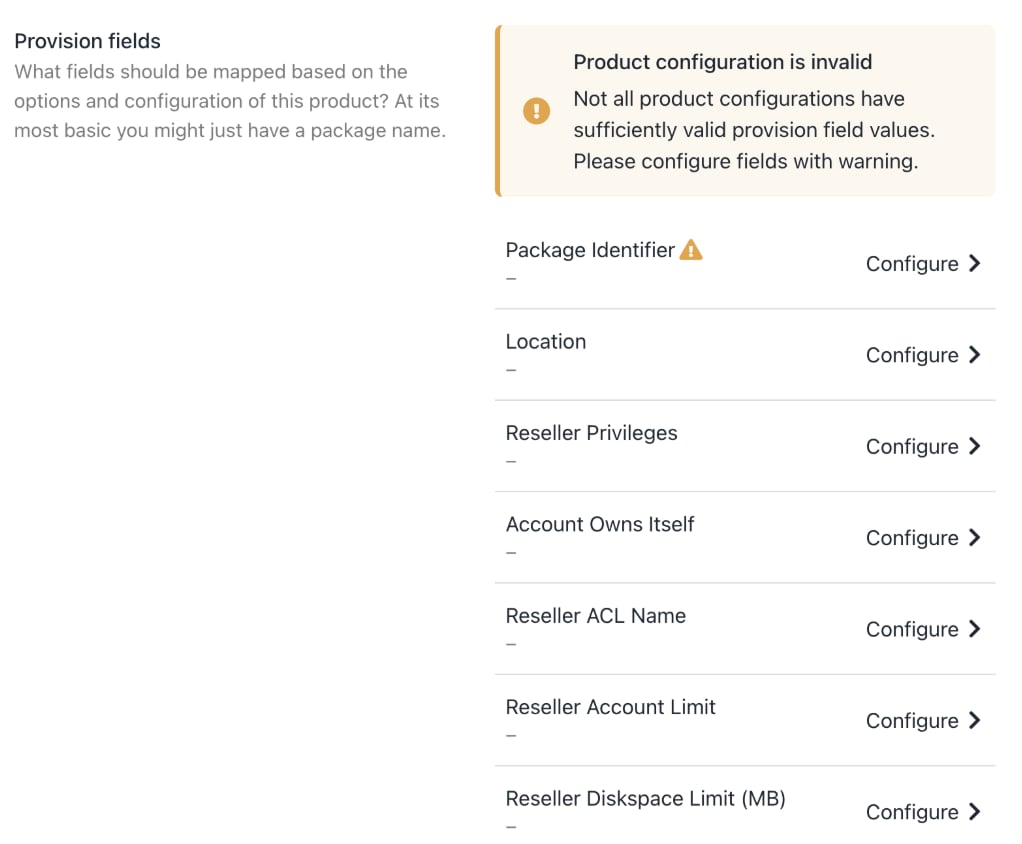
<Frame caption="Complete other product details">
  <img src="https://mintcdn.com/upmind/bPO2bBzOxYQR4tYr/images/fb/fdb109a246b37367.png?fit=max&auto=format&n=bPO2bBzOxYQR4tYr&q=85&s=d61a02c004ff6c0b9698ba19e3f36005" alt="Complete other product details" width="1022" height="844" data-path="images/fb/fdb109a246b37367.png" />
</Frame>

<Frame caption="Enter package identifier">
  <img src="https://mintcdn.com/upmind/pcUdSuxUJ6LgBXnd/images/fb/a105d1c6bd0b0a6d.png?fit=max&auto=format&n=pcUdSuxUJ6LgBXnd&q=85&s=ef9a5fb86e54442a0e1c95e685a2a892" alt="Enter package identifier" width="1080" height="362" data-path="images/fb/a105d1c6bd0b0a6d.png" />
</Frame>

8. **Save** the product.

<Note>
  **Debugging 404 Errors:** If SPanel is configured with a custom branding "Login URL", change the provision configuration (Host Control > SPanel) "Branding URL" to either **/spanel** or **/hostpanel** as appropriate.
</Note>