> ## Documentation Index
> Fetch the complete documentation index at: https://docs.upmind.com/llms.txt
> Use this file to discover all available pages before exploring further.

# How to sell Plesk hosting

> Configure and sell Plesk hosting products with Upmind.

## What you will need

### Plesk Authentication Options

Upmind connects to Plesk using the Plesk API. You can either use your Plesk **username** and **password** or you can generate a secret key by following [their documentation](https://docs.plesk.com/en-US/obsidian/api-rpc/about-rest-api.79359/#http-method).

## Create a provision configuration

### Linking Plesk to Upmind

In Upmind, you should add Plesk as a provision configuration. You can either do this

* On the sidebar, click **Host Control** > **Web Servers**> **Add New.** You can also select it from below.
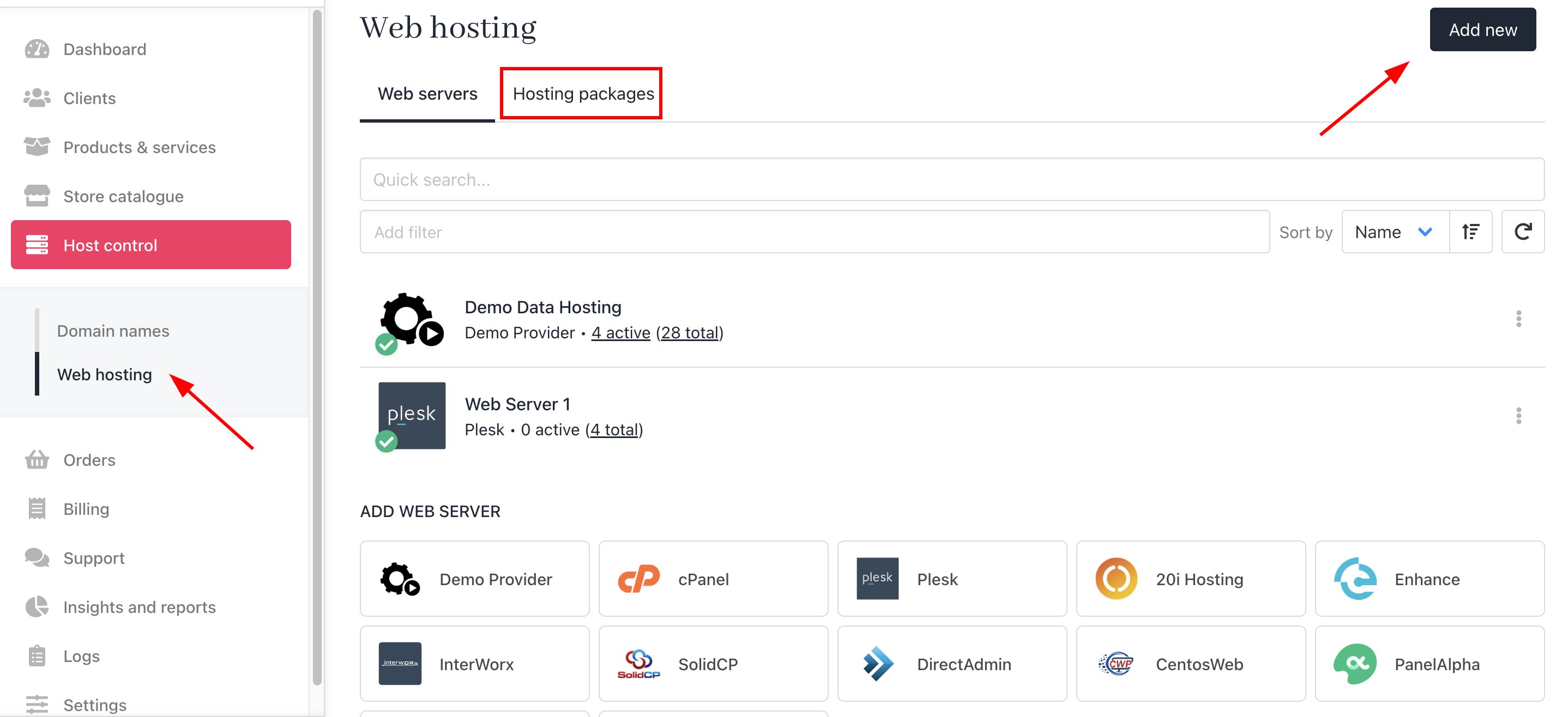
<Frame caption="Host Control > Web Servers> Add New">
  <img src="https://mintcdn.com/upmind/VnCXiz5rboywDnvn/images/fb/d2efb4029b06af60.png?fit=max&auto=format&n=VnCXiz5rboywDnvn&q=85&s=cc798b0ac5b93f32aba0506b94356083" alt="Host Control > Web Servers> Add New" data-og-width="2876" width="2876" data-og-height="1316" height="1316" data-path="images/fb/d2efb4029b06af60.png" data-optimize="true" data-opv="3" srcset="https://mintcdn.com/upmind/VnCXiz5rboywDnvn/images/fb/d2efb4029b06af60.png?w=280&fit=max&auto=format&n=VnCXiz5rboywDnvn&q=85&s=09b8548850484a1b27900a614006b3b9 280w, https://mintcdn.com/upmind/VnCXiz5rboywDnvn/images/fb/d2efb4029b06af60.png?w=560&fit=max&auto=format&n=VnCXiz5rboywDnvn&q=85&s=d02937eef6bf3bb1608c8d37ede4c997 560w, https://mintcdn.com/upmind/VnCXiz5rboywDnvn/images/fb/d2efb4029b06af60.png?w=840&fit=max&auto=format&n=VnCXiz5rboywDnvn&q=85&s=0834f93efcb490f0a572f2c65ac5badc 840w, https://mintcdn.com/upmind/VnCXiz5rboywDnvn/images/fb/d2efb4029b06af60.png?w=1100&fit=max&auto=format&n=VnCXiz5rboywDnvn&q=85&s=925d88c7ded4021e20ef21b166c945be 1100w, https://mintcdn.com/upmind/VnCXiz5rboywDnvn/images/fb/d2efb4029b06af60.png?w=1650&fit=max&auto=format&n=VnCXiz5rboywDnvn&q=85&s=285243e02159ac259aea3d88b305732d 1650w, https://mintcdn.com/upmind/VnCXiz5rboywDnvn/images/fb/d2efb4029b06af60.png?w=2500&fit=max&auto=format&n=VnCXiz5rboywDnvn&q=85&s=d73046cacd944239e928dfc9202ca2f2 2500w" />
</Frame>

* On the sidebar, go to **Settings** > **Provision Configurations** > **Add New Configuration.**
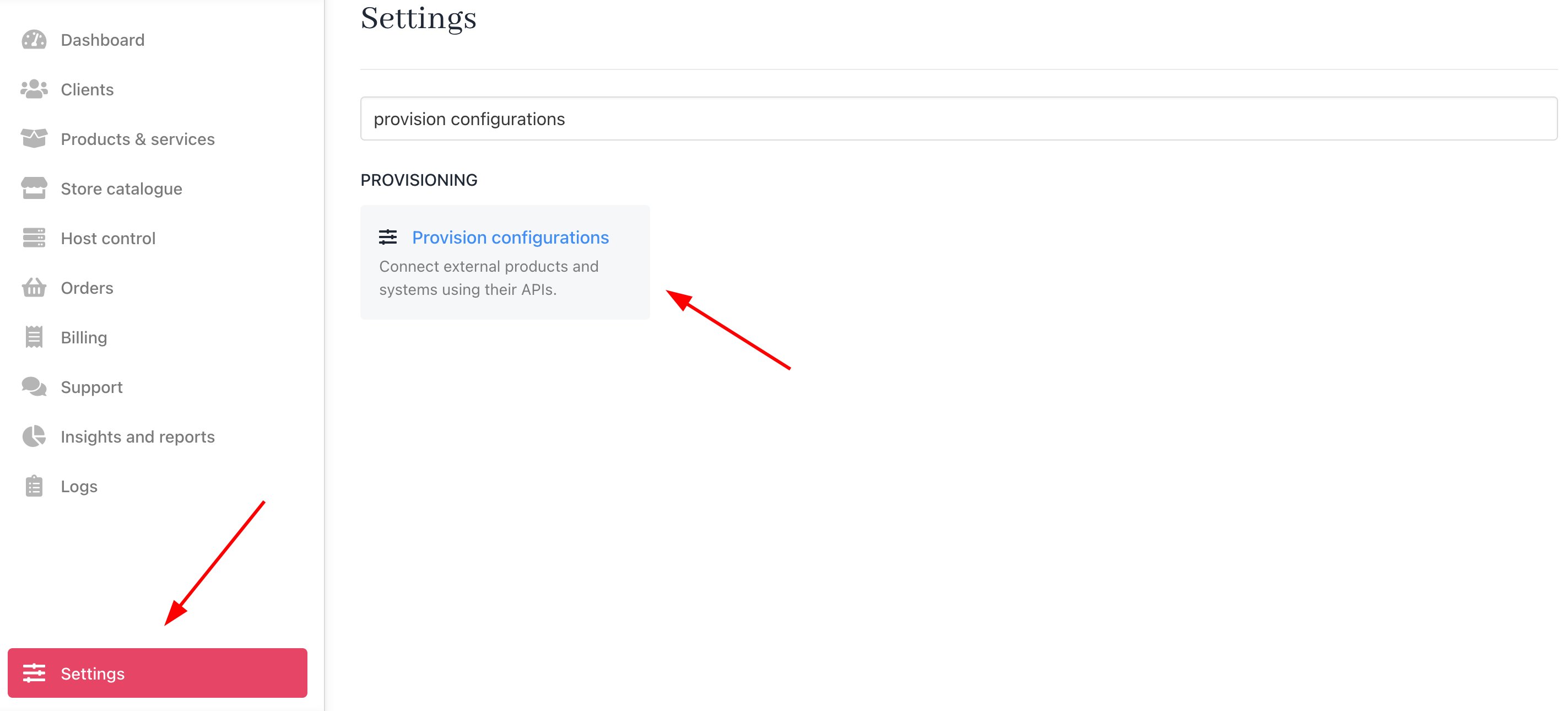
<Frame caption="Settings > Provision Configurations > Add New Configuration">
  <img src="https://mintcdn.com/upmind/ObllJJl59DabnmMn/images/fb/cd7e1163d18455b6.png?fit=max&auto=format&n=ObllJJl59DabnmMn&q=85&s=c8eac729ecbb5d70aa446672cd31dbe2" alt="Settings > Provision Configurations > Add New Configuration" data-og-width="2846" width="2846" data-og-height="1290" height="1290" data-path="images/fb/cd7e1163d18455b6.png" data-optimize="true" data-opv="3" srcset="https://mintcdn.com/upmind/ObllJJl59DabnmMn/images/fb/cd7e1163d18455b6.png?w=280&fit=max&auto=format&n=ObllJJl59DabnmMn&q=85&s=4d6ed85df8172791f6adf751cf1f739e 280w, https://mintcdn.com/upmind/ObllJJl59DabnmMn/images/fb/cd7e1163d18455b6.png?w=560&fit=max&auto=format&n=ObllJJl59DabnmMn&q=85&s=283ccf08b742c0a9356d3db027f5a20a 560w, https://mintcdn.com/upmind/ObllJJl59DabnmMn/images/fb/cd7e1163d18455b6.png?w=840&fit=max&auto=format&n=ObllJJl59DabnmMn&q=85&s=6e07068bfa9833ee82176923fa912f90 840w, https://mintcdn.com/upmind/ObllJJl59DabnmMn/images/fb/cd7e1163d18455b6.png?w=1100&fit=max&auto=format&n=ObllJJl59DabnmMn&q=85&s=bc916bd79a4968ac12a2b31b2c3bf4f1 1100w, https://mintcdn.com/upmind/ObllJJl59DabnmMn/images/fb/cd7e1163d18455b6.png?w=1650&fit=max&auto=format&n=ObllJJl59DabnmMn&q=85&s=02fbb87e06cd2b41e9a17aa30d3f5e11 1650w, https://mintcdn.com/upmind/ObllJJl59DabnmMn/images/fb/cd7e1163d18455b6.png?w=2500&fit=max&auto=format&n=ObllJJl59DabnmMn&q=85&s=264c4fee021027116e1ffc2e3ad69856 2500w" />
</Frame>

You should fill it out as follows:

1. Enter a server name. You may just want to use the Plesk control server name or give it a more familiar name.

2. Under the Provision Category of **Web Hosting**, choose Plesk as the hosting panel type.
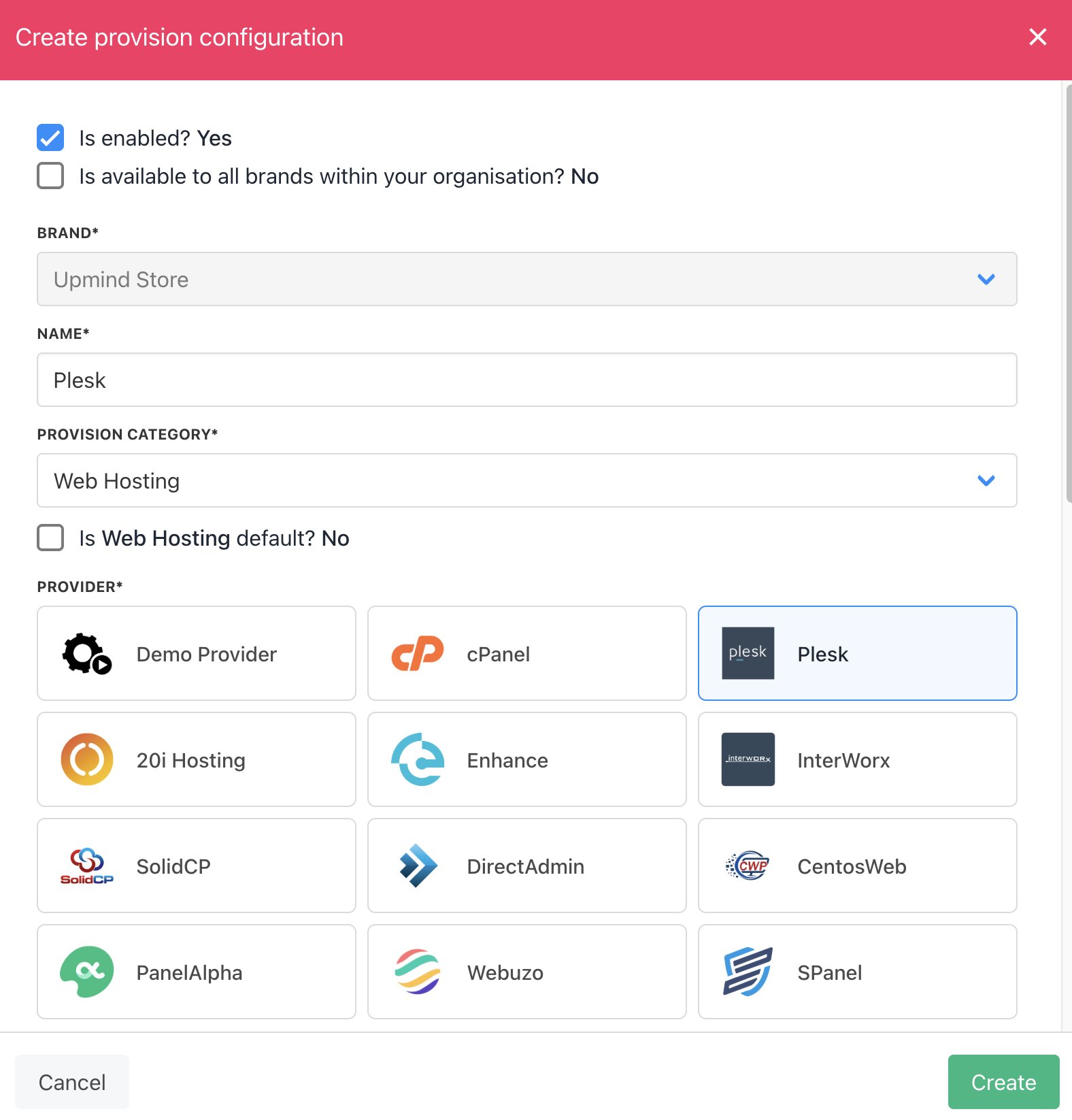
<Frame caption="Enter name">
  <img src="https://mintcdn.com/upmind/h8h5zREaX7k8Y-3x/images/fb/14f105668c89aa4a.png?fit=max&auto=format&n=h8h5zREaX7k8Y-3x&q=85&s=41611df02b5548ad2eb91bd2971d8a8a" alt="Enter name" width="1576" height="1646" data-path="images/fb/14f105668c89aa4a.png" />
</Frame>

3. Enter your **Hostname**, **Admin Username,** **Admin Password**, and **Secret Key**.

4. Click **Create**.
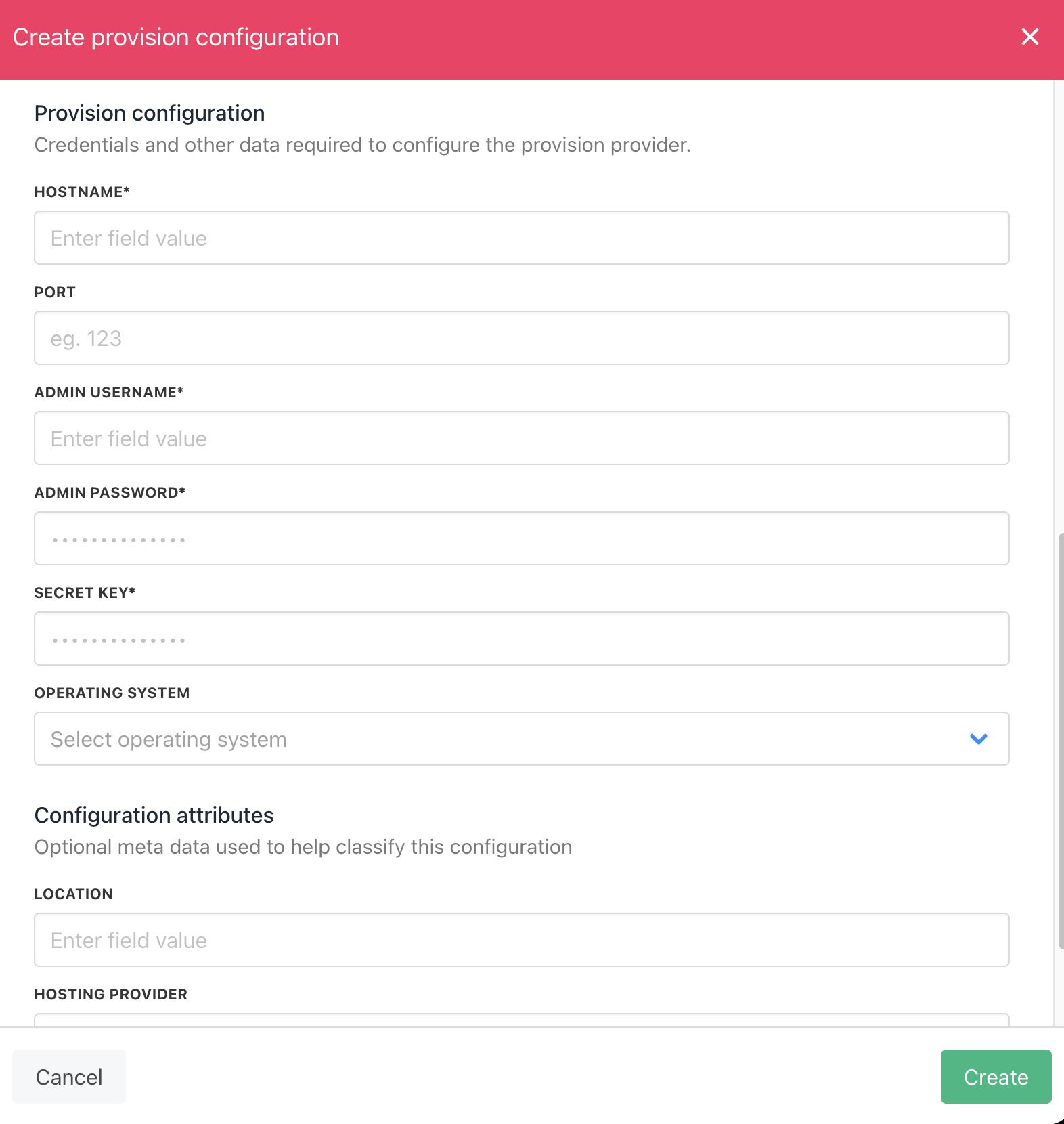
<Frame caption="Enter details">
  <img src="https://mintcdn.com/upmind/ObllJJl59DabnmMn/images/fb/cfdd387893e4f9e3.png?fit=max&auto=format&n=ObllJJl59DabnmMn&q=85&s=ecd6c7fb3a1edb290fe26cae7b2a4a5d" alt="Enter details" width="1572" height="1660" data-path="images/fb/cfdd387893e4f9e3.png" />
</Frame>

### Creating packages

Plesk calls packages **Service Plans**. You need to add a Service Plan in Plesk and add this as your service identifier in Upmind.
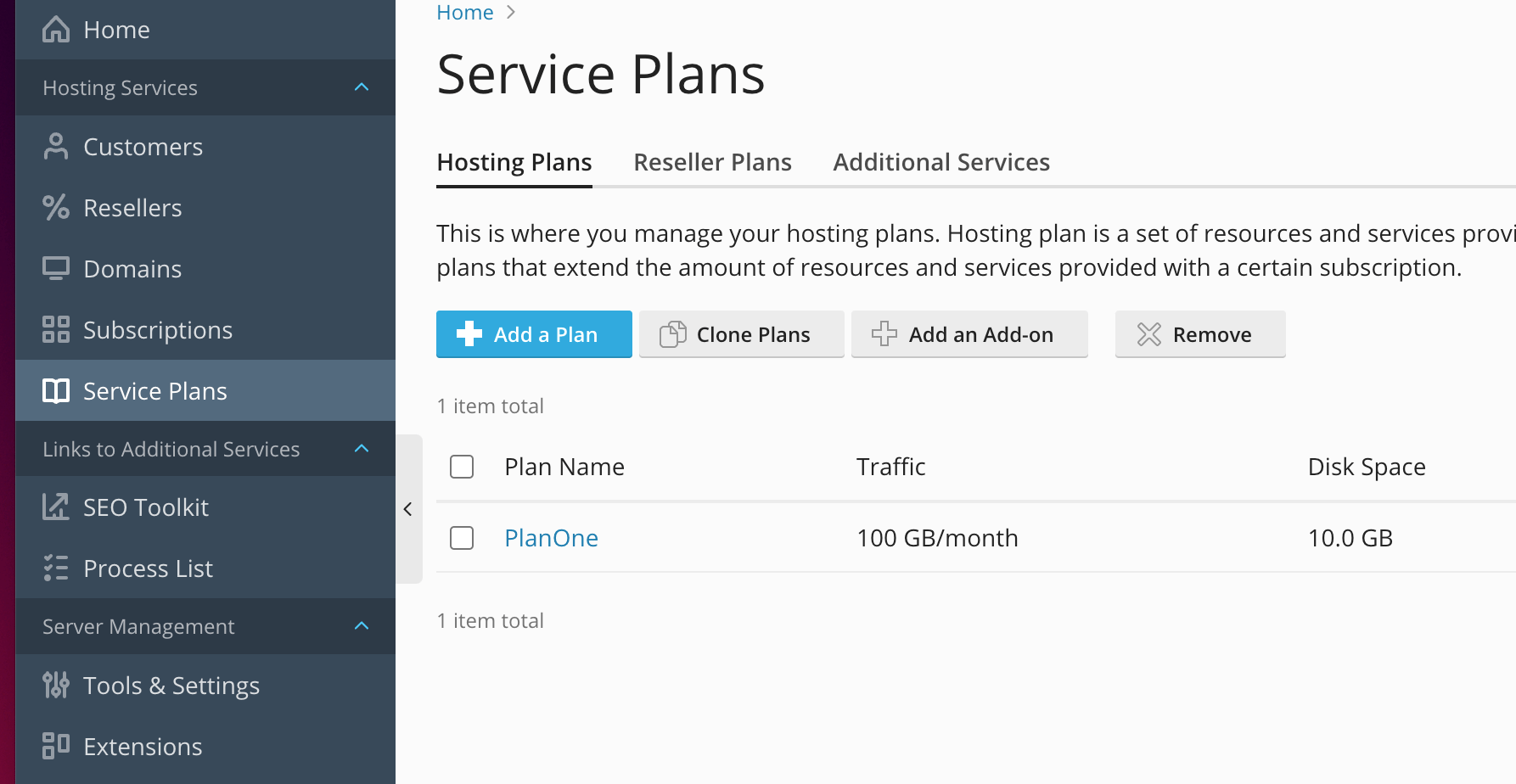
<Frame caption="The service plan name here is &#x22;PlanOne&#x22;">
  <img src="https://mintcdn.com/upmind/ZsIo0APxdVb_gFS-/images/fb/265dce55fdda70f4.png?fit=max&auto=format&n=ZsIo0APxdVb_gFS-&q=85&s=e6ced9aeb8247605ac63fffaf9fb5df5" alt="The service plan name here is 'PlanOne'" width="1786" height="924" data-path="images/fb/265dce55fdda70f4.png" />
</Frame>

### Configure Upmind products

In your Upmind admin area, under **Host control** > **Web hosting,** click on the **Hosting packages** tab and click the **Add new** button to start configuring a new hosting package.
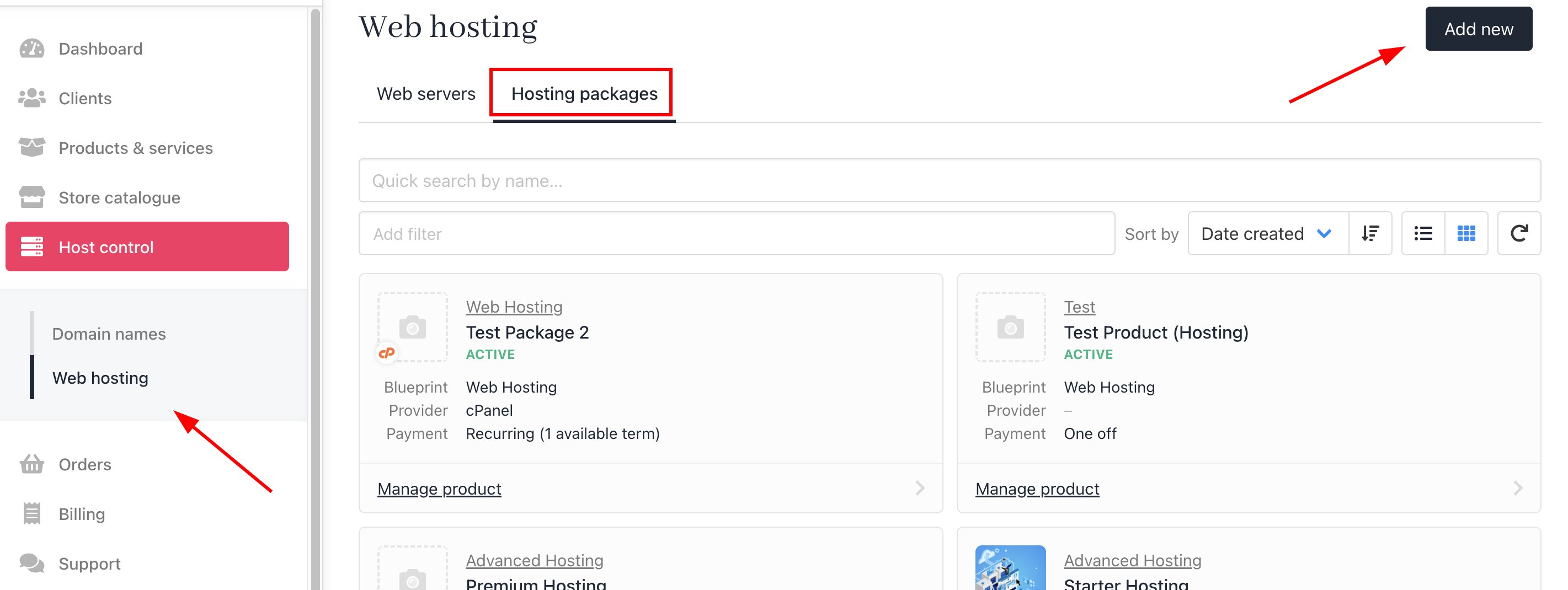
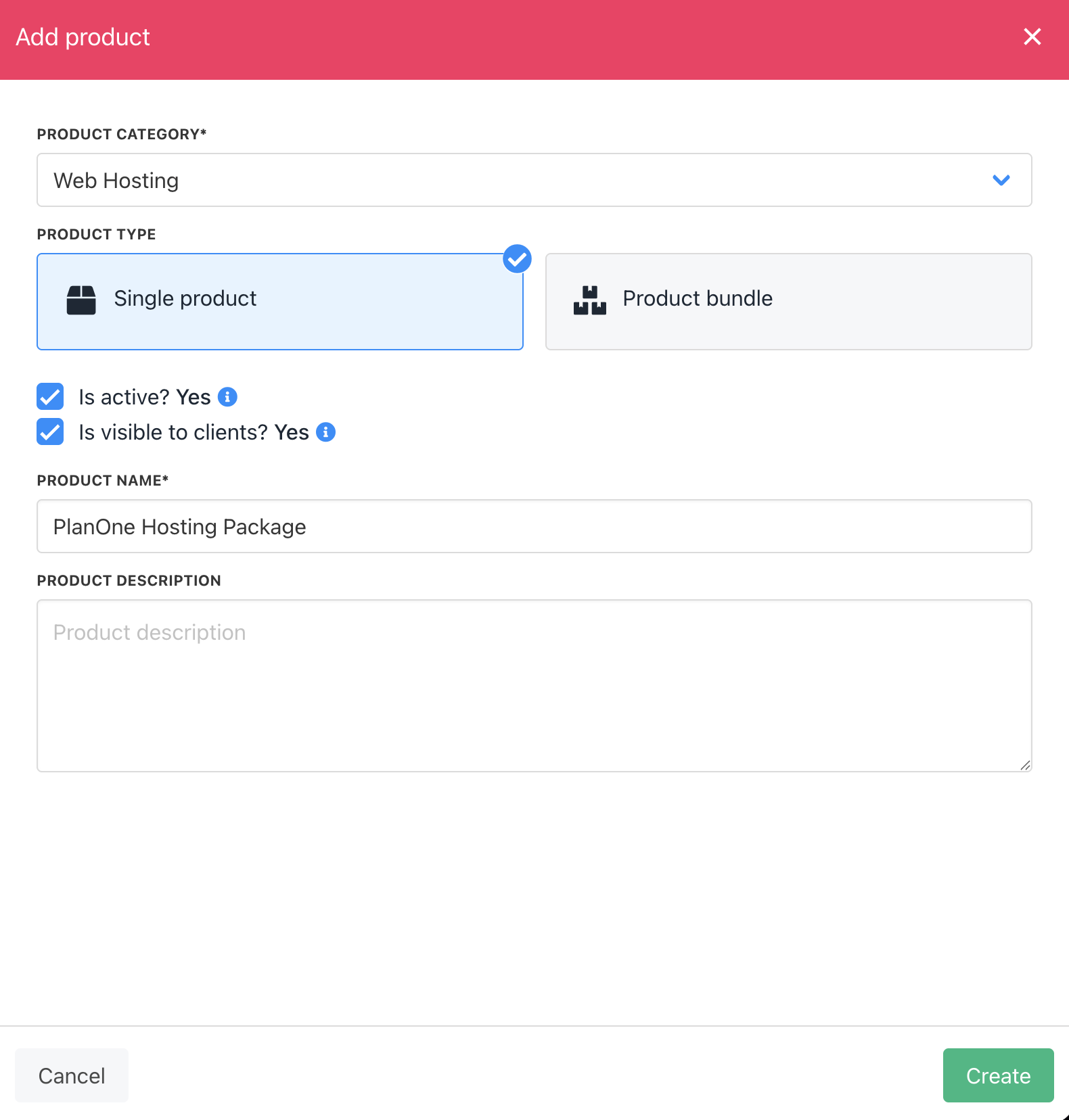
<Frame caption="Host control > Web hosting > Add new">
  <img src="https://mintcdn.com/upmind/JUoAg6onJmXk_-rR/images/fb/e20df2330c0c55cf.png?fit=max&auto=format&n=JUoAg6onJmXk_-rR&q=85&s=b758fcba12ae521c71dc0577e06422df" alt="Host control > Web hosting > Add new" data-og-width="2842" width="2842" data-og-height="1070" height="1070" data-path="images/fb/e20df2330c0c55cf.png" data-optimize="true" data-opv="3" srcset="https://mintcdn.com/upmind/JUoAg6onJmXk_-rR/images/fb/e20df2330c0c55cf.png?w=280&fit=max&auto=format&n=JUoAg6onJmXk_-rR&q=85&s=f51370796870da2b4f8425bc99805fa1 280w, https://mintcdn.com/upmind/JUoAg6onJmXk_-rR/images/fb/e20df2330c0c55cf.png?w=560&fit=max&auto=format&n=JUoAg6onJmXk_-rR&q=85&s=31bf7c952f843bed329771d7def44ec5 560w, https://mintcdn.com/upmind/JUoAg6onJmXk_-rR/images/fb/e20df2330c0c55cf.png?w=840&fit=max&auto=format&n=JUoAg6onJmXk_-rR&q=85&s=c83a90ee5e7c41b26fa8aa944498aac6 840w, https://mintcdn.com/upmind/JUoAg6onJmXk_-rR/images/fb/e20df2330c0c55cf.png?w=1100&fit=max&auto=format&n=JUoAg6onJmXk_-rR&q=85&s=68bce7f67a71651f353df5e103a2fbdb 1100w, https://mintcdn.com/upmind/JUoAg6onJmXk_-rR/images/fb/e20df2330c0c55cf.png?w=1650&fit=max&auto=format&n=JUoAg6onJmXk_-rR&q=85&s=d17513ebf991315cecdd154d7a9f1da4 1650w, https://mintcdn.com/upmind/JUoAg6onJmXk_-rR/images/fb/e20df2330c0c55cf.png?w=2500&fit=max&auto=format&n=JUoAg6onJmXk_-rR&q=85&s=b6ca4b6724d784574b64c343205c4d12 2500w" />
</Frame>

<Frame caption="Create package">
  <img src="https://mintcdn.com/upmind/1xguIfYUrfespmVI/images/fb/7fa0e885a49e0476.png?fit=max&auto=format&n=1xguIfYUrfespmVI&q=85&s=2bc4d895f6006d3dd665bd9a44164e52" alt="Create package" width="1580" height="1656" data-path="images/fb/7fa0e885a49e0476.png" />
</Frame>

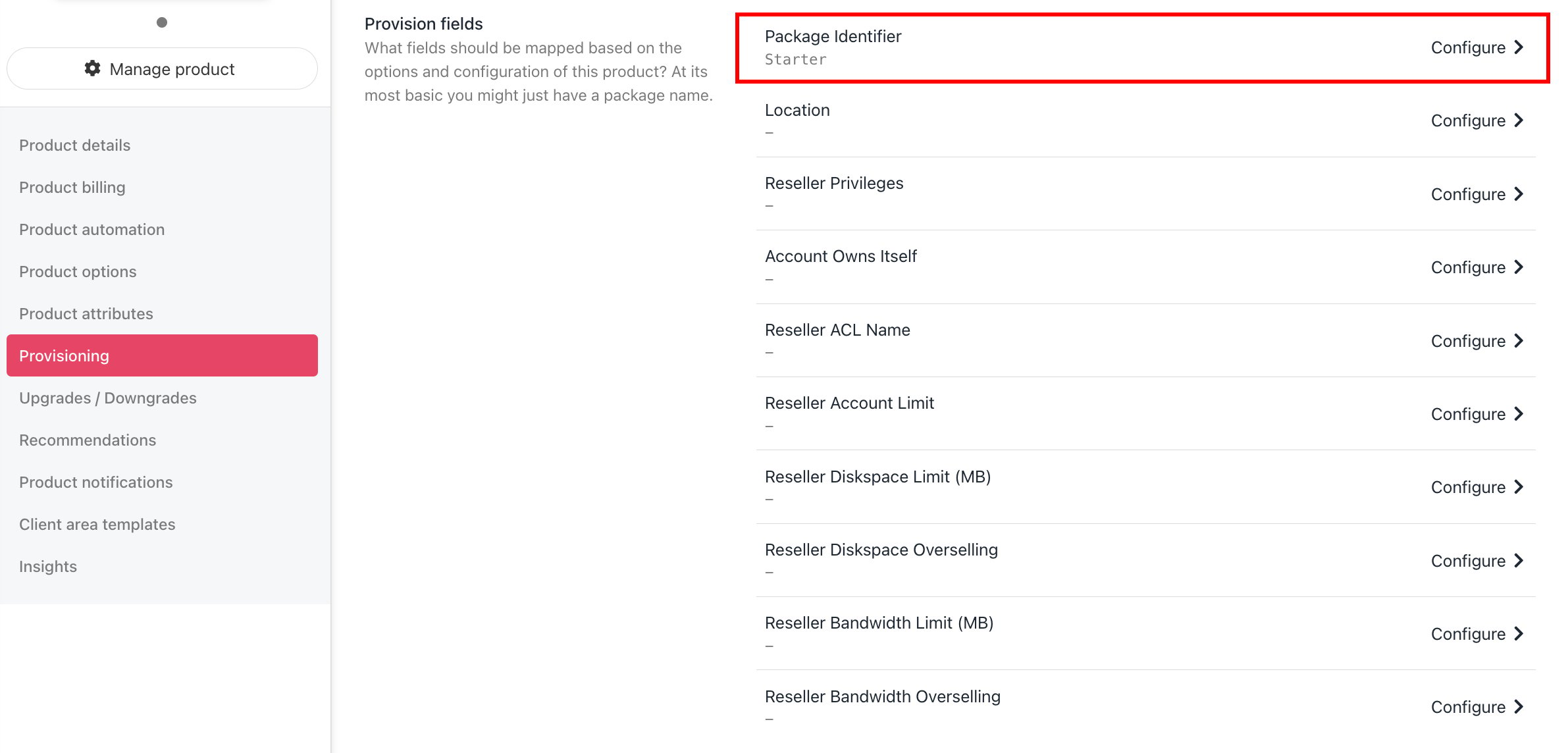
Now go to the product's Provisioning page and set the **Provision provider** to Plesk, and set the **Package Identifier** provision field to match your Plesk package **name** or **ID**.
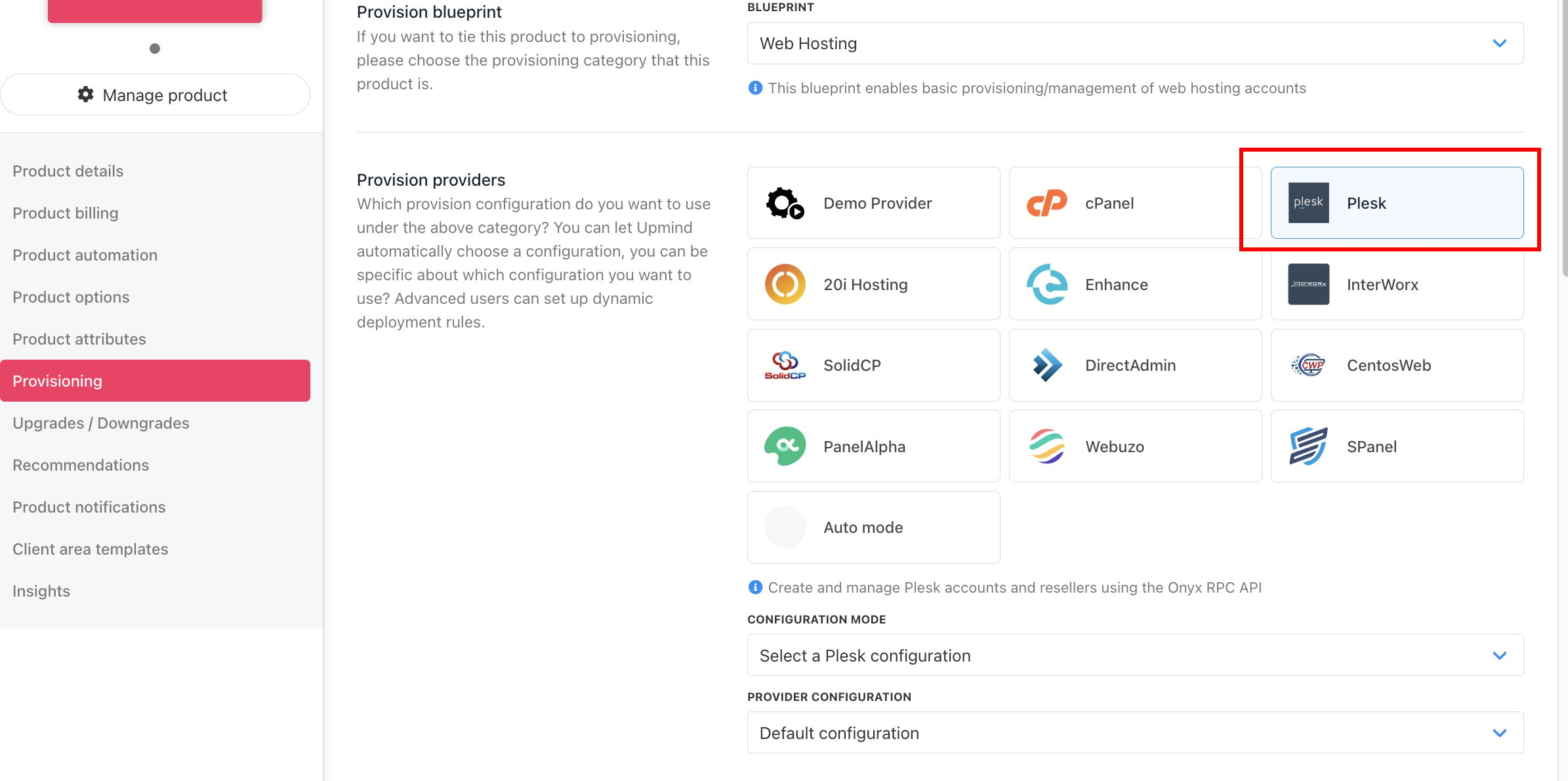
<Frame caption="Set provision provider">
  <img src="https://mintcdn.com/upmind/kXD0Ya8PpcxxNm6Q/images/fb/3e56766a0779b309.png?fit=max&auto=format&n=kXD0Ya8PpcxxNm6Q&q=85&s=88ca89160dd35f97a613f1551ee8f31c" alt="Set provision provider" width="2390" height="1190" data-path="images/fb/3e56766a0779b309.png" />
</Frame>

<Frame caption="Set package identifier">
  <img src="https://mintcdn.com/upmind/Lh8hC132BWHpvRbz/images/fb/4d56339fb208897e.png?fit=max&auto=format&n=Lh8hC132BWHpvRbz&q=85&s=1b8ce7100cf3e90e090e5bee079bcaec" alt="Set package identifier" width="2382" height="1144" data-path="images/fb/4d56339fb208897e.png" />
</Frame>

Package identifier must match the package name.

At this point, your Plesk product provisioning is all set up and ready to go. For more information on setting up and selling hosting products in Upmind, refer to our first step and [Web Hosting Quick Start](/for-web-hosts/quick-start-guide-for-hosting-companies-or-resellers) guides.

### Auto-Login

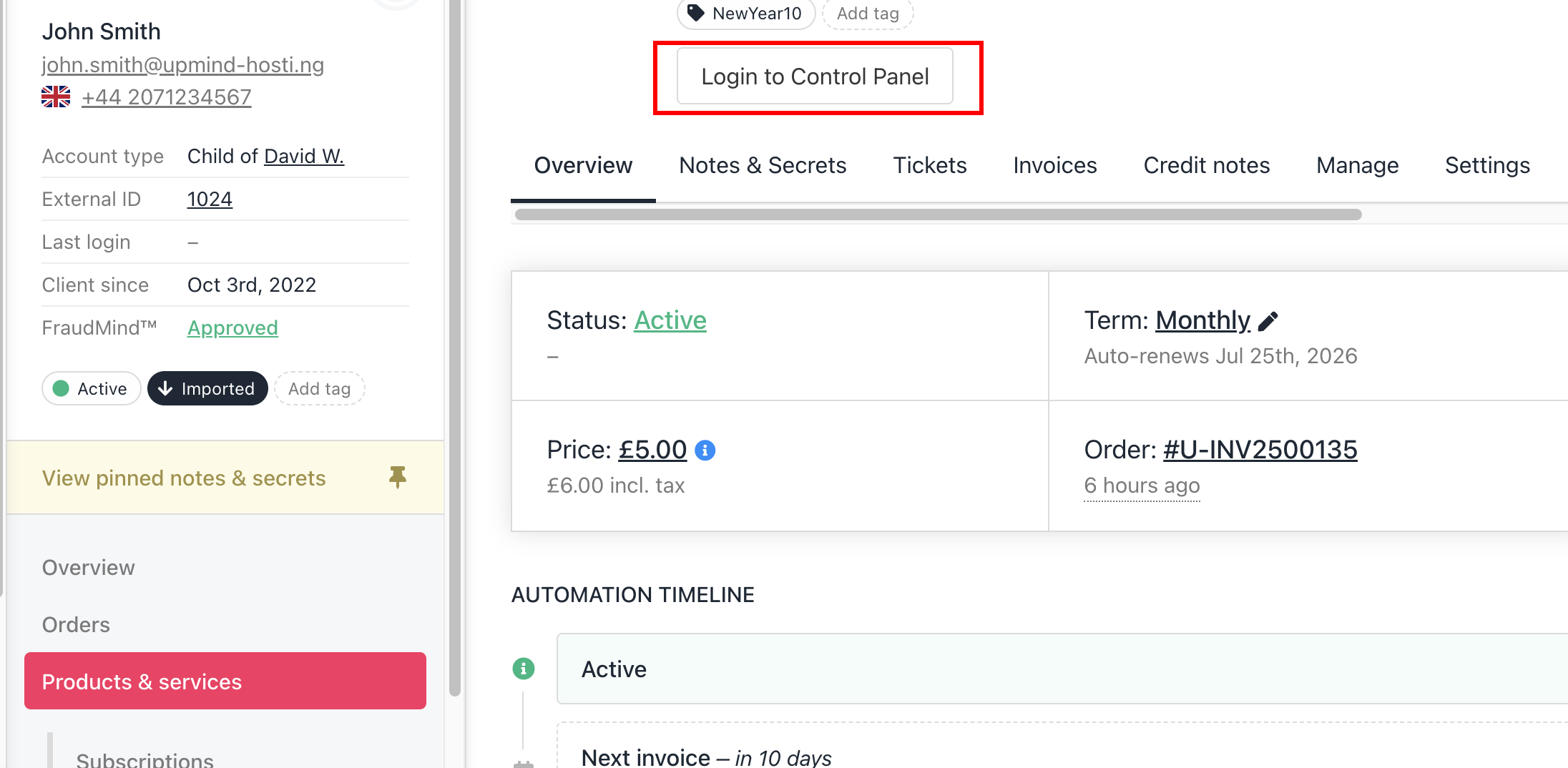
Plesk supports auto-login. When you or your client clicks **Login to Control Panel** when requesting an SSO link that is tied to the IP you request it with. You are then automatically redirected and logged into Plesk.
<Frame caption="Login to Control Panel">
  <img src="https://mintcdn.com/upmind/kAlrCUxI2nwYz4_i/images/fb/206d8b3b400ac47f.png?fit=max&auto=format&n=kAlrCUxI2nwYz4_i&q=85&s=76959c65d8acb0fd5ca441b6ea10d2bf" alt="Login to Control Panel" width="2192" height="1074" data-path="images/fb/206d8b3b400ac47f.png" />
</Frame>
