> ## Documentation Index
> Fetch the complete documentation index at: https://docs.upmind.com/llms.txt
> Use this file to discover all available pages before exploring further.
# How to sell 20i & StackCP hosting
> Configure and sell 20i and StackCP hosting products with Upmind.
[20i](https://20i.co.uk) is a UK web hosting provider that has built its own web hosting panel. This hosting panel is known as StackCP.
## Getting your 20i credentials
1. Log in to your 20i/StackCP Account.
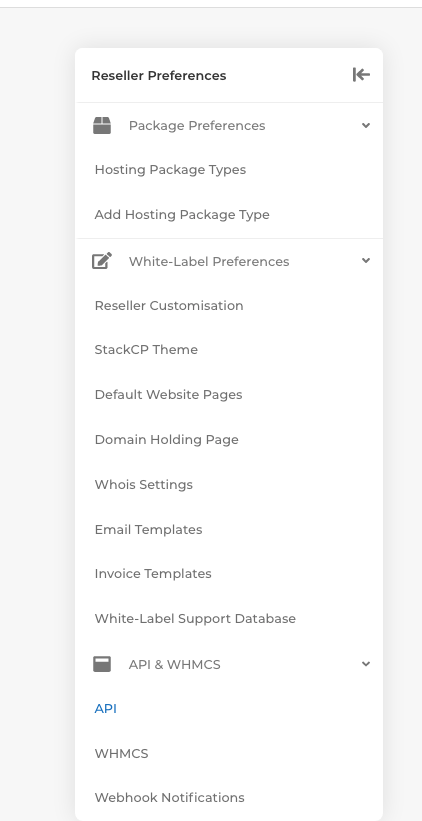
 2. Navigate to [https://my.20i.com/reseller/api](https://my.20i.com/reseller/api) and generate an **API key**. You should copy the **general API key**. Take a copy of this key.
You can find the API option on the left-hand side menu under Reseller preferences
2. Navigate to [https://my.20i.com/reseller/api](https://my.20i.com/reseller/api) and generate an **API key**. You should copy the **general API key**. Take a copy of this key.
You can find the API option on the left-hand side menu under Reseller preferences
 3. You will need to generate at least one hosting package type. In this example, we have created a package **Gold**.
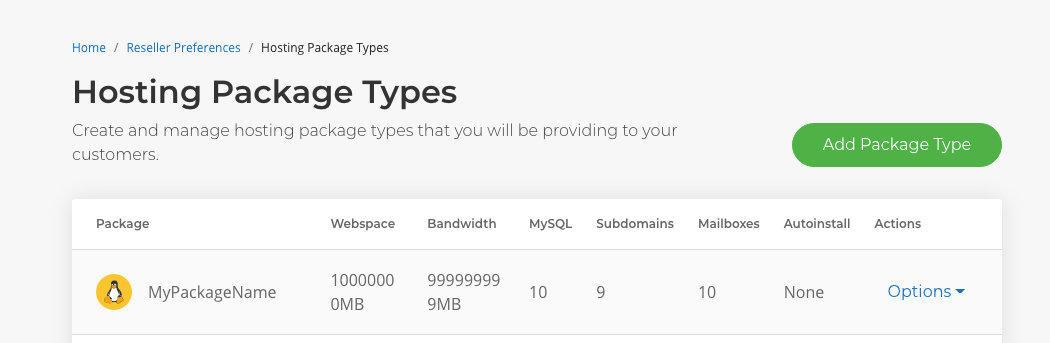
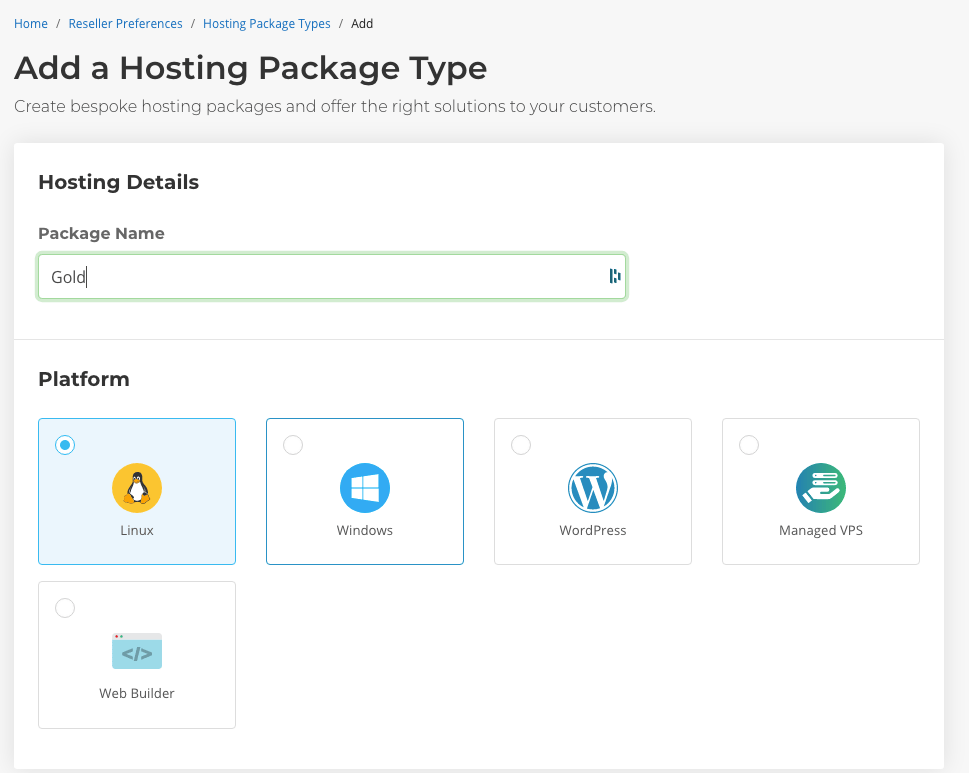 Once you have created this package, edit it, and you need to copy the plan ID from the URL.
 We think there may be an easier way to get this Plan ID, so please suggest an edit to this article if you find one.
## Adding the provision configuration (server) to Upmind
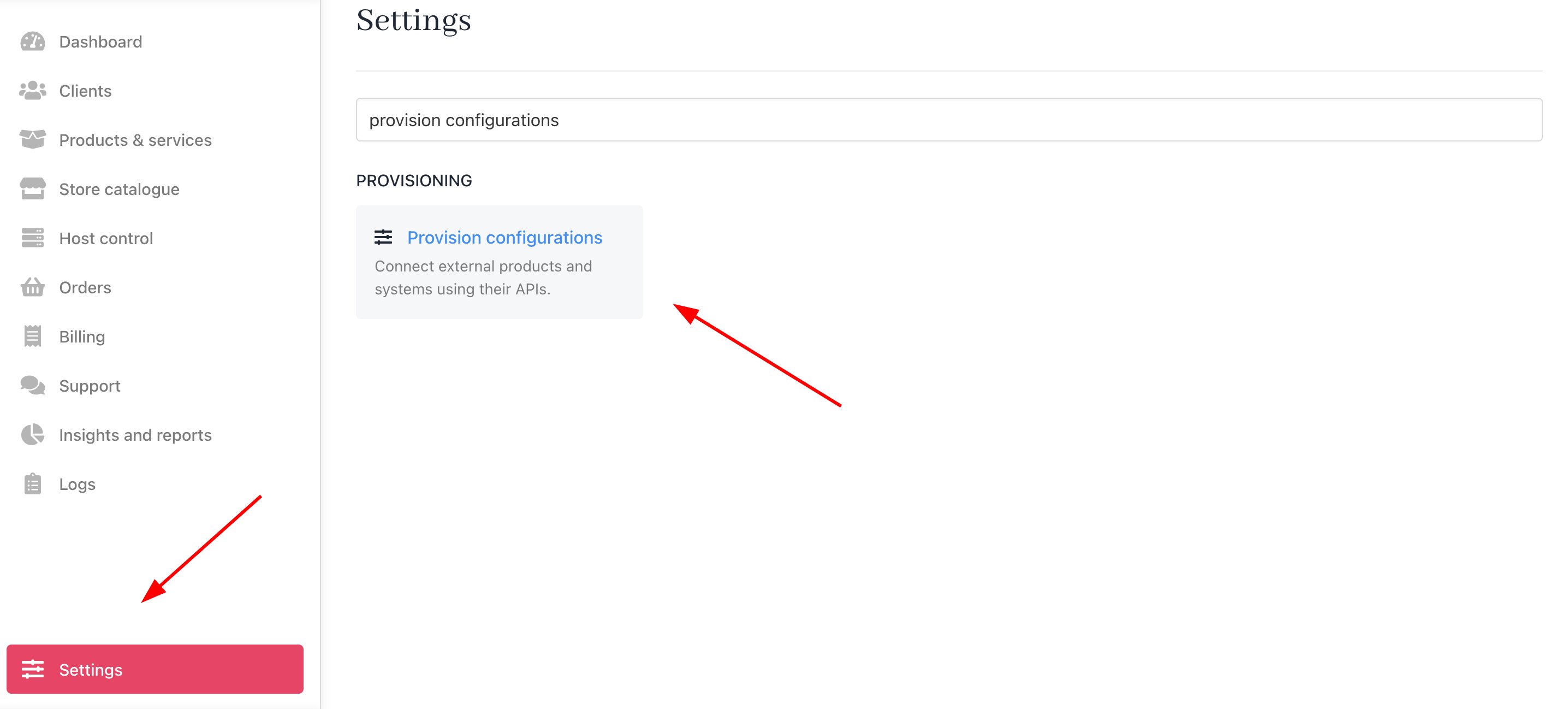
1. To add 20i to Upmind, log into your admin panel and then go to **Settings** > **Provision Configurations**.
We think there may be an easier way to get this Plan ID, so please suggest an edit to this article if you find one.
## Adding the provision configuration (server) to Upmind
1. To add 20i to Upmind, log into your admin panel and then go to **Settings** > **Provision Configurations**.
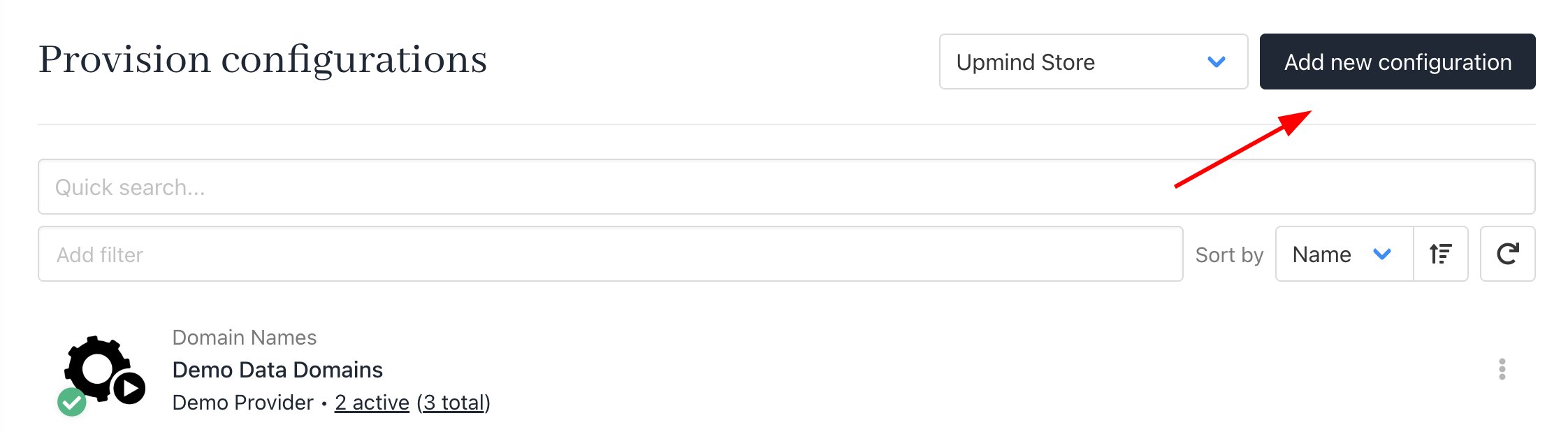
 2. Click **Add new configuration**.
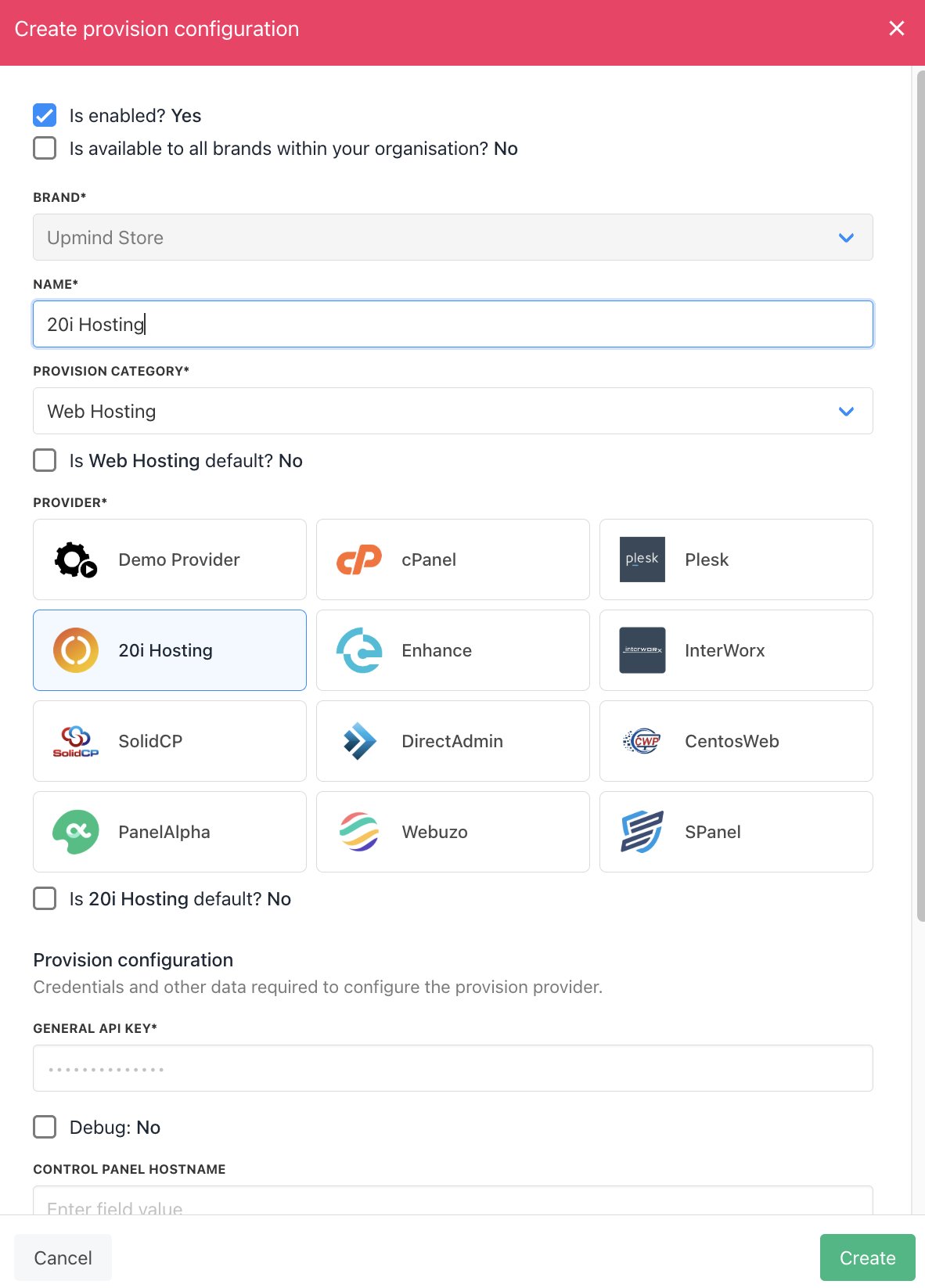
 3. You will need to enter a **name** and choose 20i Hosting. Then, enter your **General API Key** when prompted.
 Once done, you will then see 20i Hosting as a server in your provision configurations list.
## Creating a hosting package on 20i using Upmind
Now that 20i is linked, you need to create a hosting package on 20i. Add a hosting package and set the pricing you desire.
Once done, you will then see 20i Hosting as a server in your provision configurations list.
## Creating a hosting package on 20i using Upmind
Now that 20i is linked, you need to create a hosting package on 20i. Add a hosting package and set the pricing you desire.
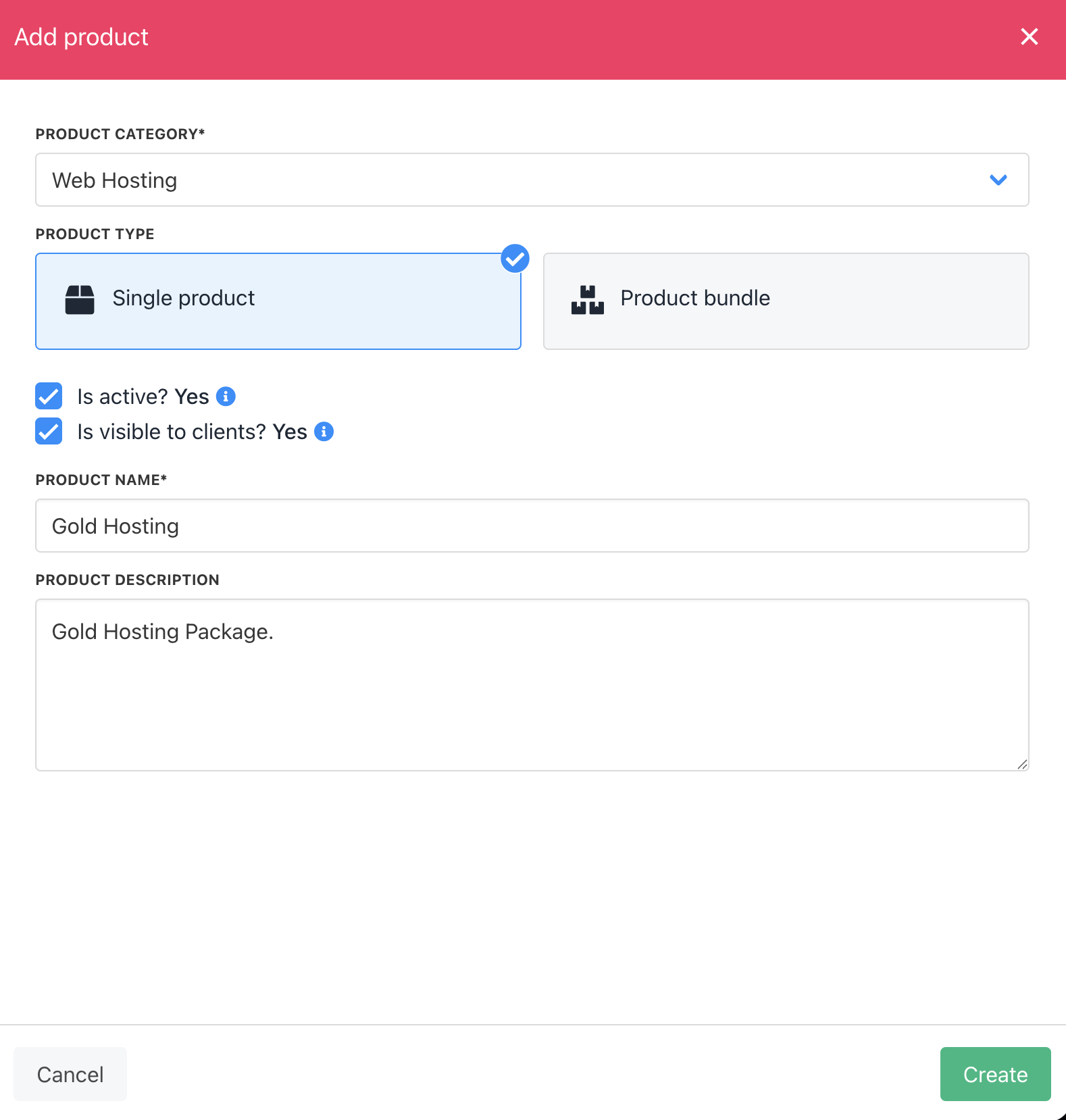 Once done, go to the **Provisioning** tab. Choose 20i Hosting as the provider and set the **configuration mode** and **provider configuration**.
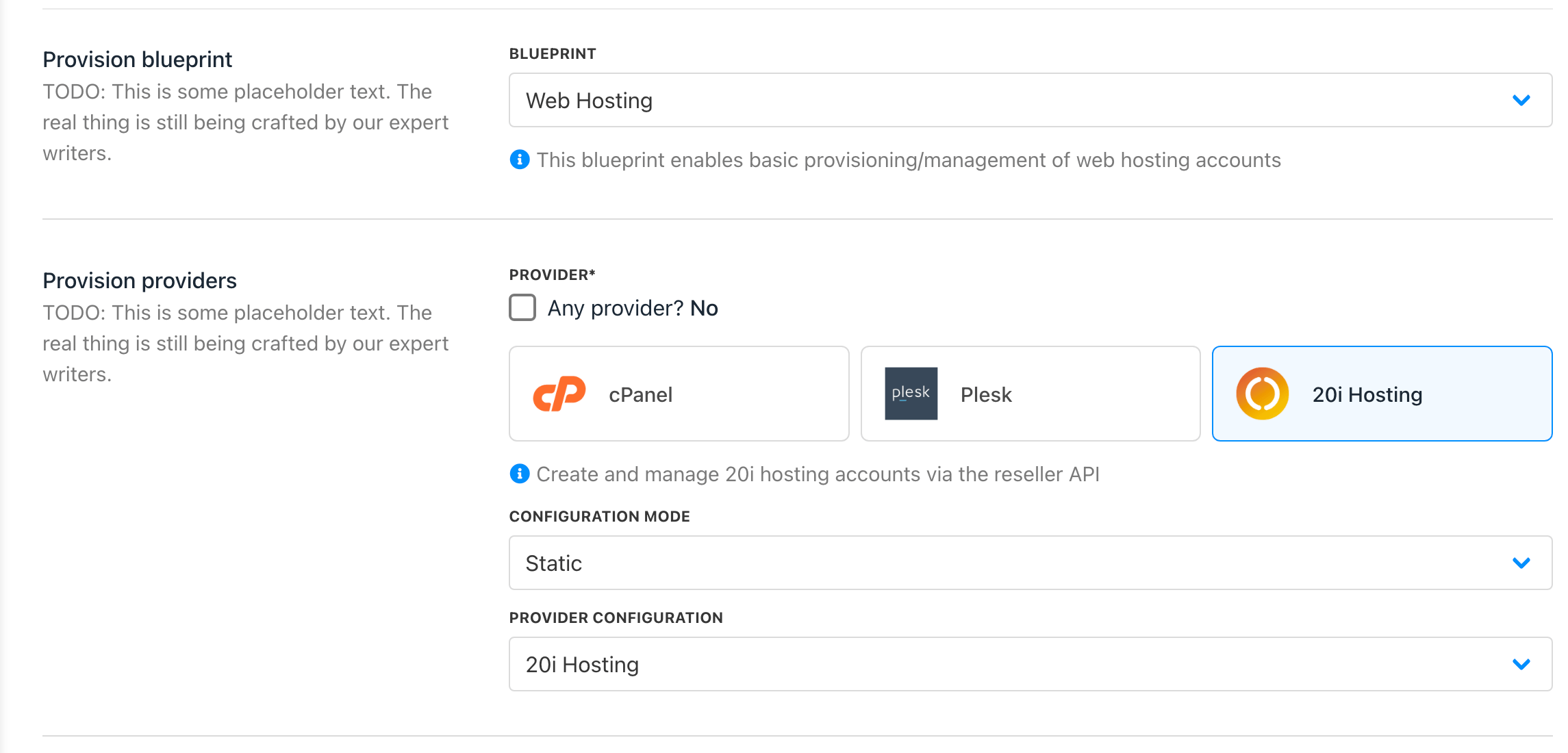 Scroll down to where it asks for **Package Identifier**. Set this to the Package ID you found in 20i (not the package name).
 That's it! Your clients can order 20i / StackCP hosting through Upmind.