> ## Documentation Index
> Fetch the complete documentation index at: https://docs.upmind.com/llms.txt
> Use this file to discover all available pages before exploring further.
# How to Link Realtime Register with Upmind
> Integrate Realtime Register domain registrar with Upmind.
[Realtime Register](https://realtimeregister.com/) is an ICANN-accredited registrar offering an advanced, fast, and always compliant domain management platform. With over 2000 top-level domains (TLDs), Realtime Register supports domain registrations for a wide range of countries.
To sign up for a Realtime Register account, visit their website at [realtimeregister.com](https://realtimeregister.com/signup/).
## Details needed
To link your Realtime Register account to Upmind, you will need the following details:
1. Realtime Register account.
2. Customer and API Key.
To generate an API Key with Realtime Register, follow these steps:
1. Log in to your Realtime Register account.
2. Go to **Users** under **Account** on the left side of the screen.
3. Select the user for whom you wish to create one or multiple API keys. Once selected, click on **API keys**.
4. Click on **Create API Key**. Note: You can only obtain the API key at the time of creation. If an API key is lost, a new one will need to be created.
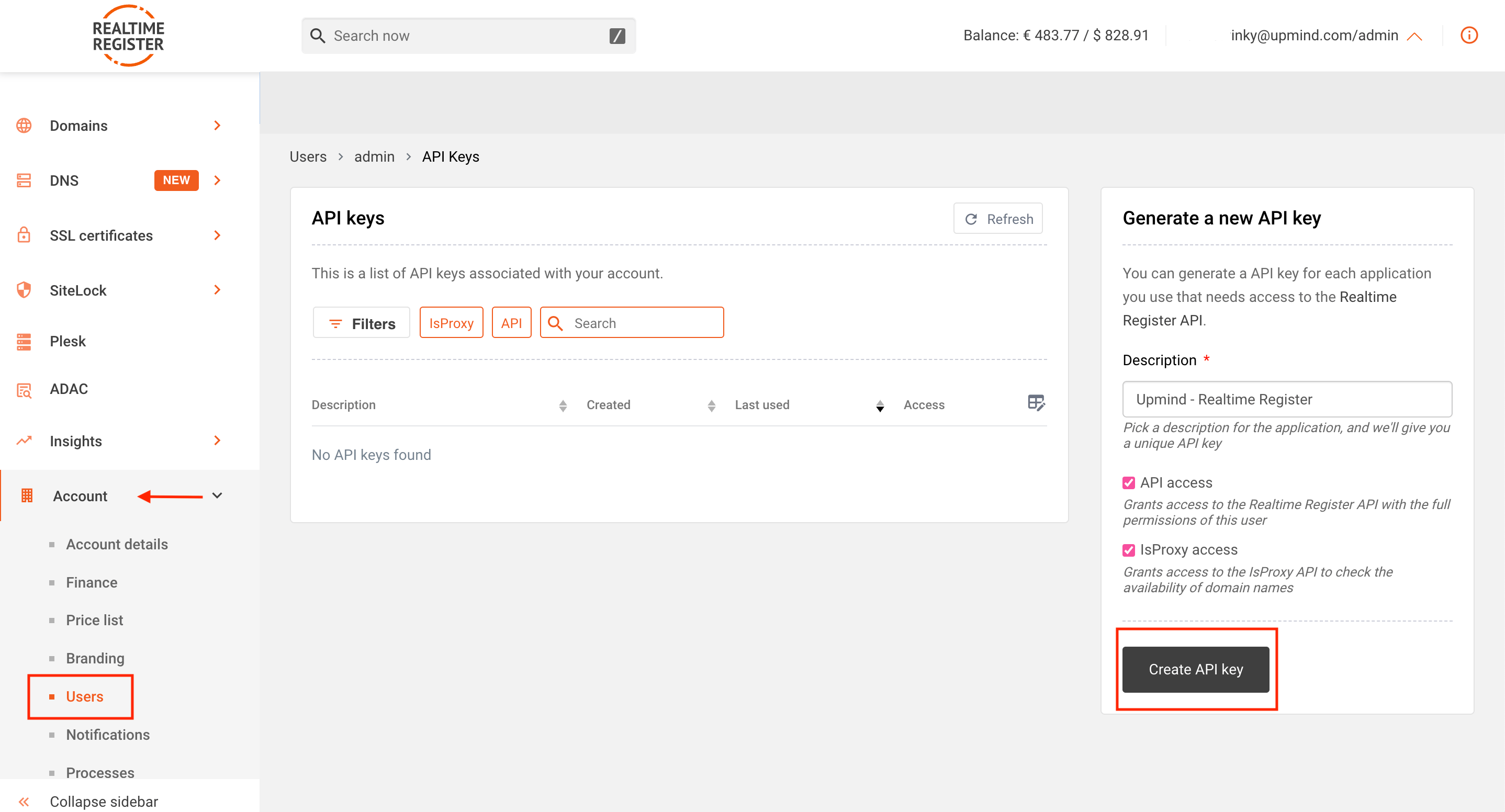 5. To create a new API key, enter a description, then click on **Create API Key**.
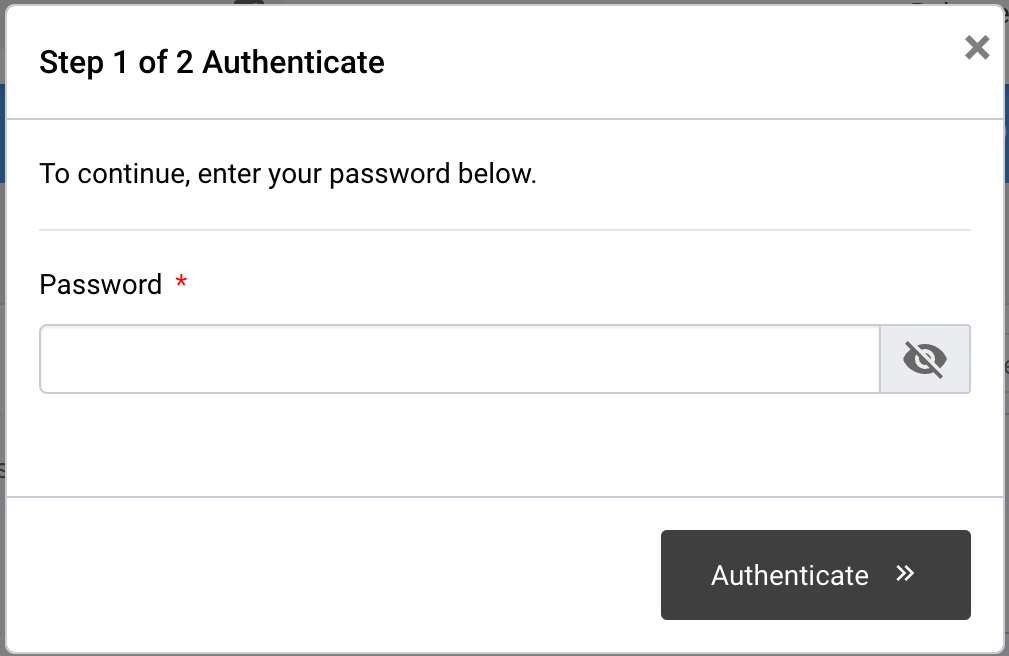
6. Enter your login password.
5. To create a new API key, enter a description, then click on **Create API Key**.
6. Enter your login password.
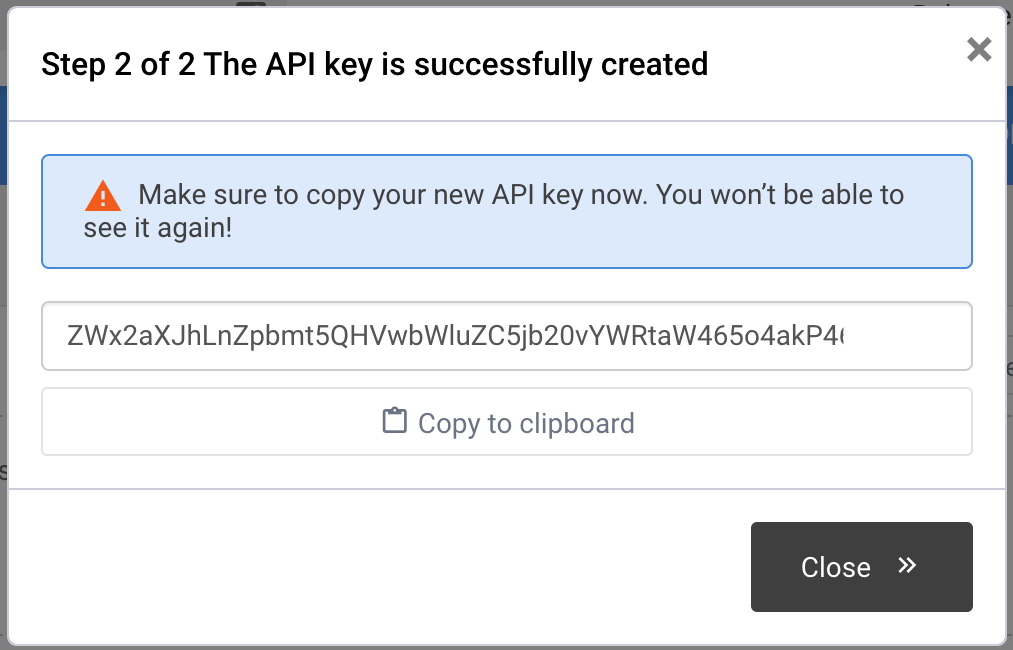
 7. The API key will appear on your screen. Be sure to save the API key, as you will not be able to see it again once the pop-up containing the API key is closed.
 ## Linking Realtime Register to Upmind
1. In Upmind, navigate to **Host Control** > **Domain names** > **Registrars**.
2. **Click on Realtime Register.**
## Linking Realtime Register to Upmind
1. In Upmind, navigate to **Host Control** > **Domain names** > **Registrars**.
2. **Click on Realtime Register.**
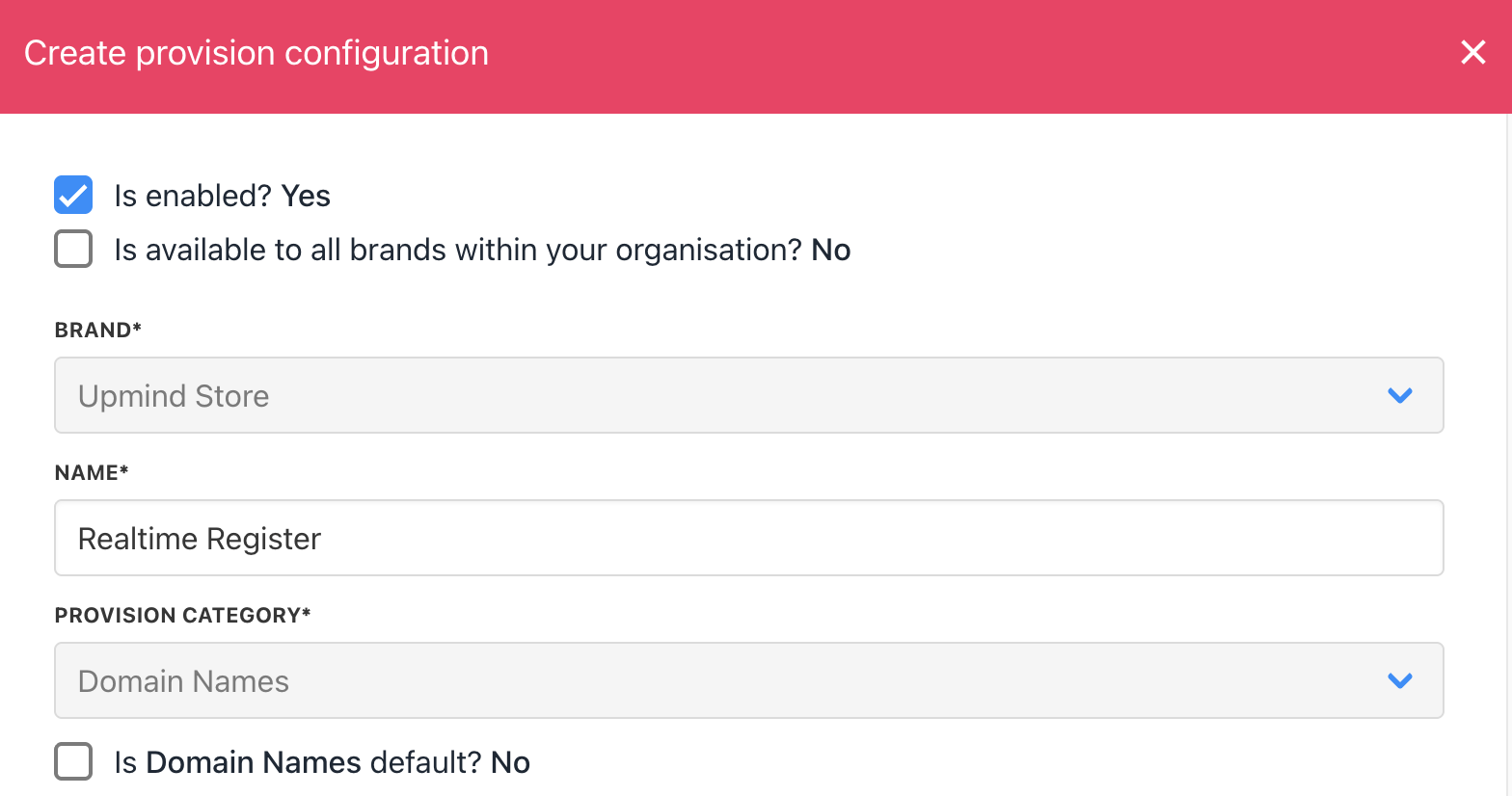
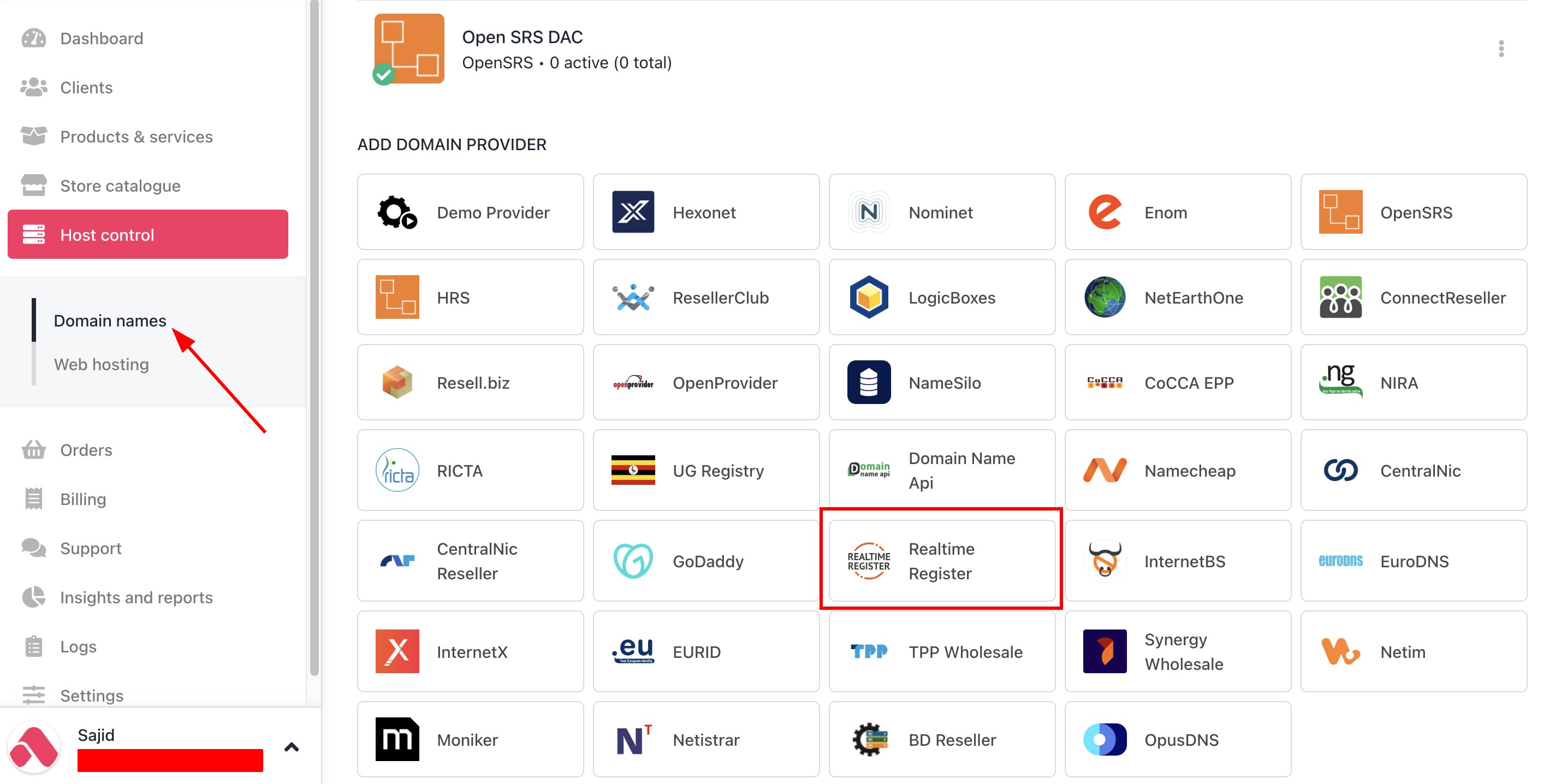 3. Enter a **Name**. This identifier is not visible to clients. We recommend entering the name Realtime Register unless you have two separate accounts that you want to label differently.
 4. Enter your Realtime Register **Customer** and **API Key**.
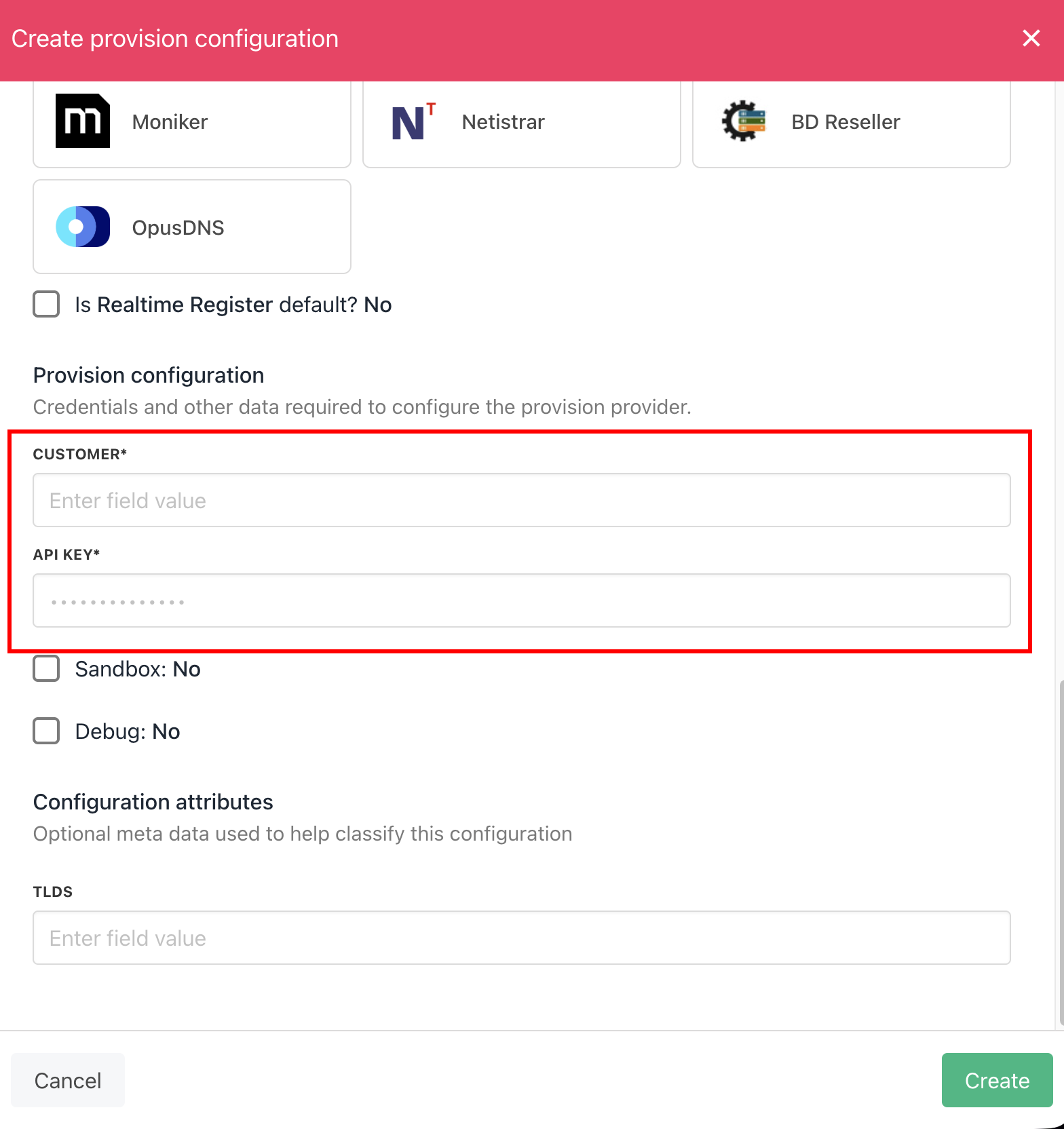 5. Click the **Create** button.
6. Verify the information on the [Domain Settings](/for-web-hosts/domain-names/how-to-input-domain-settings) page.
5. Click the **Create** button.
6. Verify the information on the [Domain Settings](/for-web-hosts/domain-names/how-to-input-domain-settings) page.