> ## Documentation Index
> Fetch the complete documentation index at: https://docs.upmind.com/llms.txt
> Use this file to discover all available pages before exploring further.
# How to Link GoDaddy with Upmind
> Integrate GoDaddy domain registrar with Upmind.
GoDaddy is a popular domain registrar and web hosting service, managing over 84 million domain names. You can integrate GoDaddy with Upmind to manage and sell domain names.
Check their website [here](https://www.godaddy.com/en-uk/offers/godaddy?isc=sem3year\&countryview=1\¤cyType=GBP\&cdtl=c_17606417701.g_136901062303.k_kwd-88659201.a_684576982477.d_c.ctv_g\&bnb=b\&gad_source=1).
## Details needed
To link your GoDaddy account to Upmind, you will need the following details:
* GoDaddy account.
* API Key and API Secret.
To generate an API Key and API Secret with GoDaddy, follow these steps:
1. Visit developer.godaddy.com.
2. Log into your GoDaddy account.
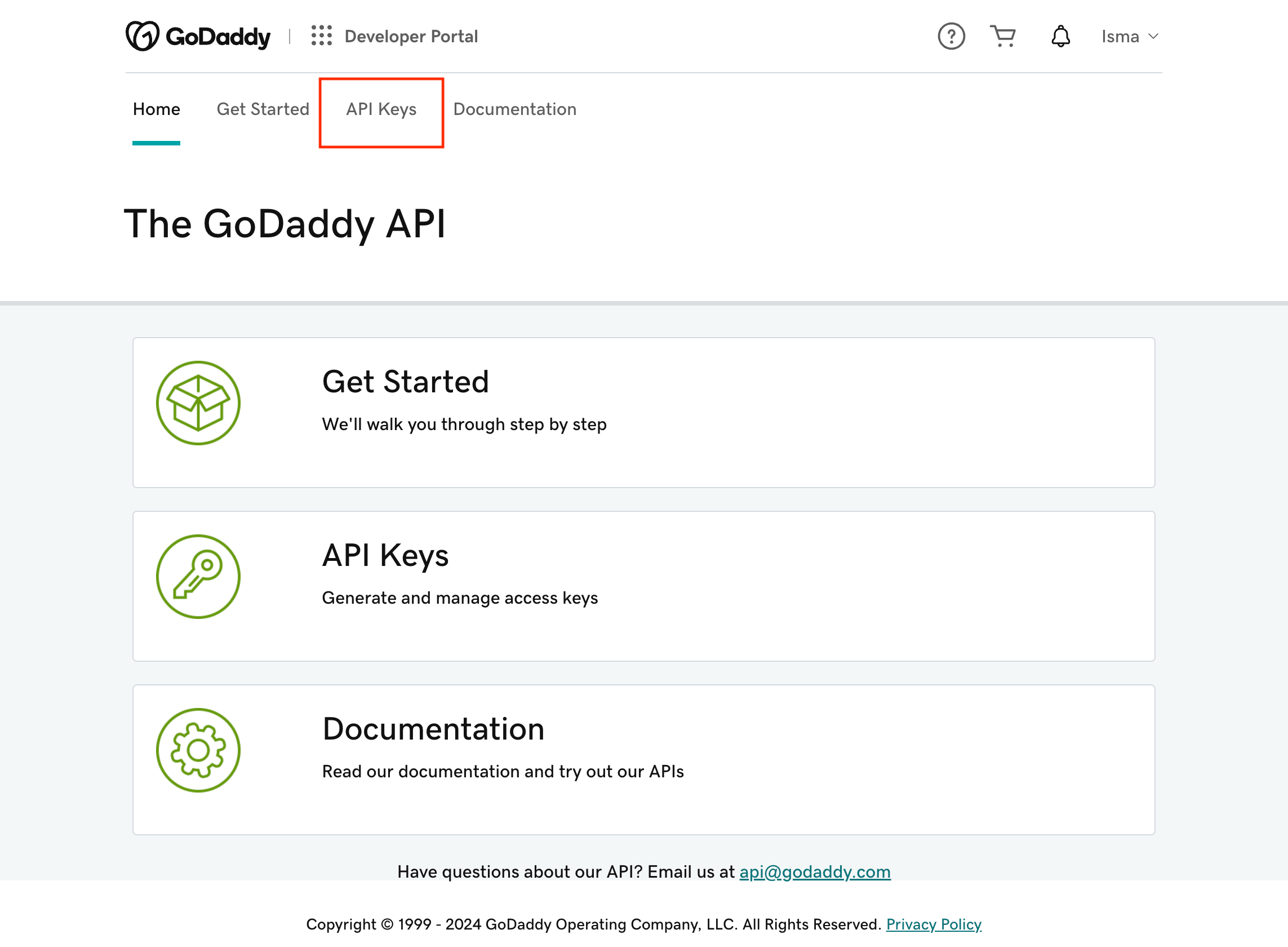
3. Navigate to the **API Keys** section.
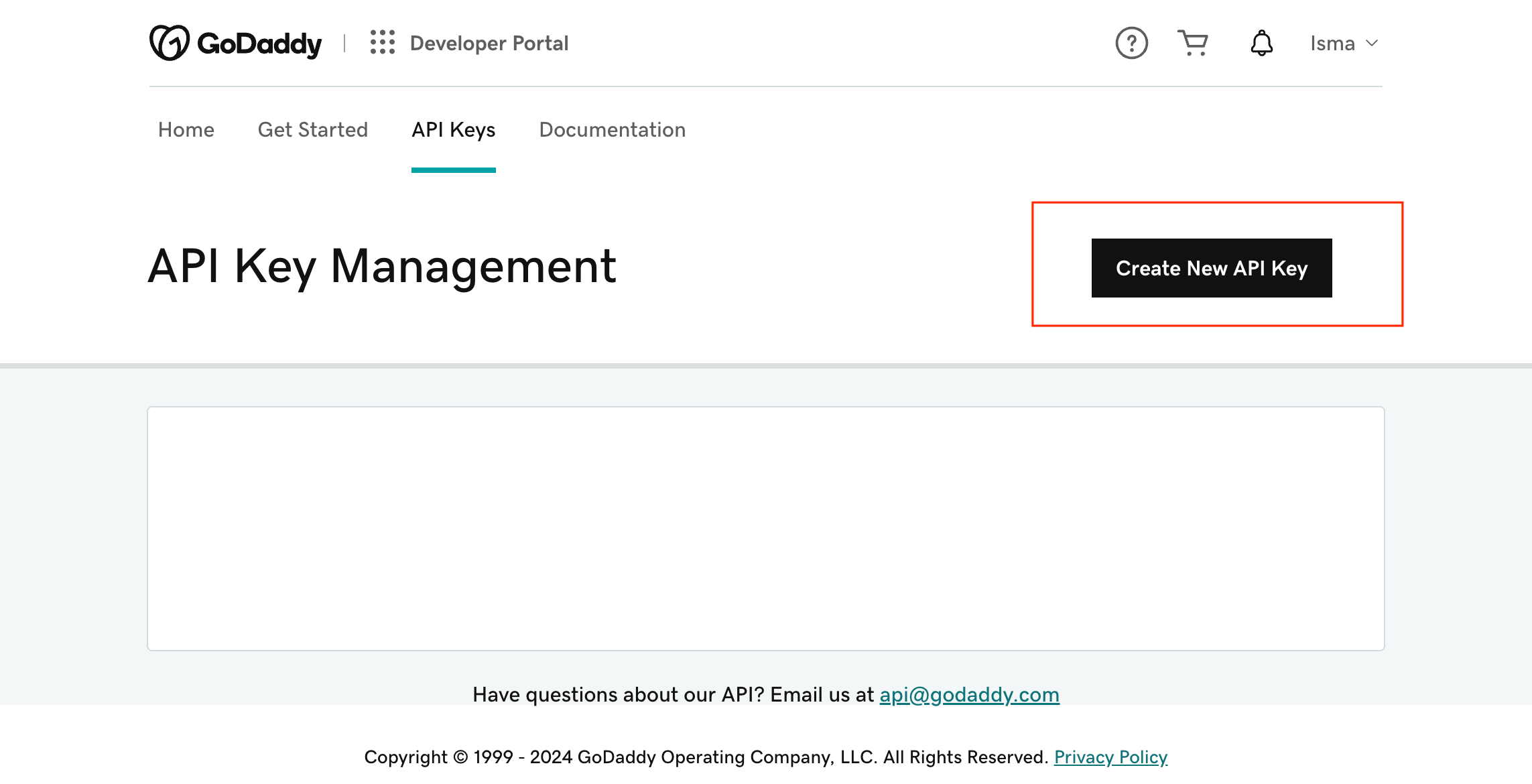
 4. Click on **Create New API Key**.
 5. Enter a name for your key and select **Production** under the Environment setting.
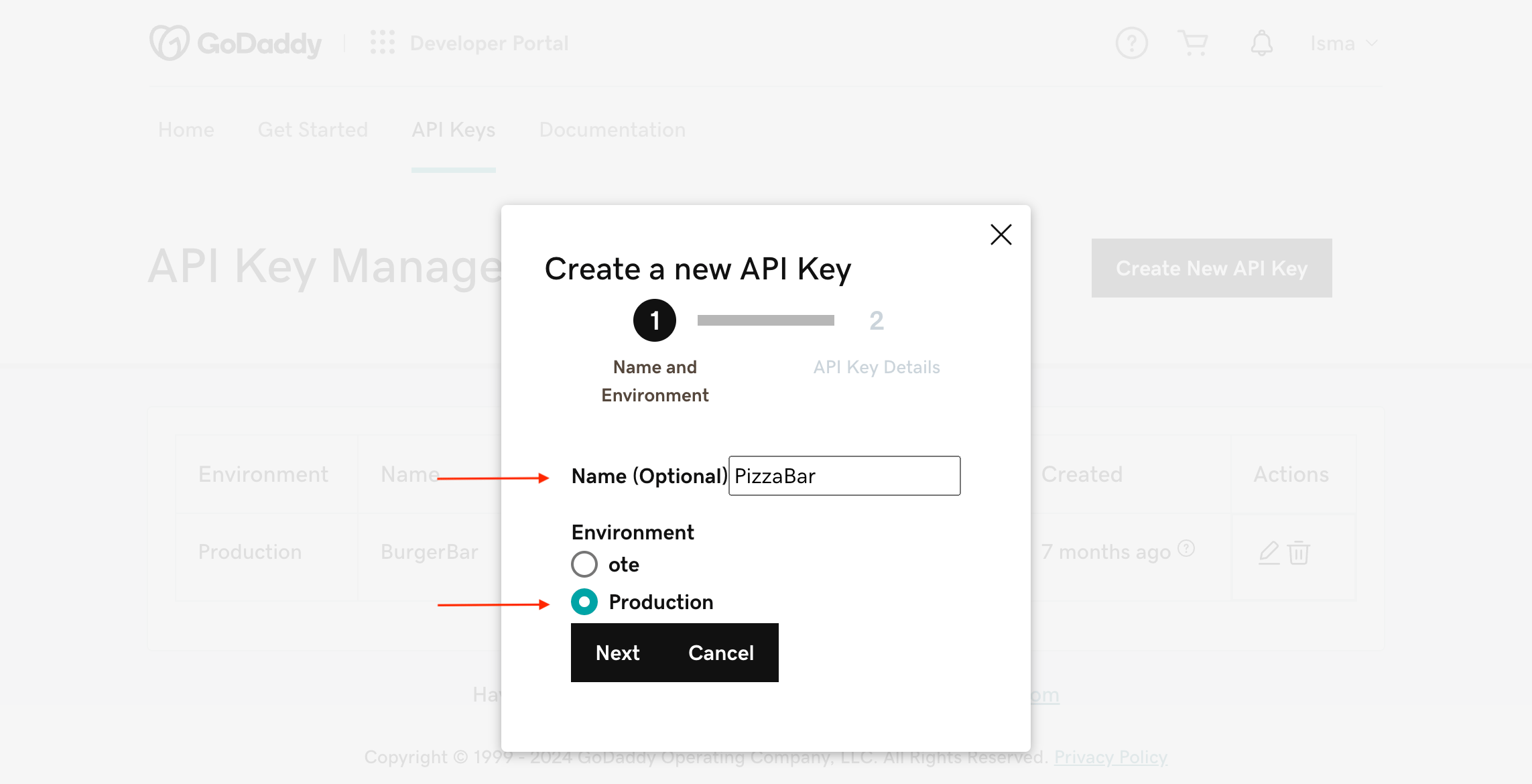 6. Click **Next** to generate the API Key.
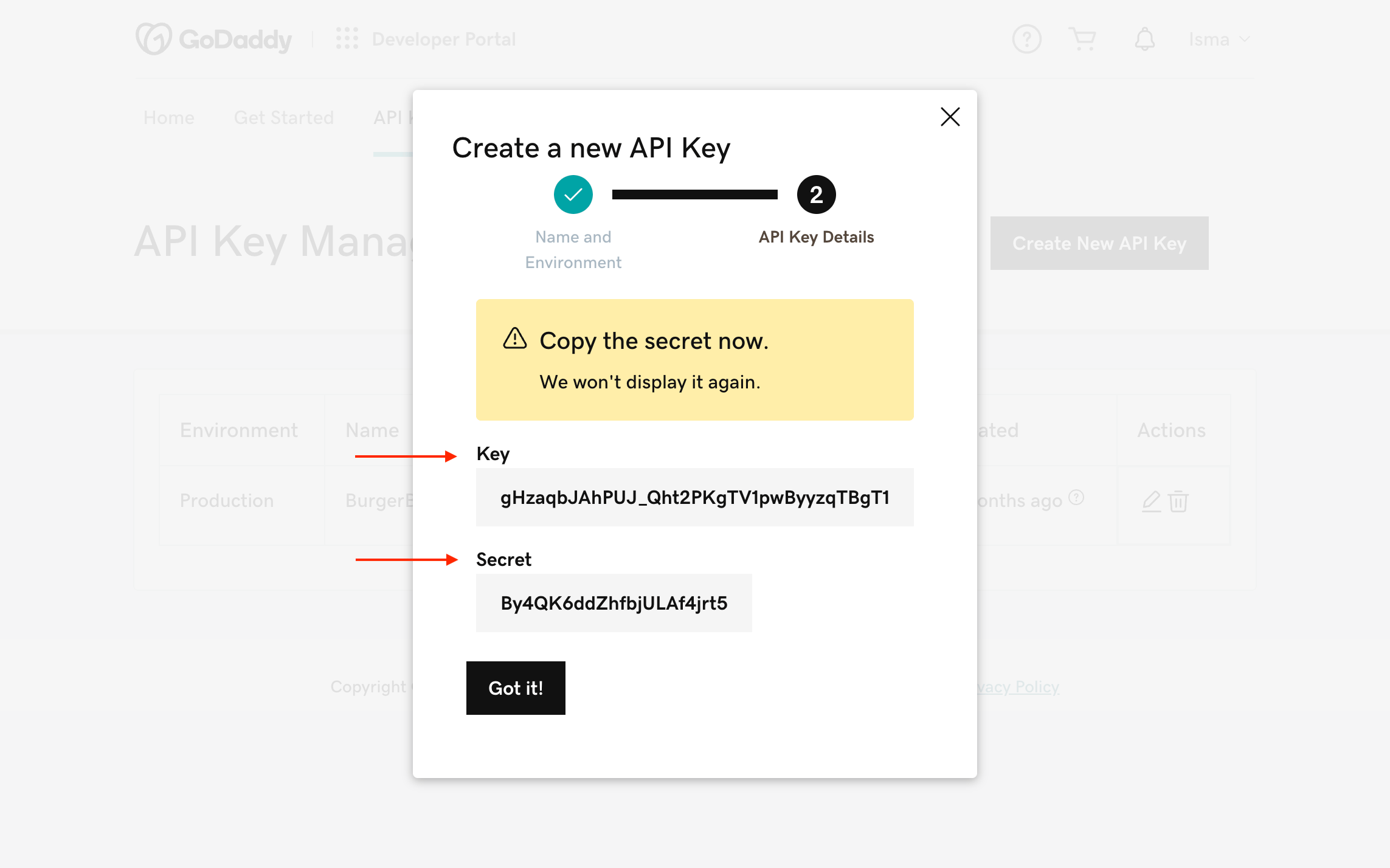
7. Make sure to copy and save both the Key and Secret to a secure location, such as a Notepad.
6. Click **Next** to generate the API Key.
7. Make sure to copy and save both the Key and Secret to a secure location, such as a Notepad.
 ## Linking GoDaddy to Upmind
If you opt to use GoDaddy with Upmind, follow these straightforward steps:
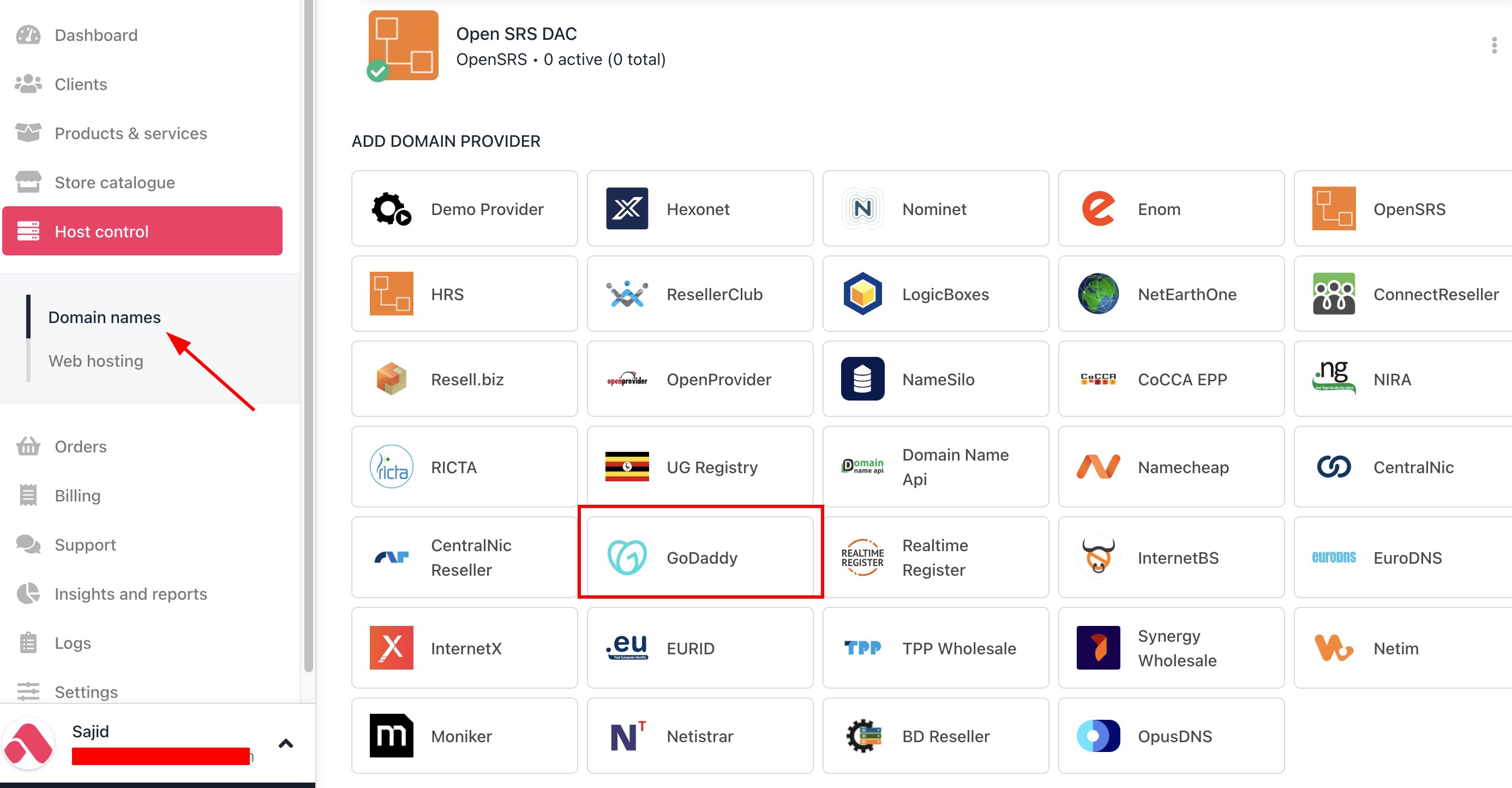
1. In Upmind, navigate to **Host Control** > **Domain names** > **Registrars**.
2. **Click** on **GoDaddy.**
## Linking GoDaddy to Upmind
If you opt to use GoDaddy with Upmind, follow these straightforward steps:
1. In Upmind, navigate to **Host Control** > **Domain names** > **Registrars**.
2. **Click** on **GoDaddy.**
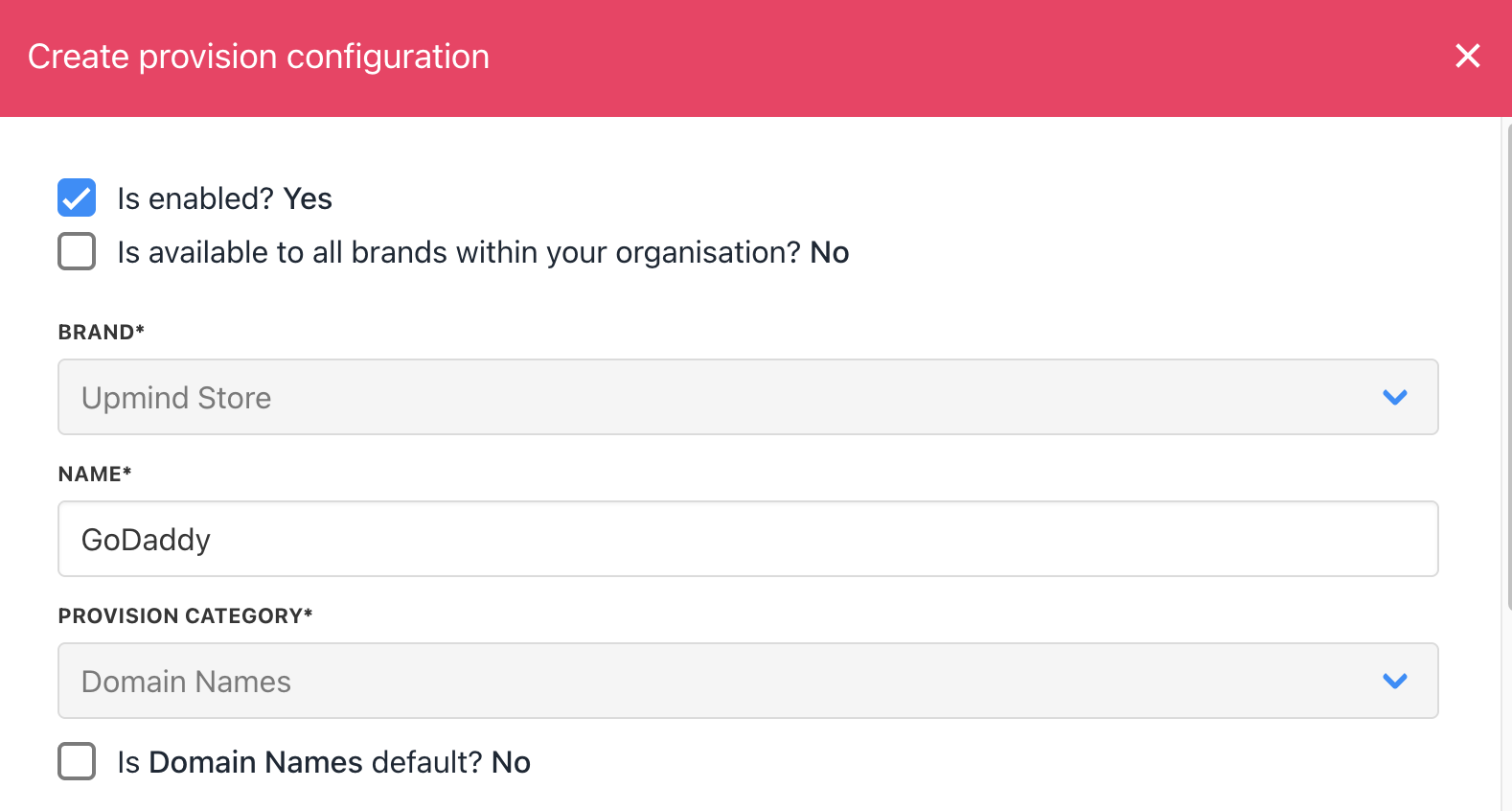
 3. Enter a **Name**. This identifier is not visible to clients. We recommend entering the name GoDaddy unless you have two separate accounts that you want to label differently.
 4. Enter your **API Key** & **API Secret**.
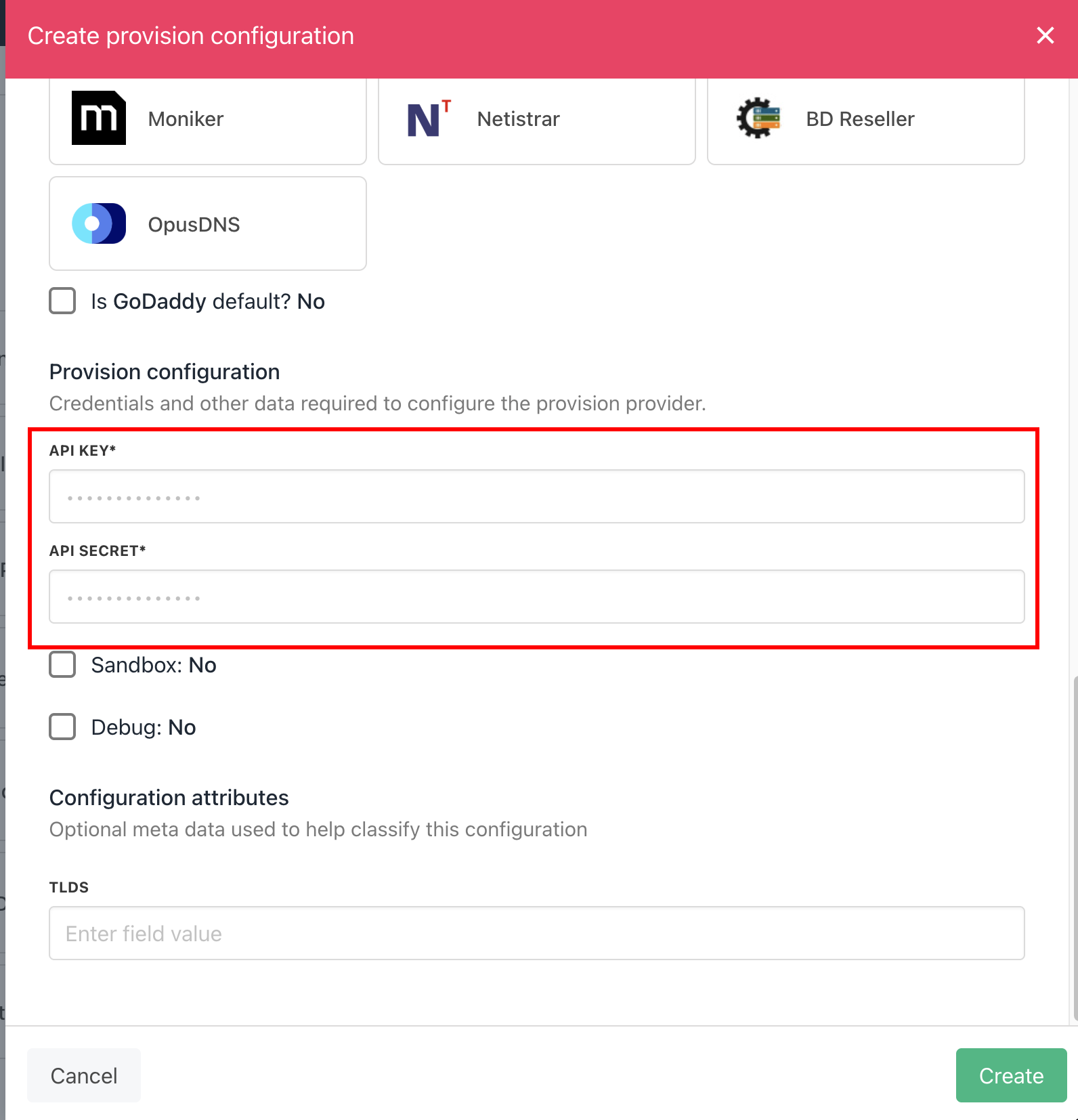 5. Click the **Create** button.
6. Verify the information on the [Domain Settings](/for-web-hosts/domain-names/how-to-input-domain-settings) page.
By following these steps, you will be able to set up GoDaddy integration with Upmind seamlessly.
5. Click the **Create** button.
6. Verify the information on the [Domain Settings](/for-web-hosts/domain-names/how-to-input-domain-settings) page.
By following these steps, you will be able to set up GoDaddy integration with Upmind seamlessly.