> ## Documentation Index
> Fetch the complete documentation index at: https://docs.upmind.com/llms.txt
> Use this file to discover all available pages before exploring further.
# Domain Transfer Setup
> Configure your domain transfer setup as a product option.
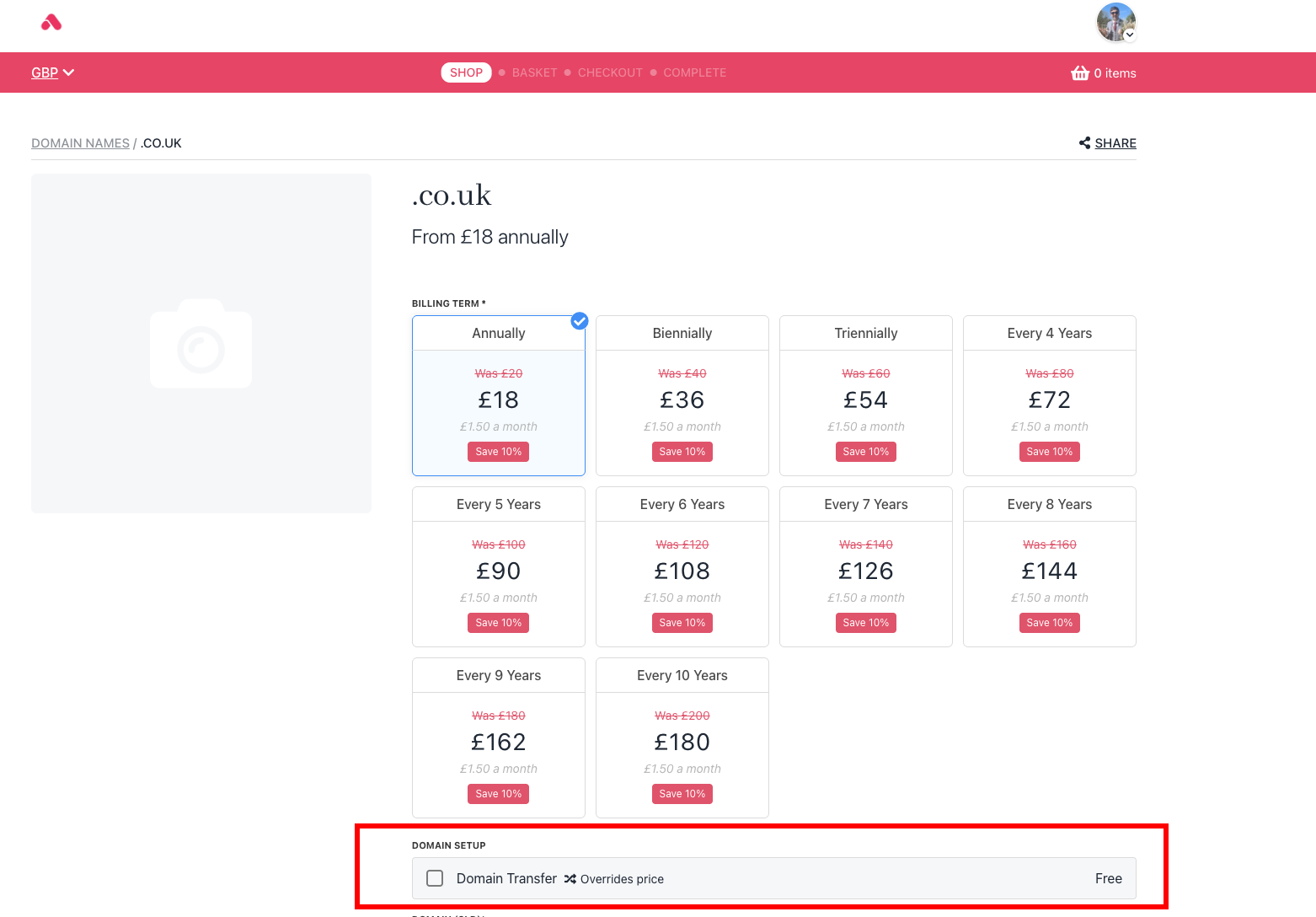
Upmind handles domain transfers as a product option behind the scenes. The product option is assigned to a domain product, which can be selected by the client as a transfer of their domain.
Typically, a domain transfer involves a compulsory renewal of a domain name, and therefore, a domain transfer is the same price as a domain registration.
Therefore, by default, a domain transfer is a free option on top of a domain product. In some cases (such as UK domains), it can override the price of the domain name.
Our system therefore models this as: Standard domain transfers that involve a one-year renewal of a domain - a free option on top of a registration. Domain transfers that do not extend the renewal period of a domain and are therefore free, an option where the price overrides the parent product to 0.
You do not need to edit the settings here unless you want to change Upmind's default behaviour. However, if you wish, you can do it like this:
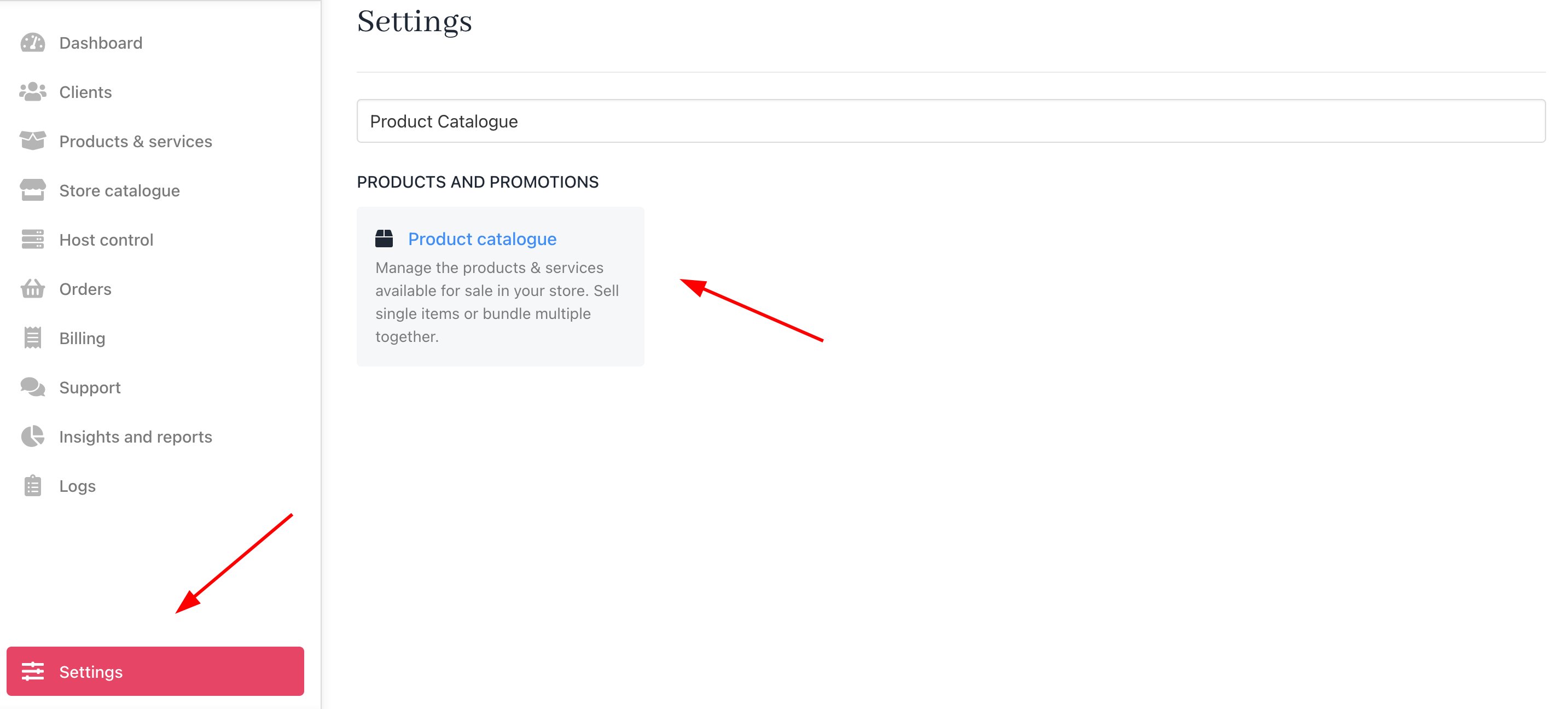
1. Go to **Settings** > **Product Catalogue**.
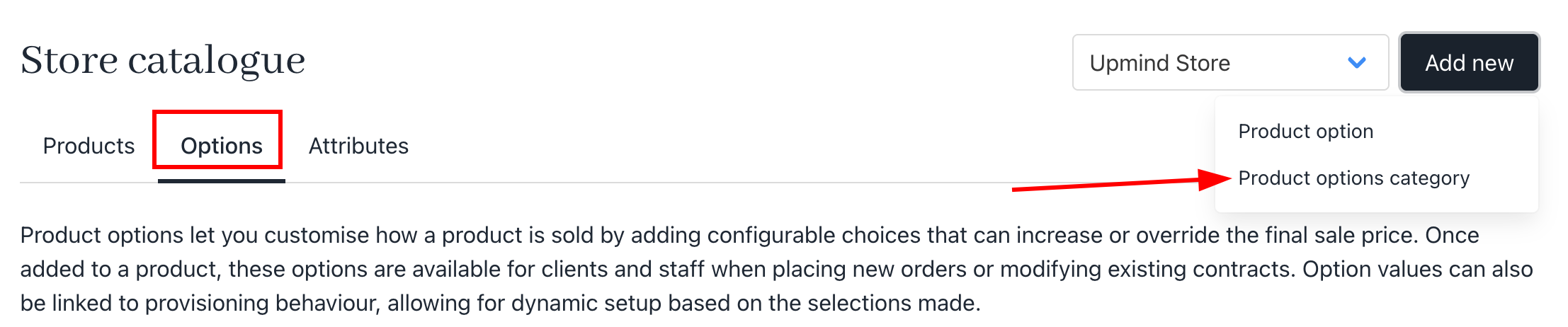
 2. Click on the Product options tab. Click **Add new**.
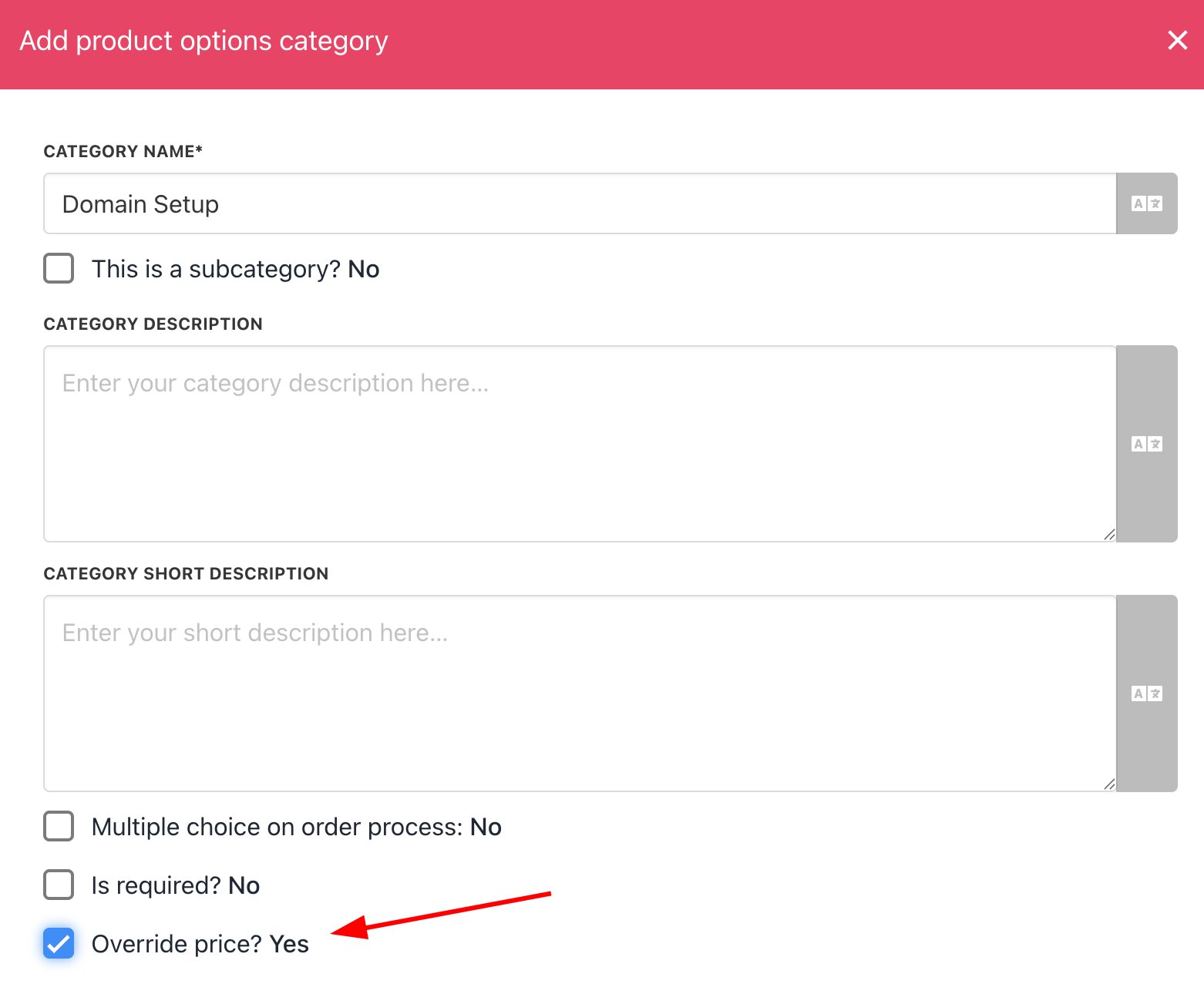
 3. Create a new product options category for domain setup. Tick the box for override price to manually adjust the transfer fee.
 You have the option to either enable or disable the override product price. When activated, the regular price will be replaced with the override price (in this case, “transfer fee”), which can be managed within the product option billing settings. Upon the renewal, the price will revert to the original price.
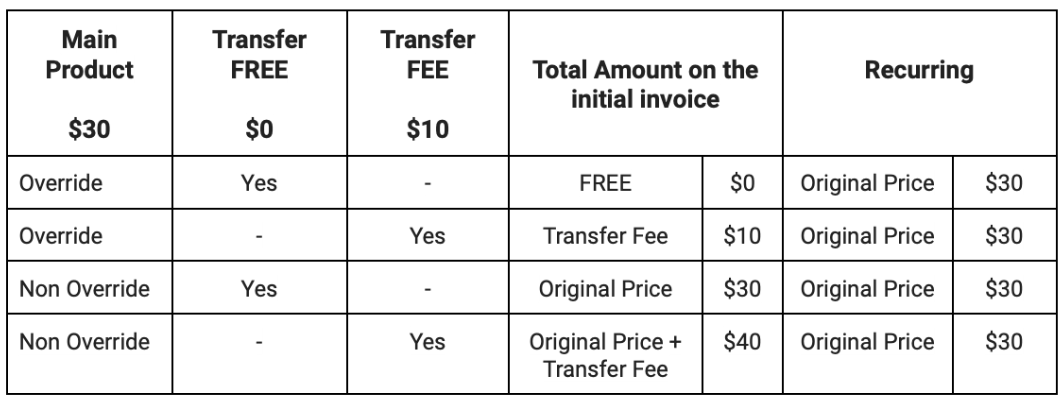
We'll configure both the override and regular prices for your setup. Let's take into account a product priced at $30 with recurring payments. Furthermore, we've set up a transfer fee of $10.
Here are the details:
You have the option to either enable or disable the override product price. When activated, the regular price will be replaced with the override price (in this case, “transfer fee”), which can be managed within the product option billing settings. Upon the renewal, the price will revert to the original price.
We'll configure both the override and regular prices for your setup. Let's take into account a product priced at $30 with recurring payments. Furthermore, we've set up a transfer fee of $10.
Here are the details:
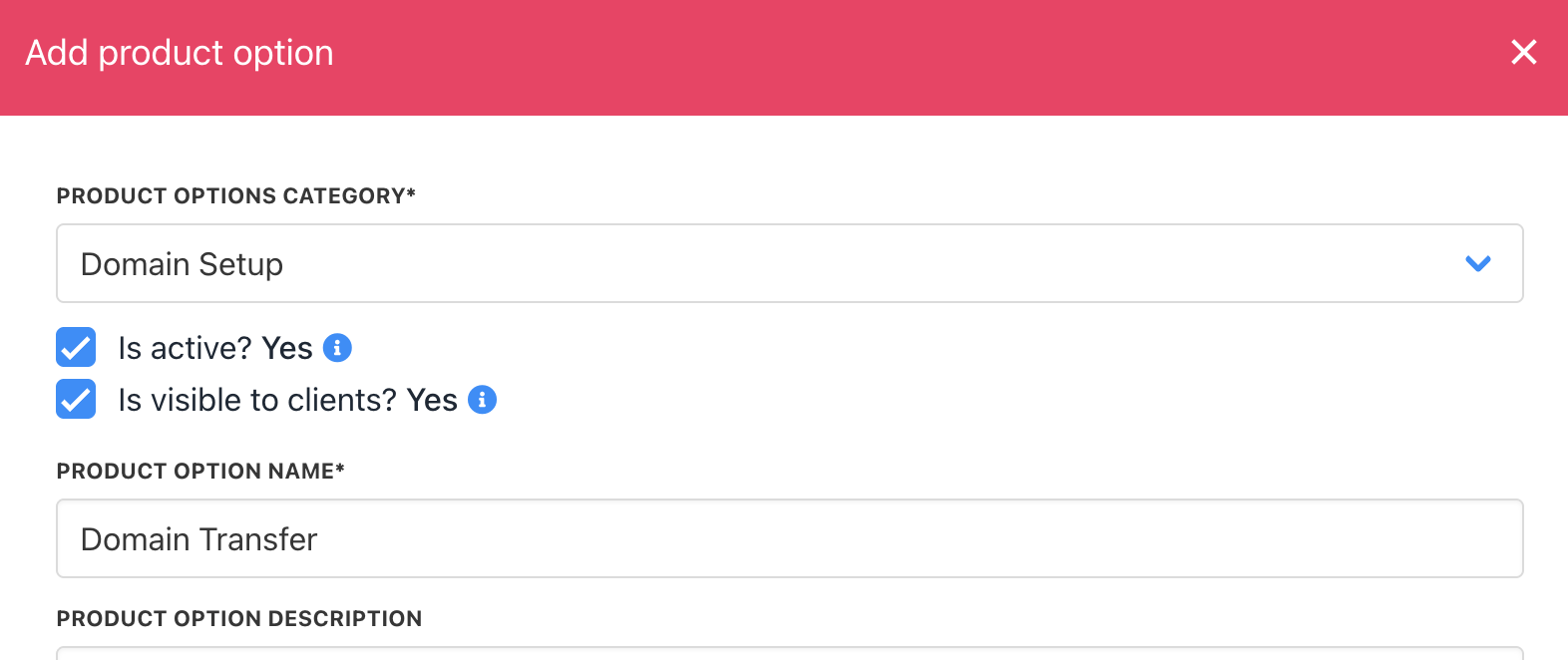
 4. Add a new product option under the **Domain Setup Category** labelled **Domain Transfer**.
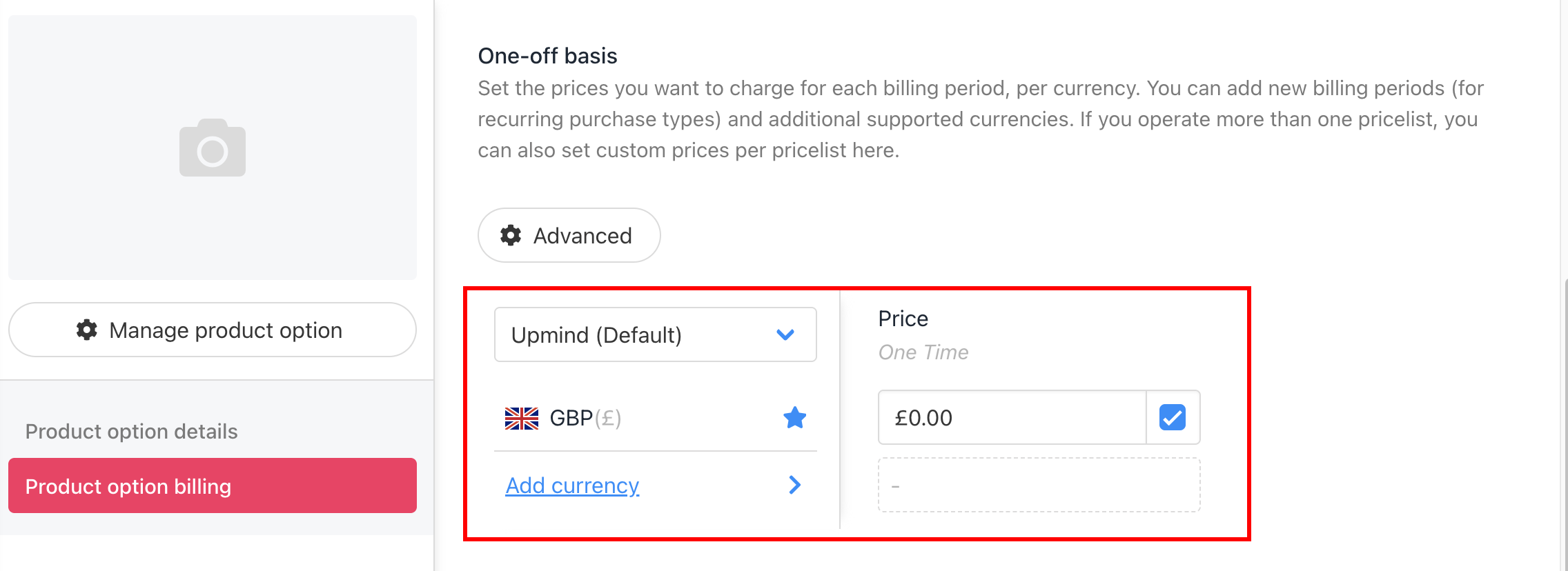
 5. Set up the billing for the transfer option accordingly. For **FREE** domain transfers, you can set the billing to `0`.
 After successfully creating a new product option for domain transfer, then:
1. Go to the domain product, then select the **Product option**.
2. Click Manage and add the transfer domain option that you have created. Hit **save**.
After successfully creating a new product option for domain transfer, then:
1. Go to the domain product, then select the **Product option**.
2. Click Manage and add the transfer domain option that you have created. Hit **save**.
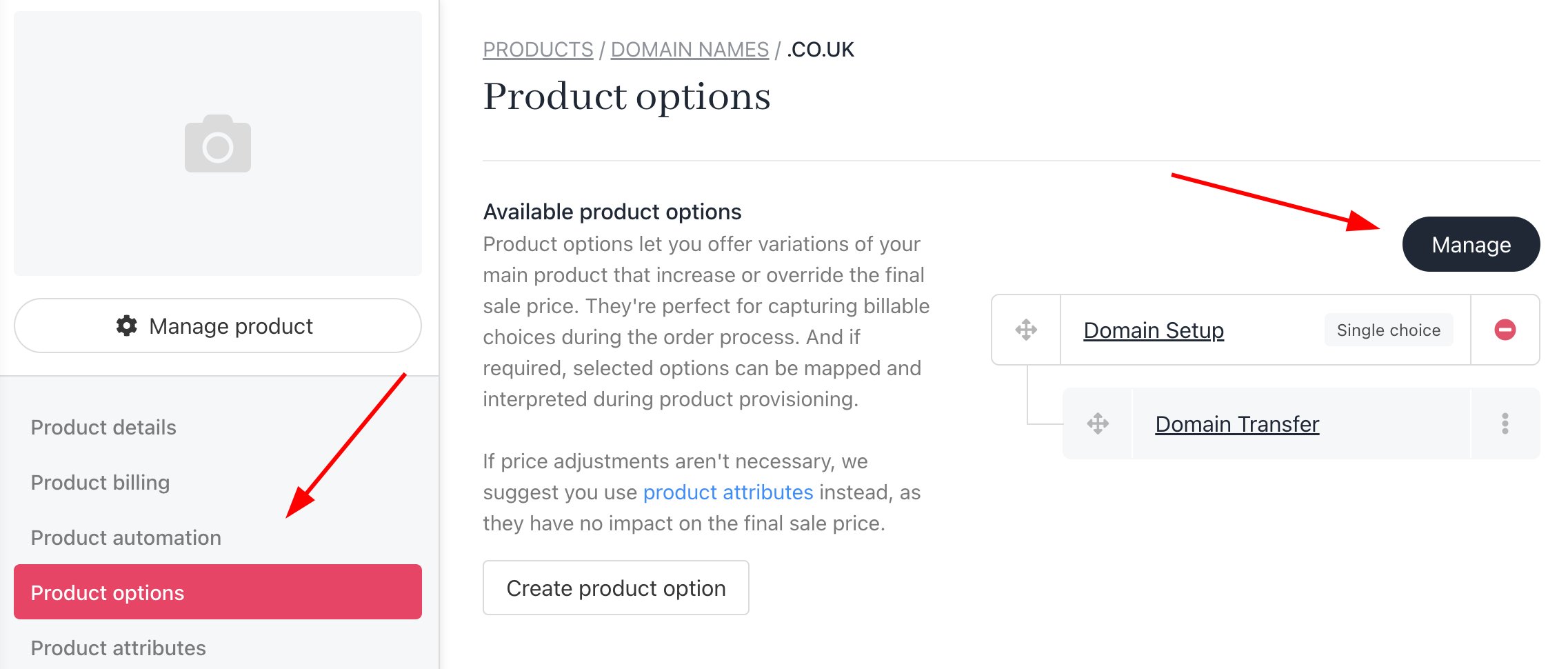 3. The free domain transfer will show on your store.