> ## Documentation Index
> Fetch the complete documentation index at: https://docs.upmind.com/llms.txt
> Use this file to discover all available pages before exploring further.

# Quick Start Guide for Managed Service Providers 

> Fast, practical setup to automate billing, client management, and service provisioning for MSPs.

Upmind is an all-in-one billing and automation platform ideal for Managed Service Providers (MSPs), for easy management of complex service contracts, multiple brands, and client subscriptions.

This guide offers a clear, step-by-step onboarding plan focused on the most important features tailored for MSP business operations. You will need to do the following:

1. **Create and configure your Upmind account**
2. **Verify your account**
3. **Log into the admin panel**
4. **Configure your domain**
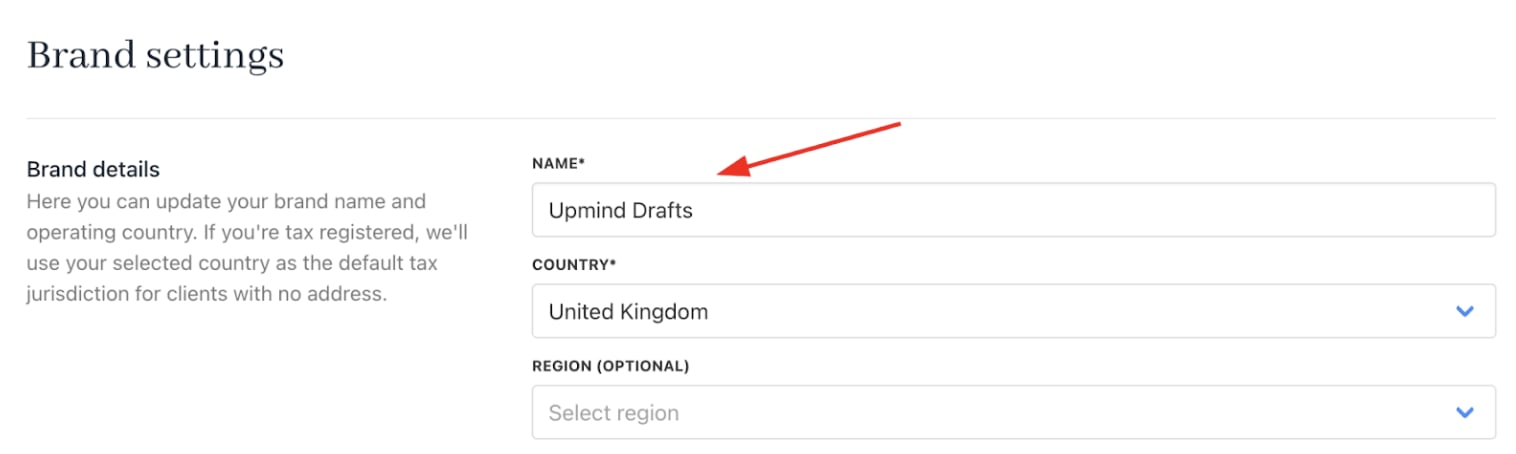
5. **Change the organisation name display**
6. **Set store currency**
7. **Define products and services**
8. **Create categories**
9. **Create products**
10. **Add product details**
11. **Upload images**
12. **Configure billing**
13. **Set up billing and payment processing**
14. **Configure provisioning**
15. **Manage client accounts and support**
16. **Launch your online store**
17. **Use analytics and reporting to optimise your business**

You can also follow this [<u>guide</u>](/getting-started/how-to-create-an-upmind-account) to create your own profile.

## **Create and configure your Upmind account**

1. Go to [<u>Upmind.com</u>](http://Upmind.com).
2. Click on **Start** for free.

<Frame caption="Start for free">
  <img src="https://mintcdn.com/upmind/Lh8hC132BWHpvRbz/images/fb/4e15a8b6d563599d.png?fit=max&auto=format&n=Lh8hC132BWHpvRbz&q=85&s=39ee68279b5f583db492f70c280d074b" alt="Start for free" className="mx-auto" style={{ width:"99%" }} width="1536" height="128" data-path="images/fb/4e15a8b6d563599d.png" />

  <img src="https://mintcdn.com/upmind/Lh8hC132BWHpvRbz/images/fb/4e15a8b6d563599d.png?fit=max&auto=format&n=Lh8hC132BWHpvRbz&q=85&s=39ee68279b5f583db492f70c280d074b" alt="Start for free" className="mx-auto" style={{ width:"99%" }} width="1536" height="128" data-path="images/fb/4e15a8b6d563599d.png" />
</Frame>

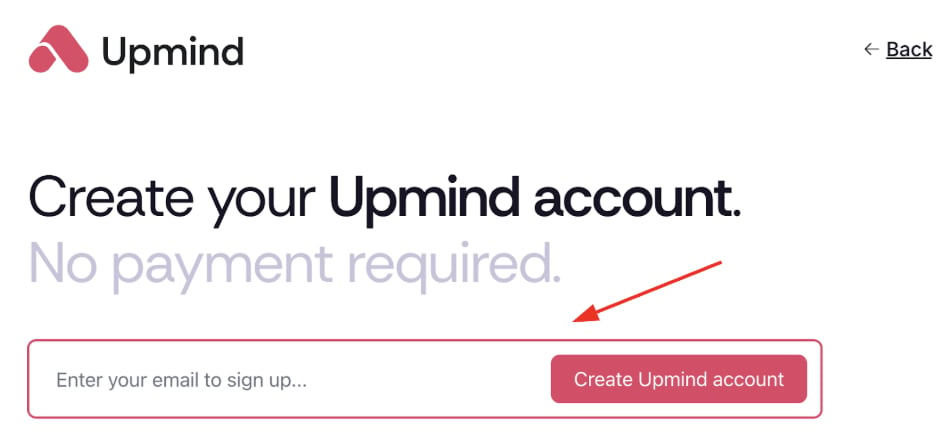
3. Enter your email and sign up.

<Frame caption="Sign up">
  <img src="https://mintcdn.com/upmind/Lh8hC132BWHpvRbz/images/fb/4f732c7bff4454a5.png?fit=max&auto=format&n=Lh8hC132BWHpvRbz&q=85&s=59151033622ffac31e3fb926489ac597" alt="Sign up" className="mx-auto" style={{ width:"77%" }} width="936" height="444" data-path="images/fb/4f732c7bff4454a5.png" />

  <img src="https://mintcdn.com/upmind/Lh8hC132BWHpvRbz/images/fb/4f732c7bff4454a5.png?fit=max&auto=format&n=Lh8hC132BWHpvRbz&q=85&s=59151033622ffac31e3fb926489ac597" alt="Sign up" className="mx-auto" style={{ width:"77%" }} width="936" height="444" data-path="images/fb/4f732c7bff4454a5.png" />
</Frame>

## **Verify your account**

1. Check your email (and spam) for Upmind’s verification link within 5 minutes.
2. Click the link to open your organisation’s admin dashboard. Your account is now live.

## **Log into the admin panel**

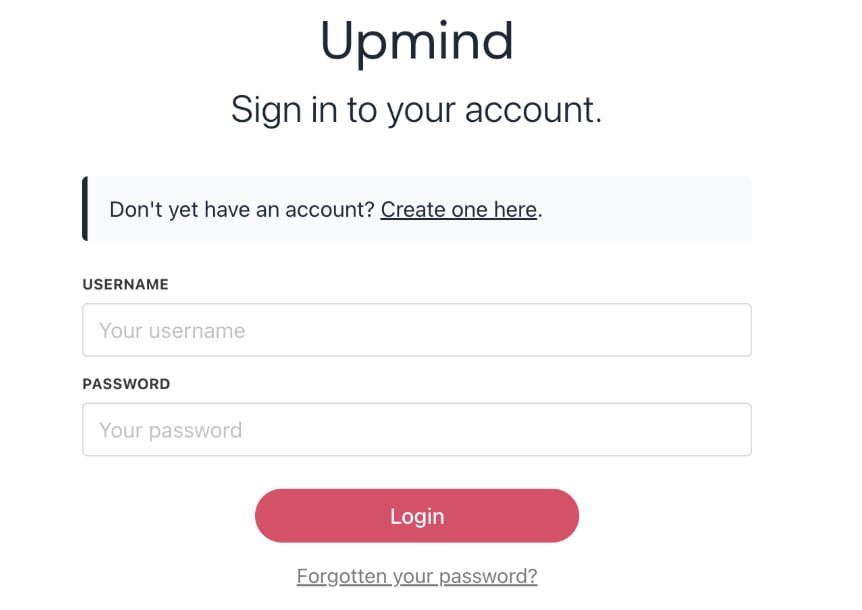
1. Visit your `Admin Panel` login page at [<u>https://my.upmind.com/login</u>](https://my.upmind.com/login).
2. Enter your credentials to log in.
<Frame caption="Log in panel">
  <img src="https://mintcdn.com/upmind/2ooSxDpt6PiIGMr-/images/fb/07dc236f10507172.png?fit=max&auto=format&n=2ooSxDpt6PiIGMr-&q=85&s=78676dfdbb7eb86ee05980a487dc974f" alt="Log in panel" className="mx-auto" style={{ width:"83%" }} width="862" height="610" data-path="images/fb/07dc236f10507172.png" />

  <img src="https://mintcdn.com/upmind/2ooSxDpt6PiIGMr-/images/fb/07dc236f10507172.png?fit=max&auto=format&n=2ooSxDpt6PiIGMr-&q=85&s=78676dfdbb7eb86ee05980a487dc974f" alt="Log in panel" className="mx-auto" style={{ width:"83%" }} width="862" height="610" data-path="images/fb/07dc236f10507172.png" />
</Frame>

## **Configure your domain**

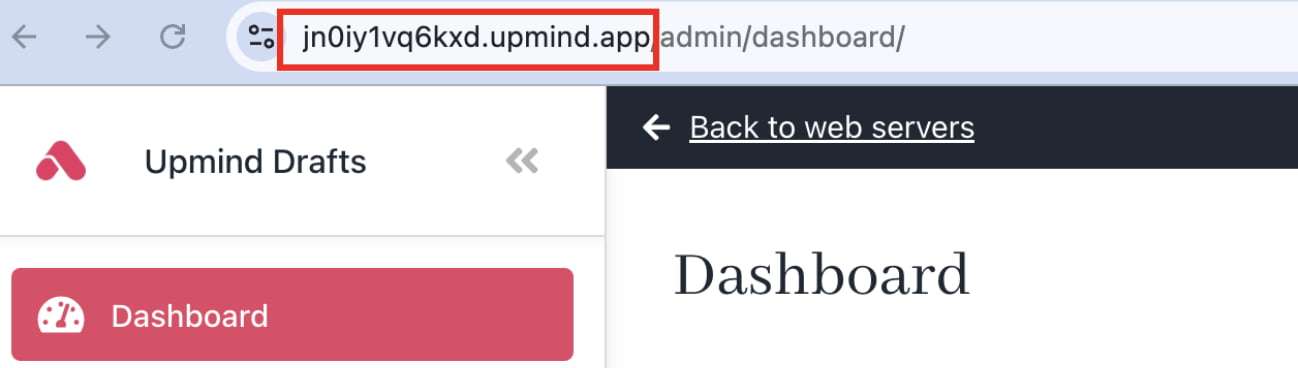
1. Upmind creates a unique subdomain for your store ending with `.upmind.app`.
2. After setup, [<u>configure your own domain</u>](/setup-and-configuration/branding/how-to-add-a-custom-domain-name) (e.g., `yourdomain.com` or `clientarea.yourdomain.com`).
<Frame caption="Unique subdomain">
  <img src="https://mintcdn.com/upmind/c5sDUwEs8YpzGbjA/images/fb/96536877c419dca0.png?fit=max&auto=format&n=c5sDUwEs8YpzGbjA&q=85&s=176e8d282b6b894b8014b60ab45d9832" alt="Unique subdomain" className="mx-auto" style={{ width:"90%" }} width="1298" height="368" data-path="images/fb/96536877c419dca0.png" />

  <img src="https://mintcdn.com/upmind/c5sDUwEs8YpzGbjA/images/fb/96536877c419dca0.png?fit=max&auto=format&n=c5sDUwEs8YpzGbjA&q=85&s=176e8d282b6b894b8014b60ab45d9832" alt="Unique subdomain" className="mx-auto" style={{ width:"90%" }} width="1298" height="368" data-path="images/fb/96536877c419dca0.png" />
</Frame>

## **Change the organisation name display**

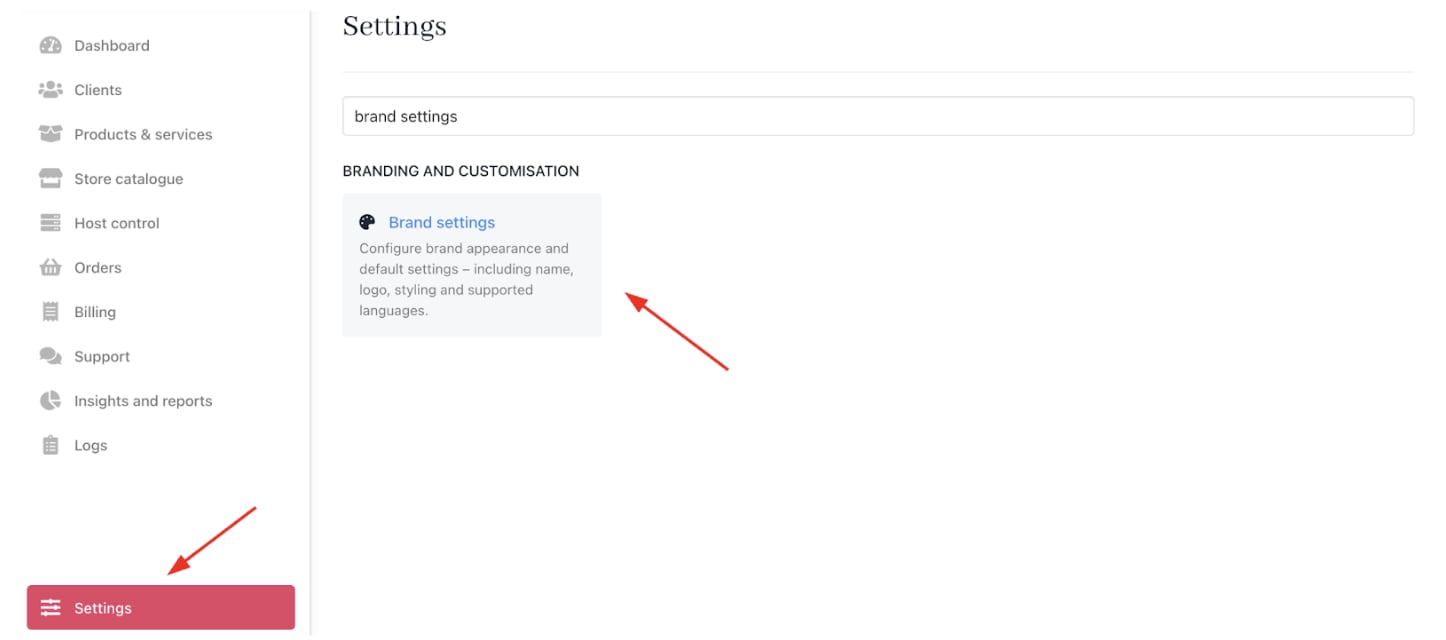
1. Go to **Settings** > **Brand Settings** under **Branding and Customisation**.
<Frame caption="Settings > Branding and Customisation > Brand Settings">
  <img src="https://mintcdn.com/upmind/6knUVC8F1nK4E5CY/images/fb/c6d915987841d846.png?fit=max&auto=format&n=6knUVC8F1nK4E5CY&q=85&s=5f4d67efae2f364451c1219dea9039ec" alt="Settings > Branding and Customisation > Brand Settings" className="mx-auto" style={{ width:"97%" }} data-og-width="1446" width="1446" data-og-height="640" height="640" data-path="images/fb/c6d915987841d846.png" data-optimize="true" data-opv="3" srcset="https://mintcdn.com/upmind/6knUVC8F1nK4E5CY/images/fb/c6d915987841d846.png?w=280&fit=max&auto=format&n=6knUVC8F1nK4E5CY&q=85&s=a19b4f4759b36e561bf98ece8cf98b4f 280w, https://mintcdn.com/upmind/6knUVC8F1nK4E5CY/images/fb/c6d915987841d846.png?w=560&fit=max&auto=format&n=6knUVC8F1nK4E5CY&q=85&s=07c3bcf4c79348594866c46a351257fd 560w, https://mintcdn.com/upmind/6knUVC8F1nK4E5CY/images/fb/c6d915987841d846.png?w=840&fit=max&auto=format&n=6knUVC8F1nK4E5CY&q=85&s=44834f8440a95ea259f26428c2598f5b 840w, https://mintcdn.com/upmind/6knUVC8F1nK4E5CY/images/fb/c6d915987841d846.png?w=1100&fit=max&auto=format&n=6knUVC8F1nK4E5CY&q=85&s=67601b63050254d1d7ed81cb047b6765 1100w, https://mintcdn.com/upmind/6knUVC8F1nK4E5CY/images/fb/c6d915987841d846.png?w=1650&fit=max&auto=format&n=6knUVC8F1nK4E5CY&q=85&s=c723744fb320ccd1d7573dcc307d7d5e 1650w, https://mintcdn.com/upmind/6knUVC8F1nK4E5CY/images/fb/c6d915987841d846.png?w=2500&fit=max&auto=format&n=6knUVC8F1nK4E5CY&q=85&s=95abf5aa51776bac697f87ce4109baff 2500w" />

  <img src="https://mintcdn.com/upmind/6knUVC8F1nK4E5CY/images/fb/c6d915987841d846.png?fit=max&auto=format&n=6knUVC8F1nK4E5CY&q=85&s=5f4d67efae2f364451c1219dea9039ec" alt="Settings > Branding and Customisation > Brand Settings" className="mx-auto" style={{ width:"97%" }} data-og-width="1446" width="1446" data-og-height="640" height="640" data-path="images/fb/c6d915987841d846.png" data-optimize="true" data-opv="3" srcset="https://mintcdn.com/upmind/6knUVC8F1nK4E5CY/images/fb/c6d915987841d846.png?w=280&fit=max&auto=format&n=6knUVC8F1nK4E5CY&q=85&s=a19b4f4759b36e561bf98ece8cf98b4f 280w, https://mintcdn.com/upmind/6knUVC8F1nK4E5CY/images/fb/c6d915987841d846.png?w=560&fit=max&auto=format&n=6knUVC8F1nK4E5CY&q=85&s=07c3bcf4c79348594866c46a351257fd 560w, https://mintcdn.com/upmind/6knUVC8F1nK4E5CY/images/fb/c6d915987841d846.png?w=840&fit=max&auto=format&n=6knUVC8F1nK4E5CY&q=85&s=44834f8440a95ea259f26428c2598f5b 840w, https://mintcdn.com/upmind/6knUVC8F1nK4E5CY/images/fb/c6d915987841d846.png?w=1100&fit=max&auto=format&n=6knUVC8F1nK4E5CY&q=85&s=67601b63050254d1d7ed81cb047b6765 1100w, https://mintcdn.com/upmind/6knUVC8F1nK4E5CY/images/fb/c6d915987841d846.png?w=1650&fit=max&auto=format&n=6knUVC8F1nK4E5CY&q=85&s=c723744fb320ccd1d7573dcc307d7d5e 1650w, https://mintcdn.com/upmind/6knUVC8F1nK4E5CY/images/fb/c6d915987841d846.png?w=2500&fit=max&auto=format&n=6knUVC8F1nK4E5CY&q=85&s=95abf5aa51776bac697f87ce4109baff 2500w" />
</Frame>

2. Enter a new name and click **Save**.
<Frame caption="New brand name">
  <img src="https://mintcdn.com/upmind/1xguIfYUrfespmVI/images/fb/8144eb9a12a14df6.png?fit=max&auto=format&n=1xguIfYUrfespmVI&q=85&s=1749dbfd1b27e8c15cb6466c7e393809" alt="New brand name" className="mx-auto" style={{ width:"97%" }} width="1516" height="454" data-path="images/fb/8144eb9a12a14df6.png" />

  <img src="https://mintcdn.com/upmind/1xguIfYUrfespmVI/images/fb/8144eb9a12a14df6.png?fit=max&auto=format&n=1xguIfYUrfespmVI&q=85&s=1749dbfd1b27e8c15cb6466c7e393809" alt="New brand name" className="mx-auto" style={{ width:"97%" }} width="1516" height="454" data-path="images/fb/8144eb9a12a14df6.png" />
</Frame>

Upmind updates the [<u>organisation</u>](/setup-and-configuration/branding/what-is-an-organisation) name on screen, but not the domain name.

<Note>
  An Upmind account is an organisation that can include multiple brands configured on the brand page. If you manage several businesses under the same legal entity, use multi-brand mode within one organisation. Or you can create separate organisations for distinct legal entities.
</Note>

## **Set store currency**

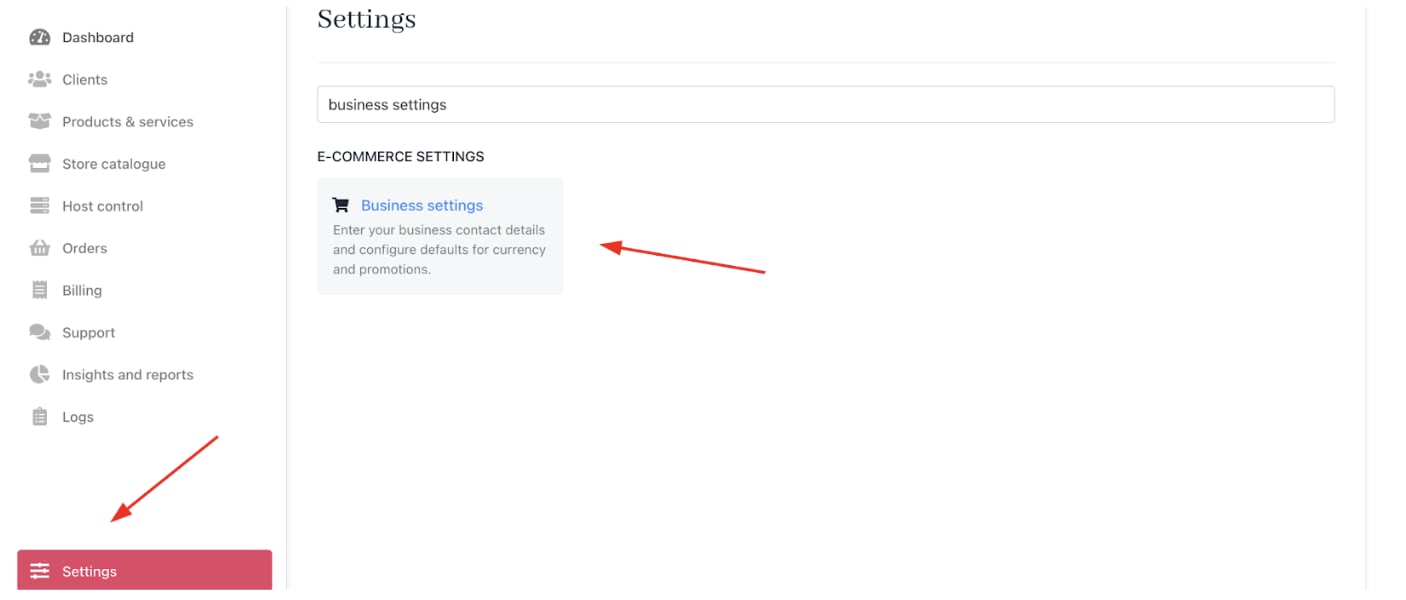
1. Go to **Settings** > **Business Settings** under **E-commerce Settings**.
<Frame caption="Settings > E-commerce Settings > Business Settings">
  <img src="https://mintcdn.com/upmind/c5sDUwEs8YpzGbjA/images/fb/9521908ee2e0992c.png?fit=max&auto=format&n=c5sDUwEs8YpzGbjA&q=85&s=c70c856a957af22616a63aa308f43212" alt="Settings > E-commerce Settings > Business Settings" className="mx-auto" style={{ width:"98%" }} data-og-width="1406" width="1406" data-og-height="600" height="600" data-path="images/fb/9521908ee2e0992c.png" data-optimize="true" data-opv="3" srcset="https://mintcdn.com/upmind/c5sDUwEs8YpzGbjA/images/fb/9521908ee2e0992c.png?w=280&fit=max&auto=format&n=c5sDUwEs8YpzGbjA&q=85&s=824acae2f3033bc8231f1a892a058f6c 280w, https://mintcdn.com/upmind/c5sDUwEs8YpzGbjA/images/fb/9521908ee2e0992c.png?w=560&fit=max&auto=format&n=c5sDUwEs8YpzGbjA&q=85&s=41744f9dfea389da597ef845fb570d3f 560w, https://mintcdn.com/upmind/c5sDUwEs8YpzGbjA/images/fb/9521908ee2e0992c.png?w=840&fit=max&auto=format&n=c5sDUwEs8YpzGbjA&q=85&s=543cca262ce553f2466784f7fcbfa77d 840w, https://mintcdn.com/upmind/c5sDUwEs8YpzGbjA/images/fb/9521908ee2e0992c.png?w=1100&fit=max&auto=format&n=c5sDUwEs8YpzGbjA&q=85&s=76ac314ce727a5cb48c27b540470a3d5 1100w, https://mintcdn.com/upmind/c5sDUwEs8YpzGbjA/images/fb/9521908ee2e0992c.png?w=1650&fit=max&auto=format&n=c5sDUwEs8YpzGbjA&q=85&s=c640fe32f36c267acb6096116655a463 1650w, https://mintcdn.com/upmind/c5sDUwEs8YpzGbjA/images/fb/9521908ee2e0992c.png?w=2500&fit=max&auto=format&n=c5sDUwEs8YpzGbjA&q=85&s=8e6aa8b7cb22670aaf4d61aa417cac61 2500w" />

  <img src="https://mintcdn.com/upmind/c5sDUwEs8YpzGbjA/images/fb/9521908ee2e0992c.png?fit=max&auto=format&n=c5sDUwEs8YpzGbjA&q=85&s=c70c856a957af22616a63aa308f43212" alt="Settings > E-commerce Settings > Business Settings" className="mx-auto" style={{ width:"98%" }} data-og-width="1406" width="1406" data-og-height="600" height="600" data-path="images/fb/9521908ee2e0992c.png" data-optimize="true" data-opv="3" srcset="https://mintcdn.com/upmind/c5sDUwEs8YpzGbjA/images/fb/9521908ee2e0992c.png?w=280&fit=max&auto=format&n=c5sDUwEs8YpzGbjA&q=85&s=824acae2f3033bc8231f1a892a058f6c 280w, https://mintcdn.com/upmind/c5sDUwEs8YpzGbjA/images/fb/9521908ee2e0992c.png?w=560&fit=max&auto=format&n=c5sDUwEs8YpzGbjA&q=85&s=41744f9dfea389da597ef845fb570d3f 560w, https://mintcdn.com/upmind/c5sDUwEs8YpzGbjA/images/fb/9521908ee2e0992c.png?w=840&fit=max&auto=format&n=c5sDUwEs8YpzGbjA&q=85&s=543cca262ce553f2466784f7fcbfa77d 840w, https://mintcdn.com/upmind/c5sDUwEs8YpzGbjA/images/fb/9521908ee2e0992c.png?w=1100&fit=max&auto=format&n=c5sDUwEs8YpzGbjA&q=85&s=76ac314ce727a5cb48c27b540470a3d5 1100w, https://mintcdn.com/upmind/c5sDUwEs8YpzGbjA/images/fb/9521908ee2e0992c.png?w=1650&fit=max&auto=format&n=c5sDUwEs8YpzGbjA&q=85&s=c640fe32f36c267acb6096116655a463 1650w, https://mintcdn.com/upmind/c5sDUwEs8YpzGbjA/images/fb/9521908ee2e0992c.png?w=2500&fit=max&auto=format&n=c5sDUwEs8YpzGbjA&q=85&s=8e6aa8b7cb22670aaf4d61aa417cac61 2500w" />
</Frame>

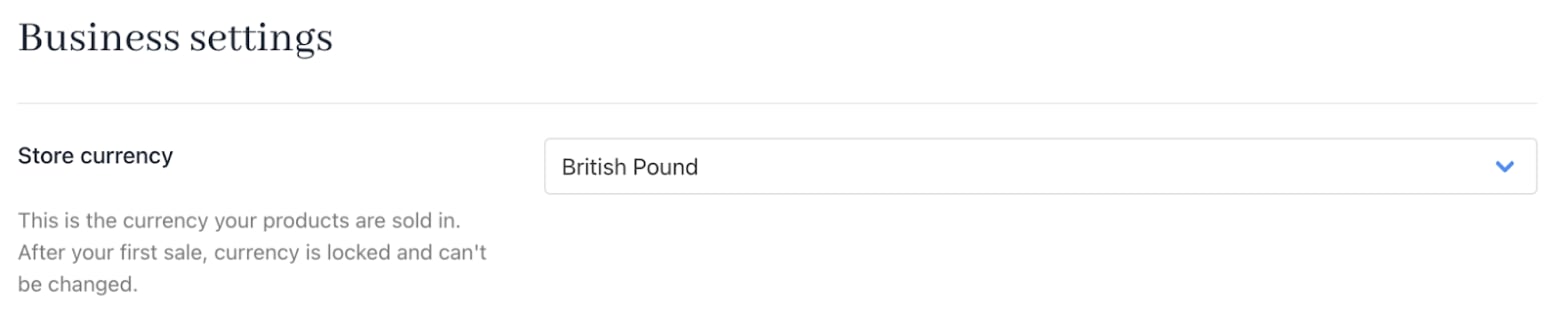
2. Set your **Store Currency**, which will be the primary currency.
<Frame caption="Store currency">
  <img src="https://mintcdn.com/upmind/c5sDUwEs8YpzGbjA/images/fb/96cce291a41e2948.png?fit=max&auto=format&n=c5sDUwEs8YpzGbjA&q=85&s=906e3a458d466b91a3792ad8181ac0d0" alt="Store currency" className="mx-auto" style={{ width:"98%" }} width="1548" height="326" data-path="images/fb/96cce291a41e2948.png" />

  <img src="https://mintcdn.com/upmind/c5sDUwEs8YpzGbjA/images/fb/96cce291a41e2948.png?fit=max&auto=format&n=c5sDUwEs8YpzGbjA&q=85&s=906e3a458d466b91a3792ad8181ac0d0" alt="Store currency" className="mx-auto" style={{ width:"98%" }} width="1548" height="326" data-path="images/fb/96cce291a41e2948.png" />
</Frame>

Upmind supports [<u>multiple currencies</u>](/using-upmind/invoicing-and-taxes/about-multi-currency), but your primary (base) currency is fixed once you record your first transaction. This base currency drives all reporting and conversions and cannot be changed afterwards, so choose it carefully.

## **Define products and services**

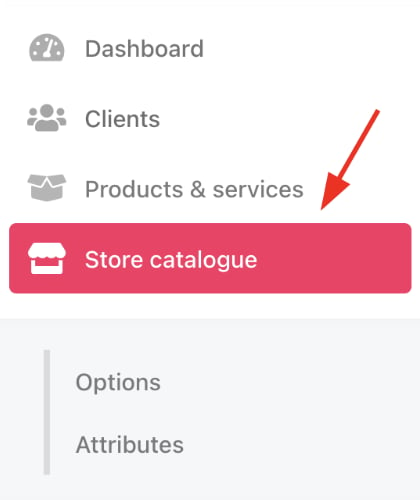
1. Access it `Store Catalogue` from the dashboard by clicking on **Store Catalogue**.
<Frame caption="Store catalogue">
  <img src="https://mintcdn.com/upmind/1-uICsJi9zYpvJVH/images/fb/8abb07fc09e16fe7.png?fit=max&auto=format&n=1-uICsJi9zYpvJVH&q=85&s=19ac4099b56d48cf9cf784d27722e994" alt="Store catalogue" className="mx-auto" style={{ width:"86%" }} width="420" height="500" data-path="images/fb/8abb07fc09e16fe7.png" />

  <img src="https://mintcdn.com/upmind/1-uICsJi9zYpvJVH/images/fb/8abb07fc09e16fe7.png?fit=max&auto=format&n=1-uICsJi9zYpvJVH&q=85&s=19ac4099b56d48cf9cf784d27722e994" alt="Store catalogue" className="mx-auto" style={{ width:"86%" }} width="420" height="500" data-path="images/fb/8abb07fc09e16fe7.png" />
</Frame>

2. You can also click **Settings** and select the **Product Catalogue** tile under **Products and Promotions**.
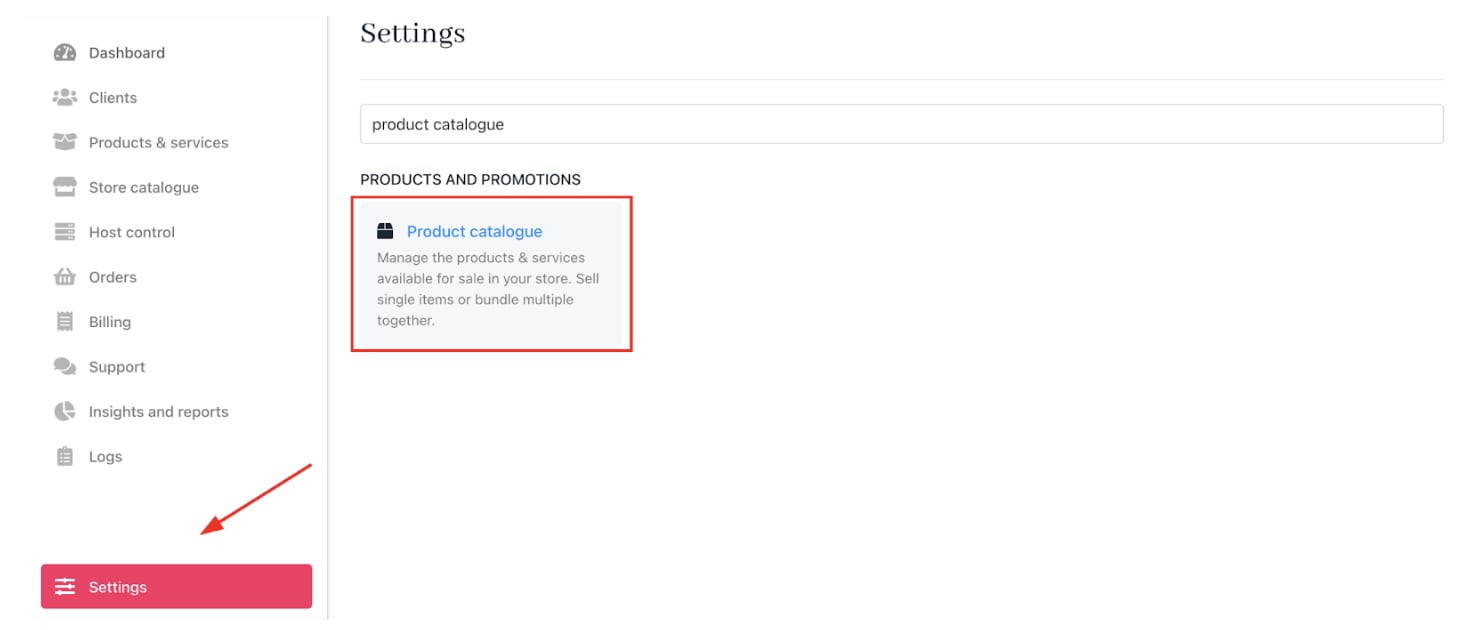
<Frame caption="Settings > Products and Promotions > Product Catalogue">
  <img src="https://mintcdn.com/upmind/kAlrCUxI2nwYz4_i/images/fb/1fc442fd8d0ae887.png?fit=max&auto=format&n=kAlrCUxI2nwYz4_i&q=85&s=d89f12075f5789c0deb05ed168b0fb10" alt="Settings > Products and Promotions > Product Catalogue" className="mx-auto" style={{ width:"97%" }} data-og-width="1468" width="1468" data-og-height="630" height="630" data-path="images/fb/1fc442fd8d0ae887.png" data-optimize="true" data-opv="3" srcset="https://mintcdn.com/upmind/kAlrCUxI2nwYz4_i/images/fb/1fc442fd8d0ae887.png?w=280&fit=max&auto=format&n=kAlrCUxI2nwYz4_i&q=85&s=898df2feac5ccd4a6962b04028553512 280w, https://mintcdn.com/upmind/kAlrCUxI2nwYz4_i/images/fb/1fc442fd8d0ae887.png?w=560&fit=max&auto=format&n=kAlrCUxI2nwYz4_i&q=85&s=9d076b03bdc34145dcec55193fe72533 560w, https://mintcdn.com/upmind/kAlrCUxI2nwYz4_i/images/fb/1fc442fd8d0ae887.png?w=840&fit=max&auto=format&n=kAlrCUxI2nwYz4_i&q=85&s=b6c69982fa534ad8409a76782e891600 840w, https://mintcdn.com/upmind/kAlrCUxI2nwYz4_i/images/fb/1fc442fd8d0ae887.png?w=1100&fit=max&auto=format&n=kAlrCUxI2nwYz4_i&q=85&s=676945c13b7be7c2100e7bf08e5175df 1100w, https://mintcdn.com/upmind/kAlrCUxI2nwYz4_i/images/fb/1fc442fd8d0ae887.png?w=1650&fit=max&auto=format&n=kAlrCUxI2nwYz4_i&q=85&s=7698d7f54359ecaa37678a503127c062 1650w, https://mintcdn.com/upmind/kAlrCUxI2nwYz4_i/images/fb/1fc442fd8d0ae887.png?w=2500&fit=max&auto=format&n=kAlrCUxI2nwYz4_i&q=85&s=fe4e3053acf2cc55e2dc5f76d793567e 2500w" />

  <img src="https://mintcdn.com/upmind/kAlrCUxI2nwYz4_i/images/fb/1fc442fd8d0ae887.png?fit=max&auto=format&n=kAlrCUxI2nwYz4_i&q=85&s=d89f12075f5789c0deb05ed168b0fb10" alt="Settings > Products and Promotions > Product Catalogue" className="mx-auto" style={{ width:"97%" }} data-og-width="1468" width="1468" data-og-height="630" height="630" data-path="images/fb/1fc442fd8d0ae887.png" data-optimize="true" data-opv="3" srcset="https://mintcdn.com/upmind/kAlrCUxI2nwYz4_i/images/fb/1fc442fd8d0ae887.png?w=280&fit=max&auto=format&n=kAlrCUxI2nwYz4_i&q=85&s=898df2feac5ccd4a6962b04028553512 280w, https://mintcdn.com/upmind/kAlrCUxI2nwYz4_i/images/fb/1fc442fd8d0ae887.png?w=560&fit=max&auto=format&n=kAlrCUxI2nwYz4_i&q=85&s=9d076b03bdc34145dcec55193fe72533 560w, https://mintcdn.com/upmind/kAlrCUxI2nwYz4_i/images/fb/1fc442fd8d0ae887.png?w=840&fit=max&auto=format&n=kAlrCUxI2nwYz4_i&q=85&s=b6c69982fa534ad8409a76782e891600 840w, https://mintcdn.com/upmind/kAlrCUxI2nwYz4_i/images/fb/1fc442fd8d0ae887.png?w=1100&fit=max&auto=format&n=kAlrCUxI2nwYz4_i&q=85&s=676945c13b7be7c2100e7bf08e5175df 1100w, https://mintcdn.com/upmind/kAlrCUxI2nwYz4_i/images/fb/1fc442fd8d0ae887.png?w=1650&fit=max&auto=format&n=kAlrCUxI2nwYz4_i&q=85&s=7698d7f54359ecaa37678a503127c062 1650w, https://mintcdn.com/upmind/kAlrCUxI2nwYz4_i/images/fb/1fc442fd8d0ae887.png?w=2500&fit=max&auto=format&n=kAlrCUxI2nwYz4_i&q=85&s=fe4e3053acf2cc55e2dc5f76d793567e 2500w" />
</Frame>

## **Create categories**

Categories help you organise your products and can be edited at any time.

### **Add a new category**

1. On the `Product Catalogue` page, click **Add New**.
2. Choose the **Products category**.
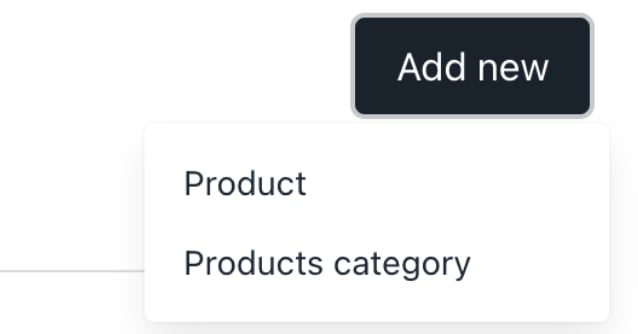
<Frame caption="Add new product category">
  <img src="https://mintcdn.com/upmind/ObllJJl59DabnmMn/images/fb/ce605003b6d96e14.png?fit=max&auto=format&n=ObllJJl59DabnmMn&q=85&s=177f3af56c6049d94f4f94c3ef875fbb" alt="Add new product category" className="mx-auto" style={{ width:"79%" }} width="638" height="334" data-path="images/fb/ce605003b6d96e14.png" />

  <img src="https://mintcdn.com/upmind/ObllJJl59DabnmMn/images/fb/ce605003b6d96e14.png?fit=max&auto=format&n=ObllJJl59DabnmMn&q=85&s=177f3af56c6049d94f4f94c3ef875fbb" alt="Add new product category" className="mx-auto" style={{ width:"79%" }} width="638" height="334" data-path="images/fb/ce605003b6d96e14.png" />
</Frame>

3. Enter a unique category name.
4. Add a category description (visible to website visitors).
5. Click **Create**.
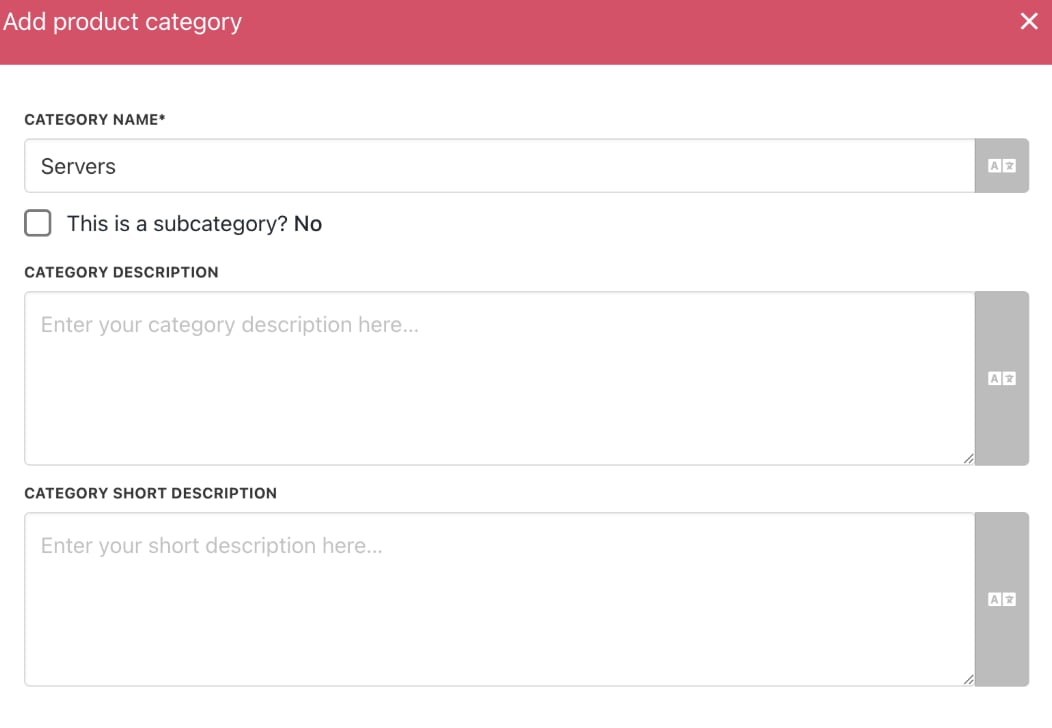
<Frame caption="Create product category">
  <img src="https://mintcdn.com/upmind/c5sDUwEs8YpzGbjA/images/fb/98a795f489a8e52c.png?fit=max&auto=format&n=c5sDUwEs8YpzGbjA&q=85&s=c8827928ed6bbeef7f43ea7e0b9b06d1" alt="Create product category" className="mx-auto" style={{ width:"86%" }} width="1052" height="728" data-path="images/fb/98a795f489a8e52c.png" />

  <img src="https://mintcdn.com/upmind/c5sDUwEs8YpzGbjA/images/fb/98a795f489a8e52c.png?fit=max&auto=format&n=c5sDUwEs8YpzGbjA&q=85&s=c8827928ed6bbeef7f43ea7e0b9b06d1" alt="Create product category" className="mx-auto" style={{ width:"86%" }} width="1052" height="728" data-path="images/fb/98a795f489a8e52c.png" />
</Frame>

The new category appears in the catalogue.
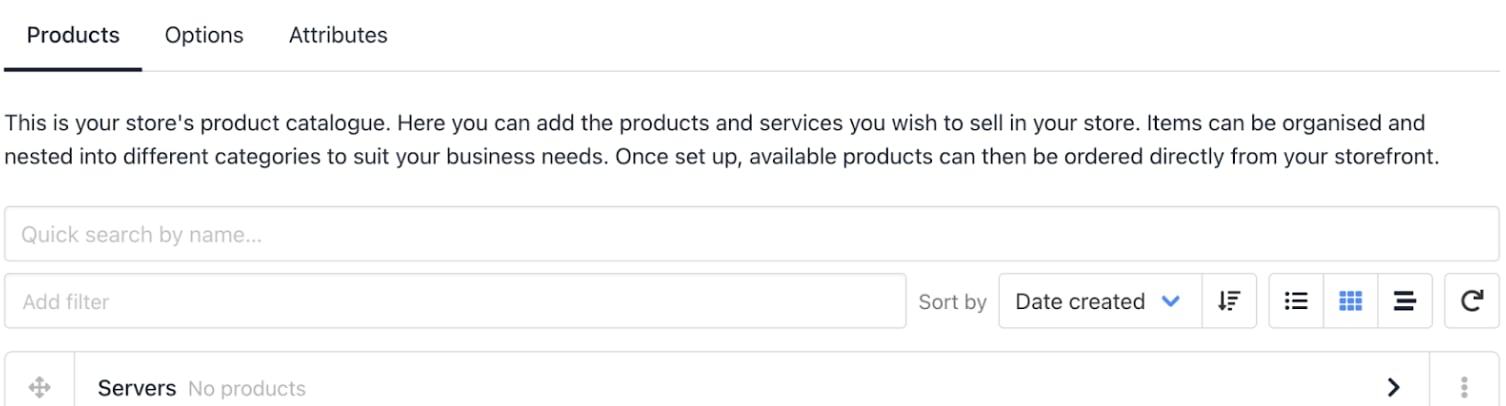
<Frame caption="New category in the catalogue">
  <img src="https://mintcdn.com/upmind/FQ1NhxALxjSHvvWW/images/fb/b1869c8ba42e6927.png?fit=max&auto=format&n=FQ1NhxALxjSHvvWW&q=85&s=4e60058ef63f67eaba903ad242814cc1" alt="New category in the catalogue" className="mx-auto" style={{ width:"94%" }} width="1506" height="406" data-path="images/fb/b1869c8ba42e6927.png" />

  <img src="https://mintcdn.com/upmind/FQ1NhxALxjSHvvWW/images/fb/b1869c8ba42e6927.png?fit=max&auto=format&n=FQ1NhxALxjSHvvWW&q=85&s=4e60058ef63f67eaba903ad242814cc1" alt="New category in the catalogue" className="mx-auto" style={{ width:"94%" }} width="1506" height="406" data-path="images/fb/b1869c8ba42e6927.png" />
</Frame>

## **Create products**

You can add products in two ways:

1. Click **Add New** > **Product** on the `Product Catalogue` page.
2. Or, click the three-dot menu next to a category and select **Add product**.

<Frame caption="Add product">
  <img src="https://mintcdn.com/upmind/FQ1NhxALxjSHvvWW/images/fb/b39e5a4cf15462cb.png?fit=max&auto=format&n=FQ1NhxALxjSHvvWW&q=85&s=80151053ae779714c4e2452cf114d923" alt="Add product" className="mx-auto" style={{ width:"95%" }} width="1464" height="176" data-path="images/fb/b39e5a4cf15462cb.png" />

  <img src="https://mintcdn.com/upmind/FQ1NhxALxjSHvvWW/images/fb/b39e5a4cf15462cb.png?fit=max&auto=format&n=FQ1NhxALxjSHvvWW&q=85&s=80151053ae779714c4e2452cf114d923" alt="Add product" className="mx-auto" style={{ width:"95%" }} width="1464" height="176" data-path="images/fb/b39e5a4cf15462cb.png" />
</Frame>

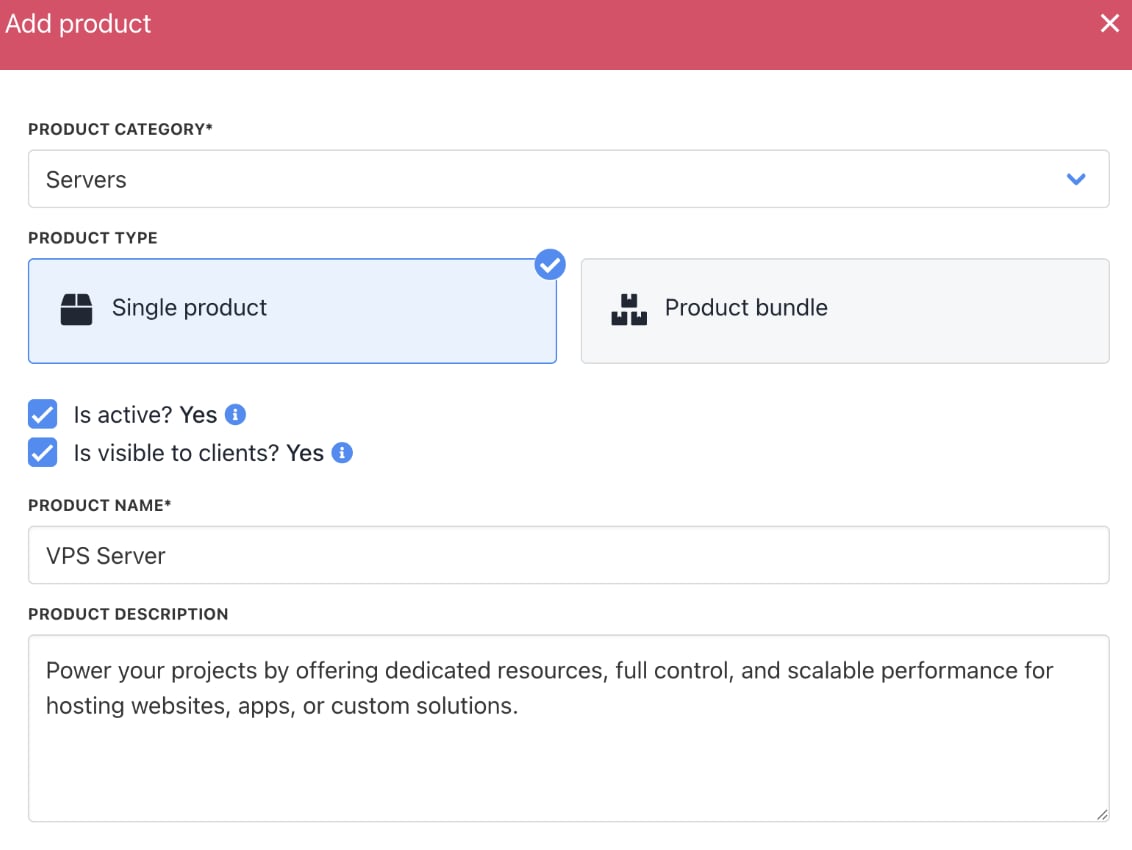
3. Choose **Single** product (default) or **Product** bundle.
4. Complete the product fields (name, descriptions, etc.).
5. Click **Create**.

<Frame caption="Single product option">
  <img src="https://mintcdn.com/upmind/c5sDUwEs8YpzGbjA/images/fb/9756de92109e3620.png?fit=max&auto=format&n=c5sDUwEs8YpzGbjA&q=85&s=a96b6c6f545bb2c0619d82d629889f62" alt="Single product option" className="mx-auto" style={{ width:"95%" }} width="1132" height="850" data-path="images/fb/9756de92109e3620.png" />

  <img src="https://mintcdn.com/upmind/c5sDUwEs8YpzGbjA/images/fb/9756de92109e3620.png?fit=max&auto=format&n=c5sDUwEs8YpzGbjA&q=85&s=a96b6c6f545bb2c0619d82d629889f62" alt="Single product option" className="mx-auto" style={{ width:"95%" }} width="1132" height="850" data-path="images/fb/9756de92109e3620.png" />
</Frame>

<Frame caption="Click the product">
  <img src="https://mintcdn.com/upmind/z5ofg3t7by4uN44v/images/fb/f180bdae4500890f.png?fit=max&auto=format&n=z5ofg3t7by4uN44v&q=85&s=4e4d58d44275841b6213785e60b2389e" alt="Click the product" className="mx-auto" style={{ width:"96%" }} width="1450" height="190" data-path="images/fb/f180bdae4500890f.png" />

  <img src="https://mintcdn.com/upmind/z5ofg3t7by4uN44v/images/fb/f180bdae4500890f.png?fit=max&auto=format&n=z5ofg3t7by4uN44v&q=85&s=4e4d58d44275841b6213785e60b2389e" alt="Click the product" className="mx-auto" style={{ width:"96%" }} width="1450" height="190" data-path="images/fb/f180bdae4500890f.png" />
</Frame>

The `Product Details` page displays the category and product name.

<Frame caption="Category and product name">
  <img src="https://mintcdn.com/upmind/6knUVC8F1nK4E5CY/images/fb/bf7eb5bf2a6de3a6.png?fit=max&auto=format&n=6knUVC8F1nK4E5CY&q=85&s=254f70924b26a6d9927b88c5e1c2a7c0" alt="Category and product name" className="mx-auto" style={{ width:"63%" }} width="690" height="180" data-path="images/fb/bf7eb5bf2a6de3a6.png" />

  <img src="https://mintcdn.com/upmind/6knUVC8F1nK4E5CY/images/fb/bf7eb5bf2a6de3a6.png?fit=max&auto=format&n=6knUVC8F1nK4E5CY&q=85&s=254f70924b26a6d9927b88c5e1c2a7c0" alt="Category and product name" className="mx-auto" style={{ width:"63%" }} width="690" height="180" data-path="images/fb/bf7eb5bf2a6de3a6.png" />
</Frame>

## **Add product details**

On the `Product Details` page, you can add or edit product info:

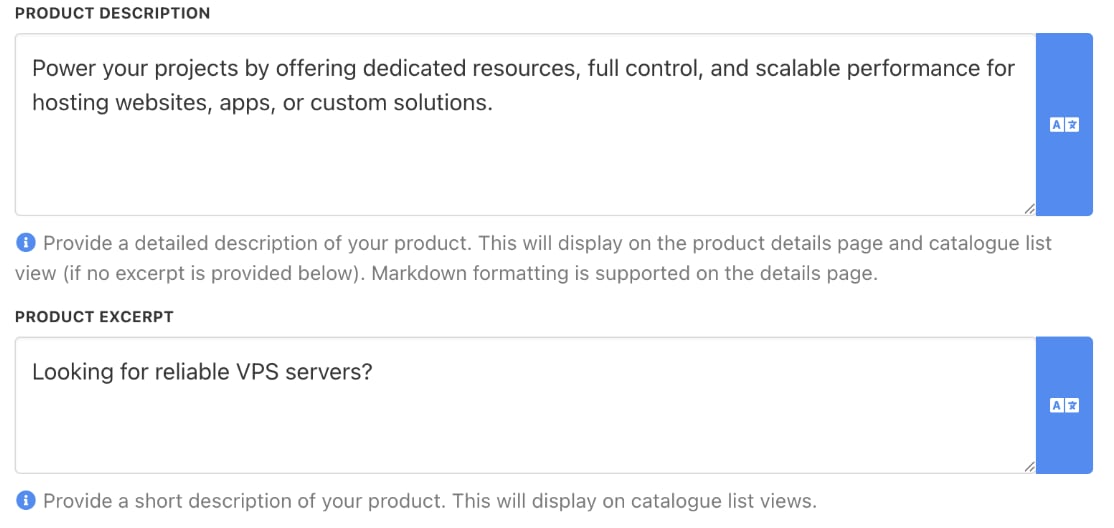
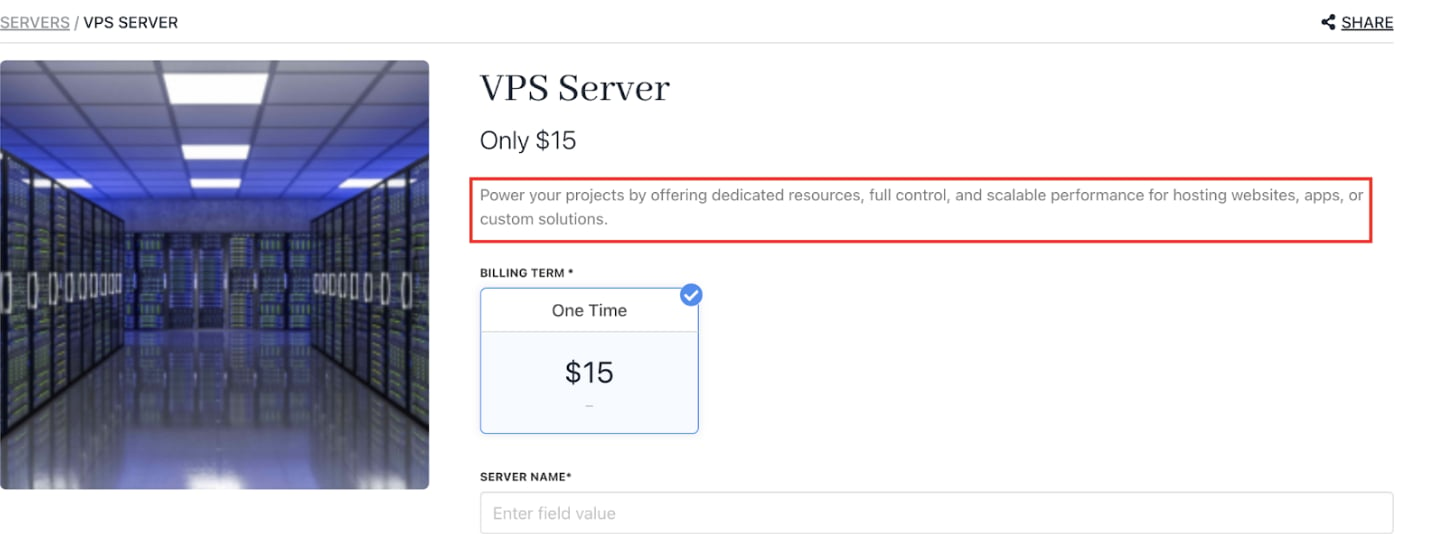
* **Product Description**: Detailed information about the product, such as features and benefits. Longer text supported.
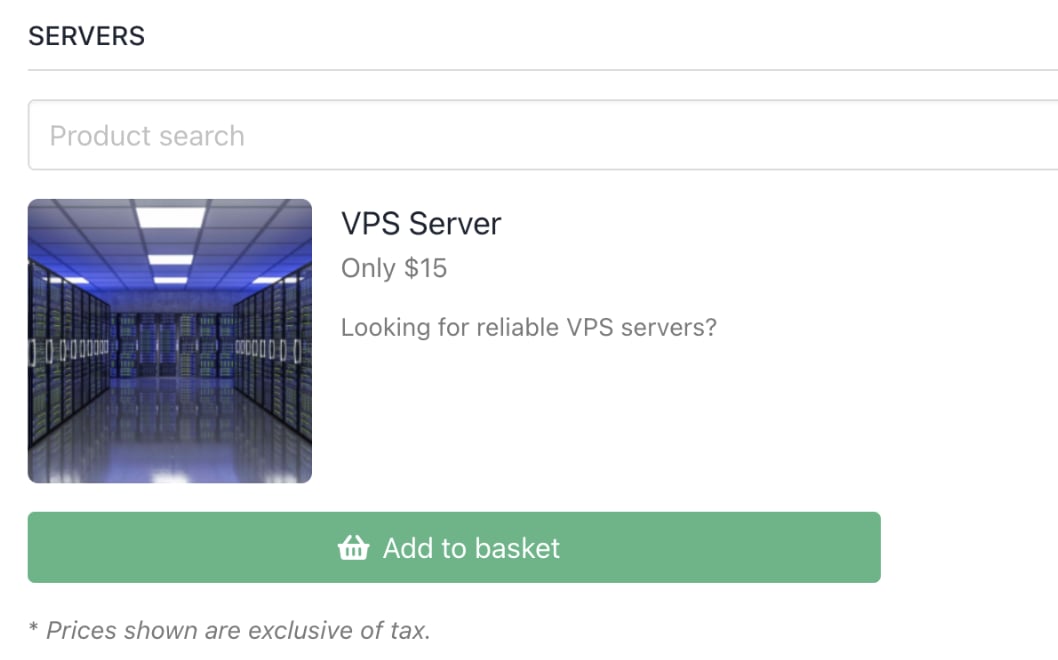
* **Product Short Description**: A concise description of up to 130 characters to grab attention.
<Frame caption="Product description & product excerpt">
  <img src="https://mintcdn.com/upmind/1xguIfYUrfespmVI/images/fb/83ef4c8990eeeb74.png?fit=max&auto=format&n=1xguIfYUrfespmVI&q=85&s=6b5519887708f38daf0d209bd9122aac" alt="Product description & product excerpt" className="mx-auto" style={{ width:"97%" }} width="1114" height="528" data-path="images/fb/83ef4c8990eeeb74.png" />

  <img src="https://mintcdn.com/upmind/1xguIfYUrfespmVI/images/fb/83ef4c8990eeeb74.png?fit=max&auto=format&n=1xguIfYUrfespmVI&q=85&s=6b5519887708f38daf0d209bd9122aac" alt="Product description & product excerpt" className="mx-auto" style={{ width:"97%" }} width="1114" height="528" data-path="images/fb/83ef4c8990eeeb74.png" />
</Frame>

<Warning>
  Text exceeding 293 characters in the product description is clipped automatically with a read more link.
</Warning>

<Frame caption="Product description displays">
  <img src="https://mintcdn.com/upmind/z5ofg3t7by4uN44v/images/fb/f48a00421422bd45.png?fit=max&auto=format&n=z5ofg3t7by4uN44v&q=85&s=52860ca1a407f439eb43b084e6d2b94a" alt="Product description displays" className="mx-auto" style={{ width:"94%" }} width="1436" height="534" data-path="images/fb/f48a00421422bd45.png" />

  <img src="https://mintcdn.com/upmind/z5ofg3t7by4uN44v/images/fb/f48a00421422bd45.png?fit=max&auto=format&n=z5ofg3t7by4uN44v&q=85&s=52860ca1a407f439eb43b084e6d2b94a" alt="Product description displays" className="mx-auto" style={{ width:"94%" }} width="1436" height="534" data-path="images/fb/f48a00421422bd45.png" />
</Frame>

<Note>
  The product excerpt displays on the **Add to Basket** page.
</Note>

<Frame caption="Product excerpt">
  <img src="https://mintcdn.com/upmind/2ooSxDpt6PiIGMr-/images/fb/043d3a036db80640.png?fit=max&auto=format&n=2ooSxDpt6PiIGMr-&q=85&s=8af5914472c2353c902e1e61cb0ea3f6" alt="Product excerpt" className="mx-auto" style={{ width:"88%" }} width="1058" height="660" data-path="images/fb/043d3a036db80640.png" />

  <img src="https://mintcdn.com/upmind/2ooSxDpt6PiIGMr-/images/fb/043d3a036db80640.png?fit=max&auto=format&n=2ooSxDpt6PiIGMr-&q=85&s=8af5914472c2353c902e1e61cb0ea3f6" alt="Product excerpt" className="mx-auto" style={{ width:"88%" }} width="1058" height="660" data-path="images/fb/043d3a036db80640.png" />
</Frame>

## **Upload images**

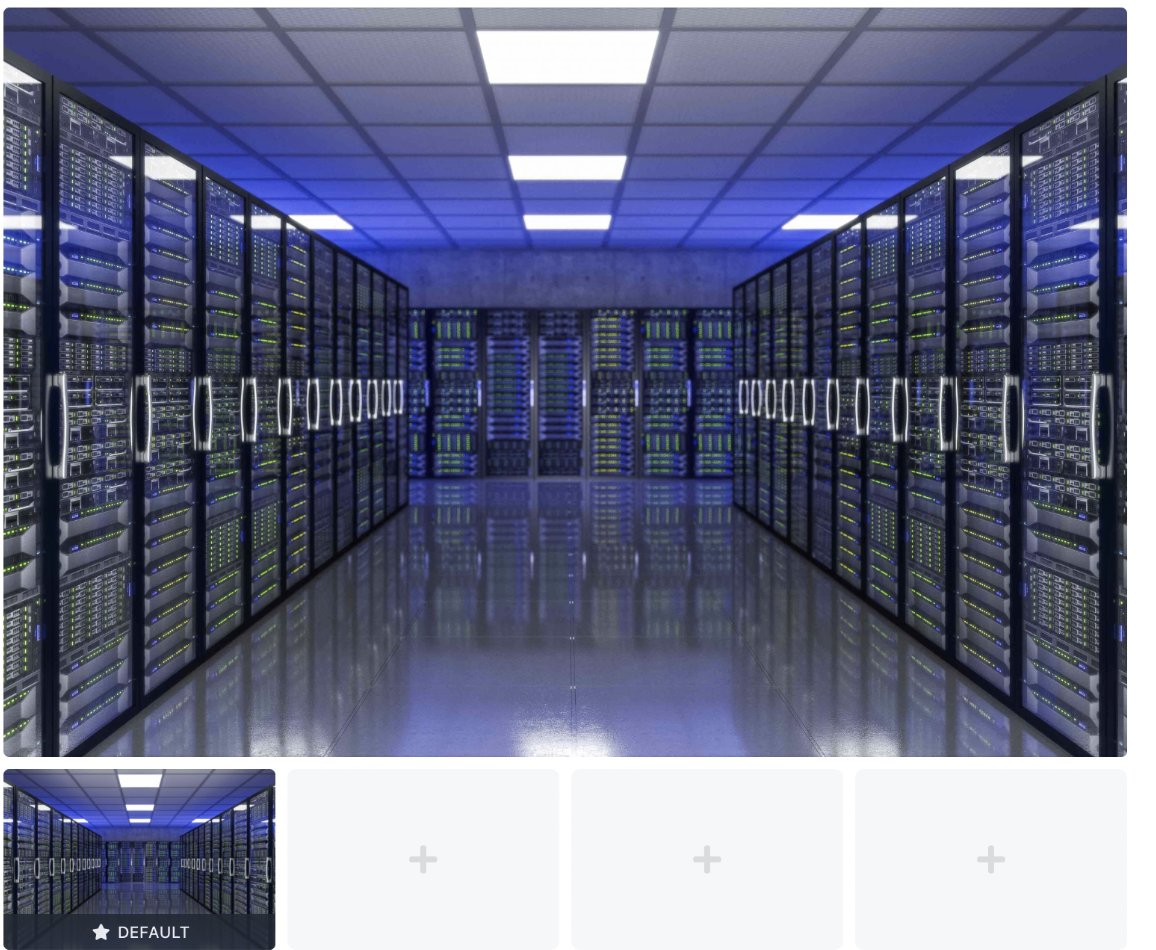
You can add up to 10 images per product to enhance its presentation. Click the upload area to select images. The first uploaded image becomes the default.

You can also change the default image by hovering over the thumbnail and clicking the star.

<Note>
  Learn about [<u>suggested image sizes</u>](/setup-and-configuration/other-setup-items/what-is-the-best-image-size-for-my-pictures).
</Note>

<Frame caption="Click a square to upload image">
  <img src="https://mintcdn.com/upmind/A-RwNPXmK_xnEEqe/images/fb/7a6c5923a441a3ab.png?fit=max&auto=format&n=A-RwNPXmK_xnEEqe&q=85&s=e5e0cfed2c2b0f7ce155b04e84240d97" alt="Click a square to upload image" className="mx-auto" style={{ width:"87%" }} width="1156" height="950" data-path="images/fb/7a6c5923a441a3ab.png" />

  <img src="https://mintcdn.com/upmind/A-RwNPXmK_xnEEqe/images/fb/7a6c5923a441a3ab.png?fit=max&auto=format&n=A-RwNPXmK_xnEEqe&q=85&s=e5e0cfed2c2b0f7ce155b04e84240d97" alt="Click a square to upload image" className="mx-auto" style={{ width:"87%" }} width="1156" height="950" data-path="images/fb/7a6c5923a441a3ab.png" />
</Frame>

## **Configure billing**

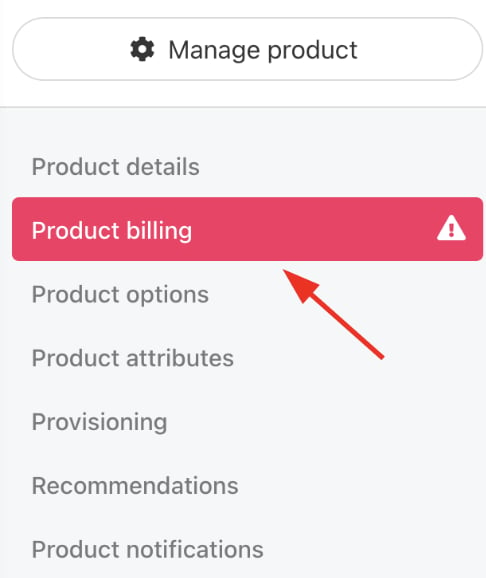
1. Select `Product billing` from the menu.
<Frame caption="Choose Product billing">
  <img src="https://mintcdn.com/upmind/kAlrCUxI2nwYz4_i/images/fb/1de1d9efb657d0c5.png?fit=max&auto=format&n=kAlrCUxI2nwYz4_i&q=85&s=36dfe54bb88d8d1edb8b0ecefbf117ae" alt="Choose Product billing" className="mx-auto" style={{ width:"72%" }} width="486" height="578" data-path="images/fb/1de1d9efb657d0c5.png" />

  <img src="https://mintcdn.com/upmind/kAlrCUxI2nwYz4_i/images/fb/1de1d9efb657d0c5.png?fit=max&auto=format&n=kAlrCUxI2nwYz4_i&q=85&s=36dfe54bb88d8d1edb8b0ecefbf117ae" alt="Choose Product billing" className="mx-auto" style={{ width:"72%" }} width="486" height="578" data-path="images/fb/1de1d9efb657d0c5.png" />
</Frame>

### **Create a one-off payment price**

1. Click the *One-off payment* tile.

<Frame caption="One-off payment tile">
  <img src="https://mintcdn.com/upmind/6knUVC8F1nK4E5CY/images/fb/c66e06d3e379efb1.png?fit=max&auto=format&n=6knUVC8F1nK4E5CY&q=85&s=8bb0fb9305e7ab196fd081e935dba2e4" alt="One-off payment tile" className="mx-auto" style={{ width:"96%" }} width="1478" height="290" data-path="images/fb/c66e06d3e379efb1.png" />

  <img src="https://mintcdn.com/upmind/6knUVC8F1nK4E5CY/images/fb/c66e06d3e379efb1.png?fit=max&auto=format&n=6knUVC8F1nK4E5CY&q=85&s=8bb0fb9305e7ab196fd081e935dba2e4" alt="One-off payment tile" className="mx-auto" style={{ width:"96%" }} width="1478" height="290" data-path="images/fb/c66e06d3e379efb1.png" />
</Frame>

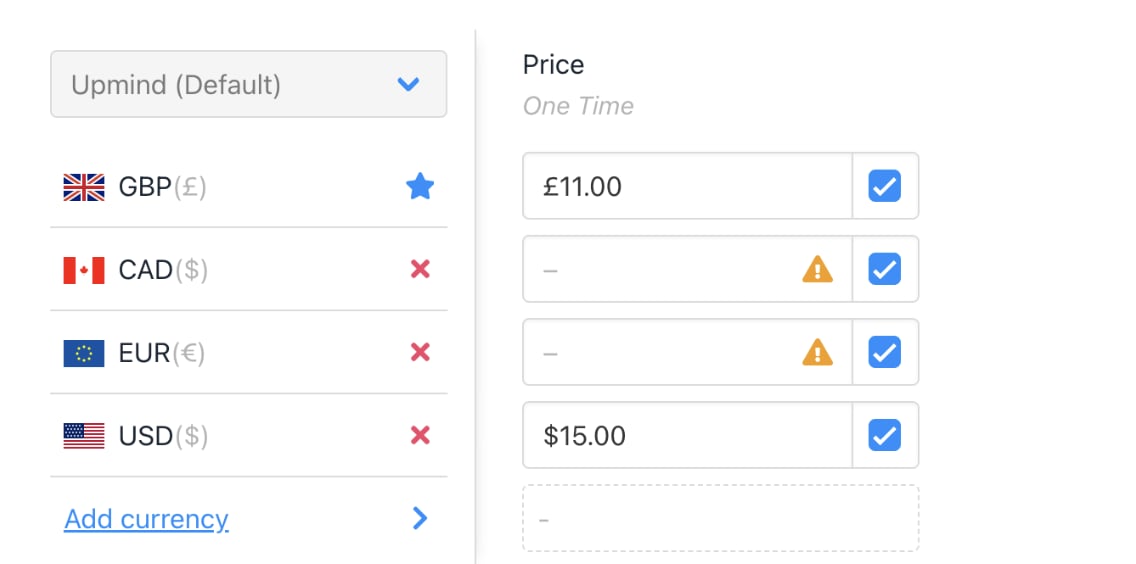
2. Enter the price for your default currency.
3. Add prices for additional currencies. (Optional)

<Note>
  To remove a currency, click the X icon next to it.
</Note>

<Frame caption="Add price for default currency">
  <img src="https://mintcdn.com/upmind/1xguIfYUrfespmVI/images/fb/86d62f5673508832.png?fit=max&auto=format&n=1xguIfYUrfespmVI&q=85&s=f7a243620d81780e06495783216db7cc" alt="Add price for default currency" className="mx-auto" style={{ width:"95%" }} width="1136" height="564" data-path="images/fb/86d62f5673508832.png" />

  <img src="https://mintcdn.com/upmind/1xguIfYUrfespmVI/images/fb/86d62f5673508832.png?fit=max&auto=format&n=1xguIfYUrfespmVI&q=85&s=f7a243620d81780e06495783216db7cc" alt="Add price for default currency" className="mx-auto" style={{ width:"95%" }} width="1136" height="564" data-path="images/fb/86d62f5673508832.png" />
</Frame>

4. Click **Save**.

### **Configure the multi-currency option**

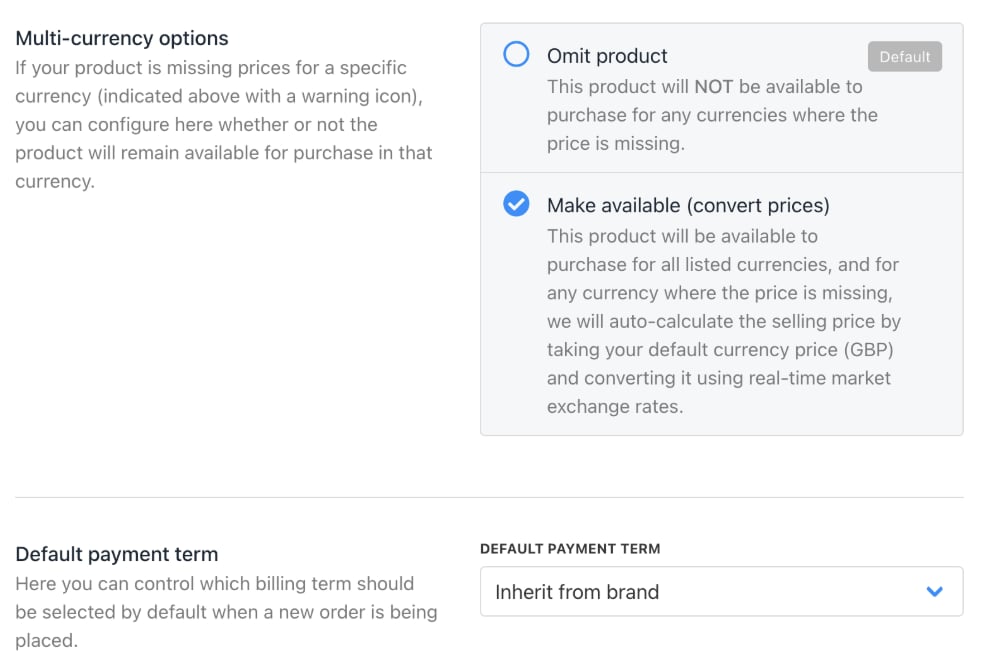
If a product doesn’t have a set price in a specific currency (for example, it’s only priced in your primary currency), you can control how Upmind handles it.

By default, it follows your brand’s [<u>multi-currency</u>](/using-upmind/invoicing-and-taxes/about-multi-currency) settings, but you can override this per product by choosing one of three options.

* **Omit product**: Product unavailable in that currency.
* **Make available**: Automatically convert price using current exchange rates.
* **Inherit brand default**: Use your brand’s global multi-currency setting.
<Frame caption="Choose make available">
  <img src="https://mintcdn.com/upmind/JUoAg6onJmXk_-rR/images/fb/e6e0753dc91f9907.png?fit=max&auto=format&n=JUoAg6onJmXk_-rR&q=85&s=0cd0f5591bed07de55096a7cdb4dace5" alt="Choose make available" className="mx-auto" style={{ width:"94%" }} width="988" height="668" data-path="images/fb/e6e0753dc91f9907.png" />

  <img src="https://mintcdn.com/upmind/JUoAg6onJmXk_-rR/images/fb/e6e0753dc91f9907.png?fit=max&auto=format&n=JUoAg6onJmXk_-rR&q=85&s=0cd0f5591bed07de55096a7cdb4dace5" alt="Choose make available" className="mx-auto" style={{ width:"94%" }} width="988" height="668" data-path="images/fb/e6e0753dc91f9907.png" />
</Frame>

### **Set up recurring payments**

1. Click the **Recurring payment** tile.
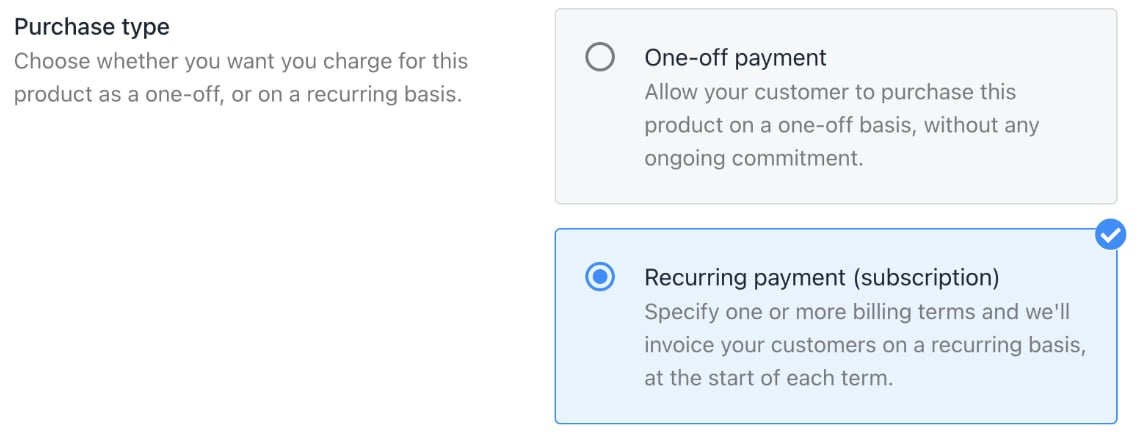
<Frame caption="Recurring payment tile">
  <img src="https://mintcdn.com/upmind/1xguIfYUrfespmVI/images/fb/7c2ff05f04bf5958.png?fit=max&auto=format&n=1xguIfYUrfespmVI&q=85&s=b541f8151f8a15df1449a1be6e9f3862" alt="Recurring payment tile" className="mx-auto" style={{ width:"96%" }} width="1138" height="436" data-path="images/fb/7c2ff05f04bf5958.png" />

  <img src="https://mintcdn.com/upmind/1xguIfYUrfespmVI/images/fb/7c2ff05f04bf5958.png?fit=max&auto=format&n=1xguIfYUrfespmVI&q=85&s=b541f8151f8a15df1449a1be6e9f3862" alt="Recurring payment tile" className="mx-auto" style={{ width:"96%" }} width="1138" height="436" data-path="images/fb/7c2ff05f04bf5958.png" />
</Frame>

2. Scroll to the pricing section and click **Add new term**.
3. Choose a billing term from the dropdown menu (monthly, yearly, etc.).
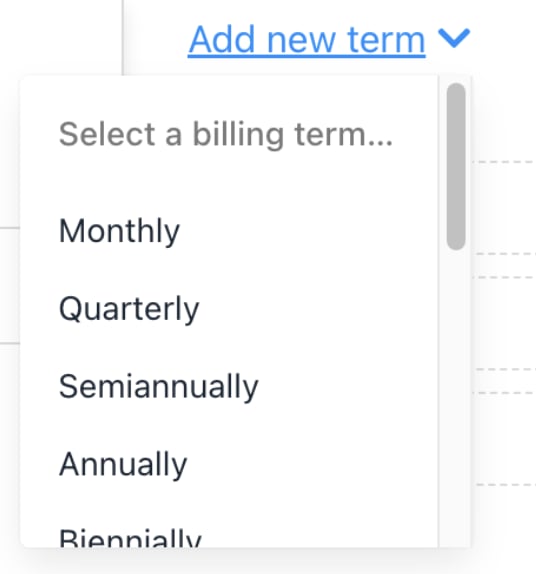
<Frame caption="Select option on drop-down menu">
  <img src="https://mintcdn.com/upmind/c5sDUwEs8YpzGbjA/images/fb/93e5b18fc413f22a.png?fit=max&auto=format&n=c5sDUwEs8YpzGbjA&q=85&s=656c49690d8278a34e67e6cc8a0ec1c7" alt="Select option on drop-down menu" className="mx-auto" style={{ width:"66%" }} width="536" height="574" data-path="images/fb/93e5b18fc413f22a.png" />

  <img src="https://mintcdn.com/upmind/c5sDUwEs8YpzGbjA/images/fb/93e5b18fc413f22a.png?fit=max&auto=format&n=c5sDUwEs8YpzGbjA&q=85&s=656c49690d8278a34e67e6cc8a0ec1c7" alt="Select option on drop-down menu" className="mx-auto" style={{ width:"66%" }} width="536" height="574" data-path="images/fb/93e5b18fc413f22a.png" />
</Frame>

<Note>
  The term defines how often automatic payments occur. Recurring charges continue for the length of the customer’s plan and will renew at the end of the term unless cancelled.
</Note>

* If a customer chooses Package A with a monthly term, the next payment will be charged the following month.
* If a customer chooses Package B with an annual term, a single payment covers the full year, and the next payment will be charged on the renewal date the following year.

4. For custom plans, select **Custom** and enter the number of months.
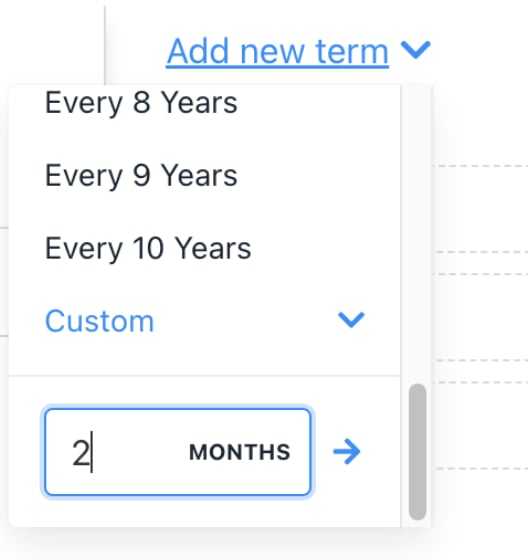
<Frame caption="Enter number of months">
  <img src="https://mintcdn.com/upmind/kXD0Ya8PpcxxNm6Q/images/fb/3bceed3a2d05350e.png?fit=max&auto=format&n=kXD0Ya8PpcxxNm6Q&q=85&s=2f8ccdb699343ab35bc9a9d06b4d3ff1" alt="Enter number of months" className="mx-auto" style={{ width:"69%" }} width="528" height="560" data-path="images/fb/3bceed3a2d05350e.png" />

  <img src="https://mintcdn.com/upmind/kXD0Ya8PpcxxNm6Q/images/fb/3bceed3a2d05350e.png?fit=max&auto=format&n=kXD0Ya8PpcxxNm6Q&q=85&s=2f8ccdb699343ab35bc9a9d06b4d3ff1" alt="Enter number of months" className="mx-auto" style={{ width:"69%" }} width="528" height="560" data-path="images/fb/3bceed3a2d05350e.png" />
</Frame>

5. Add prices for each currency accordingly.
6. Add more terms if needed.
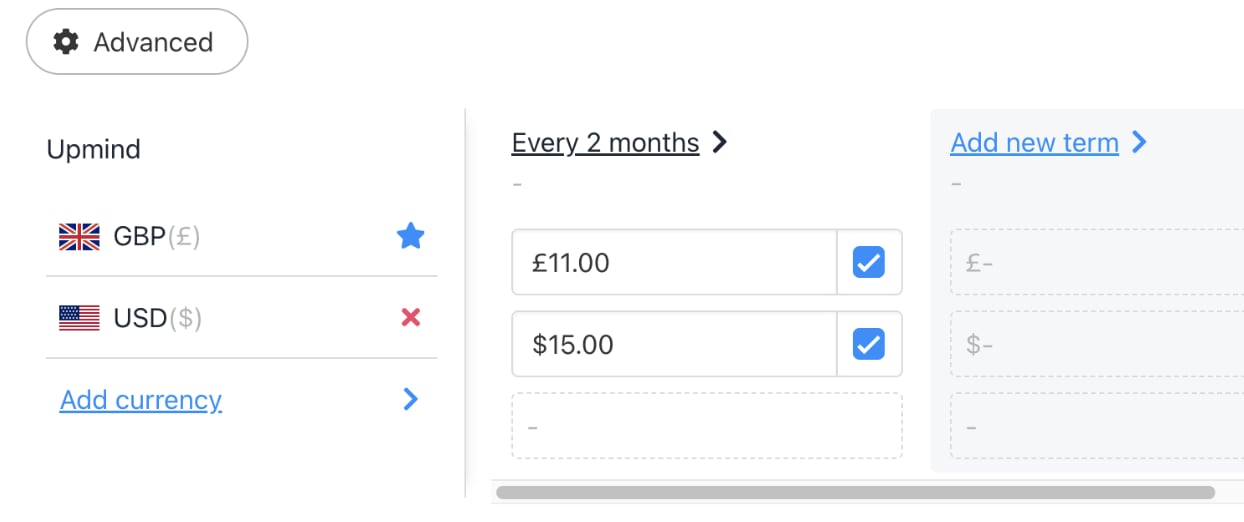
<Frame caption="Enter price for each currency">
  <img src="https://mintcdn.com/upmind/2ooSxDpt6PiIGMr-/images/fb/0280e056307532a4.png?fit=max&auto=format&n=2ooSxDpt6PiIGMr-&q=85&s=0c4239464d265dae5178f7838e90bda4" alt="Enter price for each currency" className="mx-auto" style={{ width:"92%" }} width="1244" height="522" data-path="images/fb/0280e056307532a4.png" />

  <img src="https://mintcdn.com/upmind/2ooSxDpt6PiIGMr-/images/fb/0280e056307532a4.png?fit=max&auto=format&n=2ooSxDpt6PiIGMr-&q=85&s=0c4239464d265dae5178f7838e90bda4" alt="Enter price for each currency" className="mx-auto" style={{ width:"92%" }} width="1244" height="522" data-path="images/fb/0280e056307532a4.png" />
</Frame>

7. To delete a term, click **Delete** next to it.
8. Click **Save**.

### **Select the default payment term**

When multiple subscription options exist, you can set which term displays by default to customers.

At the bottom of the billing page, select the default.

<Frame caption="Select an option">
  <img src="https://mintcdn.com/upmind/z5ofg3t7by4uN44v/images/fb/f4c057534036aaf6.png?fit=max&auto=format&n=z5ofg3t7by4uN44v&q=85&s=b93a8dbda3005ce4d95ccda94eb062a9" alt="Select an option" className="mx-auto" style={{ width:"93%" }} width="1328" height="254" data-path="images/fb/f4c057534036aaf6.png" />

  <img src="https://mintcdn.com/upmind/z5ofg3t7by4uN44v/images/fb/f4c057534036aaf6.png?fit=max&auto=format&n=z5ofg3t7by4uN44v&q=85&s=b93a8dbda3005ce4d95ccda94eb062a9" alt="Select an option" className="mx-auto" style={{ width:"93%" }} width="1328" height="254" data-path="images/fb/f4c057534036aaf6.png" />
</Frame>

## **Set up billing and payment processing**

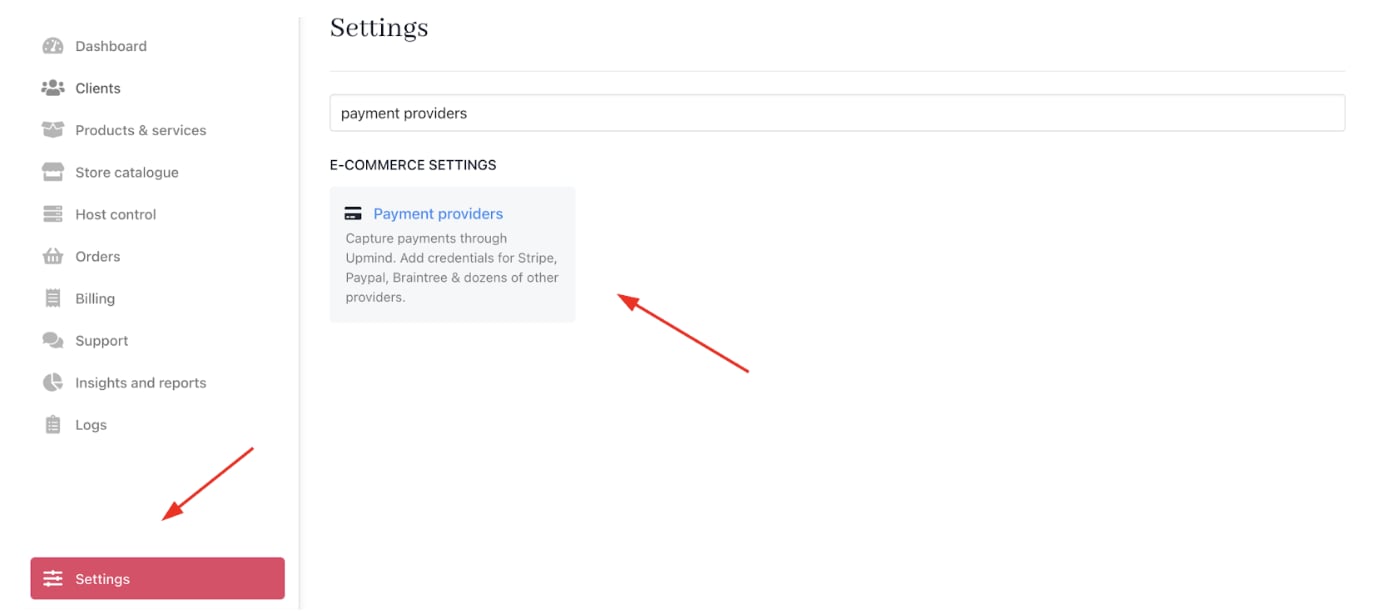
1. Go to **Settings** > **Payment Providers** under **E-commerce Settings**.
<Frame caption="Settings > E-commerce Settings > Payment Providers">
  <img src="https://mintcdn.com/upmind/ZsIo0APxdVb_gFS-/images/fb/2620e2379e529192.png?fit=max&auto=format&n=ZsIo0APxdVb_gFS-&q=85&s=8487df062413d4b09fe19d274353cdc0" alt="Settings > E-commerce Settings > Payment Providers" className="mx-auto" style={{ width:"97%" }} data-og-width="1378" width="1378" data-og-height="614" height="614" data-path="images/fb/2620e2379e529192.png" data-optimize="true" data-opv="3" srcset="https://mintcdn.com/upmind/ZsIo0APxdVb_gFS-/images/fb/2620e2379e529192.png?w=280&fit=max&auto=format&n=ZsIo0APxdVb_gFS-&q=85&s=0d20bf39eb5caf1ac48a1bca7b033a3c 280w, https://mintcdn.com/upmind/ZsIo0APxdVb_gFS-/images/fb/2620e2379e529192.png?w=560&fit=max&auto=format&n=ZsIo0APxdVb_gFS-&q=85&s=008650e944a619c91bc71a1bfe13a8fe 560w, https://mintcdn.com/upmind/ZsIo0APxdVb_gFS-/images/fb/2620e2379e529192.png?w=840&fit=max&auto=format&n=ZsIo0APxdVb_gFS-&q=85&s=2856adf6270a35aee585282f359328a5 840w, https://mintcdn.com/upmind/ZsIo0APxdVb_gFS-/images/fb/2620e2379e529192.png?w=1100&fit=max&auto=format&n=ZsIo0APxdVb_gFS-&q=85&s=1ec2680ee009381f2303e2e3e834000b 1100w, https://mintcdn.com/upmind/ZsIo0APxdVb_gFS-/images/fb/2620e2379e529192.png?w=1650&fit=max&auto=format&n=ZsIo0APxdVb_gFS-&q=85&s=31fe7e5ab2e15184cfe560368a8216be 1650w, https://mintcdn.com/upmind/ZsIo0APxdVb_gFS-/images/fb/2620e2379e529192.png?w=2500&fit=max&auto=format&n=ZsIo0APxdVb_gFS-&q=85&s=8c561ce46f73013fbfff819e83b13d33 2500w" />

  <img src="https://mintcdn.com/upmind/ZsIo0APxdVb_gFS-/images/fb/2620e2379e529192.png?fit=max&auto=format&n=ZsIo0APxdVb_gFS-&q=85&s=8487df062413d4b09fe19d274353cdc0" alt="Settings > E-commerce Settings > Payment Providers" className="mx-auto" style={{ width:"97%" }} data-og-width="1378" width="1378" data-og-height="614" height="614" data-path="images/fb/2620e2379e529192.png" data-optimize="true" data-opv="3" srcset="https://mintcdn.com/upmind/ZsIo0APxdVb_gFS-/images/fb/2620e2379e529192.png?w=280&fit=max&auto=format&n=ZsIo0APxdVb_gFS-&q=85&s=0d20bf39eb5caf1ac48a1bca7b033a3c 280w, https://mintcdn.com/upmind/ZsIo0APxdVb_gFS-/images/fb/2620e2379e529192.png?w=560&fit=max&auto=format&n=ZsIo0APxdVb_gFS-&q=85&s=008650e944a619c91bc71a1bfe13a8fe 560w, https://mintcdn.com/upmind/ZsIo0APxdVb_gFS-/images/fb/2620e2379e529192.png?w=840&fit=max&auto=format&n=ZsIo0APxdVb_gFS-&q=85&s=2856adf6270a35aee585282f359328a5 840w, https://mintcdn.com/upmind/ZsIo0APxdVb_gFS-/images/fb/2620e2379e529192.png?w=1100&fit=max&auto=format&n=ZsIo0APxdVb_gFS-&q=85&s=1ec2680ee009381f2303e2e3e834000b 1100w, https://mintcdn.com/upmind/ZsIo0APxdVb_gFS-/images/fb/2620e2379e529192.png?w=1650&fit=max&auto=format&n=ZsIo0APxdVb_gFS-&q=85&s=31fe7e5ab2e15184cfe560368a8216be 1650w, https://mintcdn.com/upmind/ZsIo0APxdVb_gFS-/images/fb/2620e2379e529192.png?w=2500&fit=max&auto=format&n=ZsIo0APxdVb_gFS-&q=85&s=8c561ce46f73013fbfff819e83b13d33 2500w" />
</Frame>

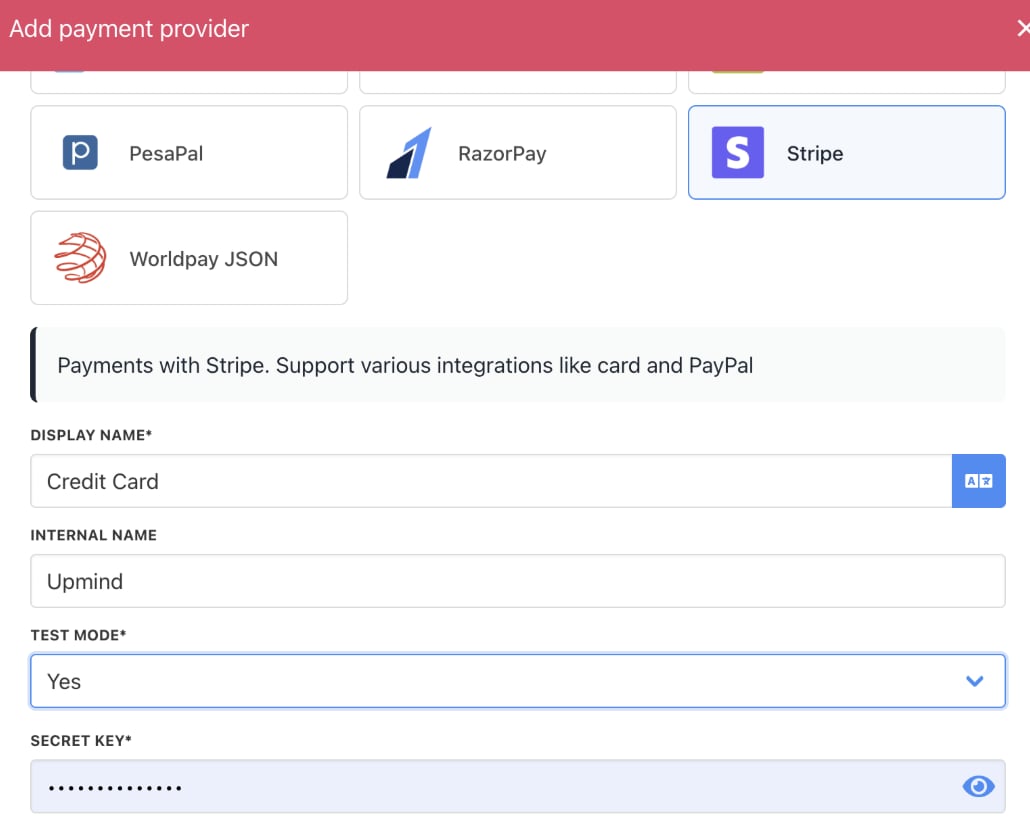
2. Click **Add payment provider** and configure [<u>payment gateways</u>](/using-upmind/payment-methods/payments-in-upmind/available-payment-gateways) like Stripe, PayPal, or offline payment methods.

<Frame caption="Add payment provider">
  <img src="https://mintcdn.com/upmind/c5sDUwEs8YpzGbjA/images/fb/94918e951b215089.png?fit=max&auto=format&n=c5sDUwEs8YpzGbjA&q=85&s=30c268489ae36996ea78090c0780b849" alt="Add payment provider" className="mx-auto" style={{ width:"98%" }} width="1494" height="132" data-path="images/fb/94918e951b215089.png" />

  <img src="https://mintcdn.com/upmind/c5sDUwEs8YpzGbjA/images/fb/94918e951b215089.png?fit=max&auto=format&n=c5sDUwEs8YpzGbjA&q=85&s=30c268489ae36996ea78090c0780b849" alt="Add payment provider" className="mx-auto" style={{ width:"98%" }} width="1494" height="132" data-path="images/fb/94918e951b215089.png" />
</Frame>

<Frame caption="Enter payment provider details">
  <img src="https://mintcdn.com/upmind/kAlrCUxI2nwYz4_i/images/fb/208b4fbb29d0a1c0.png?fit=max&auto=format&n=kAlrCUxI2nwYz4_i&q=85&s=2cd91f4169a5d2fff8374b7053e148ca" alt="Enter payment provider details" className="mx-auto" style={{ width:"89%" }} width="1030" height="828" data-path="images/fb/208b4fbb29d0a1c0.png" />

  <img src="https://mintcdn.com/upmind/kAlrCUxI2nwYz4_i/images/fb/208b4fbb29d0a1c0.png?fit=max&auto=format&n=kAlrCUxI2nwYz4_i&q=85&s=2cd91f4169a5d2fff8374b7053e148ca" alt="Enter payment provider details" className="mx-auto" style={{ width:"89%" }} width="1030" height="828" data-path="images/fb/208b4fbb29d0a1c0.png" />
</Frame>

## **Configure provisioning**

Here, we will use **Servers** with **Virtualizor** provisioning as an example.

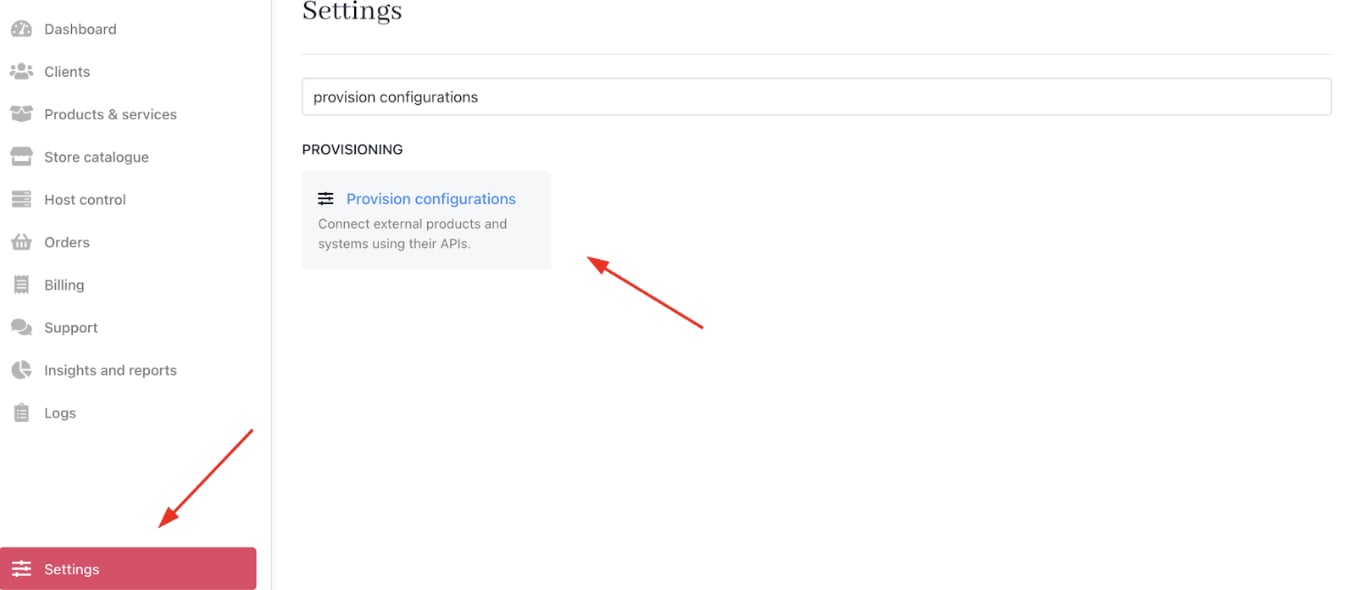
1. Go to **Settings** > **Provision Configurations** under **Provisioning**.
<Frame caption="Settings > Provisioning > Provision Configurations">
  <img src="https://mintcdn.com/upmind/5gi4DQpw4X76kT6T/images/fb/b6bd4751309eca00.png?fit=max&auto=format&n=5gi4DQpw4X76kT6T&q=85&s=69e51f226366d32a66d5027575b73bf1" alt="Settings > Provisioning > Provision Configurations" className="mx-auto" style={{ width:"98%" }} data-og-width="1346" width="1346" data-og-height="590" height="590" data-path="images/fb/b6bd4751309eca00.png" data-optimize="true" data-opv="3" srcset="https://mintcdn.com/upmind/5gi4DQpw4X76kT6T/images/fb/b6bd4751309eca00.png?w=280&fit=max&auto=format&n=5gi4DQpw4X76kT6T&q=85&s=428a4c17ca48f088677f06403323608e 280w, https://mintcdn.com/upmind/5gi4DQpw4X76kT6T/images/fb/b6bd4751309eca00.png?w=560&fit=max&auto=format&n=5gi4DQpw4X76kT6T&q=85&s=eb19bc810c3f5c81be6ed95539327487 560w, https://mintcdn.com/upmind/5gi4DQpw4X76kT6T/images/fb/b6bd4751309eca00.png?w=840&fit=max&auto=format&n=5gi4DQpw4X76kT6T&q=85&s=ea8f8b12a17e59556e9ee00296b73bc0 840w, https://mintcdn.com/upmind/5gi4DQpw4X76kT6T/images/fb/b6bd4751309eca00.png?w=1100&fit=max&auto=format&n=5gi4DQpw4X76kT6T&q=85&s=fc3e83717a92d135477282d8fe1e5483 1100w, https://mintcdn.com/upmind/5gi4DQpw4X76kT6T/images/fb/b6bd4751309eca00.png?w=1650&fit=max&auto=format&n=5gi4DQpw4X76kT6T&q=85&s=0c1cd4e68e4e184cf920f2fb1f870af2 1650w, https://mintcdn.com/upmind/5gi4DQpw4X76kT6T/images/fb/b6bd4751309eca00.png?w=2500&fit=max&auto=format&n=5gi4DQpw4X76kT6T&q=85&s=f95b7b91201e0df574907f8c4d74a261 2500w" />

  <img src="https://mintcdn.com/upmind/5gi4DQpw4X76kT6T/images/fb/b6bd4751309eca00.png?fit=max&auto=format&n=5gi4DQpw4X76kT6T&q=85&s=69e51f226366d32a66d5027575b73bf1" alt="Settings > Provisioning > Provision Configurations" className="mx-auto" style={{ width:"98%" }} data-og-width="1346" width="1346" data-og-height="590" height="590" data-path="images/fb/b6bd4751309eca00.png" data-optimize="true" data-opv="3" srcset="https://mintcdn.com/upmind/5gi4DQpw4X76kT6T/images/fb/b6bd4751309eca00.png?w=280&fit=max&auto=format&n=5gi4DQpw4X76kT6T&q=85&s=428a4c17ca48f088677f06403323608e 280w, https://mintcdn.com/upmind/5gi4DQpw4X76kT6T/images/fb/b6bd4751309eca00.png?w=560&fit=max&auto=format&n=5gi4DQpw4X76kT6T&q=85&s=eb19bc810c3f5c81be6ed95539327487 560w, https://mintcdn.com/upmind/5gi4DQpw4X76kT6T/images/fb/b6bd4751309eca00.png?w=840&fit=max&auto=format&n=5gi4DQpw4X76kT6T&q=85&s=ea8f8b12a17e59556e9ee00296b73bc0 840w, https://mintcdn.com/upmind/5gi4DQpw4X76kT6T/images/fb/b6bd4751309eca00.png?w=1100&fit=max&auto=format&n=5gi4DQpw4X76kT6T&q=85&s=fc3e83717a92d135477282d8fe1e5483 1100w, https://mintcdn.com/upmind/5gi4DQpw4X76kT6T/images/fb/b6bd4751309eca00.png?w=1650&fit=max&auto=format&n=5gi4DQpw4X76kT6T&q=85&s=0c1cd4e68e4e184cf920f2fb1f870af2 1650w, https://mintcdn.com/upmind/5gi4DQpw4X76kT6T/images/fb/b6bd4751309eca00.png?w=2500&fit=max&auto=format&n=5gi4DQpw4X76kT6T&q=85&s=f95b7b91201e0df574907f8c4d74a261 2500w" />
</Frame>

2. Click on **Add New Configuration**.

<Frame caption="Add new configuration">
  <img src="https://mintcdn.com/upmind/JUoAg6onJmXk_-rR/images/fb/e00530226687a513.png?fit=max&auto=format&n=JUoAg6onJmXk_-rR&q=85&s=35fa806e0945459090fe709d5c68336f" alt="Add new configuration" className="mx-auto" style={{ width:"99%" }} width="1598" height="110" data-path="images/fb/e00530226687a513.png" />

  <img src="https://mintcdn.com/upmind/JUoAg6onJmXk_-rR/images/fb/e00530226687a513.png?fit=max&auto=format&n=JUoAg6onJmXk_-rR&q=85&s=35fa806e0945459090fe709d5c68336f" alt="Add new configuration" className="mx-auto" style={{ width:"99%" }} width="1598" height="110" data-path="images/fb/e00530226687a513.png" />
</Frame>

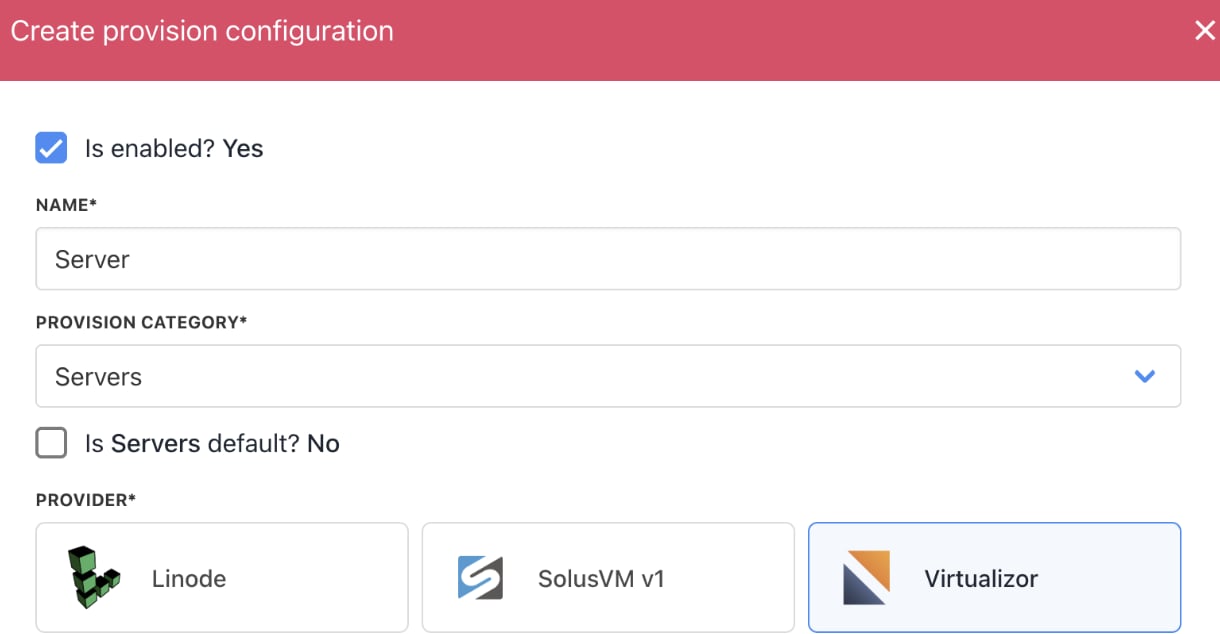
3. Select **Servers** from the dropdown and choose **Virtualizor**.
<Frame caption="Select server">
  <img src="https://mintcdn.com/upmind/JUoAg6onJmXk_-rR/images/fb/e7dc19ea55cf09c1.png?fit=max&auto=format&n=JUoAg6onJmXk_-rR&q=85&s=d6aff91f2f835efca19266971ba78af3" alt="Select server" className="mx-auto" style={{ width:"96%" }} width="1220" height="634" data-path="images/fb/e7dc19ea55cf09c1.png" />

  <img src="https://mintcdn.com/upmind/JUoAg6onJmXk_-rR/images/fb/e7dc19ea55cf09c1.png?fit=max&auto=format&n=JUoAg6onJmXk_-rR&q=85&s=d6aff91f2f835efca19266971ba78af3" alt="Select server" className="mx-auto" style={{ width:"96%" }} width="1220" height="634" data-path="images/fb/e7dc19ea55cf09c1.png" />
</Frame>

4. Fill in the details (Hostname, Port, API Key, API Password, Location type).
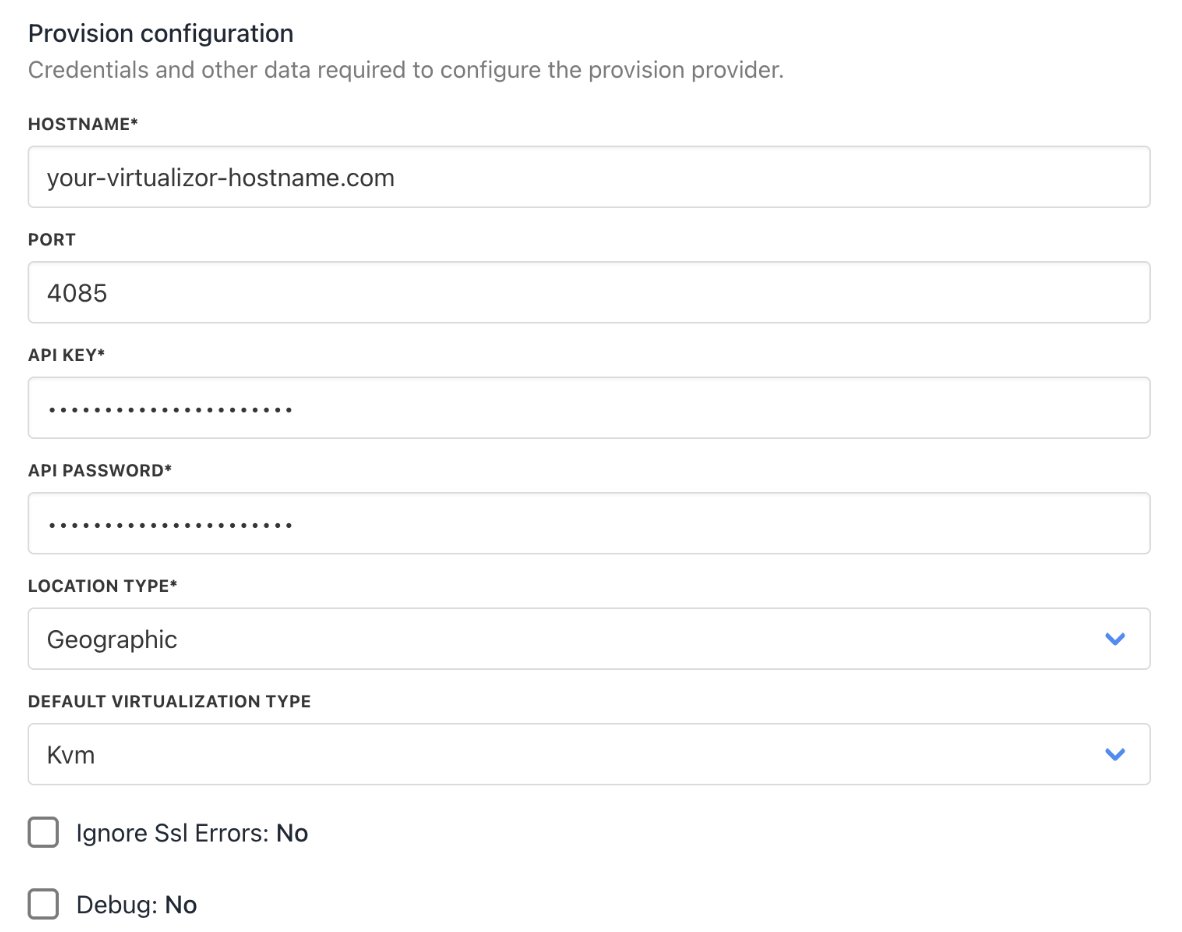
<Frame caption="Add details">
  <img src="https://mintcdn.com/upmind/pcUdSuxUJ6LgBXnd/images/fb/a1f4c33b75a59ad0.png?fit=max&auto=format&n=pcUdSuxUJ6LgBXnd&q=85&s=b15502bbcaaec1be2eefd0f8db725b6f" alt="Add details" className="mx-auto" style={{ width:"97%" }} width="1182" height="932" data-path="images/fb/a1f4c33b75a59ad0.png" />

  <img src="https://mintcdn.com/upmind/pcUdSuxUJ6LgBXnd/images/fb/a1f4c33b75a59ad0.png?fit=max&auto=format&n=pcUdSuxUJ6LgBXnd&q=85&s=b15502bbcaaec1be2eefd0f8db725b6f" alt="Add details" className="mx-auto" style={{ width:"97%" }} width="1182" height="932" data-path="images/fb/a1f4c33b75a59ad0.png" />
</Frame>

For more details, see this [<u>guide</u>](/for-web-hosts/servers/how-to-add-virtualizor-products).

5. Select `Provisioning` from the menu of your product.
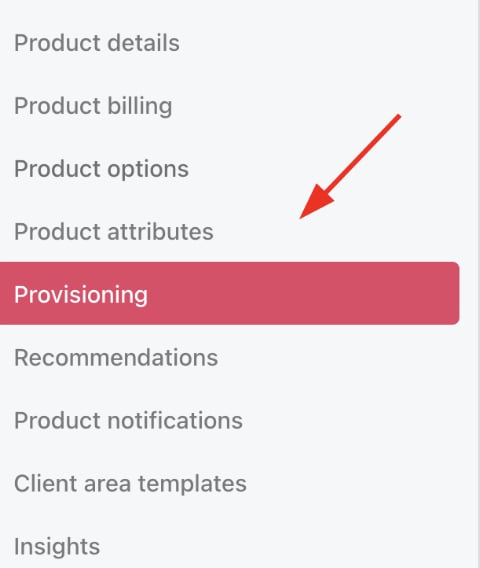
<Frame caption="Choose provisioning">
  <img src="https://mintcdn.com/upmind/5gi4DQpw4X76kT6T/images/fb/bf0a9e0307125ce4.png?fit=max&auto=format&n=5gi4DQpw4X76kT6T&q=85&s=5120b25f56031a665b625ecb41770442" alt="Choose provisioning" className="mx-auto" style={{ width:"75%" }} width="480" height="568" data-path="images/fb/bf0a9e0307125ce4.png" />

  <img src="https://mintcdn.com/upmind/5gi4DQpw4X76kT6T/images/fb/bf0a9e0307125ce4.png?fit=max&auto=format&n=5gi4DQpw4X76kT6T&q=85&s=5120b25f56031a665b625ecb41770442" alt="Choose provisioning" className="mx-auto" style={{ width:"75%" }} width="480" height="568" data-path="images/fb/bf0a9e0307125ce4.png" />
</Frame>

6. Select **Server** as your blueprint and choose **Virtualizor**.
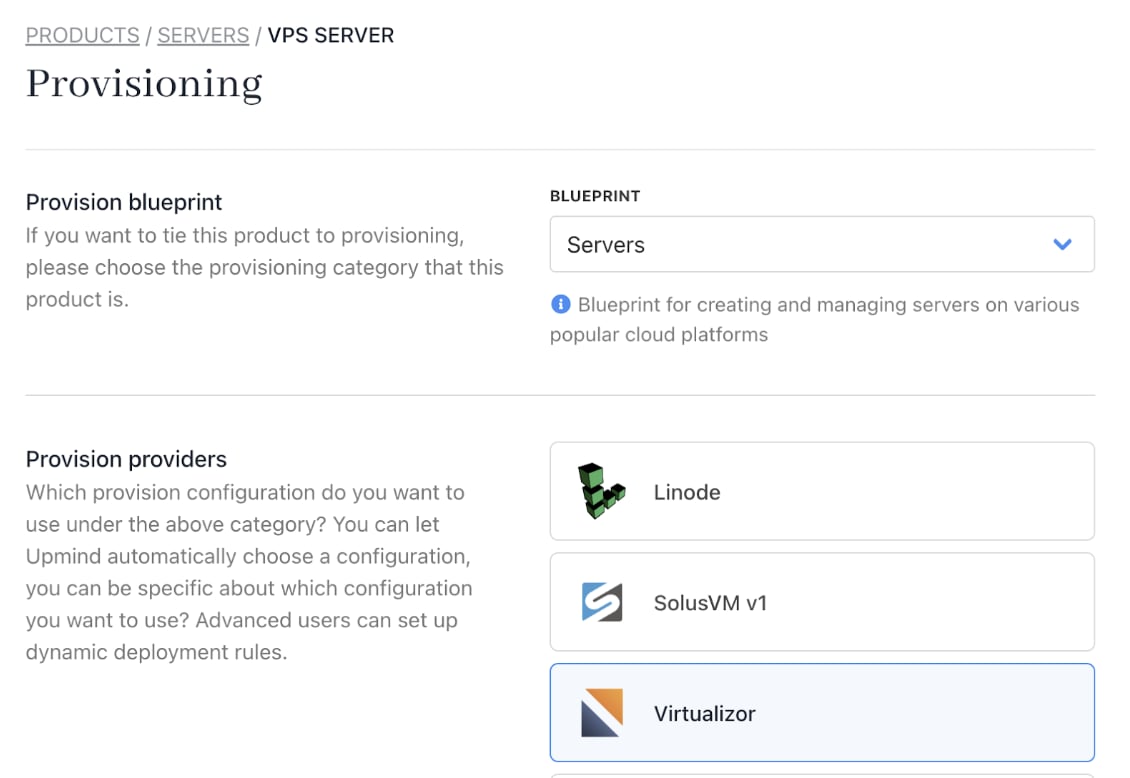
<Frame caption="Select Virtualizor">
  <img src="https://mintcdn.com/upmind/bPO2bBzOxYQR4tYr/images/fb/f6c663abf66c43e1.png?fit=max&auto=format&n=bPO2bBzOxYQR4tYr&q=85&s=ff4ccee9674e7df9d107dd6169c0028f" alt="Select Virtualizor" className="mx-auto" style={{ width:"95%" }} width="1130" height="778" data-path="images/fb/f6c663abf66c43e1.png" />

  <img src="https://mintcdn.com/upmind/bPO2bBzOxYQR4tYr/images/fb/f6c663abf66c43e1.png?fit=max&auto=format&n=bPO2bBzOxYQR4tYr&q=85&s=ff4ccee9674e7df9d107dd6169c0028f" alt="Select Virtualizor" className="mx-auto" style={{ width:"95%" }} width="1130" height="778" data-path="images/fb/f6c663abf66c43e1.png" />
</Frame>

7. Choose your **Provider Configuration**.
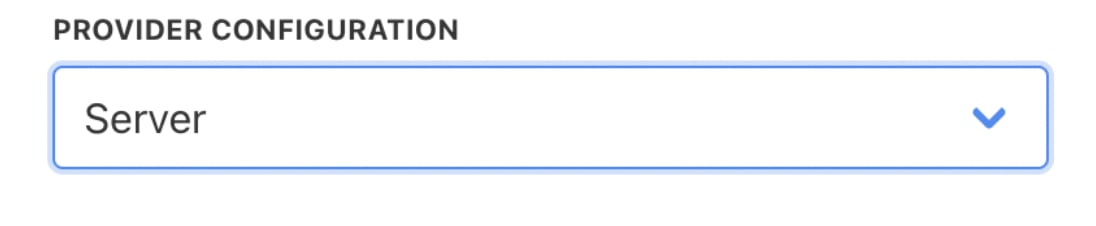
<Frame caption="Choose configuration mode">
  <img src="https://mintcdn.com/upmind/92wYnpdR_k6AjH3x/images/fb/5661e43085e012cc.png?fit=max&auto=format&n=92wYnpdR_k6AjH3x&q=85&s=6b5dc296f7f2c3a5f5dc40f580f7706a" alt="Choose configuration mode" className="mx-auto" style={{ width:"82%" }} width="1096" height="226" data-path="images/fb/5661e43085e012cc.png" />

  <img src="https://mintcdn.com/upmind/92wYnpdR_k6AjH3x/images/fb/5661e43085e012cc.png?fit=max&auto=format&n=92wYnpdR_k6AjH3x&q=85&s=6b5dc296f7f2c3a5f5dc40f580f7706a" alt="Choose configuration mode" className="mx-auto" style={{ width:"82%" }} width="1096" height="226" data-path="images/fb/5661e43085e012cc.png" />
</Frame>

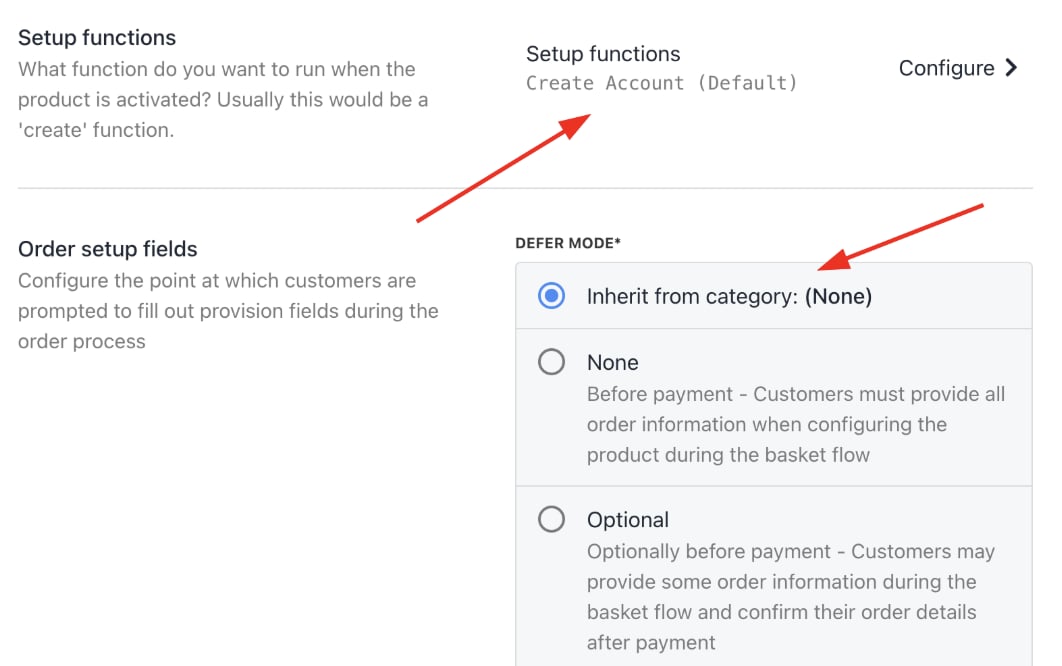
8. You can keep the `Setup Functions` as **Default**, and `Order Setup Fields` as **Inherit from Category**.
<Frame caption="Setup functions and order setup fields">
  <img src="https://mintcdn.com/upmind/ObllJJl59DabnmMn/images/fb/d0717de05f73982c.png?fit=max&auto=format&n=ObllJJl59DabnmMn&q=85&s=d97ab5e37d0909a5dfba0a0ec1f673d8" alt="Setup functions and order setup fields" className="mx-auto" style={{ width:"94%" }} width="1062" height="666" data-path="images/fb/d0717de05f73982c.png" />

  <img src="https://mintcdn.com/upmind/ObllJJl59DabnmMn/images/fb/d0717de05f73982c.png?fit=max&auto=format&n=ObllJJl59DabnmMn&q=85&s=d97ab5e37d0909a5dfba0a0ec1f673d8" alt="Setup functions and order setup fields" className="mx-auto" style={{ width:"94%" }} width="1062" height="666" data-path="images/fb/d0717de05f73982c.png" />
</Frame>

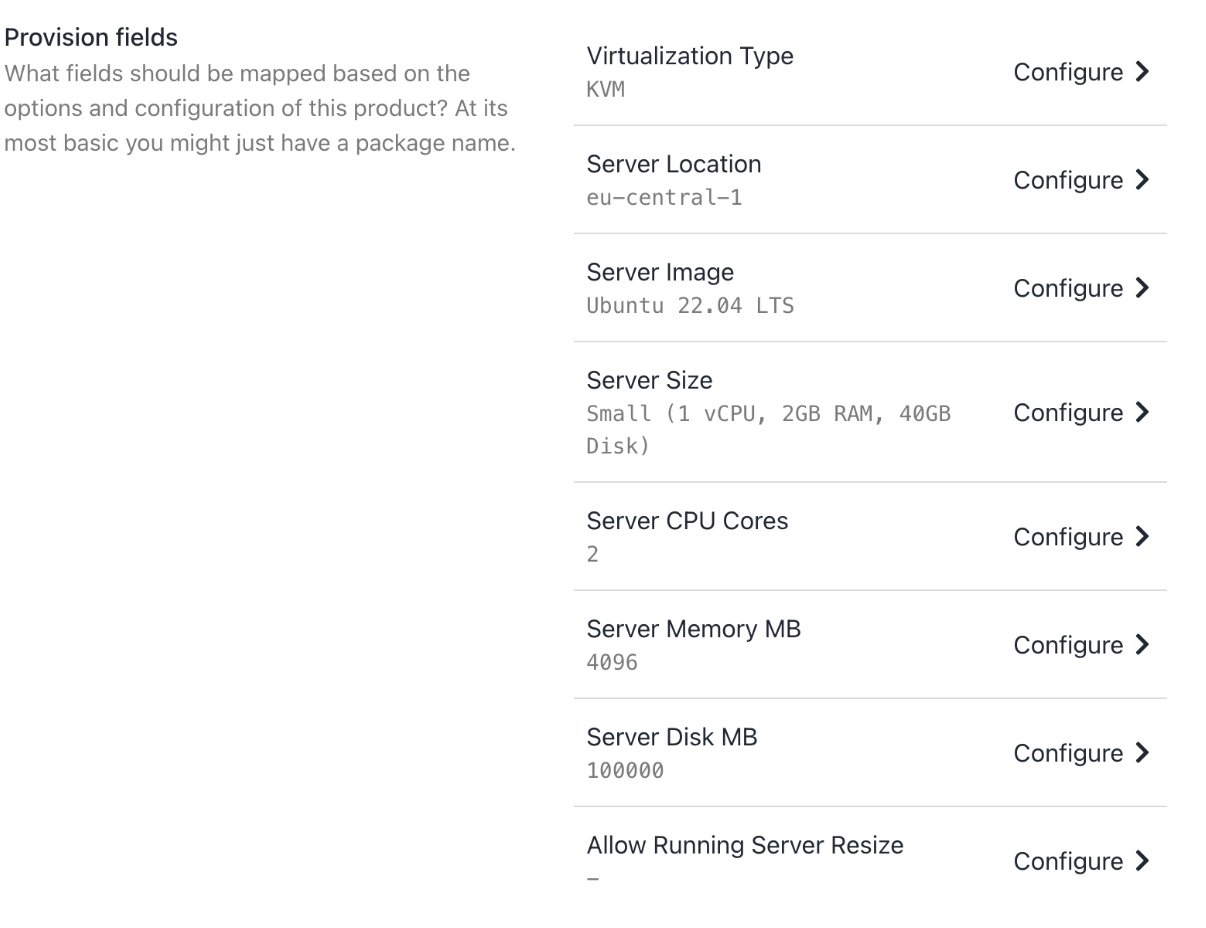
9. Under `Provision Fields`, you need to configure your **Virtualization Type**, **Server Location**, **Server Image**, **Server Size**, **Server CPU Cores**, **Server Memory MB**, and **Server Disk MB**. You can get all the details (for example, disk space, monthly bandwidth limit, etc.) from your panel.
<Frame caption="Provision fields">
  <img src="https://mintcdn.com/upmind/bPO2bBzOxYQR4tYr/images/fb/fb9736e9ffa30a1b.png?fit=max&auto=format&n=bPO2bBzOxYQR4tYr&q=85&s=567b16a64e0c39c04b65264e927ee838" alt="Provision fields" className="mx-auto" style={{ width:"93%" }} width="1206" height="928" data-path="images/fb/fb9736e9ffa30a1b.png" />

  <img src="https://mintcdn.com/upmind/bPO2bBzOxYQR4tYr/images/fb/fb9736e9ffa30a1b.png?fit=max&auto=format&n=bPO2bBzOxYQR4tYr&q=85&s=567b16a64e0c39c04b65264e927ee838" alt="Provision fields" className="mx-auto" style={{ width:"93%" }} width="1206" height="928" data-path="images/fb/fb9736e9ffa30a1b.png" />
</Frame>

## **Manage client accounts and support**

1. Add clients manually under **Clients** > **Add New**.

<Frame caption="Clients > Add New">
  <img src="https://mintcdn.com/upmind/5gi4DQpw4X76kT6T/images/fb/be7d51d83250e780.png?fit=max&auto=format&n=5gi4DQpw4X76kT6T&q=85&s=c404a524107ce947a0702ac10e145367" alt="Clients > Add New" className="mx-auto" style={{ width:"97%" }} data-og-width="1622" width="1622" data-og-height="210" height="210" data-path="images/fb/be7d51d83250e780.png" data-optimize="true" data-opv="3" srcset="https://mintcdn.com/upmind/5gi4DQpw4X76kT6T/images/fb/be7d51d83250e780.png?w=280&fit=max&auto=format&n=5gi4DQpw4X76kT6T&q=85&s=05eb459a9d10ef8a8afc7d87e4dc85a6 280w, https://mintcdn.com/upmind/5gi4DQpw4X76kT6T/images/fb/be7d51d83250e780.png?w=560&fit=max&auto=format&n=5gi4DQpw4X76kT6T&q=85&s=c506c965bf1c1d7a42d689e54922cf6e 560w, https://mintcdn.com/upmind/5gi4DQpw4X76kT6T/images/fb/be7d51d83250e780.png?w=840&fit=max&auto=format&n=5gi4DQpw4X76kT6T&q=85&s=68cb55f4788de9f68897cc6a77b601e1 840w, https://mintcdn.com/upmind/5gi4DQpw4X76kT6T/images/fb/be7d51d83250e780.png?w=1100&fit=max&auto=format&n=5gi4DQpw4X76kT6T&q=85&s=e4dfb4801e3bd662225360c79e0dc81e 1100w, https://mintcdn.com/upmind/5gi4DQpw4X76kT6T/images/fb/be7d51d83250e780.png?w=1650&fit=max&auto=format&n=5gi4DQpw4X76kT6T&q=85&s=2917a2235b67e32a1c5d0d8933438f80 1650w, https://mintcdn.com/upmind/5gi4DQpw4X76kT6T/images/fb/be7d51d83250e780.png?w=2500&fit=max&auto=format&n=5gi4DQpw4X76kT6T&q=85&s=7ea06f3a701beabf17a7a628fd1203ba 2500w" />

  <img src="https://mintcdn.com/upmind/5gi4DQpw4X76kT6T/images/fb/be7d51d83250e780.png?fit=max&auto=format&n=5gi4DQpw4X76kT6T&q=85&s=c404a524107ce947a0702ac10e145367" alt="Clients > Add New" className="mx-auto" style={{ width:"97%" }} data-og-width="1622" width="1622" data-og-height="210" height="210" data-path="images/fb/be7d51d83250e780.png" data-optimize="true" data-opv="3" srcset="https://mintcdn.com/upmind/5gi4DQpw4X76kT6T/images/fb/be7d51d83250e780.png?w=280&fit=max&auto=format&n=5gi4DQpw4X76kT6T&q=85&s=05eb459a9d10ef8a8afc7d87e4dc85a6 280w, https://mintcdn.com/upmind/5gi4DQpw4X76kT6T/images/fb/be7d51d83250e780.png?w=560&fit=max&auto=format&n=5gi4DQpw4X76kT6T&q=85&s=c506c965bf1c1d7a42d689e54922cf6e 560w, https://mintcdn.com/upmind/5gi4DQpw4X76kT6T/images/fb/be7d51d83250e780.png?w=840&fit=max&auto=format&n=5gi4DQpw4X76kT6T&q=85&s=68cb55f4788de9f68897cc6a77b601e1 840w, https://mintcdn.com/upmind/5gi4DQpw4X76kT6T/images/fb/be7d51d83250e780.png?w=1100&fit=max&auto=format&n=5gi4DQpw4X76kT6T&q=85&s=e4dfb4801e3bd662225360c79e0dc81e 1100w, https://mintcdn.com/upmind/5gi4DQpw4X76kT6T/images/fb/be7d51d83250e780.png?w=1650&fit=max&auto=format&n=5gi4DQpw4X76kT6T&q=85&s=2917a2235b67e32a1c5d0d8933438f80 1650w, https://mintcdn.com/upmind/5gi4DQpw4X76kT6T/images/fb/be7d51d83250e780.png?w=2500&fit=max&auto=format&n=5gi4DQpw4X76kT6T&q=85&s=7ea06f3a701beabf17a7a628fd1203ba 2500w" />
</Frame>

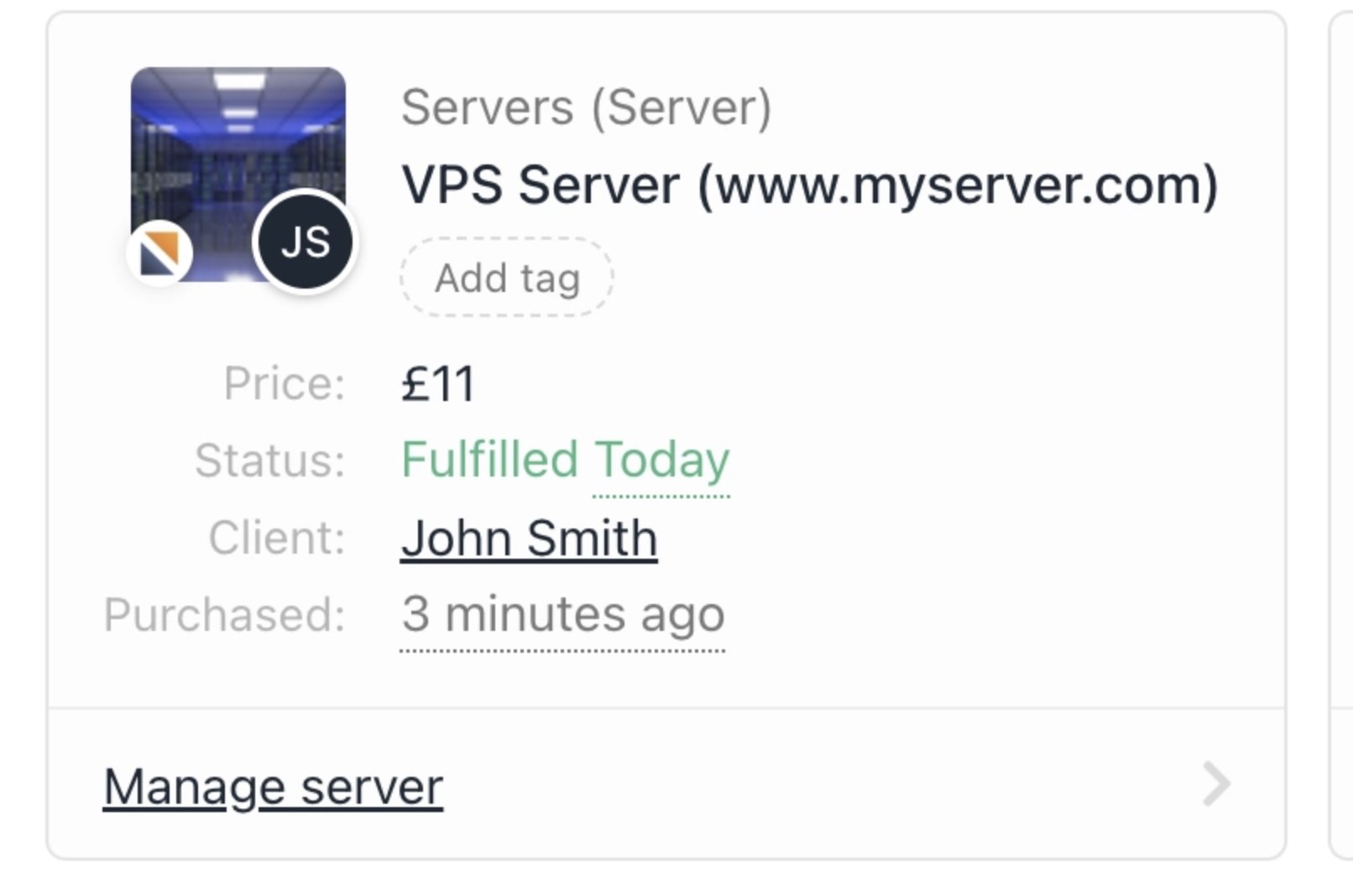
2. Associate clients with hosting packages and contracts to trigger correct billing and provisioning.
<Frame caption="Client association">
  <img src="https://mintcdn.com/upmind/c5sDUwEs8YpzGbjA/images/fb/9bbc1e960466ebbf.png?fit=max&auto=format&n=c5sDUwEs8YpzGbjA&q=85&s=a42e74e09639d327aaffbb0a92c99319" alt="Client association" className="mx-auto" style={{ width:"79%" }} width="1612" height="1068" data-path="images/fb/9bbc1e960466ebbf.png" />

  <img src="https://mintcdn.com/upmind/c5sDUwEs8YpzGbjA/images/fb/9bbc1e960466ebbf.png?fit=max&auto=format&n=c5sDUwEs8YpzGbjA&q=85&s=a42e74e09639d327aaffbb0a92c99319" alt="Client association" className="mx-auto" style={{ width:"79%" }} width="1612" height="1068" data-path="images/fb/9bbc1e960466ebbf.png" />
</Frame>

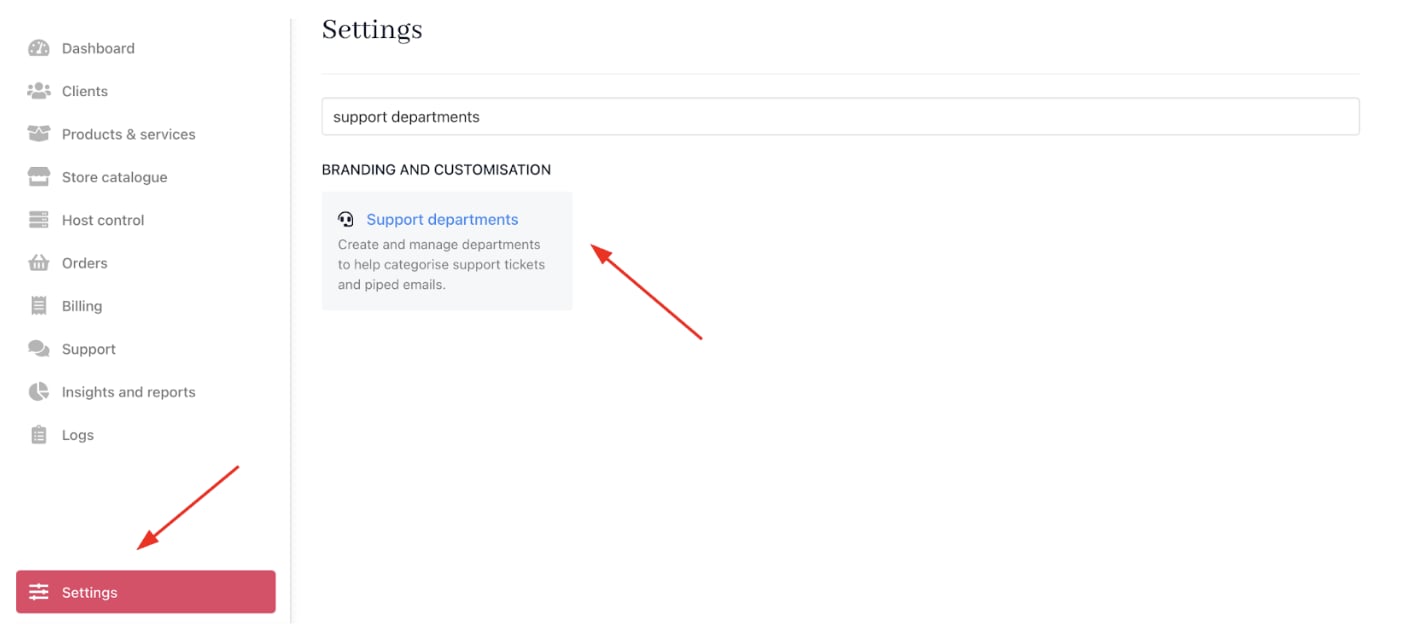
3. You can configure [<u>email piping</u>](/setup-and-configuration/email-configuring-and-sending/how-does-email-work-in-upmind) for support tickets by going to **Settings** > **Support Departments** under **Branding and Customisation**.

You can get more information on support departments in this [<u>guide</u>](/using-upmind/service-desk/how-to-create-support-department).
<Frame caption="Settings > Branding and Customisation > Support Departments">
  <img src="https://mintcdn.com/upmind/uxzVUXAKtJ2bRWCI/images/fb/68ede02ab812a2ca.png?fit=max&auto=format&n=uxzVUXAKtJ2bRWCI&q=85&s=68d8f28d775afef215a410b8985f1f4c" alt="Settings > Branding and Customisation > Support Departments" className="mx-auto" style={{ width:"97%" }} data-og-width="1420" width="1420" data-og-height="632" height="632" data-path="images/fb/68ede02ab812a2ca.png" data-optimize="true" data-opv="3" srcset="https://mintcdn.com/upmind/uxzVUXAKtJ2bRWCI/images/fb/68ede02ab812a2ca.png?w=280&fit=max&auto=format&n=uxzVUXAKtJ2bRWCI&q=85&s=5dd4de2ff3b2a367aa47ebd48547432d 280w, https://mintcdn.com/upmind/uxzVUXAKtJ2bRWCI/images/fb/68ede02ab812a2ca.png?w=560&fit=max&auto=format&n=uxzVUXAKtJ2bRWCI&q=85&s=6c84bc9c6782c2bc4ca7cb55c49770ab 560w, https://mintcdn.com/upmind/uxzVUXAKtJ2bRWCI/images/fb/68ede02ab812a2ca.png?w=840&fit=max&auto=format&n=uxzVUXAKtJ2bRWCI&q=85&s=94f17e22db55ae7ef0c783565dd55960 840w, https://mintcdn.com/upmind/uxzVUXAKtJ2bRWCI/images/fb/68ede02ab812a2ca.png?w=1100&fit=max&auto=format&n=uxzVUXAKtJ2bRWCI&q=85&s=c62e8a5309bd5b5bda6d9421d0cc68a0 1100w, https://mintcdn.com/upmind/uxzVUXAKtJ2bRWCI/images/fb/68ede02ab812a2ca.png?w=1650&fit=max&auto=format&n=uxzVUXAKtJ2bRWCI&q=85&s=f88251b7fc51b8606353a632aa10304a 1650w, https://mintcdn.com/upmind/uxzVUXAKtJ2bRWCI/images/fb/68ede02ab812a2ca.png?w=2500&fit=max&auto=format&n=uxzVUXAKtJ2bRWCI&q=85&s=079f1f3ee86ed650894135e55fbbb856 2500w" />

  <img src="https://mintcdn.com/upmind/uxzVUXAKtJ2bRWCI/images/fb/68ede02ab812a2ca.png?fit=max&auto=format&n=uxzVUXAKtJ2bRWCI&q=85&s=68d8f28d775afef215a410b8985f1f4c" alt="Settings > Branding and Customisation > Support Departments" className="mx-auto" style={{ width:"97%" }} data-og-width="1420" width="1420" data-og-height="632" height="632" data-path="images/fb/68ede02ab812a2ca.png" data-optimize="true" data-opv="3" srcset="https://mintcdn.com/upmind/uxzVUXAKtJ2bRWCI/images/fb/68ede02ab812a2ca.png?w=280&fit=max&auto=format&n=uxzVUXAKtJ2bRWCI&q=85&s=5dd4de2ff3b2a367aa47ebd48547432d 280w, https://mintcdn.com/upmind/uxzVUXAKtJ2bRWCI/images/fb/68ede02ab812a2ca.png?w=560&fit=max&auto=format&n=uxzVUXAKtJ2bRWCI&q=85&s=6c84bc9c6782c2bc4ca7cb55c49770ab 560w, https://mintcdn.com/upmind/uxzVUXAKtJ2bRWCI/images/fb/68ede02ab812a2ca.png?w=840&fit=max&auto=format&n=uxzVUXAKtJ2bRWCI&q=85&s=94f17e22db55ae7ef0c783565dd55960 840w, https://mintcdn.com/upmind/uxzVUXAKtJ2bRWCI/images/fb/68ede02ab812a2ca.png?w=1100&fit=max&auto=format&n=uxzVUXAKtJ2bRWCI&q=85&s=c62e8a5309bd5b5bda6d9421d0cc68a0 1100w, https://mintcdn.com/upmind/uxzVUXAKtJ2bRWCI/images/fb/68ede02ab812a2ca.png?w=1650&fit=max&auto=format&n=uxzVUXAKtJ2bRWCI&q=85&s=f88251b7fc51b8606353a632aa10304a 1650w, https://mintcdn.com/upmind/uxzVUXAKtJ2bRWCI/images/fb/68ede02ab812a2ca.png?w=2500&fit=max&auto=format&n=uxzVUXAKtJ2bRWCI&q=85&s=079f1f3ee86ed650894135e55fbbb856 2500w" />
</Frame>

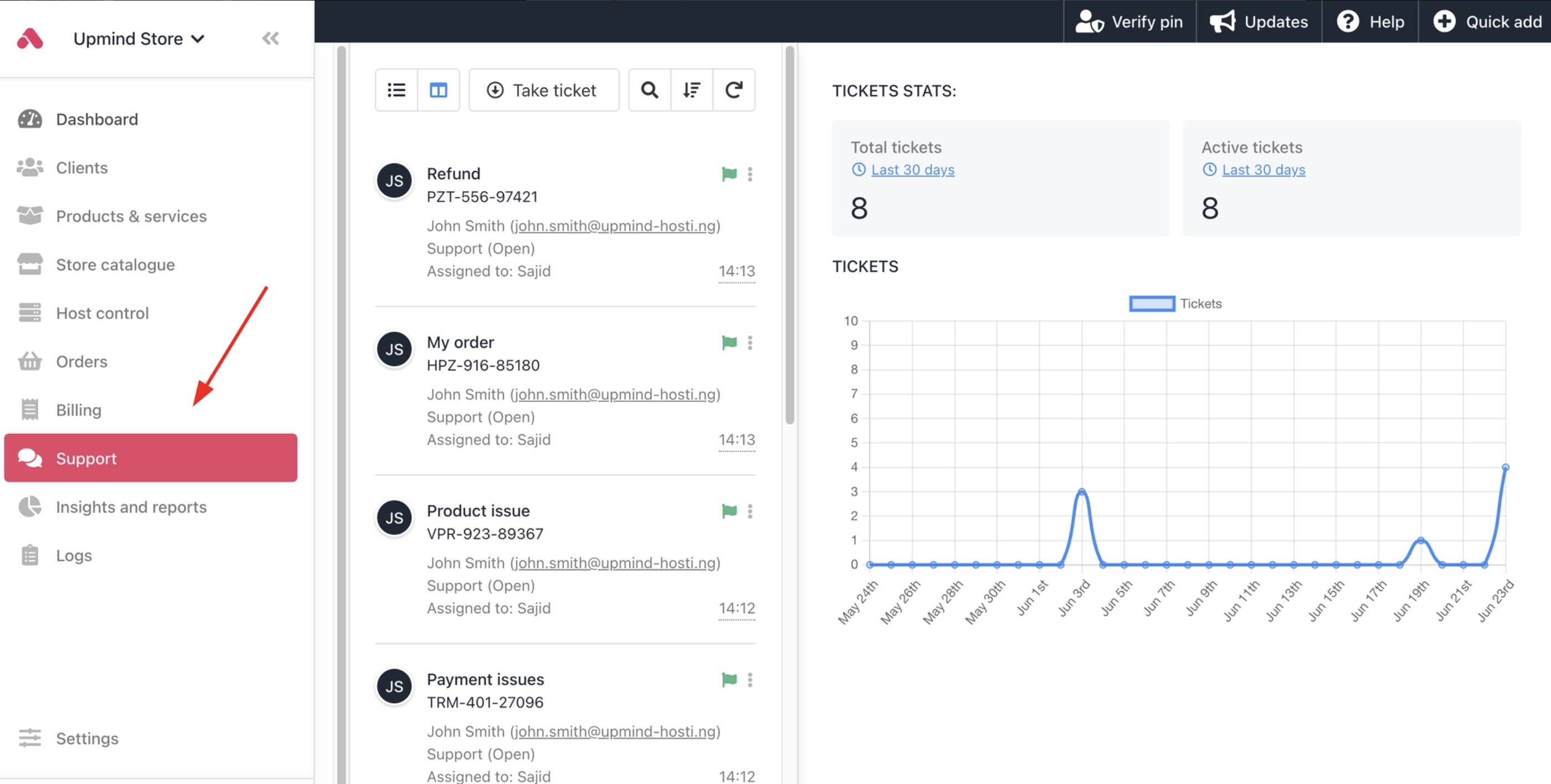
4. You can also implement Upmind’s built-in ticketing system to handle customer enquiries or technical support. [<u>Tickets</u>](/using-upmind/service-desk/how-to-create-a-ticket) link to client records for holistic case management.
<Frame caption="Support tickets">
  <img src="https://mintcdn.com/upmind/6knUVC8F1nK4E5CY/images/fb/c513a3ecca74ae06.png?fit=max&auto=format&n=6knUVC8F1nK4E5CY&q=85&s=457360f1c0c3604f6f37c5e73e832684" alt="Support tickets" className="mx-auto" style={{ width:"96%" }} width="2800" height="1416" data-path="images/fb/c513a3ecca74ae06.png" />

  <img src="https://mintcdn.com/upmind/6knUVC8F1nK4E5CY/images/fb/c513a3ecca74ae06.png?fit=max&auto=format&n=6knUVC8F1nK4E5CY&q=85&s=457360f1c0c3604f6f37c5e73e832684" alt="Support tickets" className="mx-auto" style={{ width:"96%" }} width="2800" height="1416" data-path="images/fb/c513a3ecca74ae06.png" />
</Frame>

## **Launch your online store**

1. List hosting packages and additional services for customer self-service ordering.
2. Customise pricing, offers, and promotions to attract new customers.
3. Configure checkout flow, payment options, and communication templates.
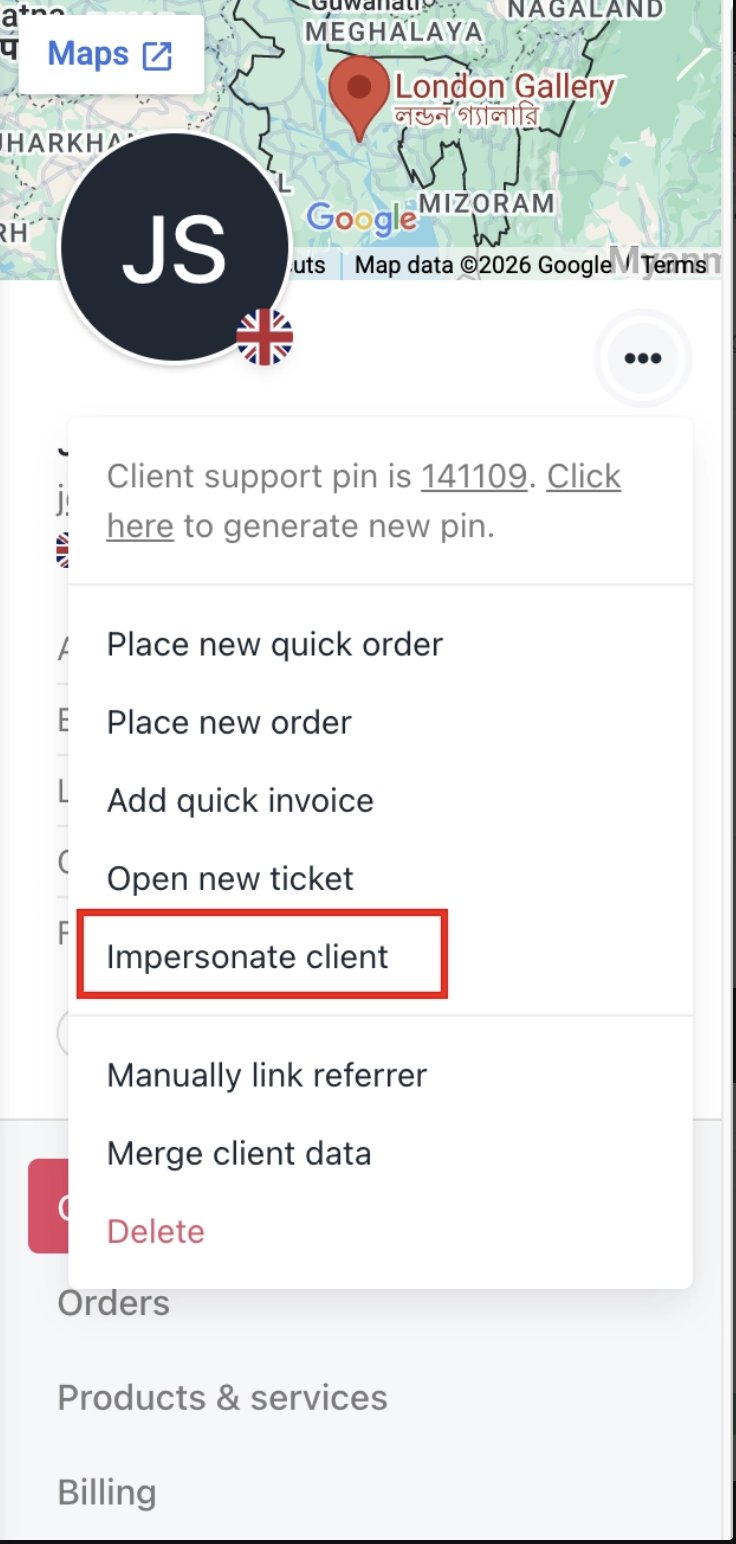
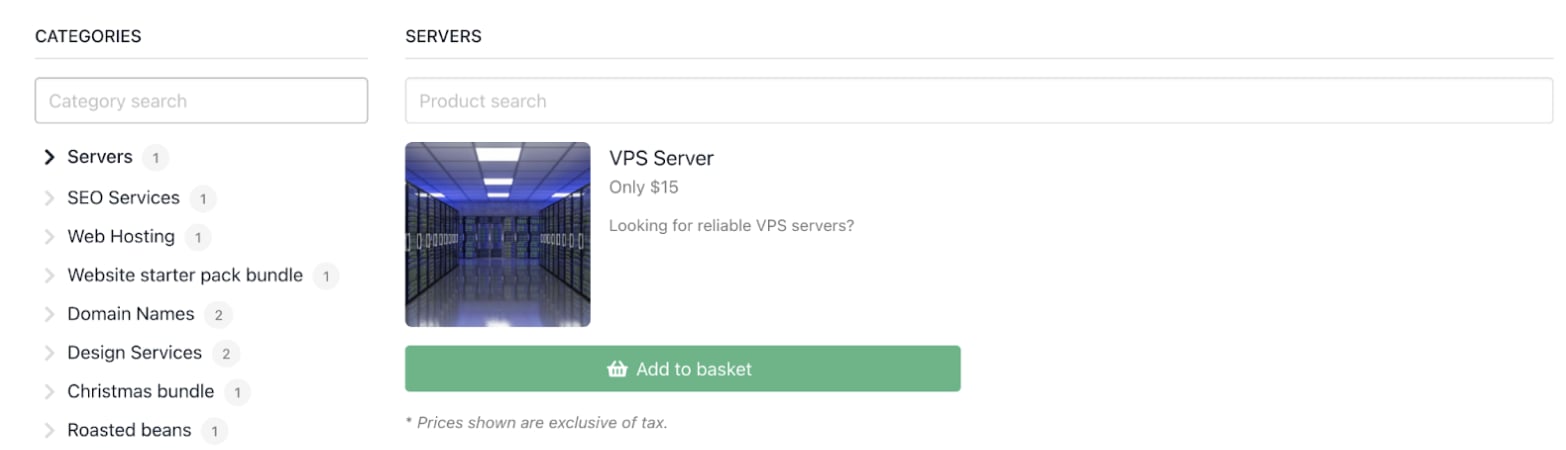
4. You can check the customer journey by [<u>impersonating a client</u>](/using-upmind/client-management/how-impersonating-a-client-works) and seeing the purchase process.
<Frame caption="Impersonate clients">
  <img src="https://mintcdn.com/upmind/92wYnpdR_k6AjH3x/images/fb/52afd2dfa6b9b4e2.png?fit=max&auto=format&n=92wYnpdR_k6AjH3x&q=85&s=48e9770adc7e4d708c6342358179211a" alt="Impersonate clients" className="mx-auto" style={{ width:"53%" }} width="736" height="1544" data-path="images/fb/52afd2dfa6b9b4e2.png" />

  <img src="https://mintcdn.com/upmind/92wYnpdR_k6AjH3x/images/fb/52afd2dfa6b9b4e2.png?fit=max&auto=format&n=92wYnpdR_k6AjH3x&q=85&s=48e9770adc7e4d708c6342358179211a" alt="Impersonate clients" className="mx-auto" style={{ width:"53%" }} width="736" height="1544" data-path="images/fb/52afd2dfa6b9b4e2.png" />
</Frame>

<Frame caption="Customer journey">
  <img src="https://mintcdn.com/upmind/wRuKrNY12tQZY8Rr/images/fb/3058f3c32cd15733.png?fit=max&auto=format&n=wRuKrNY12tQZY8Rr&q=85&s=282fb051d2c5f4265b167adf16146608" alt="Customer journey" className="mx-auto" style={{ width:"98%" }} width="1566" height="450" data-path="images/fb/3058f3c32cd15733.png" />

  <img src="https://mintcdn.com/upmind/wRuKrNY12tQZY8Rr/images/fb/3058f3c32cd15733.png?fit=max&auto=format&n=wRuKrNY12tQZY8Rr&q=85&s=282fb051d2c5f4265b167adf16146608" alt="Customer journey" className="mx-auto" style={{ width:"98%" }} width="1566" height="450" data-path="images/fb/3058f3c32cd15733.png" />
</Frame>

## **Use analytics and reporting to optimise your business**

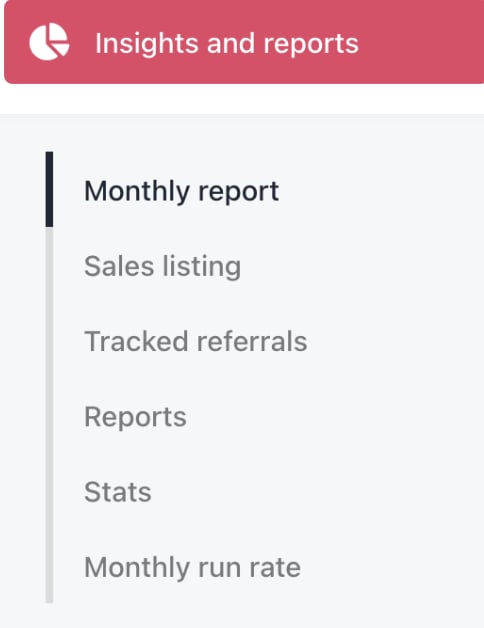
1. Review [<u>Insights and Reports</u>](/using-upmind/reporting/about-insights-and-reports) to track sales, client growth, revenue by product, churn, and LTV.
<Frame caption="Insights and reports">
  <img src="https://mintcdn.com/upmind/1-uICsJi9zYpvJVH/images/fb/8abf5833f51ad34b.png?fit=max&auto=format&n=1-uICsJi9zYpvJVH&q=85&s=15d22065c2ee57dab14585ebcaf13c9b" alt="Insights and reports" className="mx-auto" style={{ width:"70%" }} width="484" height="628" data-path="images/fb/8abf5833f51ad34b.png" />

  <img src="https://mintcdn.com/upmind/1-uICsJi9zYpvJVH/images/fb/8abf5833f51ad34b.png?fit=max&auto=format&n=1-uICsJi9zYpvJVH&q=85&s=15d22065c2ee57dab14585ebcaf13c9b" alt="Insights and reports" className="mx-auto" style={{ width:"70%" }} width="484" height="628" data-path="images/fb/8abf5833f51ad34b.png" />
</Frame>

2. Monitor billing performance and customer payment behaviour from the **Admin Dashboard**.
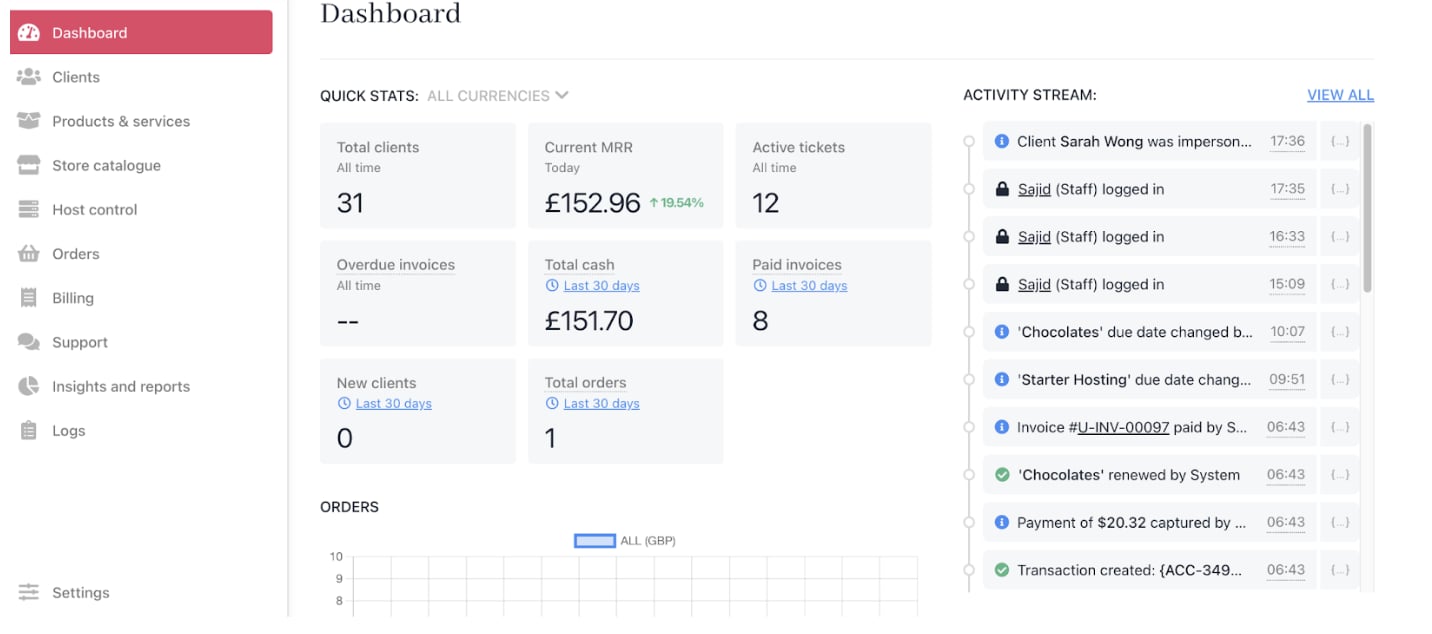
<Frame caption="Admin dashboard">
  <img src="https://mintcdn.com/upmind/kAlrCUxI2nwYz4_i/images/fb/21ef7dcfcb4429c2.png?fit=max&auto=format&n=kAlrCUxI2nwYz4_i&q=85&s=d4ccf495dd25e71548fe767ea61c48b3" alt="Admin dashboard" className="mx-auto" style={{ width:"96%" }} width="1432" height="634" data-path="images/fb/21ef7dcfcb4429c2.png" />

  <img src="https://mintcdn.com/upmind/kAlrCUxI2nwYz4_i/images/fb/21ef7dcfcb4429c2.png?fit=max&auto=format&n=kAlrCUxI2nwYz4_i&q=85&s=d4ccf495dd25e71548fe767ea61c48b3" alt="Admin dashboard" className="mx-auto" style={{ width:"96%" }} width="1432" height="634" data-path="images/fb/21ef7dcfcb4429c2.png" />
</Frame>

3. Use [<u>Google Analytics</u>](/using-upmind/reporting/how-to-set-up-google-analytics-with-upmind) and [<u>Tag Manager</u>](/using-upmind/reporting/how-to-set-up-google-tag-manager-with-upmind) integrations to gain website and portal insights.
4. Adjust pricing, marketing, or support strategies based on data.