> ## Documentation Index
> Fetch the complete documentation index at: https://docs.upmind.com/llms.txt
> Use this file to discover all available pages before exploring further.

# Quick Start Guide for Digital Agencies

> Simplified setup to automate billing, project management, and client support.

Upmind is a powerful, flexible platform designed to simplify subscription billing, client management, and service provisioning for digital agencies.

This guide presents an easy, practical path through the core features you need to launch and run your agency efficiently. You will need to do the following:

1. **Create and configure your Upmind account**
2. **Verify your account**
3. **Log into the admin panel**
4. **Configure your domain**
5. **Change the organisation name display**
6. **Set store currency**
7. **Add your agency services as products**
8. **Create categories**
9. **Create products**
10. **Add product details**
11. **Upload images**
12. **Configure billing**
13. **Set up billing and payment processing**
14. **Configure provisioning**
15. **Manage client accounts and support**
16. **Launch your online store**
17. **Use analytics and reporting to optimise your business**

You can also follow this [<u>guide</u>](/getting-started/how-to-create-an-upmind-account) to create your own profile.

## **Create and configure your Upmind account**

1. Go to [<u>Upmind.com</u>](http://Upmind.com).
2. Click on **Start** for free.

<Frame caption="Start for free">
  <img src="https://mintcdn.com/upmind/Dgjmf3QWYVBR40cE/images/fb/629f94c9e18aba00.png?fit=max&auto=format&n=Dgjmf3QWYVBR40cE&q=85&s=7965fbe570c07cacd3ce2353ae193fef" alt="Start for free" className="mx-auto" style={{ width:"99%" }} width="1534" height="122" data-path="images/fb/629f94c9e18aba00.png" />

  <img src="https://mintcdn.com/upmind/Dgjmf3QWYVBR40cE/images/fb/629f94c9e18aba00.png?fit=max&auto=format&n=Dgjmf3QWYVBR40cE&q=85&s=7965fbe570c07cacd3ce2353ae193fef" alt="Start for free" className="mx-auto" style={{ width:"99%" }} width="1534" height="122" data-path="images/fb/629f94c9e18aba00.png" />
</Frame>

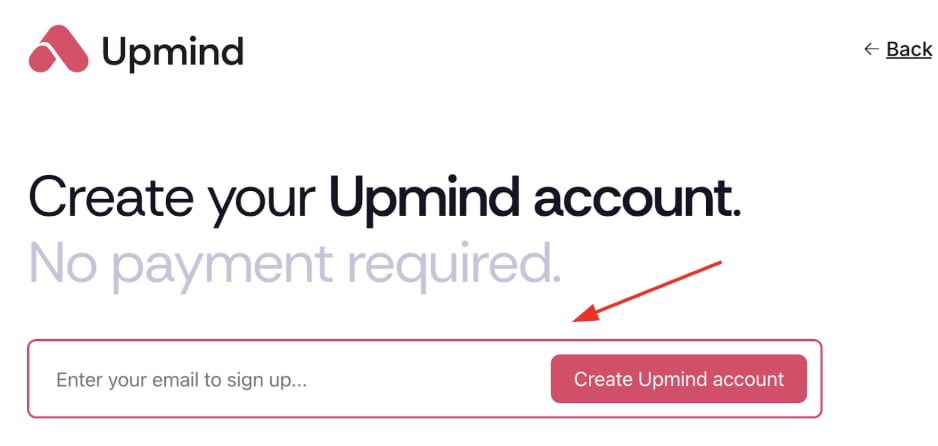
3. Enter your email and sign up.

<Frame caption="Sign up">
  <img src="https://mintcdn.com/upmind/VnCXiz5rboywDnvn/images/fb/d4e717c0014c859b.png?fit=max&auto=format&n=VnCXiz5rboywDnvn&q=85&s=165b3510f0736b22ce5e6c908cfa0b21" alt="Sign up" className="mx-auto" style={{ width:"81%" }} width="938" height="446" data-path="images/fb/d4e717c0014c859b.png" />

  <img src="https://mintcdn.com/upmind/VnCXiz5rboywDnvn/images/fb/d4e717c0014c859b.png?fit=max&auto=format&n=VnCXiz5rboywDnvn&q=85&s=165b3510f0736b22ce5e6c908cfa0b21" alt="Sign up" className="mx-auto" style={{ width:"81%" }} width="938" height="446" data-path="images/fb/d4e717c0014c859b.png" />
</Frame>

## **Verify your account**

1. Check your email (and spam) for Upmind’s verification link within 5 minutes.
2. Click the link to open your organisation’s admin dashboard. Your account is now live.

## **Log into the admin panel**

1. Visit your `Admin Panel` login page at [<u>https://my.upmind.com/login</u>](https://my.upmind.com/login).
2. Enter your credentials to log in.
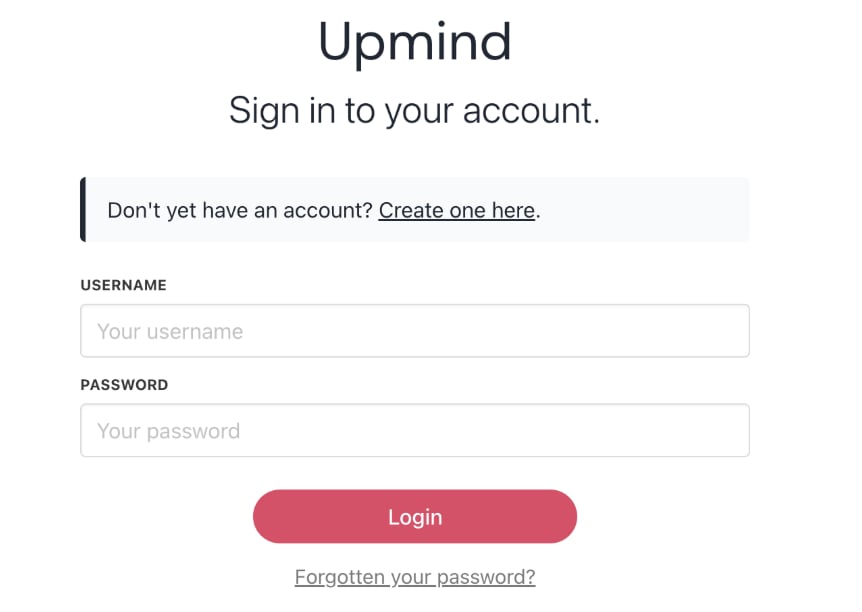
<Frame caption="Log in panel">
  <img src="https://mintcdn.com/upmind/2ooSxDpt6PiIGMr-/images/fb/03f635e1a4b3687b.png?fit=max&auto=format&n=2ooSxDpt6PiIGMr-&q=85&s=c1cbe3516ff8e1aaff07c12ae402e598" alt="Log in panel" className="mx-auto" style={{ width:"77%" }} width="862" height="612" data-path="images/fb/03f635e1a4b3687b.png" />

  <img src="https://mintcdn.com/upmind/2ooSxDpt6PiIGMr-/images/fb/03f635e1a4b3687b.png?fit=max&auto=format&n=2ooSxDpt6PiIGMr-&q=85&s=c1cbe3516ff8e1aaff07c12ae402e598" alt="Log in panel" className="mx-auto" style={{ width:"77%" }} width="862" height="612" data-path="images/fb/03f635e1a4b3687b.png" />
</Frame>

## **Configure your domain**

1. Upmind creates a unique subdomain for your store ending with `.upmind.app`.
2. After setup, [<u>configure your own domain</u>](/setup-and-configuration/branding/how-to-add-a-custom-domain-name) (e.g., `yourdomain.com` or `clientarea.yourdomain.com`).
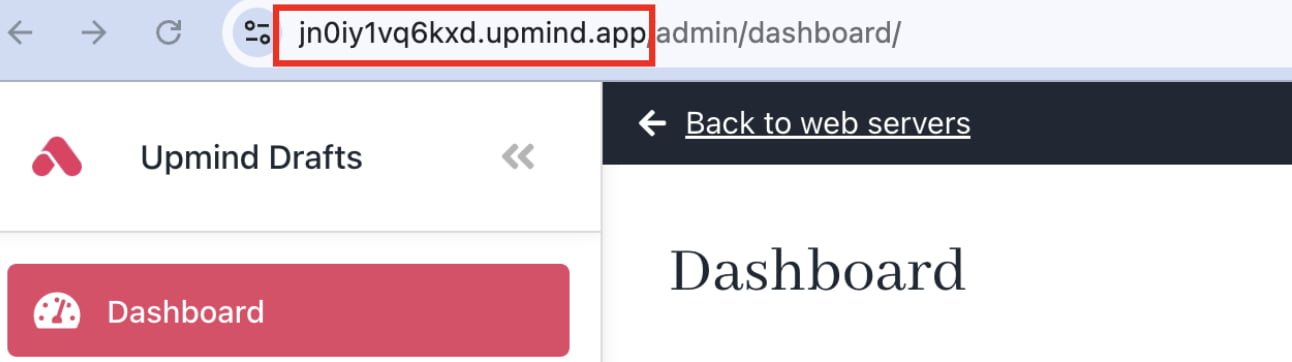
<Frame caption="Unique subdomain">
  <img src="https://mintcdn.com/upmind/92wYnpdR_k6AjH3x/images/fb/51c9b6d1e25549fb.png?fit=max&auto=format&n=92wYnpdR_k6AjH3x&q=85&s=be1fdb130c4cb75c8b5af33e938ab303" alt="Unique subdomain" className="mx-auto" style={{ width:"84%" }} width="1292" height="362" data-path="images/fb/51c9b6d1e25549fb.png" />

  <img src="https://mintcdn.com/upmind/92wYnpdR_k6AjH3x/images/fb/51c9b6d1e25549fb.png?fit=max&auto=format&n=92wYnpdR_k6AjH3x&q=85&s=be1fdb130c4cb75c8b5af33e938ab303" alt="Unique subdomain" className="mx-auto" style={{ width:"84%" }} width="1292" height="362" data-path="images/fb/51c9b6d1e25549fb.png" />
</Frame>

## **Change the organisation name display**

1. Go to **Settings** > **Brand Settings** under **Branding and Customisation**.
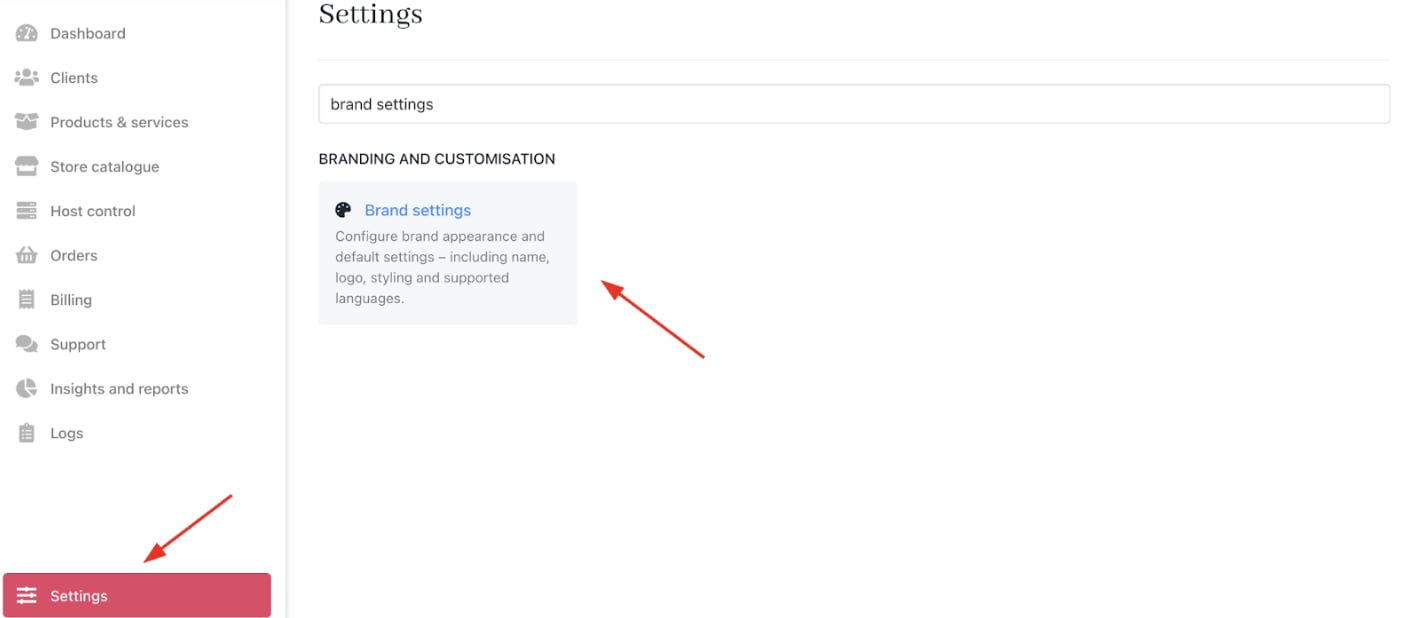
<Frame caption="Settings > Branding and Customisation > Brand Settings">
  <img src="https://mintcdn.com/upmind/6knUVC8F1nK4E5CY/images/fb/c0838465df69650f.png?fit=max&auto=format&n=6knUVC8F1nK4E5CY&q=85&s=51be9549be6800ba5db7adee7c6383f8" alt="Settings > Branding and Customisation > Brand Settings" className="mx-auto" style={{ width:"97%" }} data-og-width="1412" width="1412" data-og-height="618" height="618" data-path="images/fb/c0838465df69650f.png" data-optimize="true" data-opv="3" srcset="https://mintcdn.com/upmind/6knUVC8F1nK4E5CY/images/fb/c0838465df69650f.png?w=280&fit=max&auto=format&n=6knUVC8F1nK4E5CY&q=85&s=159ebaec1cd5dc5cdc49284aeaed70be 280w, https://mintcdn.com/upmind/6knUVC8F1nK4E5CY/images/fb/c0838465df69650f.png?w=560&fit=max&auto=format&n=6knUVC8F1nK4E5CY&q=85&s=2bbceb4e362afa2428edea2bab424a8a 560w, https://mintcdn.com/upmind/6knUVC8F1nK4E5CY/images/fb/c0838465df69650f.png?w=840&fit=max&auto=format&n=6knUVC8F1nK4E5CY&q=85&s=26fe8ec0fef33a0597d5f5eb414ff6de 840w, https://mintcdn.com/upmind/6knUVC8F1nK4E5CY/images/fb/c0838465df69650f.png?w=1100&fit=max&auto=format&n=6knUVC8F1nK4E5CY&q=85&s=ae14cbe7ec66b2a4030a66735b63f5c5 1100w, https://mintcdn.com/upmind/6knUVC8F1nK4E5CY/images/fb/c0838465df69650f.png?w=1650&fit=max&auto=format&n=6knUVC8F1nK4E5CY&q=85&s=d6b243e5f713039991e57965eab8ac80 1650w, https://mintcdn.com/upmind/6knUVC8F1nK4E5CY/images/fb/c0838465df69650f.png?w=2500&fit=max&auto=format&n=6knUVC8F1nK4E5CY&q=85&s=4c07034708d6a8d25f945765fc23ce33 2500w" />

  <img src="https://mintcdn.com/upmind/6knUVC8F1nK4E5CY/images/fb/c0838465df69650f.png?fit=max&auto=format&n=6knUVC8F1nK4E5CY&q=85&s=51be9549be6800ba5db7adee7c6383f8" alt="Settings > Branding and Customisation > Brand Settings" className="mx-auto" style={{ width:"97%" }} data-og-width="1412" width="1412" data-og-height="618" height="618" data-path="images/fb/c0838465df69650f.png" data-optimize="true" data-opv="3" srcset="https://mintcdn.com/upmind/6knUVC8F1nK4E5CY/images/fb/c0838465df69650f.png?w=280&fit=max&auto=format&n=6knUVC8F1nK4E5CY&q=85&s=159ebaec1cd5dc5cdc49284aeaed70be 280w, https://mintcdn.com/upmind/6knUVC8F1nK4E5CY/images/fb/c0838465df69650f.png?w=560&fit=max&auto=format&n=6knUVC8F1nK4E5CY&q=85&s=2bbceb4e362afa2428edea2bab424a8a 560w, https://mintcdn.com/upmind/6knUVC8F1nK4E5CY/images/fb/c0838465df69650f.png?w=840&fit=max&auto=format&n=6knUVC8F1nK4E5CY&q=85&s=26fe8ec0fef33a0597d5f5eb414ff6de 840w, https://mintcdn.com/upmind/6knUVC8F1nK4E5CY/images/fb/c0838465df69650f.png?w=1100&fit=max&auto=format&n=6knUVC8F1nK4E5CY&q=85&s=ae14cbe7ec66b2a4030a66735b63f5c5 1100w, https://mintcdn.com/upmind/6knUVC8F1nK4E5CY/images/fb/c0838465df69650f.png?w=1650&fit=max&auto=format&n=6knUVC8F1nK4E5CY&q=85&s=d6b243e5f713039991e57965eab8ac80 1650w, https://mintcdn.com/upmind/6knUVC8F1nK4E5CY/images/fb/c0838465df69650f.png?w=2500&fit=max&auto=format&n=6knUVC8F1nK4E5CY&q=85&s=4c07034708d6a8d25f945765fc23ce33 2500w" />
</Frame>

2. Enter a new name and click **Save**.
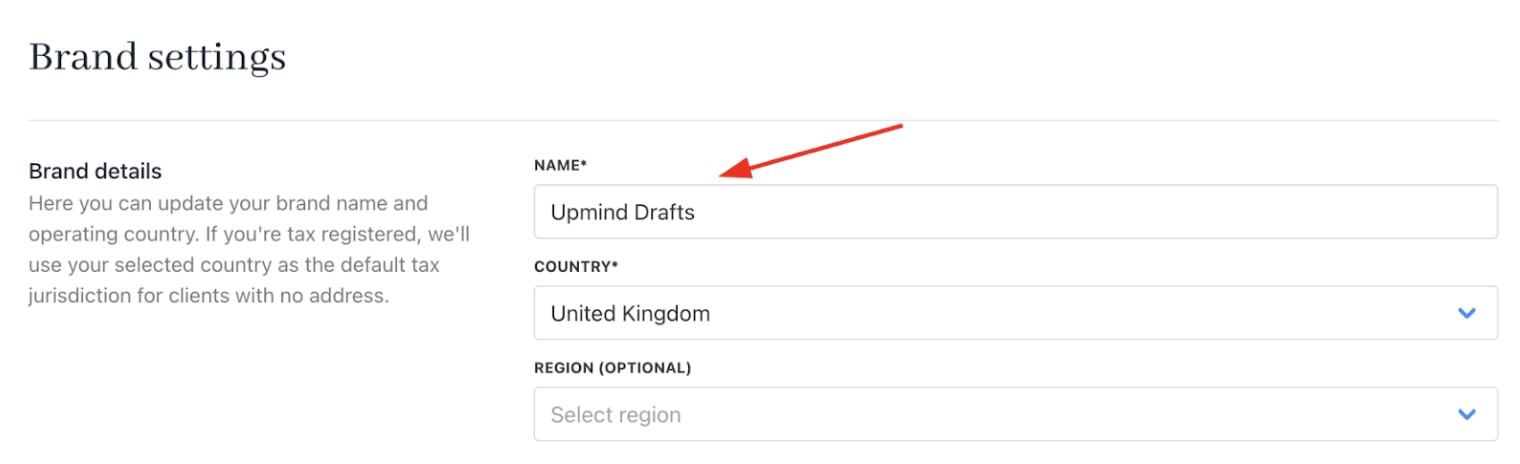
<Frame caption="New brand name">
  <img src="https://mintcdn.com/upmind/VnCXiz5rboywDnvn/images/fb/d54c4fc50465c651.png?fit=max&auto=format&n=VnCXiz5rboywDnvn&q=85&s=d05c6b7ee1c0203b8bcb0562b01a404b" alt="New brand name" className="mx-auto" style={{ width:"98%" }} width="1520" height="464" data-path="images/fb/d54c4fc50465c651.png" />

  <img src="https://mintcdn.com/upmind/VnCXiz5rboywDnvn/images/fb/d54c4fc50465c651.png?fit=max&auto=format&n=VnCXiz5rboywDnvn&q=85&s=d05c6b7ee1c0203b8bcb0562b01a404b" alt="New brand name" className="mx-auto" style={{ width:"98%" }} width="1520" height="464" data-path="images/fb/d54c4fc50465c651.png" />
</Frame>

Upmind updates the [<u>organisation</u>](/setup-and-configuration/branding/what-is-an-organisation) name on screen, but not the domain name.

<Note>
  An Upmind account is an organisation that can include multiple brands configured on the brand page. If you manage several businesses under the same legal entity, use multi-brand mode within one organisation. Or you can create separate organisations for distinct legal entities.
</Note>

## **Set store currency**

1. Go to **Settings** > **Business Settings** under **E-commerce Settings**.
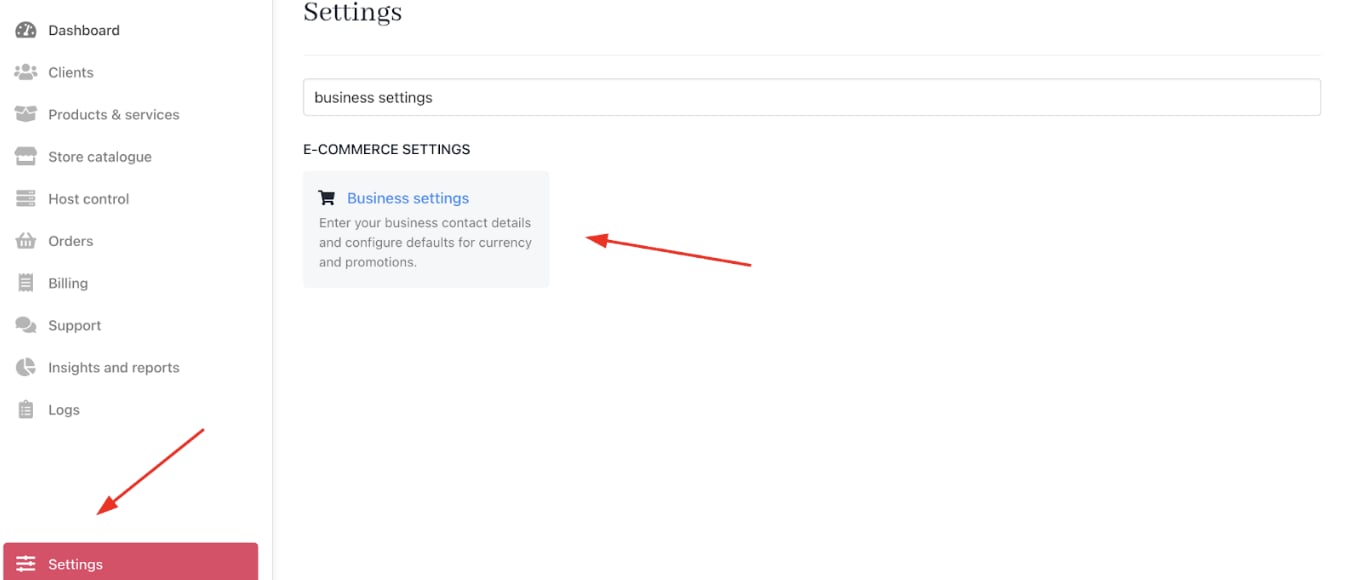
<Frame caption="Settings > E-commerce Settings > Business Settings">
  <img src="https://mintcdn.com/upmind/wRuKrNY12tQZY8Rr/images/fb/399cc61b4f73f1d9.png?fit=max&auto=format&n=wRuKrNY12tQZY8Rr&q=85&s=75c18796ee30af46e654c8fcf5f7c836" alt="Settings > E-commerce Settings > Business Settings" className="mx-auto" style={{ width:"96%" }} data-og-width="1346" width="1346" data-og-height="580" height="580" data-path="images/fb/399cc61b4f73f1d9.png" data-optimize="true" data-opv="3" srcset="https://mintcdn.com/upmind/wRuKrNY12tQZY8Rr/images/fb/399cc61b4f73f1d9.png?w=280&fit=max&auto=format&n=wRuKrNY12tQZY8Rr&q=85&s=a4c5163c7a7cb524ad522ba56d8ff801 280w, https://mintcdn.com/upmind/wRuKrNY12tQZY8Rr/images/fb/399cc61b4f73f1d9.png?w=560&fit=max&auto=format&n=wRuKrNY12tQZY8Rr&q=85&s=1fefbf781418cfad7c6165bbb8b81471 560w, https://mintcdn.com/upmind/wRuKrNY12tQZY8Rr/images/fb/399cc61b4f73f1d9.png?w=840&fit=max&auto=format&n=wRuKrNY12tQZY8Rr&q=85&s=75e0fc24d9a685b7db86232f3f6f4d21 840w, https://mintcdn.com/upmind/wRuKrNY12tQZY8Rr/images/fb/399cc61b4f73f1d9.png?w=1100&fit=max&auto=format&n=wRuKrNY12tQZY8Rr&q=85&s=2c8306261c344be33d8c42e82a27ab6d 1100w, https://mintcdn.com/upmind/wRuKrNY12tQZY8Rr/images/fb/399cc61b4f73f1d9.png?w=1650&fit=max&auto=format&n=wRuKrNY12tQZY8Rr&q=85&s=58a6264c09fa4b2ca32e2c0acbe6383a 1650w, https://mintcdn.com/upmind/wRuKrNY12tQZY8Rr/images/fb/399cc61b4f73f1d9.png?w=2500&fit=max&auto=format&n=wRuKrNY12tQZY8Rr&q=85&s=0f1bde501c93757b0366bfbbc906e51e 2500w" />

  <img src="https://mintcdn.com/upmind/wRuKrNY12tQZY8Rr/images/fb/399cc61b4f73f1d9.png?fit=max&auto=format&n=wRuKrNY12tQZY8Rr&q=85&s=75c18796ee30af46e654c8fcf5f7c836" alt="Settings > E-commerce Settings > Business Settings" className="mx-auto" style={{ width:"96%" }} data-og-width="1346" width="1346" data-og-height="580" height="580" data-path="images/fb/399cc61b4f73f1d9.png" data-optimize="true" data-opv="3" srcset="https://mintcdn.com/upmind/wRuKrNY12tQZY8Rr/images/fb/399cc61b4f73f1d9.png?w=280&fit=max&auto=format&n=wRuKrNY12tQZY8Rr&q=85&s=a4c5163c7a7cb524ad522ba56d8ff801 280w, https://mintcdn.com/upmind/wRuKrNY12tQZY8Rr/images/fb/399cc61b4f73f1d9.png?w=560&fit=max&auto=format&n=wRuKrNY12tQZY8Rr&q=85&s=1fefbf781418cfad7c6165bbb8b81471 560w, https://mintcdn.com/upmind/wRuKrNY12tQZY8Rr/images/fb/399cc61b4f73f1d9.png?w=840&fit=max&auto=format&n=wRuKrNY12tQZY8Rr&q=85&s=75e0fc24d9a685b7db86232f3f6f4d21 840w, https://mintcdn.com/upmind/wRuKrNY12tQZY8Rr/images/fb/399cc61b4f73f1d9.png?w=1100&fit=max&auto=format&n=wRuKrNY12tQZY8Rr&q=85&s=2c8306261c344be33d8c42e82a27ab6d 1100w, https://mintcdn.com/upmind/wRuKrNY12tQZY8Rr/images/fb/399cc61b4f73f1d9.png?w=1650&fit=max&auto=format&n=wRuKrNY12tQZY8Rr&q=85&s=58a6264c09fa4b2ca32e2c0acbe6383a 1650w, https://mintcdn.com/upmind/wRuKrNY12tQZY8Rr/images/fb/399cc61b4f73f1d9.png?w=2500&fit=max&auto=format&n=wRuKrNY12tQZY8Rr&q=85&s=0f1bde501c93757b0366bfbbc906e51e 2500w" />
</Frame>

2. Set your **Store Currency**, which will be the primary currency.
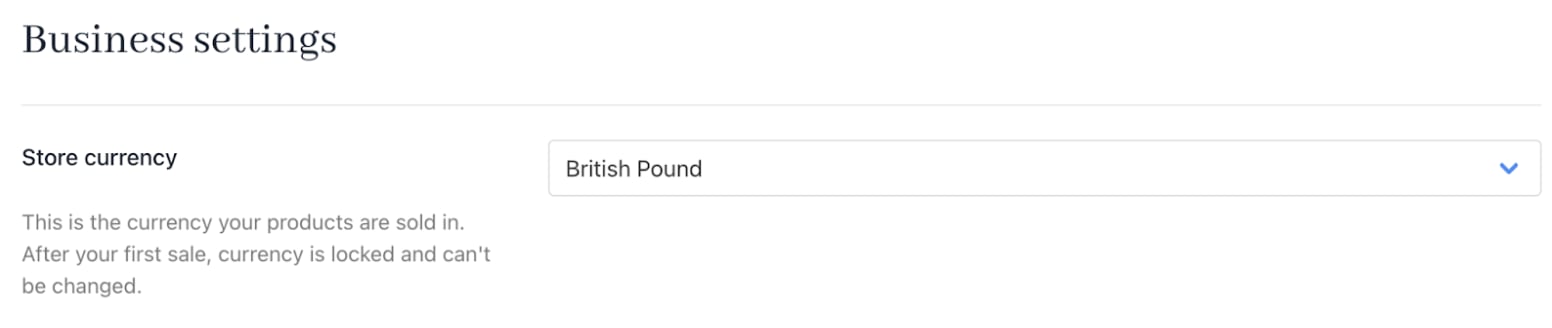
<Frame caption="Store currency">
  <img src="https://mintcdn.com/upmind/ZsIo0APxdVb_gFS-/images/fb/2486736e0f5af6dc.png?fit=max&auto=format&n=ZsIo0APxdVb_gFS-&q=85&s=f2101fe2bf828ff3f407ba6018770c4a" alt="Store currency" className="mx-auto" style={{ width:"98%" }} width="1552" height="328" data-path="images/fb/2486736e0f5af6dc.png" />

  <img src="https://mintcdn.com/upmind/ZsIo0APxdVb_gFS-/images/fb/2486736e0f5af6dc.png?fit=max&auto=format&n=ZsIo0APxdVb_gFS-&q=85&s=f2101fe2bf828ff3f407ba6018770c4a" alt="Store currency" className="mx-auto" style={{ width:"98%" }} width="1552" height="328" data-path="images/fb/2486736e0f5af6dc.png" />
</Frame>

Upmind supports [<u>multiple currencies</u>](/using-upmind/invoicing-and-taxes/about-multi-currency), but your primary (base) currency is fixed once you record your first transaction. This base currency drives all reporting and conversions and cannot be changed afterwards, so choose it carefully.

## **Add your agency services as products**

1. Access it from the dashboard by clicking on **Store Catalogue**.
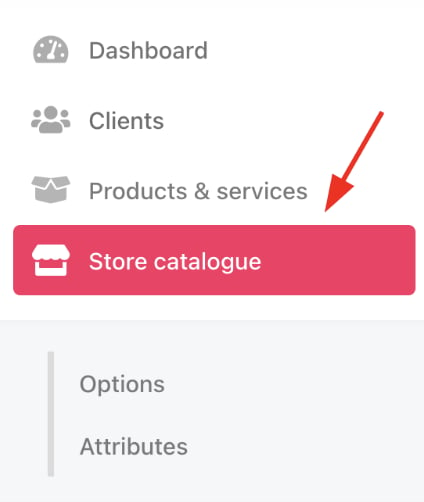
<Frame caption="Store catalogue">
  <img src="https://mintcdn.com/upmind/bPO2bBzOxYQR4tYr/images/fb/fb0207d602dbda2d.png?fit=max&auto=format&n=bPO2bBzOxYQR4tYr&q=85&s=ca765f2c3b4824d544b4ef11cc42363b" alt="Store catalogue" className="mx-auto" style={{ width:"78%" }} width="424" height="502" data-path="images/fb/fb0207d602dbda2d.png" />

  <img src="https://mintcdn.com/upmind/bPO2bBzOxYQR4tYr/images/fb/fb0207d602dbda2d.png?fit=max&auto=format&n=bPO2bBzOxYQR4tYr&q=85&s=ca765f2c3b4824d544b4ef11cc42363b" alt="Store catalogue" className="mx-auto" style={{ width:"78%" }} width="424" height="502" data-path="images/fb/fb0207d602dbda2d.png" />
</Frame>

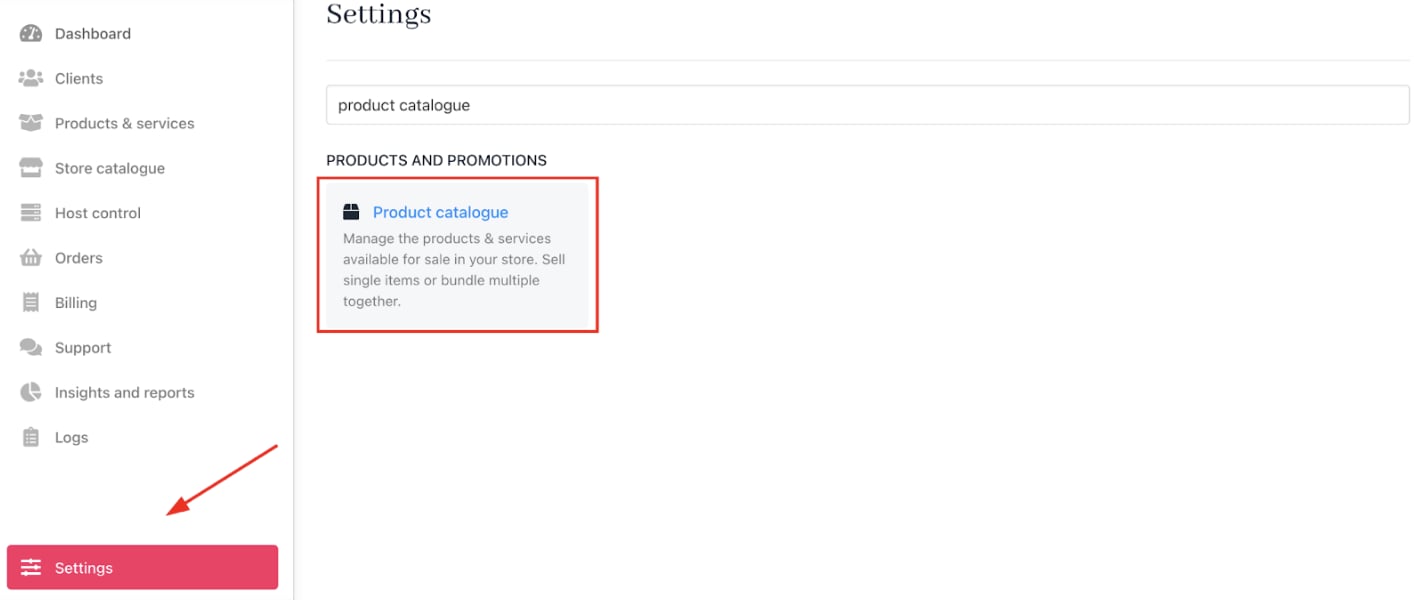
2. You can also click **Settings** and select the **Product Catalogue** tile under **Products and Promotions**.
<Frame caption="Settings > Products and Promotions > Product Catalogue">
  <img src="https://mintcdn.com/upmind/ZsIo0APxdVb_gFS-/images/fb/2c1579f2d873e079.png?fit=max&auto=format&n=ZsIo0APxdVb_gFS-&q=85&s=cdd5d8a517416f07a642cef118739af2" alt="Settings > Products and Promotions > Product Catalogue" className="mx-auto" style={{ width:"99%" }} data-og-width="1414" width="1414" data-og-height="600" height="600" data-path="images/fb/2c1579f2d873e079.png" data-optimize="true" data-opv="3" srcset="https://mintcdn.com/upmind/ZsIo0APxdVb_gFS-/images/fb/2c1579f2d873e079.png?w=280&fit=max&auto=format&n=ZsIo0APxdVb_gFS-&q=85&s=9fcffd81f655f05b6b8aac0222eaf485 280w, https://mintcdn.com/upmind/ZsIo0APxdVb_gFS-/images/fb/2c1579f2d873e079.png?w=560&fit=max&auto=format&n=ZsIo0APxdVb_gFS-&q=85&s=694b4ef1256cb9d2795a36008308bb1b 560w, https://mintcdn.com/upmind/ZsIo0APxdVb_gFS-/images/fb/2c1579f2d873e079.png?w=840&fit=max&auto=format&n=ZsIo0APxdVb_gFS-&q=85&s=b6368afeb4308ba1e5b32f6e542ae93d 840w, https://mintcdn.com/upmind/ZsIo0APxdVb_gFS-/images/fb/2c1579f2d873e079.png?w=1100&fit=max&auto=format&n=ZsIo0APxdVb_gFS-&q=85&s=6602adefd7bf1b7b2209f3370e1a017c 1100w, https://mintcdn.com/upmind/ZsIo0APxdVb_gFS-/images/fb/2c1579f2d873e079.png?w=1650&fit=max&auto=format&n=ZsIo0APxdVb_gFS-&q=85&s=38c7ada8e29c7a56cc6c61a5e93d399c 1650w, https://mintcdn.com/upmind/ZsIo0APxdVb_gFS-/images/fb/2c1579f2d873e079.png?w=2500&fit=max&auto=format&n=ZsIo0APxdVb_gFS-&q=85&s=1cbb0b3333dc3967352d1c16ce7e82a9 2500w" />

  <img src="https://mintcdn.com/upmind/ZsIo0APxdVb_gFS-/images/fb/2c1579f2d873e079.png?fit=max&auto=format&n=ZsIo0APxdVb_gFS-&q=85&s=cdd5d8a517416f07a642cef118739af2" alt="Settings > Products and Promotions > Product Catalogue" className="mx-auto" style={{ width:"99%" }} data-og-width="1414" width="1414" data-og-height="600" height="600" data-path="images/fb/2c1579f2d873e079.png" data-optimize="true" data-opv="3" srcset="https://mintcdn.com/upmind/ZsIo0APxdVb_gFS-/images/fb/2c1579f2d873e079.png?w=280&fit=max&auto=format&n=ZsIo0APxdVb_gFS-&q=85&s=9fcffd81f655f05b6b8aac0222eaf485 280w, https://mintcdn.com/upmind/ZsIo0APxdVb_gFS-/images/fb/2c1579f2d873e079.png?w=560&fit=max&auto=format&n=ZsIo0APxdVb_gFS-&q=85&s=694b4ef1256cb9d2795a36008308bb1b 560w, https://mintcdn.com/upmind/ZsIo0APxdVb_gFS-/images/fb/2c1579f2d873e079.png?w=840&fit=max&auto=format&n=ZsIo0APxdVb_gFS-&q=85&s=b6368afeb4308ba1e5b32f6e542ae93d 840w, https://mintcdn.com/upmind/ZsIo0APxdVb_gFS-/images/fb/2c1579f2d873e079.png?w=1100&fit=max&auto=format&n=ZsIo0APxdVb_gFS-&q=85&s=6602adefd7bf1b7b2209f3370e1a017c 1100w, https://mintcdn.com/upmind/ZsIo0APxdVb_gFS-/images/fb/2c1579f2d873e079.png?w=1650&fit=max&auto=format&n=ZsIo0APxdVb_gFS-&q=85&s=38c7ada8e29c7a56cc6c61a5e93d399c 1650w, https://mintcdn.com/upmind/ZsIo0APxdVb_gFS-/images/fb/2c1579f2d873e079.png?w=2500&fit=max&auto=format&n=ZsIo0APxdVb_gFS-&q=85&s=1cbb0b3333dc3967352d1c16ce7e82a9 2500w" />
</Frame>

## **Create categories**

Categories help you organise your products and can be edited at any time.

### **Add a new category**

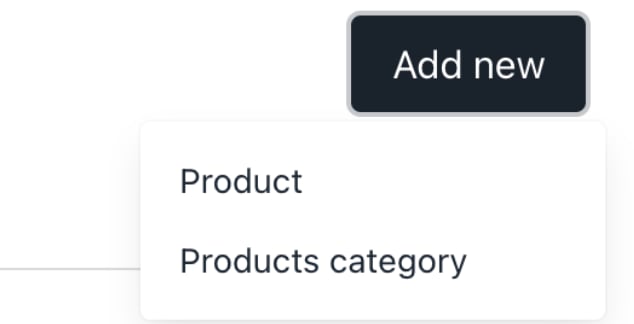
1. On the `Product Catalogue` page, click **Add New**.
2. Choose **Products category**.
<Frame caption="Add new product category">
  <img src="https://mintcdn.com/upmind/pcUdSuxUJ6LgBXnd/images/fb/a6d63854ebc4c9f9.png?fit=max&auto=format&n=pcUdSuxUJ6LgBXnd&q=85&s=9ecec92cedf9c3a54d461130af4e2857" alt="Add new product category" className="mx-auto" style={{ width:"67%" }} width="634" height="324" data-path="images/fb/a6d63854ebc4c9f9.png" />

  <img src="https://mintcdn.com/upmind/pcUdSuxUJ6LgBXnd/images/fb/a6d63854ebc4c9f9.png?fit=max&auto=format&n=pcUdSuxUJ6LgBXnd&q=85&s=9ecec92cedf9c3a54d461130af4e2857" alt="Add new product category" className="mx-auto" style={{ width:"67%" }} width="634" height="324" data-path="images/fb/a6d63854ebc4c9f9.png" />
</Frame>

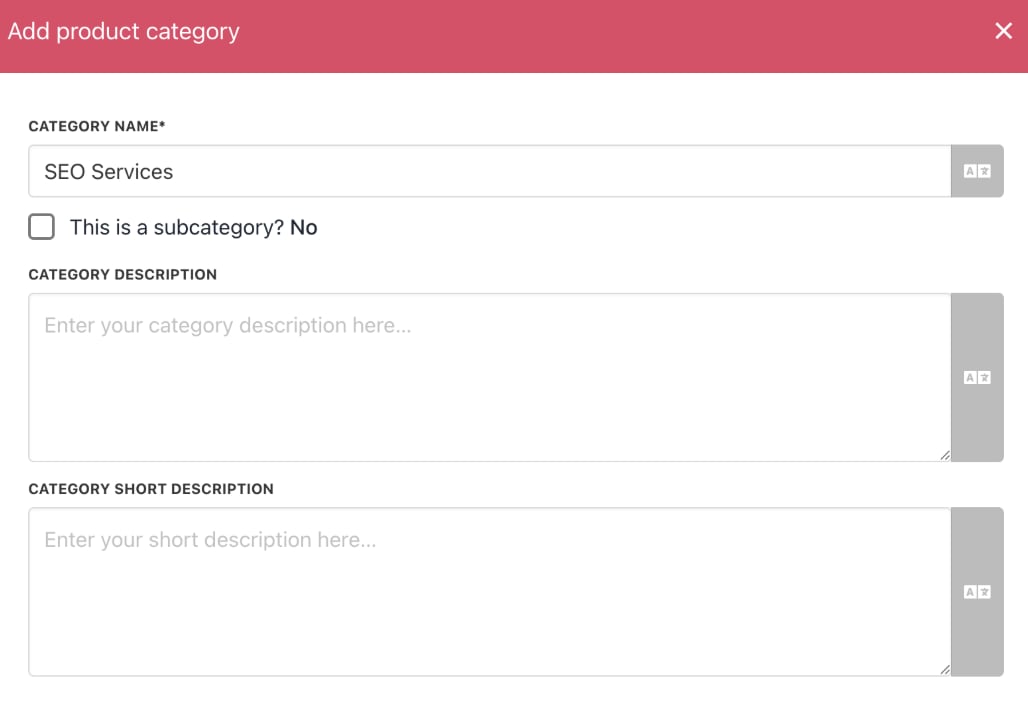
3. Enter a unique category name.
4. Add a category description (visible to website visitors).
5. Click **Create**.
<Frame caption="SEO service">
  <img src="https://mintcdn.com/upmind/VnCXiz5rboywDnvn/images/fb/d4e57aba2319e225.png?fit=max&auto=format&n=VnCXiz5rboywDnvn&q=85&s=60b048cbc60b73c8d9a801ba096f4624" alt="SEO service" className="mx-auto" style={{ width:"96%" }} width="1028" height="718" data-path="images/fb/d4e57aba2319e225.png" />

  <img src="https://mintcdn.com/upmind/VnCXiz5rboywDnvn/images/fb/d4e57aba2319e225.png?fit=max&auto=format&n=VnCXiz5rboywDnvn&q=85&s=60b048cbc60b73c8d9a801ba096f4624" alt="SEO service" className="mx-auto" style={{ width:"96%" }} width="1028" height="718" data-path="images/fb/d4e57aba2319e225.png" />
</Frame>

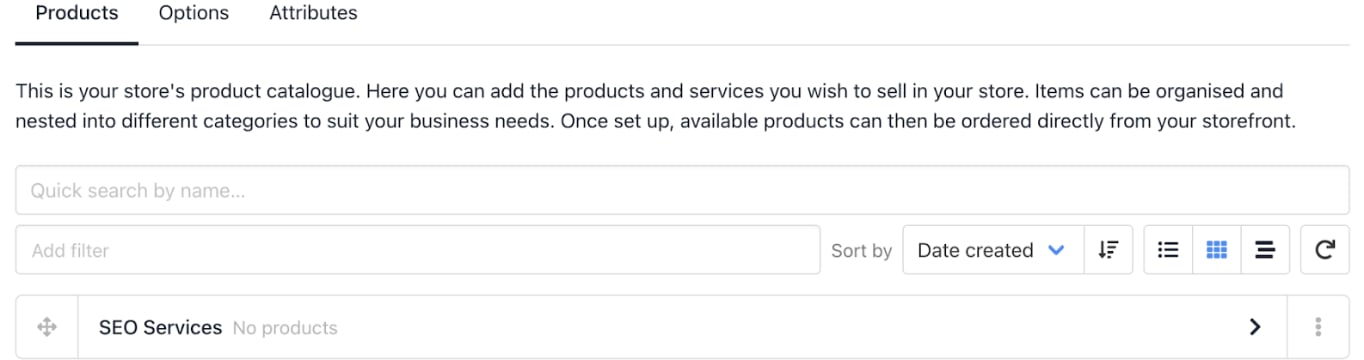
The new category appears in the catalogue.
<Frame caption="Service on catalogue page">
  <img src="https://mintcdn.com/upmind/Dgjmf3QWYVBR40cE/images/fb/617c53f9b21d376b.png?fit=max&auto=format&n=Dgjmf3QWYVBR40cE&q=85&s=ee086ac1f22fd9d87282716dee4b8580" alt="Service on catalogue page" className="mx-auto" style={{ width:"99%" }} width="1364" height="360" data-path="images/fb/617c53f9b21d376b.png" />

  <img src="https://mintcdn.com/upmind/Dgjmf3QWYVBR40cE/images/fb/617c53f9b21d376b.png?fit=max&auto=format&n=Dgjmf3QWYVBR40cE&q=85&s=ee086ac1f22fd9d87282716dee4b8580" alt="Service on catalogue page" className="mx-auto" style={{ width:"99%" }} width="1364" height="360" data-path="images/fb/617c53f9b21d376b.png" />
</Frame>

## **Create products**

You can add products in two ways:

1. Click **Add New** > **Product** on the `Product Catalogue` page.
2. Or, click the three-dot menu next to a category and select **Add product**.

<Frame caption="Add product">
  <img src="https://mintcdn.com/upmind/ObllJJl59DabnmMn/images/fb/d09d6a0b21fa4ccc.png?fit=max&auto=format&n=ObllJJl59DabnmMn&q=85&s=10b59ba089cc1516702f1ea6bac53e4a" alt="Add product" className="mx-auto" style={{ width:"98%" }} width="1468" height="182" data-path="images/fb/d09d6a0b21fa4ccc.png" />

  <img src="https://mintcdn.com/upmind/ObllJJl59DabnmMn/images/fb/d09d6a0b21fa4ccc.png?fit=max&auto=format&n=ObllJJl59DabnmMn&q=85&s=10b59ba089cc1516702f1ea6bac53e4a" alt="Add product" className="mx-auto" style={{ width:"98%" }} width="1468" height="182" data-path="images/fb/d09d6a0b21fa4ccc.png" />
</Frame>

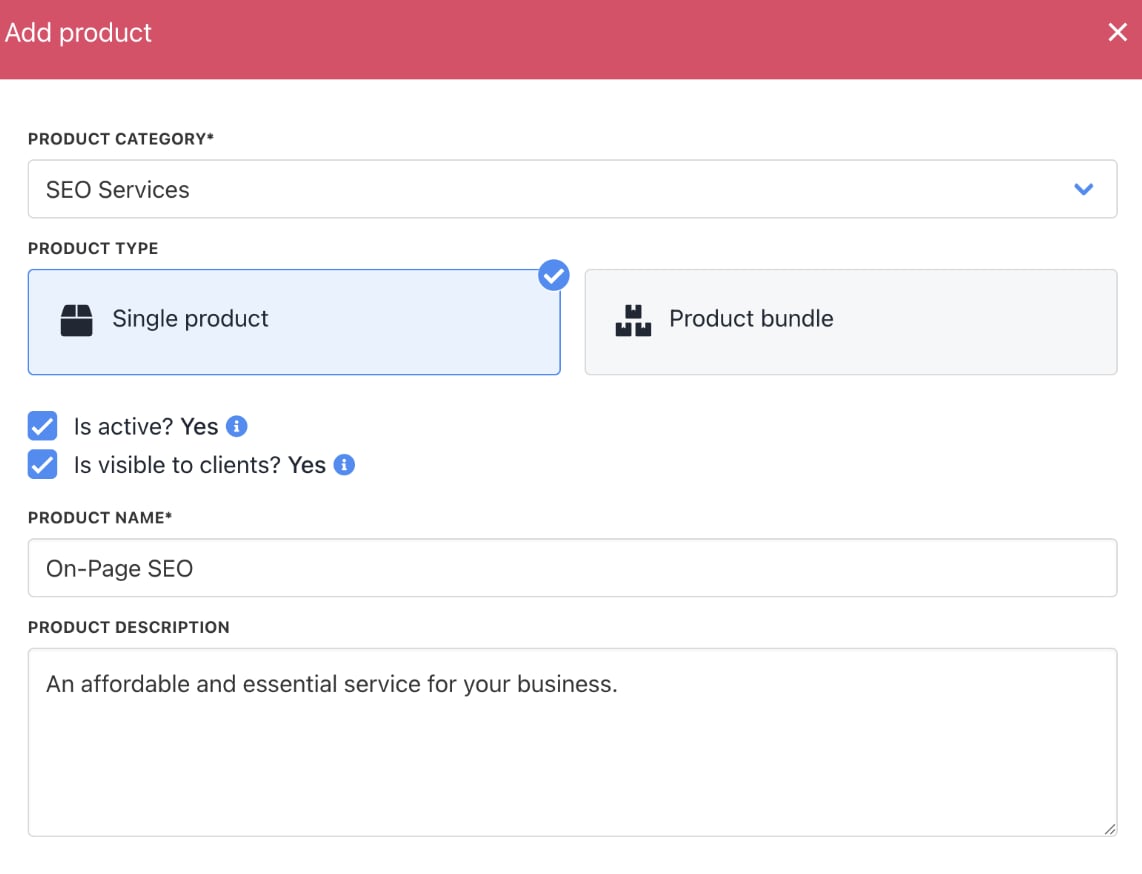
3. Choose **Single** product (default) or **Product** bundle.
4. Complete the product fields (name, descriptions, etc.).
5. Click **Create**.

<Frame caption="Single product option">
  <img src="https://mintcdn.com/upmind/VnCXiz5rboywDnvn/images/fb/d674ab5ed9f1e07c.png?fit=max&auto=format&n=VnCXiz5rboywDnvn&q=85&s=e85f2b8805f669b7ebe01c1067f56d68" alt="Single product option" className="mx-auto" style={{ width:"97%" }} width="1142" height="874" data-path="images/fb/d674ab5ed9f1e07c.png" />

  <img src="https://mintcdn.com/upmind/VnCXiz5rboywDnvn/images/fb/d674ab5ed9f1e07c.png?fit=max&auto=format&n=VnCXiz5rboywDnvn&q=85&s=e85f2b8805f669b7ebe01c1067f56d68" alt="Single product option" className="mx-auto" style={{ width:"97%" }} width="1142" height="874" data-path="images/fb/d674ab5ed9f1e07c.png" />
</Frame>

<Frame caption="Click the product">
  <img src="https://mintcdn.com/upmind/1xguIfYUrfespmVI/images/fb/825c240d19940b86.png?fit=max&auto=format&n=1xguIfYUrfespmVI&q=85&s=992d509836eefd82a3529f0b51d0857b" alt="Click the product" className="mx-auto" style={{ width:"99%" }} width="1372" height="178" data-path="images/fb/825c240d19940b86.png" />

  <img src="https://mintcdn.com/upmind/1xguIfYUrfespmVI/images/fb/825c240d19940b86.png?fit=max&auto=format&n=1xguIfYUrfespmVI&q=85&s=992d509836eefd82a3529f0b51d0857b" alt="Click the product" className="mx-auto" style={{ width:"99%" }} width="1372" height="178" data-path="images/fb/825c240d19940b86.png" />
</Frame>

The `Product Details` page displays the category and product name.

<Frame caption="Category and product name">
  <img src="https://mintcdn.com/upmind/ZsIo0APxdVb_gFS-/images/fb/2ebf8b7baf4ac2ca.png?fit=max&auto=format&n=ZsIo0APxdVb_gFS-&q=85&s=af8e1686247db2d78bc600ec303c9579" alt="Category and product name" className="mx-auto" style={{ width:"73%" }} width="788" height="154" data-path="images/fb/2ebf8b7baf4ac2ca.png" />

  <img src="https://mintcdn.com/upmind/ZsIo0APxdVb_gFS-/images/fb/2ebf8b7baf4ac2ca.png?fit=max&auto=format&n=ZsIo0APxdVb_gFS-&q=85&s=af8e1686247db2d78bc600ec303c9579" alt="Category and product name" className="mx-auto" style={{ width:"73%" }} width="788" height="154" data-path="images/fb/2ebf8b7baf4ac2ca.png" />
</Frame>

## **Add product details**

On the `Product Details` page, you can add or edit product info:

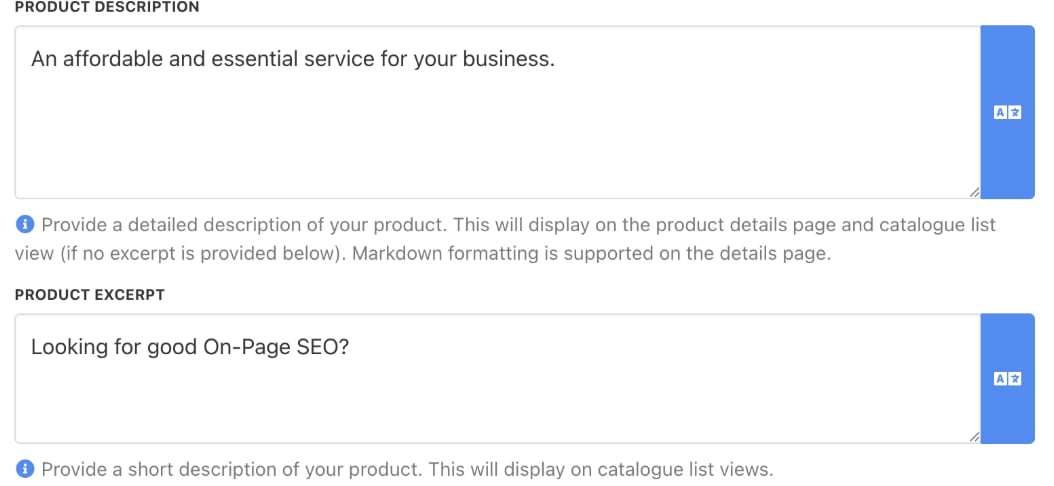
* **Product Description**: Detailed information about the product, such as features and benefits. Longer text supported.
* **Product Short Description**: A concise description of up to 130 characters to grab attention.
<Frame caption="Product description & product excerpt">
  <img src="https://mintcdn.com/upmind/FQ1NhxALxjSHvvWW/images/fb/b18232a20861e8db.png?fit=max&auto=format&n=FQ1NhxALxjSHvvWW&q=85&s=f87cedabe8dcf044051a14a8c00f3b5d" alt="Product description & product excerpt" className="mx-auto" style={{ width:"93%" }} width="1054" height="486" data-path="images/fb/b18232a20861e8db.png" />

  <img src="https://mintcdn.com/upmind/FQ1NhxALxjSHvvWW/images/fb/b18232a20861e8db.png?fit=max&auto=format&n=FQ1NhxALxjSHvvWW&q=85&s=f87cedabe8dcf044051a14a8c00f3b5d" alt="Product description & product excerpt" className="mx-auto" style={{ width:"93%" }} width="1054" height="486" data-path="images/fb/b18232a20861e8db.png" />
</Frame>

<Warning>
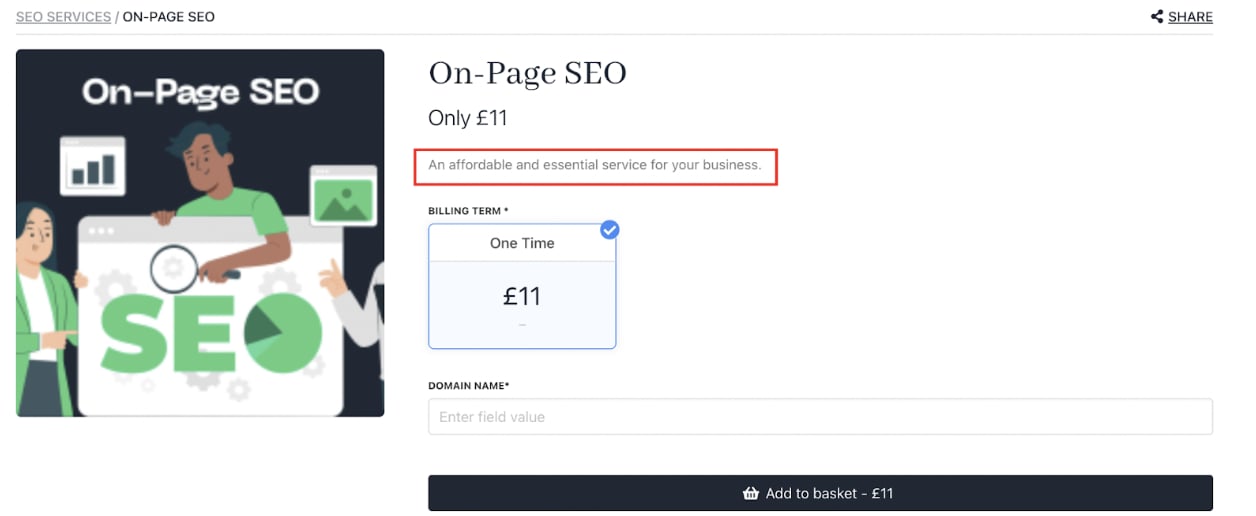
  Text exceeding **293 characters** in the product description is clipped automatically with a *read more* link.
</Warning>

<Frame caption="Product description displays">
  <img src="https://mintcdn.com/upmind/kXD0Ya8PpcxxNm6Q/images/fb/40564bbdae11a067.png?fit=max&auto=format&n=kXD0Ya8PpcxxNm6Q&q=85&s=9ba29b419ae9e487272018ffd972d558" alt="Product description displays" className="mx-auto" style={{ width:"96%" }} width="1256" height="516" data-path="images/fb/40564bbdae11a067.png" />

  <img src="https://mintcdn.com/upmind/kXD0Ya8PpcxxNm6Q/images/fb/40564bbdae11a067.png?fit=max&auto=format&n=kXD0Ya8PpcxxNm6Q&q=85&s=9ba29b419ae9e487272018ffd972d558" alt="Product description displays" className="mx-auto" style={{ width:"96%" }} width="1256" height="516" data-path="images/fb/40564bbdae11a067.png" />
</Frame>

<Note>
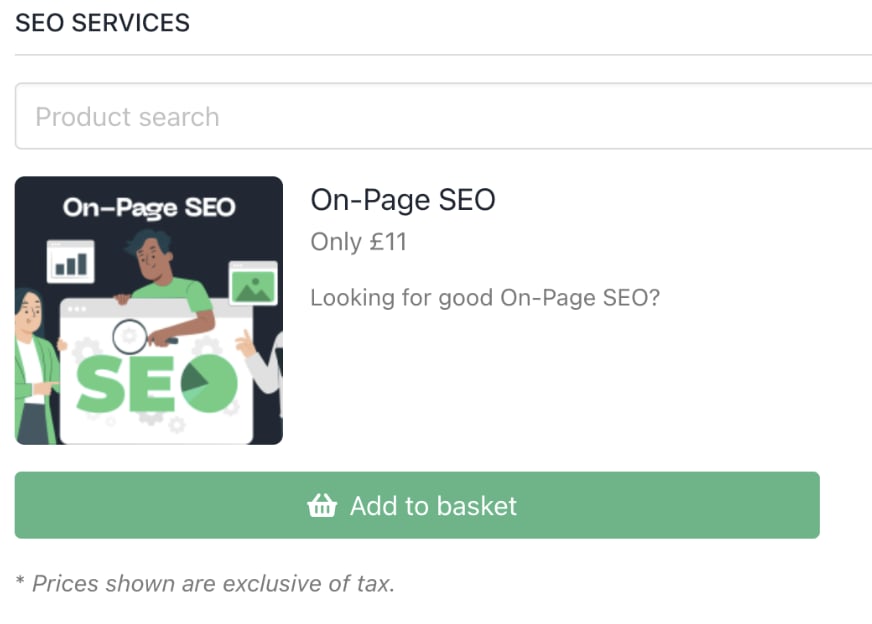
  The product excerpt displays on the **Add to Basket** page.
</Note>

<Frame caption="Product excerpt">
  <img src="https://mintcdn.com/upmind/c5sDUwEs8YpzGbjA/images/fb/938b4a2caf2d8e6e.png?fit=max&auto=format&n=c5sDUwEs8YpzGbjA&q=85&s=92c9ce01b361903a746feb185b3459d2" alt="Product excerpt" className="mx-auto" style={{ width:"87%" }} width="872" height="624" data-path="images/fb/938b4a2caf2d8e6e.png" />

  <img src="https://mintcdn.com/upmind/c5sDUwEs8YpzGbjA/images/fb/938b4a2caf2d8e6e.png?fit=max&auto=format&n=c5sDUwEs8YpzGbjA&q=85&s=92c9ce01b361903a746feb185b3459d2" alt="Product excerpt" className="mx-auto" style={{ width:"87%" }} width="872" height="624" data-path="images/fb/938b4a2caf2d8e6e.png" />
</Frame>

## **Upload images**

You can add up to 10 images per product to enhance its presentation. Click the upload area to select images. The first uploaded image becomes the default.

You can also change the default image by hovering over the thumbnail and clicking the star.

<Note>
  Learn about [<u>suggested image sizes</u>](/setup-and-configuration/other-setup-items/what-is-the-best-image-size-for-my-pictures#/).

</Note>

<Frame caption="Click a square to upload image">
  <img src="https://mintcdn.com/upmind/92wYnpdR_k6AjH3x/images/fb/5104f1bb941e9d71.png?fit=max&auto=format&n=92wYnpdR_k6AjH3x&q=85&s=2f795d524df10d07a1245fa3bd55c745" alt="Click a square to upload image" className="mx-auto" style={{ width:"78%" }} width="948" height="784" data-path="images/fb/5104f1bb941e9d71.png" />

  <img src="https://mintcdn.com/upmind/92wYnpdR_k6AjH3x/images/fb/5104f1bb941e9d71.png?fit=max&auto=format&n=92wYnpdR_k6AjH3x&q=85&s=2f795d524df10d07a1245fa3bd55c745" alt="Click a square to upload image" className="mx-auto" style={{ width:"78%" }} width="948" height="784" data-path="images/fb/5104f1bb941e9d71.png" />
</Frame>

## **Configure billing**

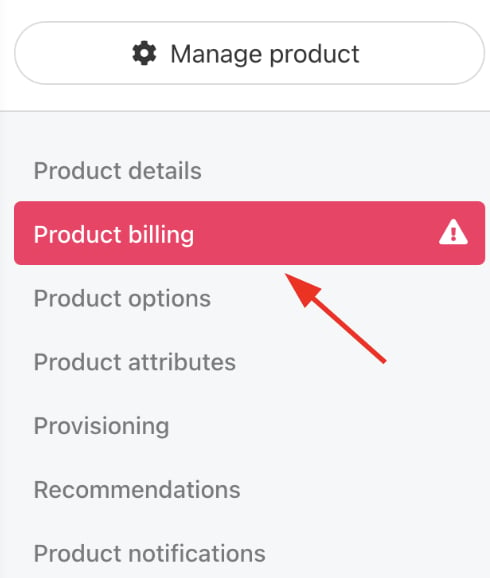
1. Select `Product billing` from the menu.
<Frame caption="Choose Product billing">
  <img src="https://mintcdn.com/upmind/VnCXiz5rboywDnvn/images/fb/d82d0ad3fb8f6770.png?fit=max&auto=format&n=VnCXiz5rboywDnvn&q=85&s=9fbbcfebf4f10a94e0161986dc79c043" alt="Choose Product billing" className="mx-auto" style={{ width:"79%" }} width="490" height="578" data-path="images/fb/d82d0ad3fb8f6770.png" />

  <img src="https://mintcdn.com/upmind/VnCXiz5rboywDnvn/images/fb/d82d0ad3fb8f6770.png?fit=max&auto=format&n=VnCXiz5rboywDnvn&q=85&s=9fbbcfebf4f10a94e0161986dc79c043" alt="Choose Product billing" className="mx-auto" style={{ width:"79%" }} width="490" height="578" data-path="images/fb/d82d0ad3fb8f6770.png" />
</Frame>

### **Create a one-off payment price**

1. Click the *One-off payment* tile.

<Frame caption="One-off payment tile">
  <img src="https://mintcdn.com/upmind/VnCXiz5rboywDnvn/images/fb/d9d41fc503a3d6d3.png?fit=max&auto=format&n=VnCXiz5rboywDnvn&q=85&s=eab47622045651e4680c8af56384ad9e" alt="One-off payment tile" className="mx-auto" style={{ width:"97%" }} width="1476" height="292" data-path="images/fb/d9d41fc503a3d6d3.png" />

  <img src="https://mintcdn.com/upmind/VnCXiz5rboywDnvn/images/fb/d9d41fc503a3d6d3.png?fit=max&auto=format&n=VnCXiz5rboywDnvn&q=85&s=eab47622045651e4680c8af56384ad9e" alt="One-off payment tile" className="mx-auto" style={{ width:"97%" }} width="1476" height="292" data-path="images/fb/d9d41fc503a3d6d3.png" />
</Frame>

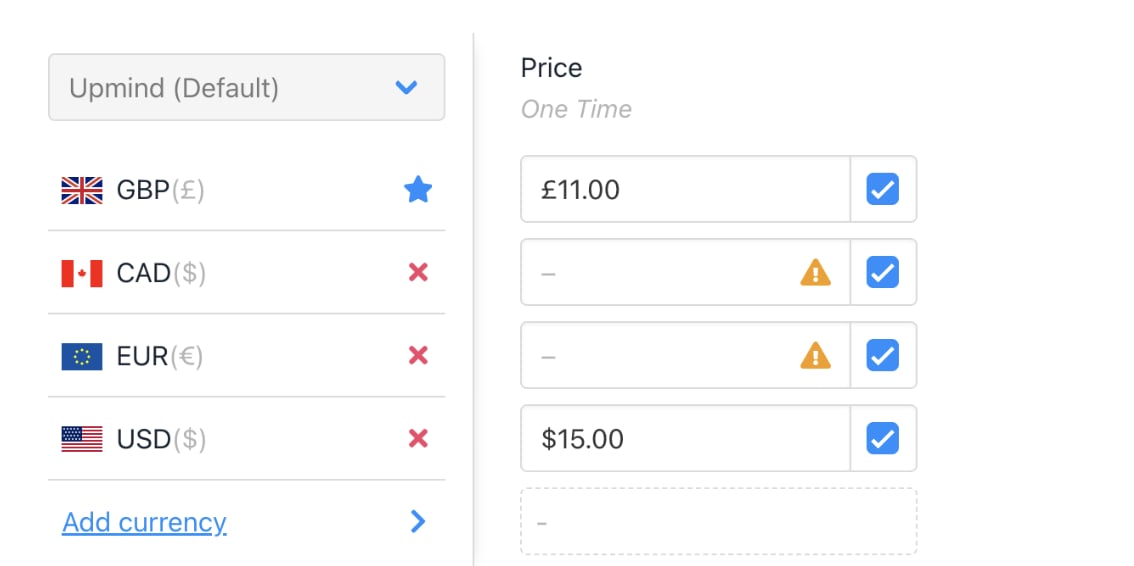
2. Enter the price for your default currency.
3. Add prices for additional currencies. (Optional)

<Note>
  To remove a currency, click the *X* icon next to it.
</Note>

<Frame caption="Add price for default currency">
  <img src="https://mintcdn.com/upmind/A-RwNPXmK_xnEEqe/images/fb/708ff76dcd87a3a3.png?fit=max&auto=format&n=A-RwNPXmK_xnEEqe&q=85&s=c9641ff25d65f35fc16a0bf2cc64fe76" alt="Add price for default currency" className="mx-auto" style={{ width:"94%" }} width="1134" height="566" data-path="images/fb/708ff76dcd87a3a3.png" />

  <img src="https://mintcdn.com/upmind/A-RwNPXmK_xnEEqe/images/fb/708ff76dcd87a3a3.png?fit=max&auto=format&n=A-RwNPXmK_xnEEqe&q=85&s=c9641ff25d65f35fc16a0bf2cc64fe76" alt="Add price for default currency" className="mx-auto" style={{ width:"94%" }} width="1134" height="566" data-path="images/fb/708ff76dcd87a3a3.png" />
</Frame>

4. Click **Save**.

### **Configure the multi-currency option**

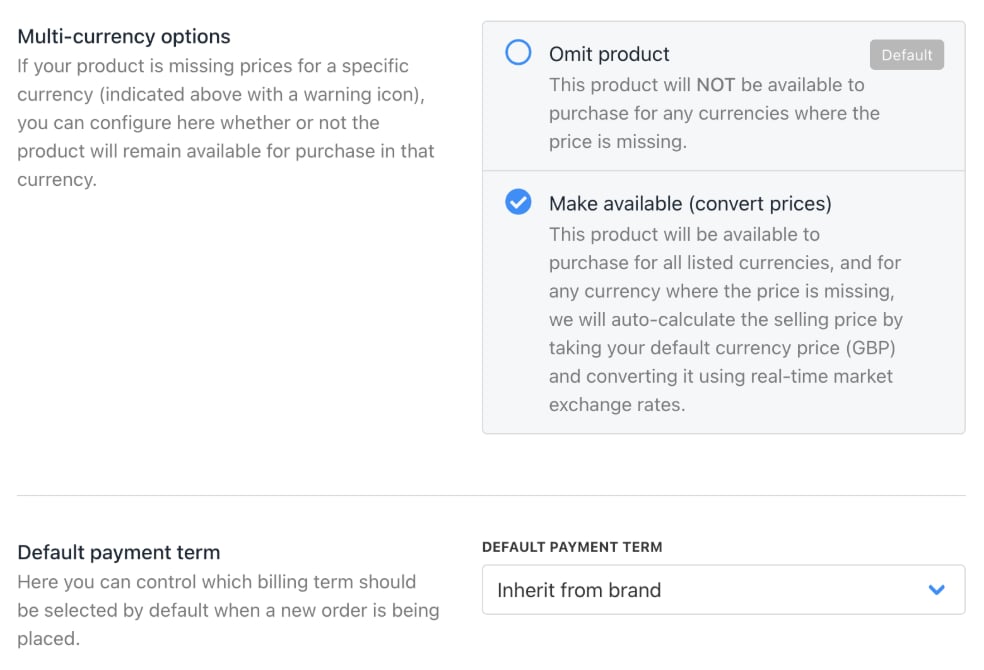
If a product doesn’t have a set price in a specific currency (for example, it’s only priced in your primary currency), you can control how Upmind handles it.

By default, it follows your brand’s [<u>multi-currency</u>](/using-upmind/invoicing-and-taxes/about-multi-currency) settings, but you can override this per product by choosing one of three options.

* **Omit product**: Product unavailable in that currency.
* **Make available**: Automatically convert price using current exchange rates.
* **Inherit brand default**: Use your brand’s global multi-currency setting.
<Frame caption="Choose make available">
  <img src="https://mintcdn.com/upmind/h8h5zREaX7k8Y-3x/images/fb/0cdc5b2fbf12cb71.png?fit=max&auto=format&n=h8h5zREaX7k8Y-3x&q=85&s=e0207f58f237c6be12d93f939c0507b8" alt="Choose make available" className="mx-auto" style={{ width:"96%" }} width="984" height="670" data-path="images/fb/0cdc5b2fbf12cb71.png" />

  <img src="https://mintcdn.com/upmind/h8h5zREaX7k8Y-3x/images/fb/0cdc5b2fbf12cb71.png?fit=max&auto=format&n=h8h5zREaX7k8Y-3x&q=85&s=e0207f58f237c6be12d93f939c0507b8" alt="Choose make available" className="mx-auto" style={{ width:"96%" }} width="984" height="670" data-path="images/fb/0cdc5b2fbf12cb71.png" />
</Frame>

### **Set up recurring payments**

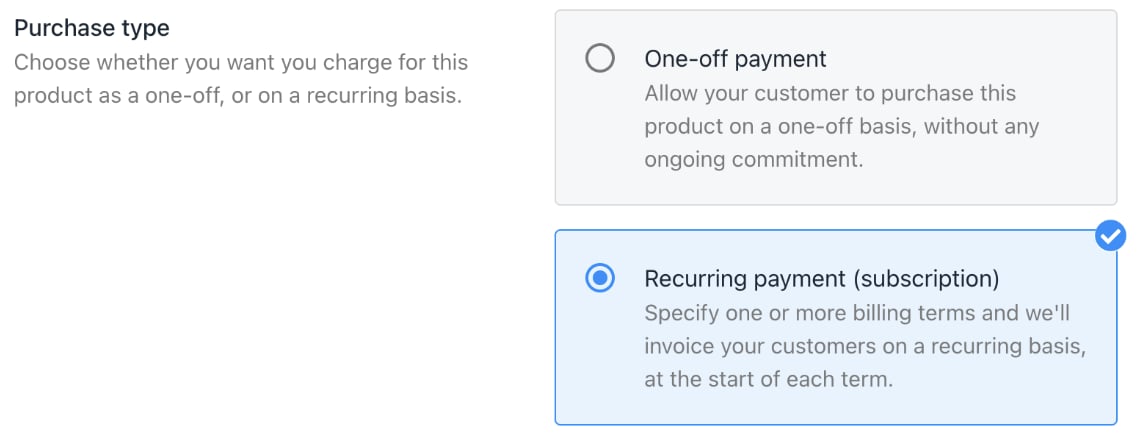
1. Click the *Recurring payment* tile.
<Frame caption="Recurring payment tile">
  <img src="https://mintcdn.com/upmind/6knUVC8F1nK4E5CY/images/fb/c76a44c96822ef8d.png?fit=max&auto=format&n=6knUVC8F1nK4E5CY&q=85&s=f64dd9cce953c9dd7908bdb204b05fd1" alt="Recurring payment tile" className="mx-auto" style={{ width:"96%" }} width="1142" height="442" data-path="images/fb/c76a44c96822ef8d.png" />

  <img src="https://mintcdn.com/upmind/6knUVC8F1nK4E5CY/images/fb/c76a44c96822ef8d.png?fit=max&auto=format&n=6knUVC8F1nK4E5CY&q=85&s=f64dd9cce953c9dd7908bdb204b05fd1" alt="Recurring payment tile" className="mx-auto" style={{ width:"96%" }} width="1142" height="442" data-path="images/fb/c76a44c96822ef8d.png" />
</Frame>

2. Scroll to the pricing section and click **Add new term**.
3. Choose a billing term from the dropdown menu (monthly, yearly, etc.)
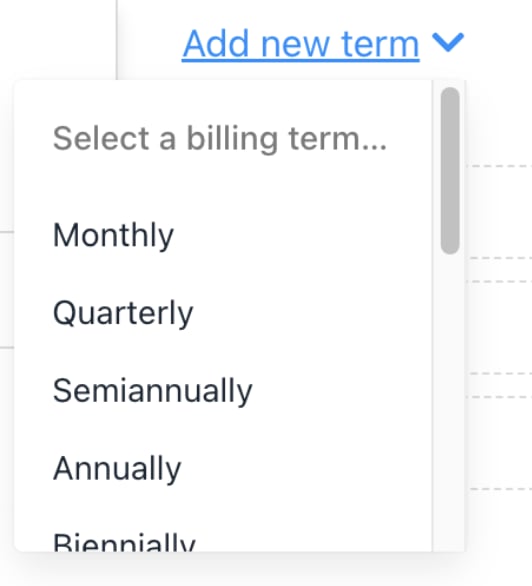
<Frame caption="Select option on drop-down menu">
  <img src="https://mintcdn.com/upmind/2ooSxDpt6PiIGMr-/images/fb/0645b5444b698016.png?fit=max&auto=format&n=2ooSxDpt6PiIGMr-&q=85&s=98b6e87ef4e8d114cd7cbc3ed494a2f1" alt="Select option on drop-down menu" className="mx-auto" style={{ width:"66%" }} width="532" height="586" data-path="images/fb/0645b5444b698016.png" />

  <img src="https://mintcdn.com/upmind/2ooSxDpt6PiIGMr-/images/fb/0645b5444b698016.png?fit=max&auto=format&n=2ooSxDpt6PiIGMr-&q=85&s=98b6e87ef4e8d114cd7cbc3ed494a2f1" alt="Select option on drop-down menu" className="mx-auto" style={{ width:"66%" }} width="532" height="586" data-path="images/fb/0645b5444b698016.png" />
</Frame>

<Note>
  The term defines how often automatic payments occur. Recurring charges continue for the length of the customer’s plan and will renew at the end of the term unless cancelled.
</Note>

* If a customer chooses Package A with a monthly term, the next payment will be charged the following month.
* If a customer chooses Package B with an annual term, a single payment covers the full year, and the next payment will be charged on the renewal date the following year.

4. For custom plans, select **Custom** and enter the number of months.
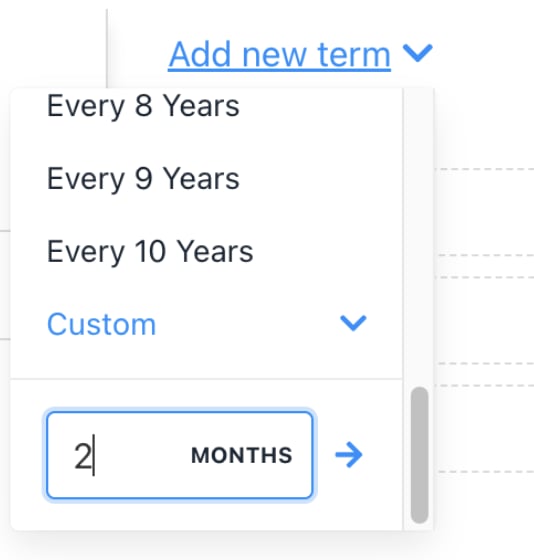
<Frame caption="Enter number of months">
  <img src="https://mintcdn.com/upmind/2ooSxDpt6PiIGMr-/images/fb/09d40756ac2d809e.png?fit=max&auto=format&n=2ooSxDpt6PiIGMr-&q=85&s=31edc3009c15a73a63c3d5f29bb1d487" alt="Enter number of months" className="mx-auto" style={{ width:"68%" }} width="534" height="560" data-path="images/fb/09d40756ac2d809e.png" />

  <img src="https://mintcdn.com/upmind/2ooSxDpt6PiIGMr-/images/fb/09d40756ac2d809e.png?fit=max&auto=format&n=2ooSxDpt6PiIGMr-&q=85&s=31edc3009c15a73a63c3d5f29bb1d487" alt="Enter number of months" className="mx-auto" style={{ width:"68%" }} width="534" height="560" data-path="images/fb/09d40756ac2d809e.png" />
</Frame>

5. Add prices for each currency accordingly.
6. Add more terms if needed.
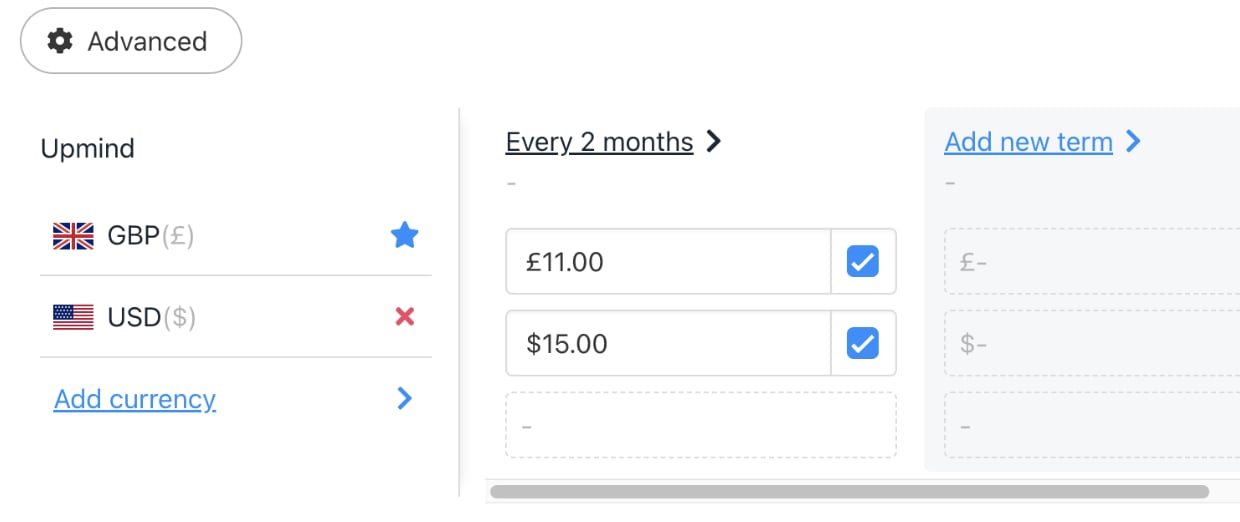
<Frame caption="Enter price for each currency">
  <img src="https://mintcdn.com/upmind/uxzVUXAKtJ2bRWCI/images/fb/6d89abcf1b5260d0.png?fit=max&auto=format&n=uxzVUXAKtJ2bRWCI&q=85&s=d7766e7328cea4e611d15fea96d425f2" alt="Enter price for each currency" className="mx-auto" style={{ width:"91%" }} width="1240" height="522" data-path="images/fb/6d89abcf1b5260d0.png" />

  <img src="https://mintcdn.com/upmind/uxzVUXAKtJ2bRWCI/images/fb/6d89abcf1b5260d0.png?fit=max&auto=format&n=uxzVUXAKtJ2bRWCI&q=85&s=d7766e7328cea4e611d15fea96d425f2" alt="Enter price for each currency" className="mx-auto" style={{ width:"91%" }} width="1240" height="522" data-path="images/fb/6d89abcf1b5260d0.png" />
</Frame>

7. To delete a term, click **Delete** next to it.
8. Click **Save**.

### **Select the default payment term**

When multiple subscription options exist, you can set which term displays by default to customers.

At the bottom of the billing page, select the default.

<Frame caption="Select an option">
  <img src="https://mintcdn.com/upmind/uxzVUXAKtJ2bRWCI/images/fb/6f7e67a9f28b0767.png?fit=max&auto=format&n=uxzVUXAKtJ2bRWCI&q=85&s=7df9a276626cc629f38d0d74dbce8bad" alt="Select an option" className="mx-auto" style={{ width:"98%" }} width="1326" height="264" data-path="images/fb/6f7e67a9f28b0767.png" />

  <img src="https://mintcdn.com/upmind/uxzVUXAKtJ2bRWCI/images/fb/6f7e67a9f28b0767.png?fit=max&auto=format&n=uxzVUXAKtJ2bRWCI&q=85&s=7df9a276626cc629f38d0d74dbce8bad" alt="Select an option" className="mx-auto" style={{ width:"98%" }} width="1326" height="264" data-path="images/fb/6f7e67a9f28b0767.png" />
</Frame>

## **Set up billing and payment processing**

1. Go to **Settings** > **Payment Providers** under **E-commerce Settings**.
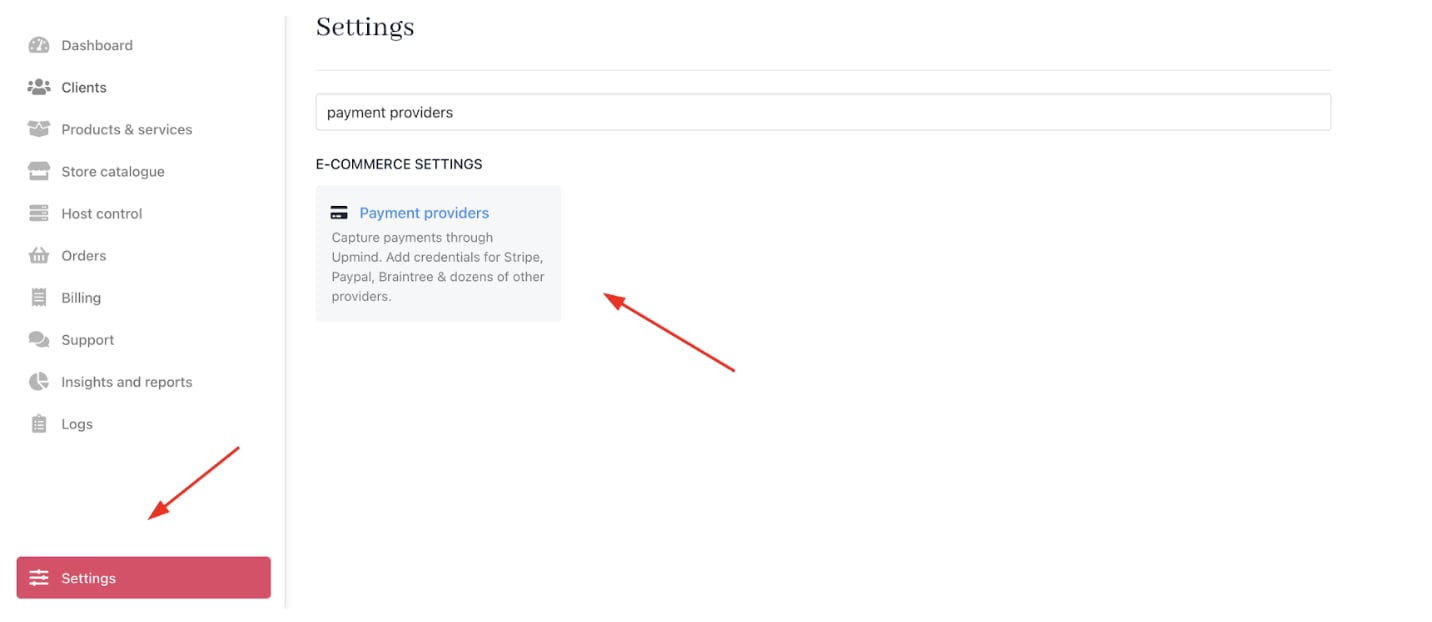
<Frame caption="Settings > E-commerce Settings > Payment Providers">
  <img src="https://mintcdn.com/upmind/6knUVC8F1nK4E5CY/images/fb/c12be12d655b1c82.png?fit=max&auto=format&n=6knUVC8F1nK4E5CY&q=85&s=4f098eb17e76d146c831d109855c5a6e" alt="Settings > E-commerce Settings > Payment Providers" className="mx-auto" style={{ width:"96%" }} data-og-width="1432" width="1432" data-og-height="622" height="622" data-path="images/fb/c12be12d655b1c82.png" data-optimize="true" data-opv="3" srcset="https://mintcdn.com/upmind/6knUVC8F1nK4E5CY/images/fb/c12be12d655b1c82.png?w=280&fit=max&auto=format&n=6knUVC8F1nK4E5CY&q=85&s=8758c4f663f7cb2b6ad88efb35fa6fcd 280w, https://mintcdn.com/upmind/6knUVC8F1nK4E5CY/images/fb/c12be12d655b1c82.png?w=560&fit=max&auto=format&n=6knUVC8F1nK4E5CY&q=85&s=8bbb1fea5037d97d6cbb9d948d2c1fcb 560w, https://mintcdn.com/upmind/6knUVC8F1nK4E5CY/images/fb/c12be12d655b1c82.png?w=840&fit=max&auto=format&n=6knUVC8F1nK4E5CY&q=85&s=d643f1fb326a539b2a344fc7996f53d8 840w, https://mintcdn.com/upmind/6knUVC8F1nK4E5CY/images/fb/c12be12d655b1c82.png?w=1100&fit=max&auto=format&n=6knUVC8F1nK4E5CY&q=85&s=e1516c50c8255daf85c84726df1cfa18 1100w, https://mintcdn.com/upmind/6knUVC8F1nK4E5CY/images/fb/c12be12d655b1c82.png?w=1650&fit=max&auto=format&n=6knUVC8F1nK4E5CY&q=85&s=cb07d0da6cb106b1cd317731933003fe 1650w, https://mintcdn.com/upmind/6knUVC8F1nK4E5CY/images/fb/c12be12d655b1c82.png?w=2500&fit=max&auto=format&n=6knUVC8F1nK4E5CY&q=85&s=71c00624263bc7a0a2bbe5e111fb7718 2500w" />

  <img src="https://mintcdn.com/upmind/6knUVC8F1nK4E5CY/images/fb/c12be12d655b1c82.png?fit=max&auto=format&n=6knUVC8F1nK4E5CY&q=85&s=4f098eb17e76d146c831d109855c5a6e" alt="Settings > E-commerce Settings > Payment Providers" className="mx-auto" style={{ width:"96%" }} data-og-width="1432" width="1432" data-og-height="622" height="622" data-path="images/fb/c12be12d655b1c82.png" data-optimize="true" data-opv="3" srcset="https://mintcdn.com/upmind/6knUVC8F1nK4E5CY/images/fb/c12be12d655b1c82.png?w=280&fit=max&auto=format&n=6knUVC8F1nK4E5CY&q=85&s=8758c4f663f7cb2b6ad88efb35fa6fcd 280w, https://mintcdn.com/upmind/6knUVC8F1nK4E5CY/images/fb/c12be12d655b1c82.png?w=560&fit=max&auto=format&n=6knUVC8F1nK4E5CY&q=85&s=8bbb1fea5037d97d6cbb9d948d2c1fcb 560w, https://mintcdn.com/upmind/6knUVC8F1nK4E5CY/images/fb/c12be12d655b1c82.png?w=840&fit=max&auto=format&n=6knUVC8F1nK4E5CY&q=85&s=d643f1fb326a539b2a344fc7996f53d8 840w, https://mintcdn.com/upmind/6knUVC8F1nK4E5CY/images/fb/c12be12d655b1c82.png?w=1100&fit=max&auto=format&n=6knUVC8F1nK4E5CY&q=85&s=e1516c50c8255daf85c84726df1cfa18 1100w, https://mintcdn.com/upmind/6knUVC8F1nK4E5CY/images/fb/c12be12d655b1c82.png?w=1650&fit=max&auto=format&n=6knUVC8F1nK4E5CY&q=85&s=cb07d0da6cb106b1cd317731933003fe 1650w, https://mintcdn.com/upmind/6knUVC8F1nK4E5CY/images/fb/c12be12d655b1c82.png?w=2500&fit=max&auto=format&n=6knUVC8F1nK4E5CY&q=85&s=71c00624263bc7a0a2bbe5e111fb7718 2500w" />
</Frame>

2. Click **Add payment provider** and configure [<u>payment gateways</u>](/using-upmind/payment-methods/payments-in-upmind/available-payment-gateways) like Stripe, PayPal, or offline payment methods.

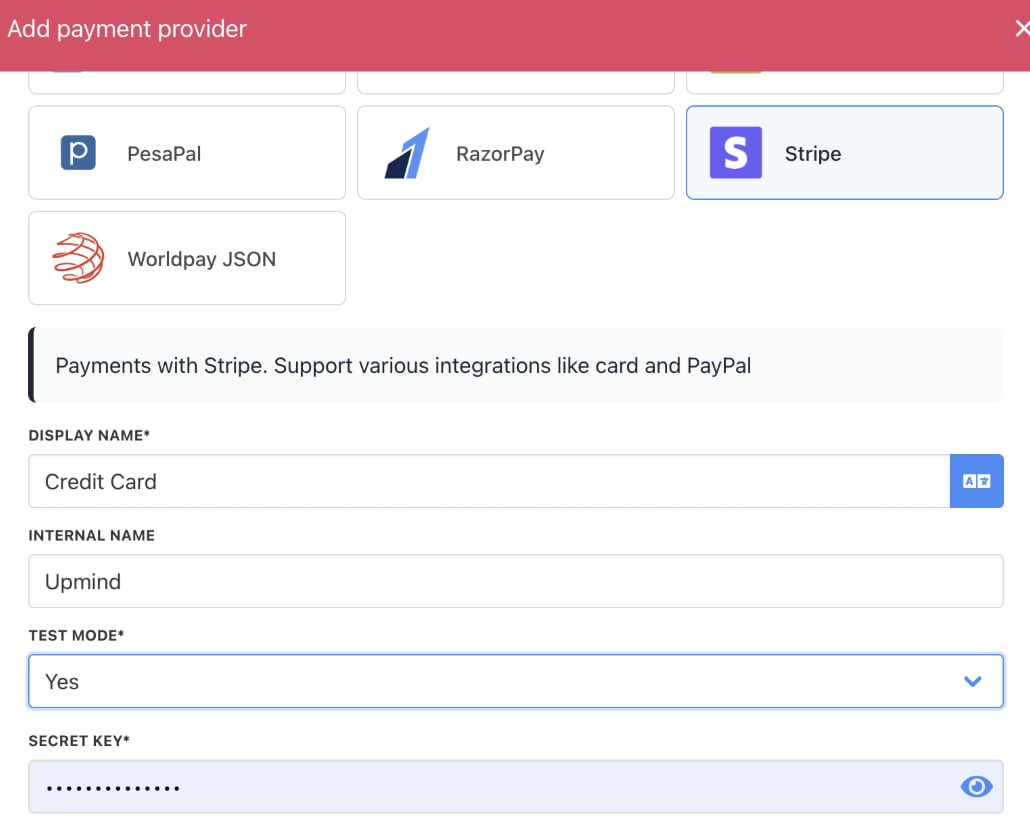
<Frame caption="Add payment provider">
  <img src="https://mintcdn.com/upmind/h8h5zREaX7k8Y-3x/images/fb/0c8c49a6e6c857f0.png?fit=max&auto=format&n=h8h5zREaX7k8Y-3x&q=85&s=32fe86245655eaeb6802a09e692b27ed" alt="Add payment provider" className="mx-auto" style={{ width:"99%" }} width="1484" height="130" data-path="images/fb/0c8c49a6e6c857f0.png" />

  <img src="https://mintcdn.com/upmind/h8h5zREaX7k8Y-3x/images/fb/0c8c49a6e6c857f0.png?fit=max&auto=format&n=h8h5zREaX7k8Y-3x&q=85&s=32fe86245655eaeb6802a09e692b27ed" alt="Add payment provider" className="mx-auto" style={{ width:"99%" }} width="1484" height="130" data-path="images/fb/0c8c49a6e6c857f0.png" />
</Frame>

<Frame caption="Enter payment provider details">
  <img src="https://mintcdn.com/upmind/ZsIo0APxdVb_gFS-/images/fb/282b0933a700270f.png?fit=max&auto=format&n=ZsIo0APxdVb_gFS-&q=85&s=a5aca12226de186df4705239524bf0f9" alt="Enter payment provider details" className="mx-auto" style={{ width:"97%" }} width="1030" height="824" data-path="images/fb/282b0933a700270f.png" />

  <img src="https://mintcdn.com/upmind/ZsIo0APxdVb_gFS-/images/fb/282b0933a700270f.png?fit=max&auto=format&n=ZsIo0APxdVb_gFS-&q=85&s=a5aca12226de186df4705239524bf0f9" alt="Enter payment provider details" className="mx-auto" style={{ width:"97%" }} width="1030" height="824" data-path="images/fb/282b0933a700270f.png" />
</Frame>

## **Configure provisioning**

Here, we will use **SEO** with **marketgoo** provisioning as an example.

1. Go to **Settings** > **Provision Configurations** under **Provisioning**.
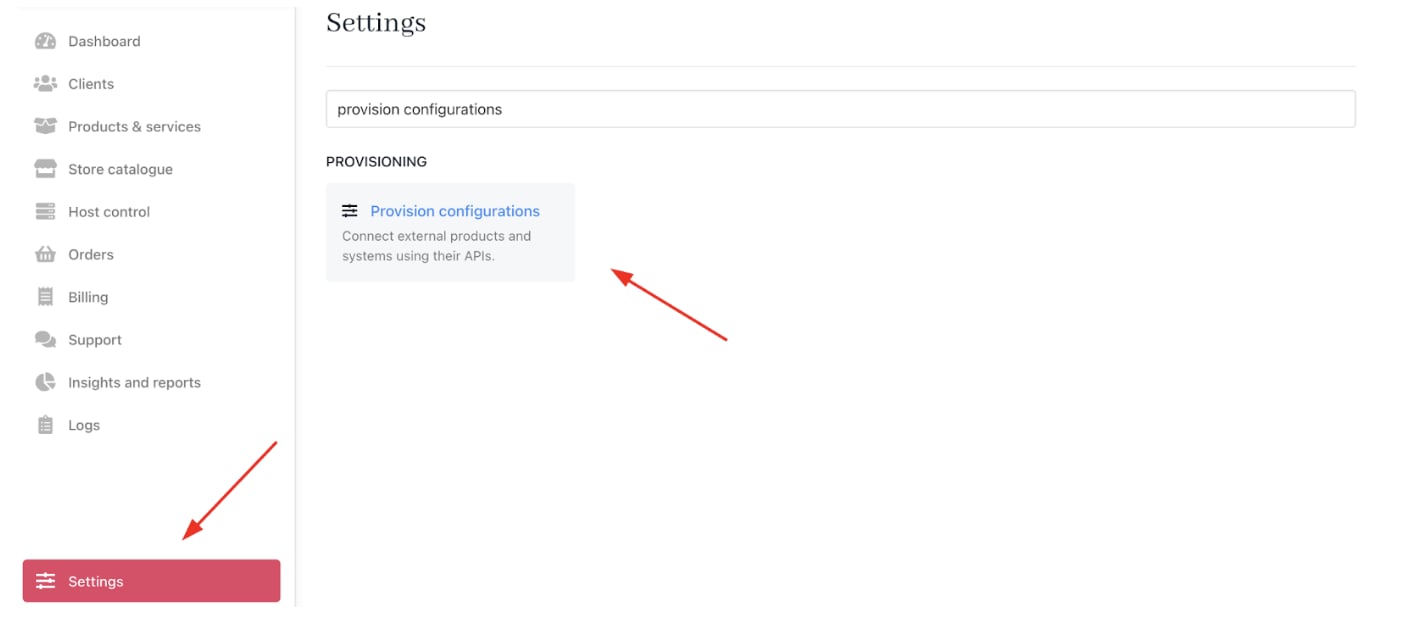
<Frame caption="Settings > Provisioning > Provision Configurations">
  <img src="https://mintcdn.com/upmind/uxzVUXAKtJ2bRWCI/images/fb/6effb720c932e656.png?fit=max&auto=format&n=uxzVUXAKtJ2bRWCI&q=85&s=78ceb3c8efb204a7b1f17c5cf42dd5ac" alt="Settings > Provisioning > Provision Configurations" className="mx-auto" style={{ width:"97%" }} data-og-width="1408" width="1408" data-og-height="618" height="618" data-path="images/fb/6effb720c932e656.png" data-optimize="true" data-opv="3" srcset="https://mintcdn.com/upmind/uxzVUXAKtJ2bRWCI/images/fb/6effb720c932e656.png?w=280&fit=max&auto=format&n=uxzVUXAKtJ2bRWCI&q=85&s=a4413707fe1196c404507fe4ac2c991a 280w, https://mintcdn.com/upmind/uxzVUXAKtJ2bRWCI/images/fb/6effb720c932e656.png?w=560&fit=max&auto=format&n=uxzVUXAKtJ2bRWCI&q=85&s=17304916e41de5d81af2cd2104c150fa 560w, https://mintcdn.com/upmind/uxzVUXAKtJ2bRWCI/images/fb/6effb720c932e656.png?w=840&fit=max&auto=format&n=uxzVUXAKtJ2bRWCI&q=85&s=068a607ec44002cf3303471bd49df734 840w, https://mintcdn.com/upmind/uxzVUXAKtJ2bRWCI/images/fb/6effb720c932e656.png?w=1100&fit=max&auto=format&n=uxzVUXAKtJ2bRWCI&q=85&s=91e7f4a81397c97fd90f66d54cdaad16 1100w, https://mintcdn.com/upmind/uxzVUXAKtJ2bRWCI/images/fb/6effb720c932e656.png?w=1650&fit=max&auto=format&n=uxzVUXAKtJ2bRWCI&q=85&s=9536c84bcf2836b165beb9879f84f5d4 1650w, https://mintcdn.com/upmind/uxzVUXAKtJ2bRWCI/images/fb/6effb720c932e656.png?w=2500&fit=max&auto=format&n=uxzVUXAKtJ2bRWCI&q=85&s=75d188335f7c83b18b876933fa6337cc 2500w" />

  <img src="https://mintcdn.com/upmind/uxzVUXAKtJ2bRWCI/images/fb/6effb720c932e656.png?fit=max&auto=format&n=uxzVUXAKtJ2bRWCI&q=85&s=78ceb3c8efb204a7b1f17c5cf42dd5ac" alt="Settings > Provisioning > Provision Configurations" className="mx-auto" style={{ width:"97%" }} data-og-width="1408" width="1408" data-og-height="618" height="618" data-path="images/fb/6effb720c932e656.png" data-optimize="true" data-opv="3" srcset="https://mintcdn.com/upmind/uxzVUXAKtJ2bRWCI/images/fb/6effb720c932e656.png?w=280&fit=max&auto=format&n=uxzVUXAKtJ2bRWCI&q=85&s=a4413707fe1196c404507fe4ac2c991a 280w, https://mintcdn.com/upmind/uxzVUXAKtJ2bRWCI/images/fb/6effb720c932e656.png?w=560&fit=max&auto=format&n=uxzVUXAKtJ2bRWCI&q=85&s=17304916e41de5d81af2cd2104c150fa 560w, https://mintcdn.com/upmind/uxzVUXAKtJ2bRWCI/images/fb/6effb720c932e656.png?w=840&fit=max&auto=format&n=uxzVUXAKtJ2bRWCI&q=85&s=068a607ec44002cf3303471bd49df734 840w, https://mintcdn.com/upmind/uxzVUXAKtJ2bRWCI/images/fb/6effb720c932e656.png?w=1100&fit=max&auto=format&n=uxzVUXAKtJ2bRWCI&q=85&s=91e7f4a81397c97fd90f66d54cdaad16 1100w, https://mintcdn.com/upmind/uxzVUXAKtJ2bRWCI/images/fb/6effb720c932e656.png?w=1650&fit=max&auto=format&n=uxzVUXAKtJ2bRWCI&q=85&s=9536c84bcf2836b165beb9879f84f5d4 1650w, https://mintcdn.com/upmind/uxzVUXAKtJ2bRWCI/images/fb/6effb720c932e656.png?w=2500&fit=max&auto=format&n=uxzVUXAKtJ2bRWCI&q=85&s=75d188335f7c83b18b876933fa6337cc 2500w" />
</Frame>

2. Click on **Add New Configuration**.

<Frame caption="Add new configuration">
  <img src="https://mintcdn.com/upmind/FQ1NhxALxjSHvvWW/images/fb/b487b7bbbc8d586c.png?fit=max&auto=format&n=FQ1NhxALxjSHvvWW&q=85&s=644ef4d8dff4a116ec2c0a5cae03c13f" alt="Add new configuration" className="mx-auto" style={{ width:"99%" }} width="1606" height="114" data-path="images/fb/b487b7bbbc8d586c.png" />

  <img src="https://mintcdn.com/upmind/FQ1NhxALxjSHvvWW/images/fb/b487b7bbbc8d586c.png?fit=max&auto=format&n=FQ1NhxALxjSHvvWW&q=85&s=644ef4d8dff4a116ec2c0a5cae03c13f" alt="Add new configuration" className="mx-auto" style={{ width:"99%" }} width="1606" height="114" data-path="images/fb/b487b7bbbc8d586c.png" />
</Frame>

3. Select **SEO** from the dropdown and choose **marketgoo**.
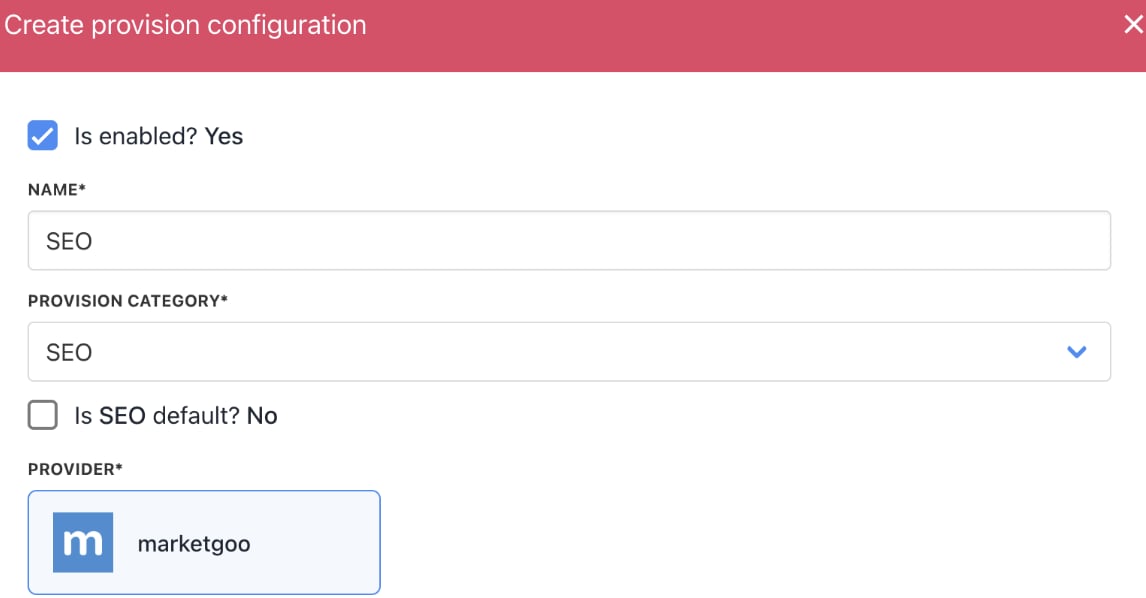
<Frame caption="Select SEO">
  <img src="https://mintcdn.com/upmind/1xguIfYUrfespmVI/images/fb/854ec96bde85c511.png?fit=max&auto=format&n=1xguIfYUrfespmVI&q=85&s=dfef42195fbd1feec42a685ba40d0d23" alt="Select SEO" className="mx-auto" style={{ width:"98%" }} width="1146" height="598" data-path="images/fb/854ec96bde85c511.png" />

  <img src="https://mintcdn.com/upmind/1xguIfYUrfespmVI/images/fb/854ec96bde85c511.png?fit=max&auto=format&n=1xguIfYUrfespmVI&q=85&s=dfef42195fbd1feec42a685ba40d0d23" alt="Select SEO" className="mx-auto" style={{ width:"98%" }} width="1146" height="598" data-path="images/fb/854ec96bde85c511.png" />
</Frame>

4. Fill in the details (API URL and API KEY).
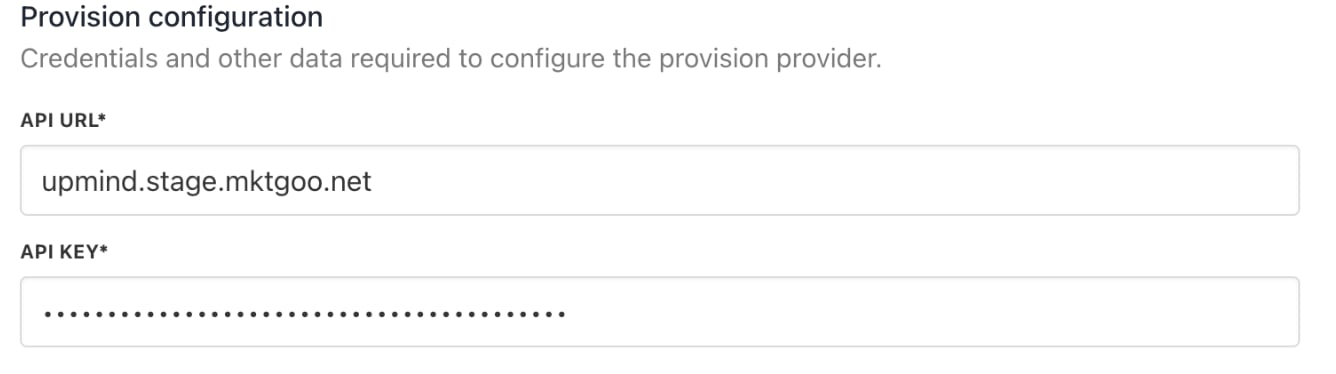
<Frame caption="Add details">
  <img src="https://mintcdn.com/upmind/kXD0Ya8PpcxxNm6Q/images/fb/3ab7aacb4b442c20.png?fit=max&auto=format&n=kXD0Ya8PpcxxNm6Q&q=85&s=ad19150a3c303e2daa574adaf17aa33a" alt="Add details" className="mx-auto" style={{ width:"97%" }} width="1336" height="374" data-path="images/fb/3ab7aacb4b442c20.png" />

  <img src="https://mintcdn.com/upmind/kXD0Ya8PpcxxNm6Q/images/fb/3ab7aacb4b442c20.png?fit=max&auto=format&n=kXD0Ya8PpcxxNm6Q&q=85&s=ad19150a3c303e2daa574adaf17aa33a" alt="Add details" className="mx-auto" style={{ width:"97%" }} width="1336" height="374" data-path="images/fb/3ab7aacb4b442c20.png" />
</Frame>

For more details, see this [<u>guide</u>](/for-web-hosts/seo/integrating-marketgoo-to-upmind).

5. Select `Provisioning` from the menu of your product.
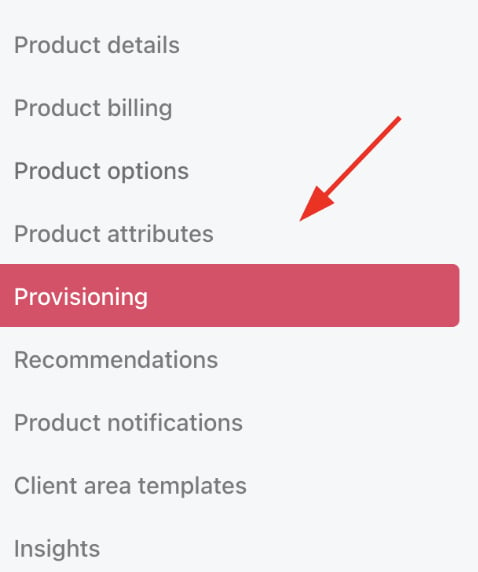
<Frame caption="Choose provisioning">
  <img src="https://mintcdn.com/upmind/A-RwNPXmK_xnEEqe/images/fb/764d23d54f45955d.png?fit=max&auto=format&n=A-RwNPXmK_xnEEqe&q=85&s=324db551277a9695ea182f3aaa7fcd11" alt="Choose provisioning" className="mx-auto" style={{ width:"68%" }} width="478" height="572" data-path="images/fb/764d23d54f45955d.png" />

  <img src="https://mintcdn.com/upmind/A-RwNPXmK_xnEEqe/images/fb/764d23d54f45955d.png?fit=max&auto=format&n=A-RwNPXmK_xnEEqe&q=85&s=324db551277a9695ea182f3aaa7fcd11" alt="Choose provisioning" className="mx-auto" style={{ width:"68%" }} width="478" height="572" data-path="images/fb/764d23d54f45955d.png" />
</Frame>

6. Select **SEO** as your blueprint and choose **marketgoo**.
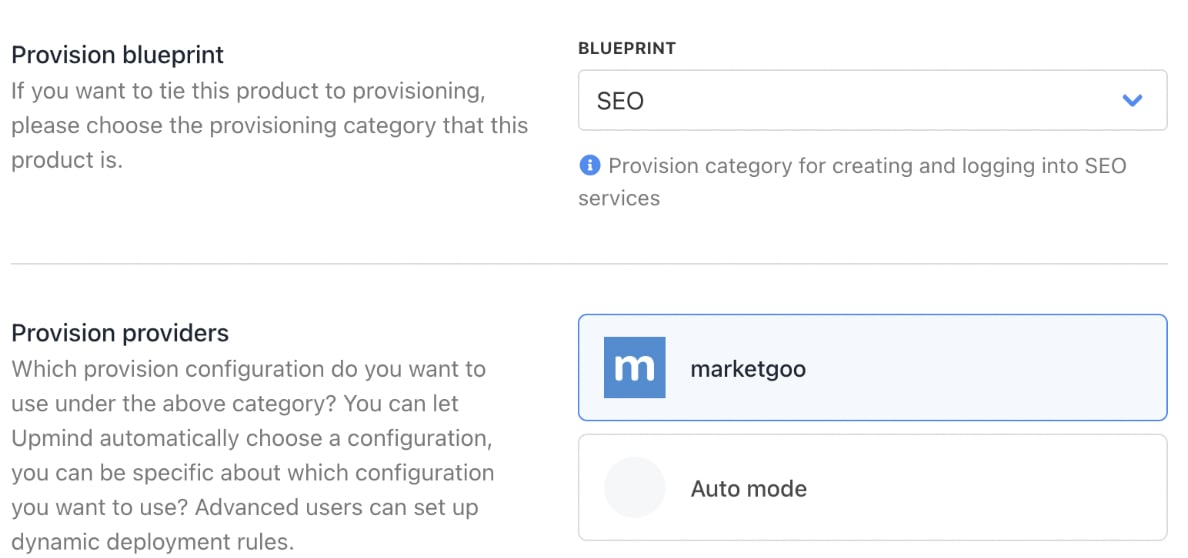
<Frame caption="Select marketgoo">
  <img src="https://mintcdn.com/upmind/c5sDUwEs8YpzGbjA/images/fb/9bde66769a2caef1.png?fit=max&auto=format&n=c5sDUwEs8YpzGbjA&q=85&s=2b4b766a2cf63a28818e90b1a5f86e7e" alt="Select marketgoo" className="mx-auto" style={{ width:"98%" }} width="1188" height="558" data-path="images/fb/9bde66769a2caef1.png" />

  <img src="https://mintcdn.com/upmind/c5sDUwEs8YpzGbjA/images/fb/9bde66769a2caef1.png?fit=max&auto=format&n=c5sDUwEs8YpzGbjA&q=85&s=2b4b766a2cf63a28818e90b1a5f86e7e" alt="Select marketgoo" className="mx-auto" style={{ width:"98%" }} width="1188" height="558" data-path="images/fb/9bde66769a2caef1.png" />
</Frame>

7. Choose your **Provider Configuration**.
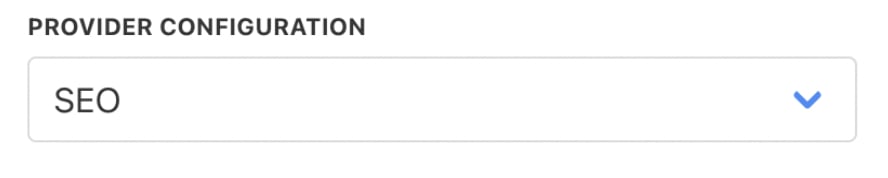
<Frame caption="Choose configuration mode">
  <img src="https://mintcdn.com/upmind/1xguIfYUrfespmVI/images/fb/80634d269f4ffd0e.png?fit=max&auto=format&n=1xguIfYUrfespmVI&q=85&s=df810d70f4abd1c5073f925549519009" alt="Choose configuration mode" className="mx-auto" style={{ width:"88%" }} width="888" height="178" data-path="images/fb/80634d269f4ffd0e.png" />

  <img src="https://mintcdn.com/upmind/1xguIfYUrfespmVI/images/fb/80634d269f4ffd0e.png?fit=max&auto=format&n=1xguIfYUrfespmVI&q=85&s=df810d70f4abd1c5073f925549519009" alt="Choose configuration mode" className="mx-auto" style={{ width:"88%" }} width="888" height="178" data-path="images/fb/80634d269f4ffd0e.png" />
</Frame>

8. You can keep the `Setup Functions` as **Default**, and `Order Setup Fields` as **Inherit from Category**.
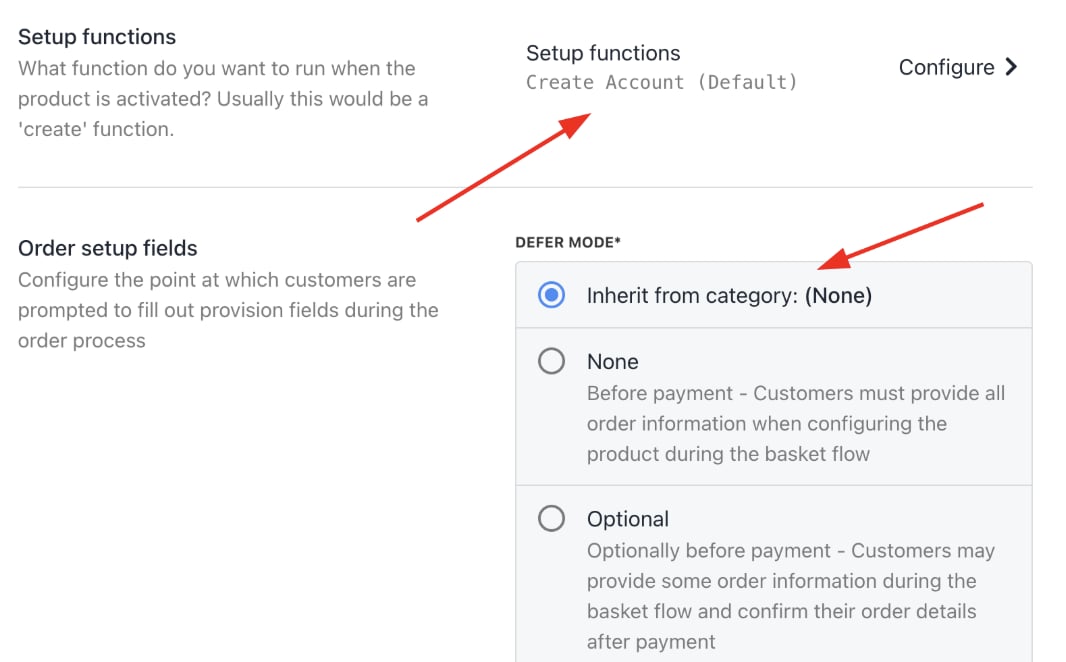
<Frame caption="Setup functions and order setup fields">
  <img src="https://mintcdn.com/upmind/uxzVUXAKtJ2bRWCI/images/fb/6f4c4171d625a55d.png?fit=max&auto=format&n=uxzVUXAKtJ2bRWCI&q=85&s=411108f57fab92ac48c3fdd2347eeda3" alt="Setup functions and order setup fields" className="mx-auto" style={{ width:"94%" }} width="1066" height="662" data-path="images/fb/6f4c4171d625a55d.png" />

  <img src="https://mintcdn.com/upmind/uxzVUXAKtJ2bRWCI/images/fb/6f4c4171d625a55d.png?fit=max&auto=format&n=uxzVUXAKtJ2bRWCI&q=85&s=411108f57fab92ac48c3fdd2347eeda3" alt="Setup functions and order setup fields" className="mx-auto" style={{ width:"94%" }} width="1066" height="662" data-path="images/fb/6f4c4171d625a55d.png" />
</Frame>

9. Under `Provision Fields`, you need to configure your **Package Identifier**. You can create the **Package** with all the details (for example, disk space, monthly bandwidth limit, etc.) from your panel. Add the **Package Name** to the **Package Identifier**.

<Frame caption="Package identifier">
  <img src="https://mintcdn.com/upmind/ZsIo0APxdVb_gFS-/images/fb/28534e636cdb525a.png?fit=max&auto=format&n=ZsIo0APxdVb_gFS-&q=85&s=8de79c0e34c1fd3087fcc268cd73e063" alt="Package identifier" className="mx-auto" style={{ width:"98%" }} width="1214" height="188" data-path="images/fb/28534e636cdb525a.png" />

  <img src="https://mintcdn.com/upmind/ZsIo0APxdVb_gFS-/images/fb/28534e636cdb525a.png?fit=max&auto=format&n=ZsIo0APxdVb_gFS-&q=85&s=8de79c0e34c1fd3087fcc268cd73e063" alt="Package identifier" className="mx-auto" style={{ width:"98%" }} width="1214" height="188" data-path="images/fb/28534e636cdb525a.png" />
</Frame>

## **Manage client accounts and support**

1. Add clients manually under **Clients** > **Add New**.

<Frame caption="Clients > Add New">
  <img src="https://mintcdn.com/upmind/Dgjmf3QWYVBR40cE/images/fb/5e266734cf715240.png?fit=max&auto=format&n=Dgjmf3QWYVBR40cE&q=85&s=2ff5f09d9431bf077a5bdb8c52c7ae79" alt="Clients > Add New" className="mx-auto" style={{ width:"96%" }} data-og-width="1620" width="1620" data-og-height="212" height="212" data-path="images/fb/5e266734cf715240.png" data-optimize="true" data-opv="3" srcset="https://mintcdn.com/upmind/Dgjmf3QWYVBR40cE/images/fb/5e266734cf715240.png?w=280&fit=max&auto=format&n=Dgjmf3QWYVBR40cE&q=85&s=fda0ee49acb9c5b2ecf3bc9761bf98ba 280w, https://mintcdn.com/upmind/Dgjmf3QWYVBR40cE/images/fb/5e266734cf715240.png?w=560&fit=max&auto=format&n=Dgjmf3QWYVBR40cE&q=85&s=dad1fcd285d3a592e4556d2de25bd5b8 560w, https://mintcdn.com/upmind/Dgjmf3QWYVBR40cE/images/fb/5e266734cf715240.png?w=840&fit=max&auto=format&n=Dgjmf3QWYVBR40cE&q=85&s=797dc09a5573a89e073270fd152e24a7 840w, https://mintcdn.com/upmind/Dgjmf3QWYVBR40cE/images/fb/5e266734cf715240.png?w=1100&fit=max&auto=format&n=Dgjmf3QWYVBR40cE&q=85&s=68da8fa53c04d3104ba43976629fe4b4 1100w, https://mintcdn.com/upmind/Dgjmf3QWYVBR40cE/images/fb/5e266734cf715240.png?w=1650&fit=max&auto=format&n=Dgjmf3QWYVBR40cE&q=85&s=85e8833f51cec4fb9117c253c26d60bc 1650w, https://mintcdn.com/upmind/Dgjmf3QWYVBR40cE/images/fb/5e266734cf715240.png?w=2500&fit=max&auto=format&n=Dgjmf3QWYVBR40cE&q=85&s=0ac37d99bd55bb21bd4491ceba042548 2500w" />

  <img src="https://mintcdn.com/upmind/Dgjmf3QWYVBR40cE/images/fb/5e266734cf715240.png?fit=max&auto=format&n=Dgjmf3QWYVBR40cE&q=85&s=2ff5f09d9431bf077a5bdb8c52c7ae79" alt="Clients > Add New" className="mx-auto" style={{ width:"96%" }} data-og-width="1620" width="1620" data-og-height="212" height="212" data-path="images/fb/5e266734cf715240.png" data-optimize="true" data-opv="3" srcset="https://mintcdn.com/upmind/Dgjmf3QWYVBR40cE/images/fb/5e266734cf715240.png?w=280&fit=max&auto=format&n=Dgjmf3QWYVBR40cE&q=85&s=fda0ee49acb9c5b2ecf3bc9761bf98ba 280w, https://mintcdn.com/upmind/Dgjmf3QWYVBR40cE/images/fb/5e266734cf715240.png?w=560&fit=max&auto=format&n=Dgjmf3QWYVBR40cE&q=85&s=dad1fcd285d3a592e4556d2de25bd5b8 560w, https://mintcdn.com/upmind/Dgjmf3QWYVBR40cE/images/fb/5e266734cf715240.png?w=840&fit=max&auto=format&n=Dgjmf3QWYVBR40cE&q=85&s=797dc09a5573a89e073270fd152e24a7 840w, https://mintcdn.com/upmind/Dgjmf3QWYVBR40cE/images/fb/5e266734cf715240.png?w=1100&fit=max&auto=format&n=Dgjmf3QWYVBR40cE&q=85&s=68da8fa53c04d3104ba43976629fe4b4 1100w, https://mintcdn.com/upmind/Dgjmf3QWYVBR40cE/images/fb/5e266734cf715240.png?w=1650&fit=max&auto=format&n=Dgjmf3QWYVBR40cE&q=85&s=85e8833f51cec4fb9117c253c26d60bc 1650w, https://mintcdn.com/upmind/Dgjmf3QWYVBR40cE/images/fb/5e266734cf715240.png?w=2500&fit=max&auto=format&n=Dgjmf3QWYVBR40cE&q=85&s=0ac37d99bd55bb21bd4491ceba042548 2500w" />
</Frame>

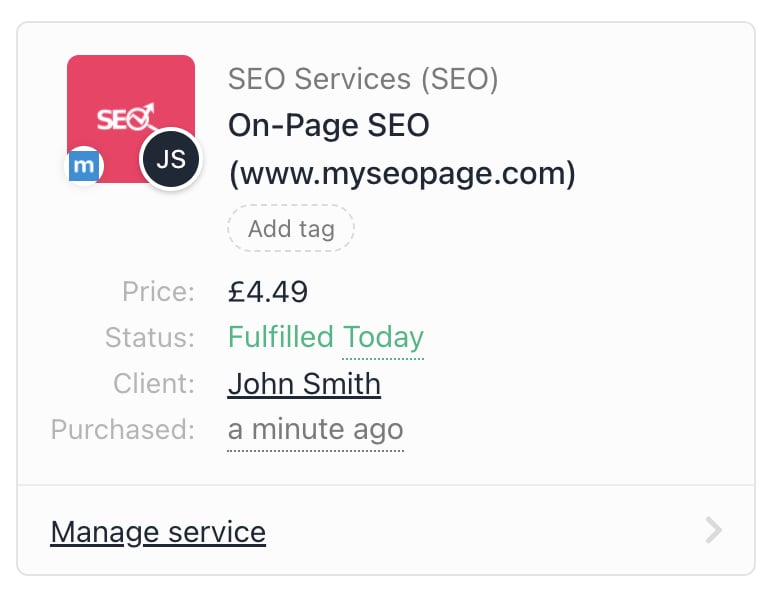
2. Associate clients with SEO services and contracts to trigger correct billing and provisioning.
<Frame caption="Client association">
  <img src="https://mintcdn.com/upmind/VnCXiz5rboywDnvn/images/fb/d91200538f3fe719.png?fit=max&auto=format&n=VnCXiz5rboywDnvn&q=85&s=a1e19023cbf317ecee29a630d713bf0f" alt="Client association" className="mx-auto" style={{ width:"72%" }} width="776" height="596" data-path="images/fb/d91200538f3fe719.png" />

  <img src="https://mintcdn.com/upmind/VnCXiz5rboywDnvn/images/fb/d91200538f3fe719.png?fit=max&auto=format&n=VnCXiz5rboywDnvn&q=85&s=a1e19023cbf317ecee29a630d713bf0f" alt="Client association" className="mx-auto" style={{ width:"72%" }} width="776" height="596" data-path="images/fb/d91200538f3fe719.png" />
</Frame>

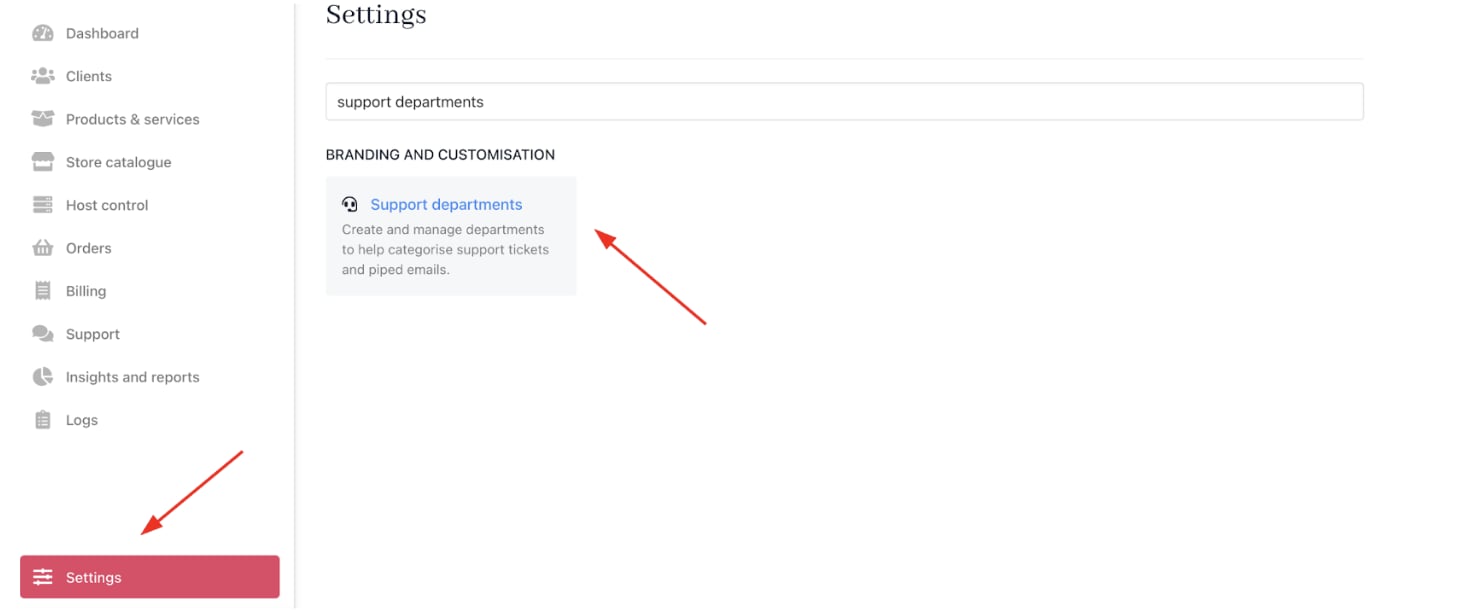
3. You can configure [<u>email piping</u>](/setup-and-configuration/email-configuring-and-sending/how-does-email-work-in-upmind) for support tickets by going to **Settings** > **Support Departments** under **Branding and Customisation**.

You can get more information on support departments in this [<u>guide</u>](/using-upmind/service-desk/how-to-create-support-department).
<Frame caption="Settings > Branding and Customisation > Support Departments">
  <img src="https://mintcdn.com/upmind/kAlrCUxI2nwYz4_i/images/fb/20d3e47d3859de6e.png?fit=max&auto=format&n=kAlrCUxI2nwYz4_i&q=85&s=0c30ad1d63d24b977cc189614ad54b57" alt="Settings > Branding and Customisation > Support Departments" className="mx-auto" style={{ width:"97%" }} data-og-width="1470" width="1470" data-og-height="612" height="612" data-path="images/fb/20d3e47d3859de6e.png" data-optimize="true" data-opv="3" srcset="https://mintcdn.com/upmind/kAlrCUxI2nwYz4_i/images/fb/20d3e47d3859de6e.png?w=280&fit=max&auto=format&n=kAlrCUxI2nwYz4_i&q=85&s=ed0c3cc54377f6a2d5454de9937805cd 280w, https://mintcdn.com/upmind/kAlrCUxI2nwYz4_i/images/fb/20d3e47d3859de6e.png?w=560&fit=max&auto=format&n=kAlrCUxI2nwYz4_i&q=85&s=32d04921632a144f77e83d6c6ca345d1 560w, https://mintcdn.com/upmind/kAlrCUxI2nwYz4_i/images/fb/20d3e47d3859de6e.png?w=840&fit=max&auto=format&n=kAlrCUxI2nwYz4_i&q=85&s=9d4668251dcfc1f749586235b9cd5c20 840w, https://mintcdn.com/upmind/kAlrCUxI2nwYz4_i/images/fb/20d3e47d3859de6e.png?w=1100&fit=max&auto=format&n=kAlrCUxI2nwYz4_i&q=85&s=ff4f46df677cf8e4128a867994264d8d 1100w, https://mintcdn.com/upmind/kAlrCUxI2nwYz4_i/images/fb/20d3e47d3859de6e.png?w=1650&fit=max&auto=format&n=kAlrCUxI2nwYz4_i&q=85&s=5949a889d8595dda9460b9fcc17c8785 1650w, https://mintcdn.com/upmind/kAlrCUxI2nwYz4_i/images/fb/20d3e47d3859de6e.png?w=2500&fit=max&auto=format&n=kAlrCUxI2nwYz4_i&q=85&s=dd6eb0cc3cae3b54672dc59463e47d52 2500w" />

  <img src="https://mintcdn.com/upmind/kAlrCUxI2nwYz4_i/images/fb/20d3e47d3859de6e.png?fit=max&auto=format&n=kAlrCUxI2nwYz4_i&q=85&s=0c30ad1d63d24b977cc189614ad54b57" alt="Settings > Branding and Customisation > Support Departments" className="mx-auto" style={{ width:"97%" }} data-og-width="1470" width="1470" data-og-height="612" height="612" data-path="images/fb/20d3e47d3859de6e.png" data-optimize="true" data-opv="3" srcset="https://mintcdn.com/upmind/kAlrCUxI2nwYz4_i/images/fb/20d3e47d3859de6e.png?w=280&fit=max&auto=format&n=kAlrCUxI2nwYz4_i&q=85&s=ed0c3cc54377f6a2d5454de9937805cd 280w, https://mintcdn.com/upmind/kAlrCUxI2nwYz4_i/images/fb/20d3e47d3859de6e.png?w=560&fit=max&auto=format&n=kAlrCUxI2nwYz4_i&q=85&s=32d04921632a144f77e83d6c6ca345d1 560w, https://mintcdn.com/upmind/kAlrCUxI2nwYz4_i/images/fb/20d3e47d3859de6e.png?w=840&fit=max&auto=format&n=kAlrCUxI2nwYz4_i&q=85&s=9d4668251dcfc1f749586235b9cd5c20 840w, https://mintcdn.com/upmind/kAlrCUxI2nwYz4_i/images/fb/20d3e47d3859de6e.png?w=1100&fit=max&auto=format&n=kAlrCUxI2nwYz4_i&q=85&s=ff4f46df677cf8e4128a867994264d8d 1100w, https://mintcdn.com/upmind/kAlrCUxI2nwYz4_i/images/fb/20d3e47d3859de6e.png?w=1650&fit=max&auto=format&n=kAlrCUxI2nwYz4_i&q=85&s=5949a889d8595dda9460b9fcc17c8785 1650w, https://mintcdn.com/upmind/kAlrCUxI2nwYz4_i/images/fb/20d3e47d3859de6e.png?w=2500&fit=max&auto=format&n=kAlrCUxI2nwYz4_i&q=85&s=dd6eb0cc3cae3b54672dc59463e47d52 2500w" />
</Frame>

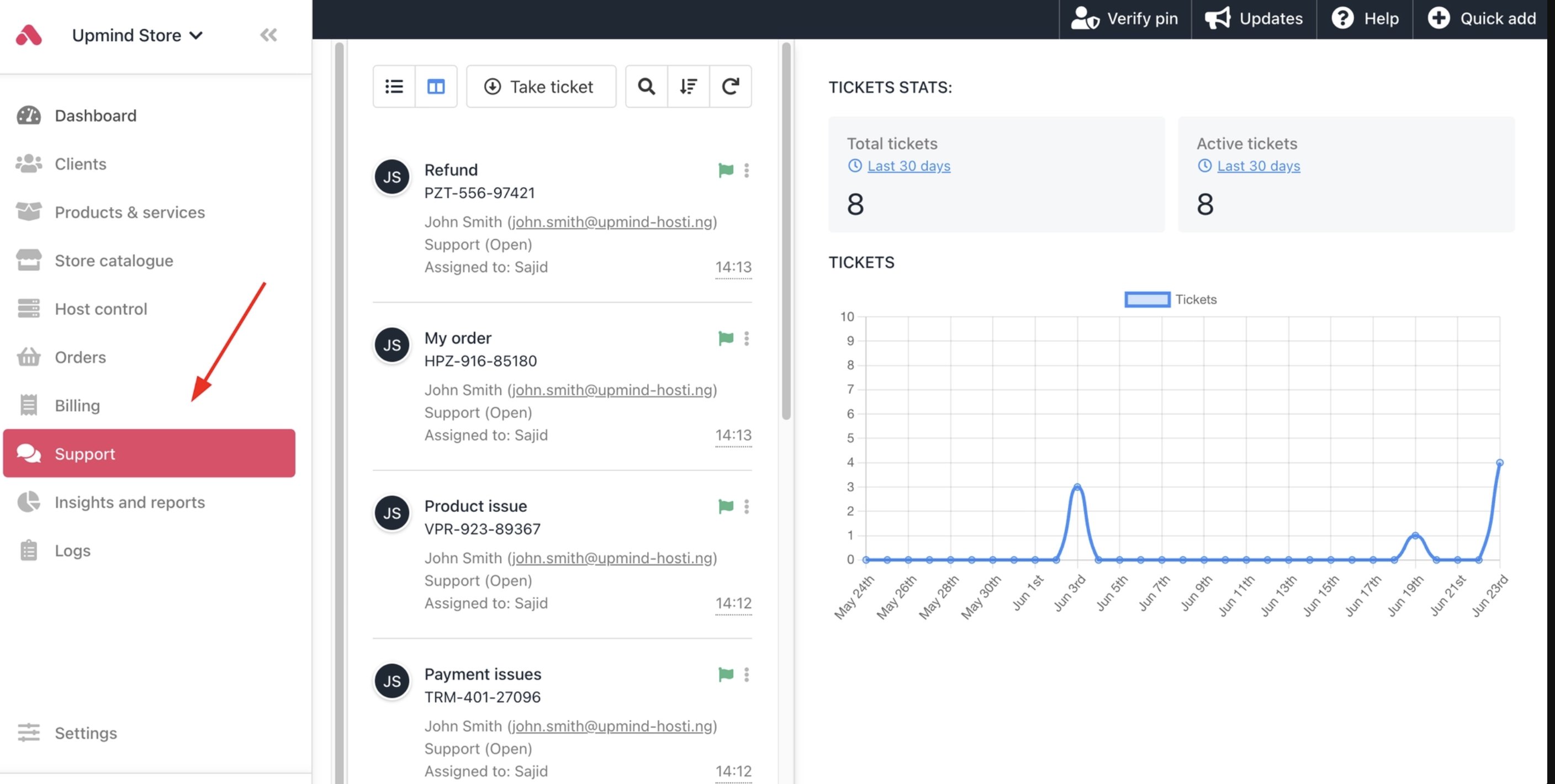
4. You can also implement Upmind’s built-in ticketing system to handle customer inquiries or technical support. [<u>Tickets</u>](/using-upmind/service-desk/how-to-create-a-ticket) link to client records for holistic case management.
<Frame caption="Support tickets">
  <img src="https://mintcdn.com/upmind/pcUdSuxUJ6LgBXnd/images/fb/a59756b4e0ce46e3.png?fit=max&auto=format&n=pcUdSuxUJ6LgBXnd&q=85&s=5c7e161681f25dbe68f349fa138f7560" alt="Support tickets" className="mx-auto" style={{ width:"97%" }} width="2816" height="1420" data-path="images/fb/a59756b4e0ce46e3.png" />

  <img src="https://mintcdn.com/upmind/pcUdSuxUJ6LgBXnd/images/fb/a59756b4e0ce46e3.png?fit=max&auto=format&n=pcUdSuxUJ6LgBXnd&q=85&s=5c7e161681f25dbe68f349fa138f7560" alt="Support tickets" className="mx-auto" style={{ width:"97%" }} width="2816" height="1420" data-path="images/fb/a59756b4e0ce46e3.png" />
</Frame>

## **Launch your online store**

1. List hosting packages and additional services for customer self-service ordering.
2. Customise pricing, offers, and promotions to attract new customers.
3. Configure checkout flow, payment options, and communication templates.
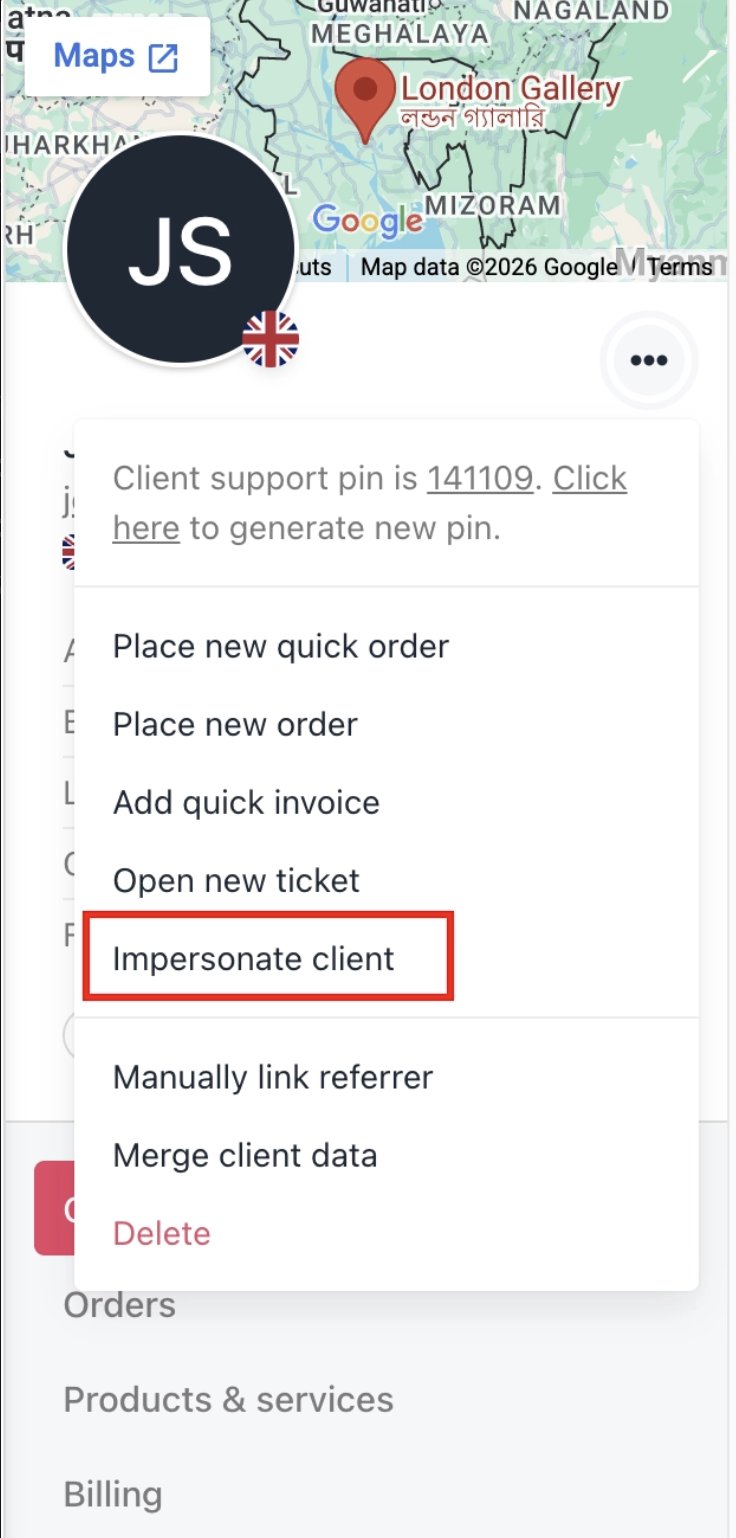
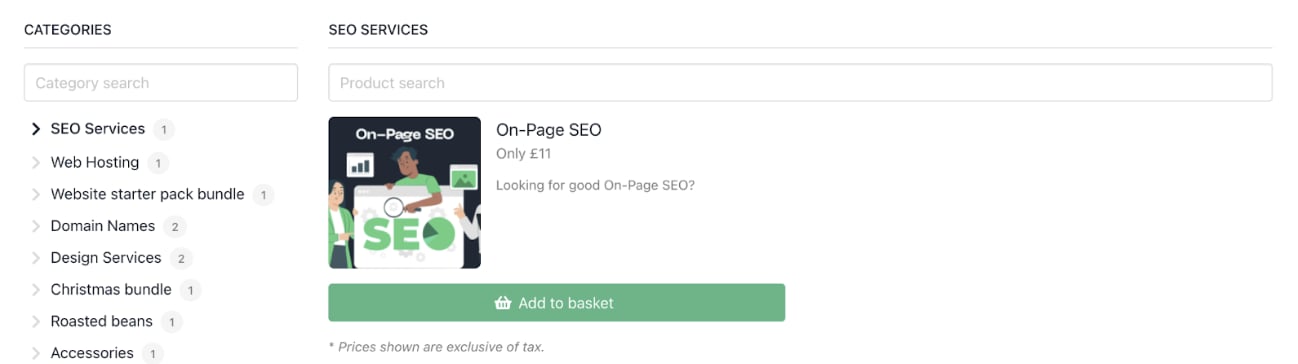
4. You can check the customer journey by [<u>impersonating a client</u>](/using-upmind/client-management/how-impersonating-a-client-works) and seeing the purchase process.
<Frame caption="Impersonate clients">
  <img src="https://mintcdn.com/upmind/1xguIfYUrfespmVI/images/fb/7dc448c134b33523.png?fit=max&auto=format&n=1xguIfYUrfespmVI&q=85&s=35aaeadcc13d5e8da3f4670d610f647e" alt="Impersonate clients" className="mx-auto" style={{ width:"53%" }} width="736" height="1538" data-path="images/fb/7dc448c134b33523.png" />

  <img src="https://mintcdn.com/upmind/1xguIfYUrfespmVI/images/fb/7dc448c134b33523.png?fit=max&auto=format&n=1xguIfYUrfespmVI&q=85&s=35aaeadcc13d5e8da3f4670d610f647e" alt="Impersonate clients" className="mx-auto" style={{ width:"53%" }} width="736" height="1538" data-path="images/fb/7dc448c134b33523.png" />
</Frame>

<Frame caption="Customer journey">
  <img src="https://mintcdn.com/upmind/c5sDUwEs8YpzGbjA/images/fb/9209ccf6c36b4806.png?fit=max&auto=format&n=c5sDUwEs8YpzGbjA&q=85&s=8ebf02afca3021ec369e87854df865d5" alt="Customer journey" className="mx-auto" style={{ width:"99%" }} width="1298" height="364" data-path="images/fb/9209ccf6c36b4806.png" />

  <img src="https://mintcdn.com/upmind/c5sDUwEs8YpzGbjA/images/fb/9209ccf6c36b4806.png?fit=max&auto=format&n=c5sDUwEs8YpzGbjA&q=85&s=8ebf02afca3021ec369e87854df865d5" alt="Customer journey" className="mx-auto" style={{ width:"99%" }} width="1298" height="364" data-path="images/fb/9209ccf6c36b4806.png" />
</Frame>

## **Use analytics and reporting to optimise your business**

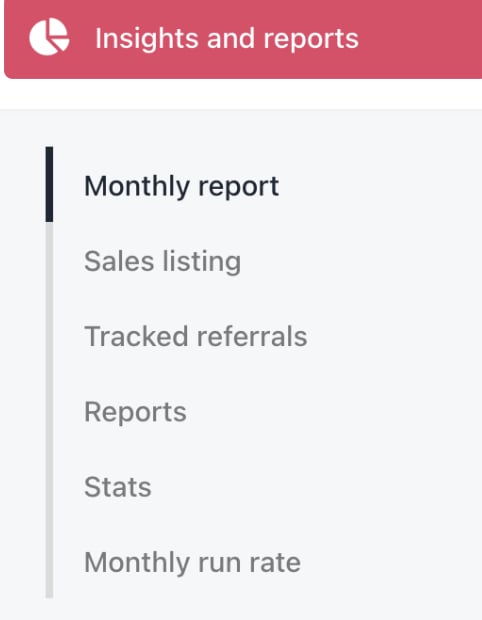
1. Review [<u>Insights and Reports</u>](/using-upmind/reporting/about-insights-and-reports) to track sales, client growth, revenue by product, churn, and LTV.
<Frame caption="Insights and reports">
  <img src="https://mintcdn.com/upmind/1xguIfYUrfespmVI/images/fb/846b1cd7b7aa1c68.png?fit=max&auto=format&n=1xguIfYUrfespmVI&q=85&s=c00756fe00d3cd626668e8ef785fc472" alt="Insights and reports" className="mx-auto" style={{ width:"66%" }} width="482" height="620" data-path="images/fb/846b1cd7b7aa1c68.png" />

  <img src="https://mintcdn.com/upmind/1xguIfYUrfespmVI/images/fb/846b1cd7b7aa1c68.png?fit=max&auto=format&n=1xguIfYUrfespmVI&q=85&s=c00756fe00d3cd626668e8ef785fc472" alt="Insights and reports" className="mx-auto" style={{ width:"66%" }} width="482" height="620" data-path="images/fb/846b1cd7b7aa1c68.png" />
</Frame>

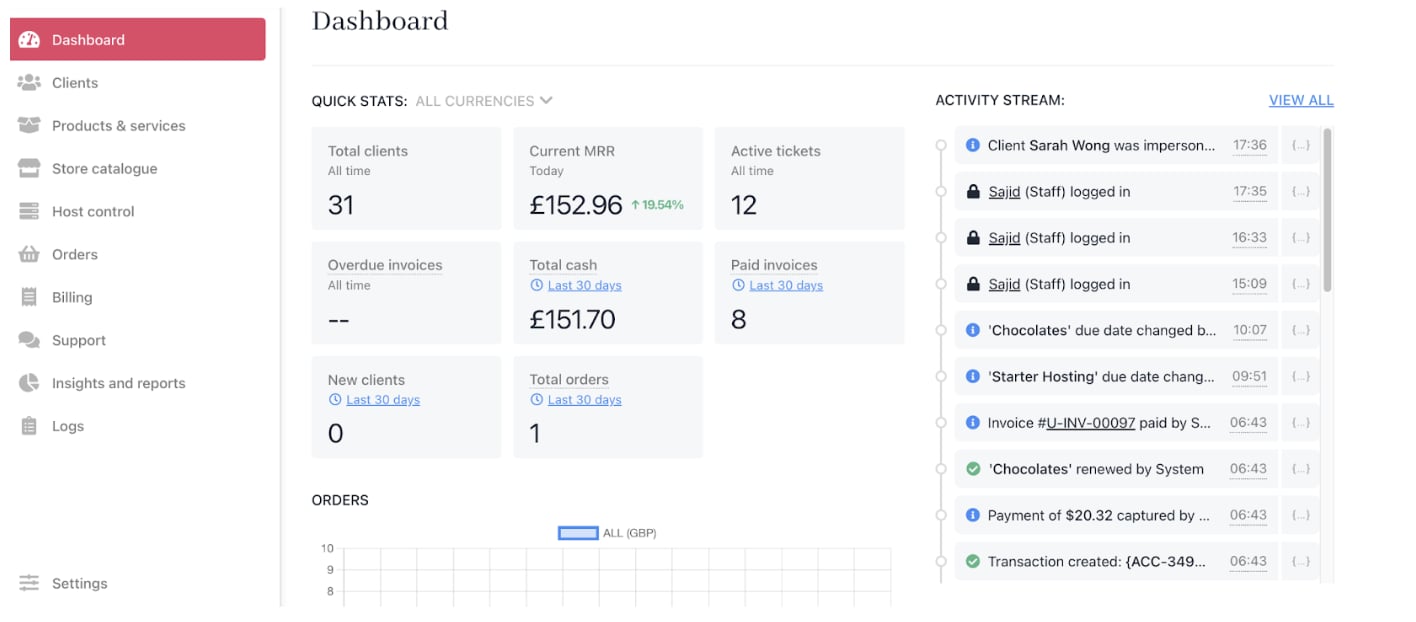
2. Monitor billing performance and customer payment behaviour from the **Admin Dashboard**.
<Frame caption="Admin dashboard">
  <img src="https://mintcdn.com/upmind/5gi4DQpw4X76kT6T/images/fb/b99d4852d68613a0.png?fit=max&auto=format&n=5gi4DQpw4X76kT6T&q=85&s=57b0c2a9d55266ffb1e2e25d97dedcb7" alt="Admin dashboard" className="mx-auto" style={{ width:"96%" }} width="1416" height="622" data-path="images/fb/b99d4852d68613a0.png" />

  <img src="https://mintcdn.com/upmind/5gi4DQpw4X76kT6T/images/fb/b99d4852d68613a0.png?fit=max&auto=format&n=5gi4DQpw4X76kT6T&q=85&s=57b0c2a9d55266ffb1e2e25d97dedcb7" alt="Admin dashboard" className="mx-auto" style={{ width:"96%" }} width="1416" height="622" data-path="images/fb/b99d4852d68613a0.png" />
</Frame>

3. Use [<u>Google Analytics</u>](/using-upmind/reporting/how-to-set-up-google-analytics-with-upmind) and [<u>Tag Manager</u>](/using-upmind/reporting/how-to-set-up-google-tag-manager-with-upmind) integrations to gain website and portal insights.
4. Adjust pricing, marketing, or support strategies based on data.