> ## Documentation Index
> Fetch the complete documentation index at: https://docs.upmind.com/llms.txt
> Use this file to discover all available pages before exploring further.
# How Do My Clients Review Billings
> Clients can review billings, invoices, credit notes, and funds in a credit account.
This guide explains how clients can view their invoices, credit notes, and credit account funds. It also explains how to update address and company details and how to apply them to individual services.
## Viewing invoices
1. Log in to the store account.
2. Click the **Billing** menu tab.
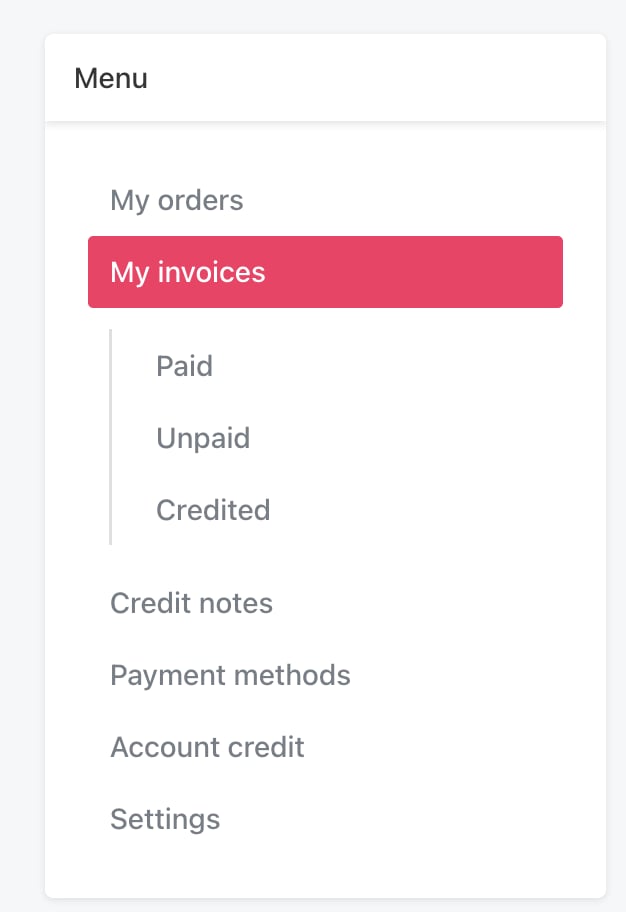
 3. On the left menu, click the **My Invoices** menu tab. A list of all invoices will be displayed.
4. Click a subheading to view **Paid**, **Unpaid**, or **Credited** invoices.
3. On the left menu, click the **My Invoices** menu tab. A list of all invoices will be displayed.
4. Click a subheading to view **Paid**, **Unpaid**, or **Credited** invoices.
 ## Making a payment
To make a payment from an invoice page:
1. Go to **My invoices**.
2. Click **Unpaid** on the left menu.
3. Click an invoice.
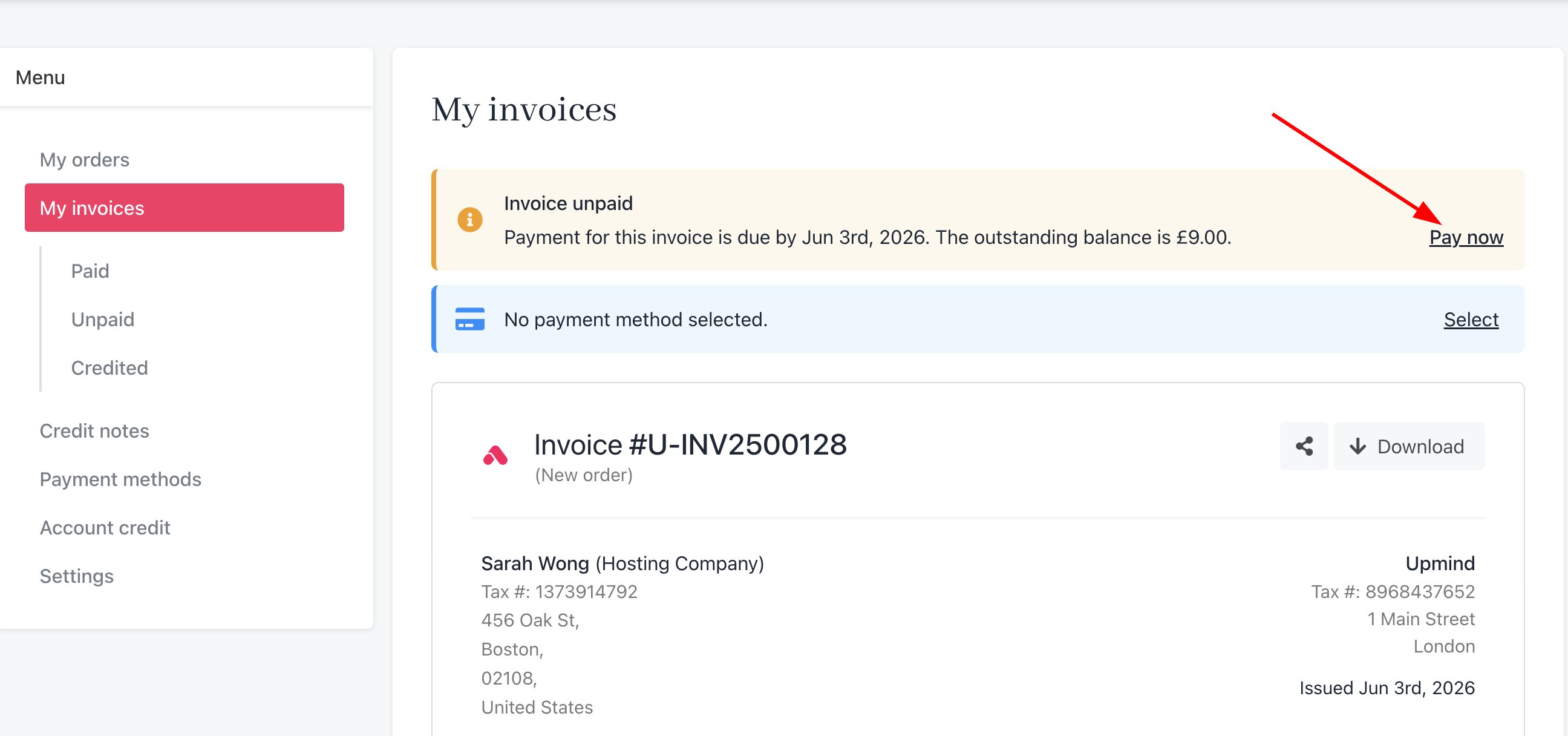
4. Click **Pay now** at the top of the invoice.
5. Select a payment method and fill in the fields.
## Making a payment
To make a payment from an invoice page:
1. Go to **My invoices**.
2. Click **Unpaid** on the left menu.
3. Click an invoice.
4. Click **Pay now** at the top of the invoice.
5. Select a payment method and fill in the fields.
 ### Changing a payment method
Clients can change the payment method on the invoice page. For more information, follow this [guide](https://docs.upmind.com/using-upmind/payment-methods/how-to-use-different-payment-methods).
1. Click **Change** on the invoice page.
2. Fill in the fields.
## Viewing credit notes
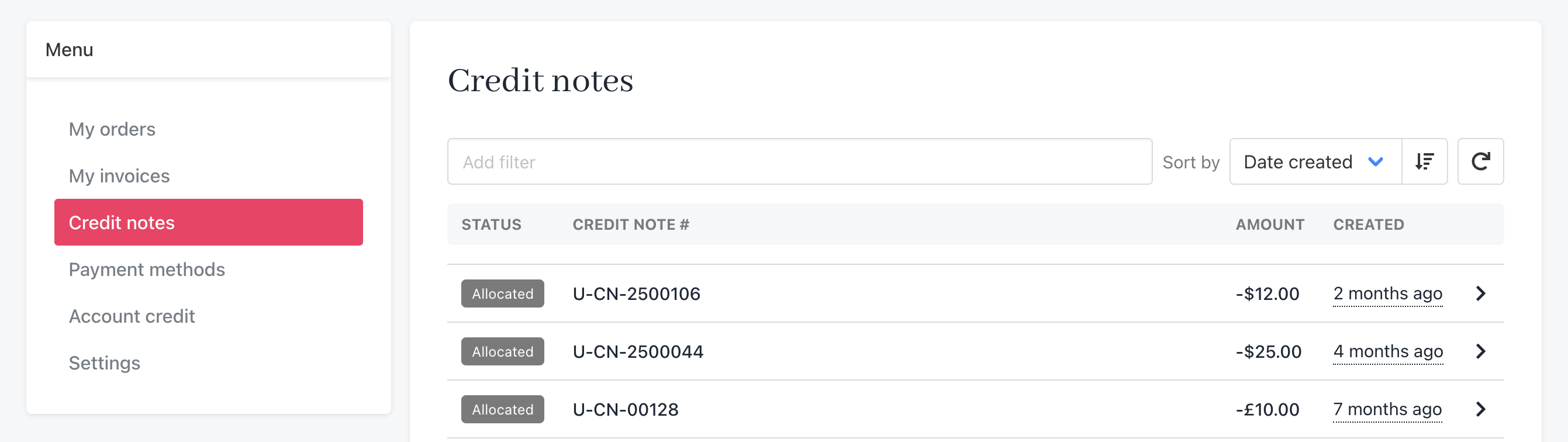
Clients can see a list of credit notes (refunds) from your store.
1. Go to the **My invoices** page.
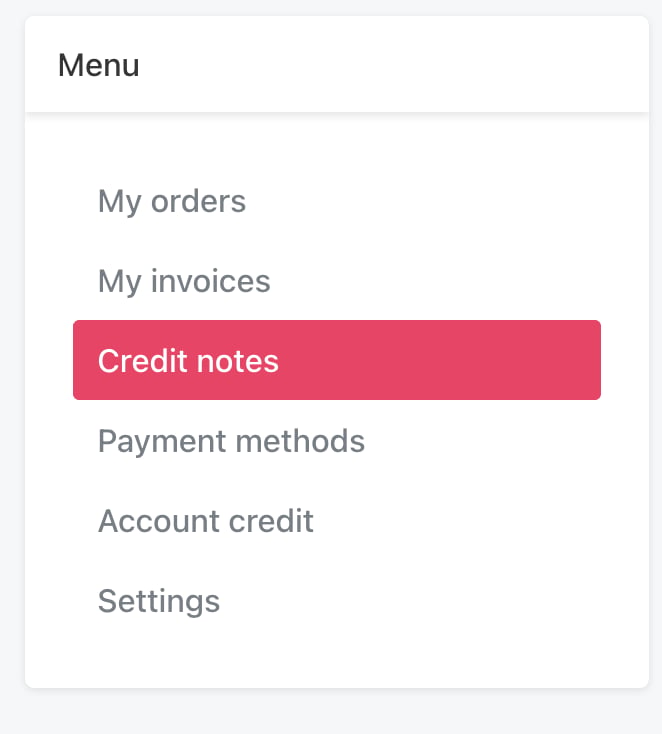
2. Click **Credit notes** on the left menu.
### Changing a payment method
Clients can change the payment method on the invoice page. For more information, follow this [guide](https://docs.upmind.com/using-upmind/payment-methods/how-to-use-different-payment-methods).
1. Click **Change** on the invoice page.
2. Fill in the fields.
## Viewing credit notes
Clients can see a list of credit notes (refunds) from your store.
1. Go to the **My invoices** page.
2. Click **Credit notes** on the left menu.
 3. Click an item to review details.
 ## Reviewing account credit
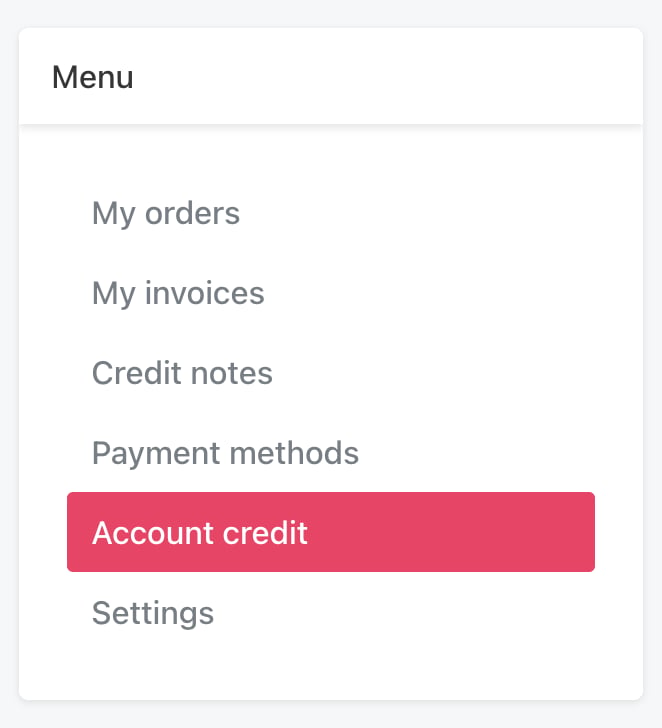
Your clients can view and top up their account credit (if they choose to use this payment method).
1. Go to the **My invoices** page.
2. Click **Account credit** on the left menu. This page shows current funds available.
## Reviewing account credit
Your clients can view and top up their account credit (if they choose to use this payment method).
1. Go to the **My invoices** page.
2. Click **Account credit** on the left menu. This page shows current funds available.
 ### Adding funds
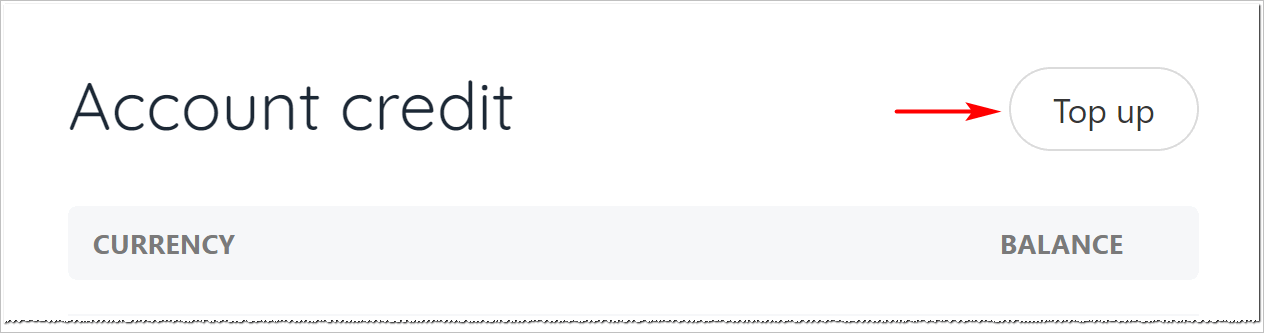
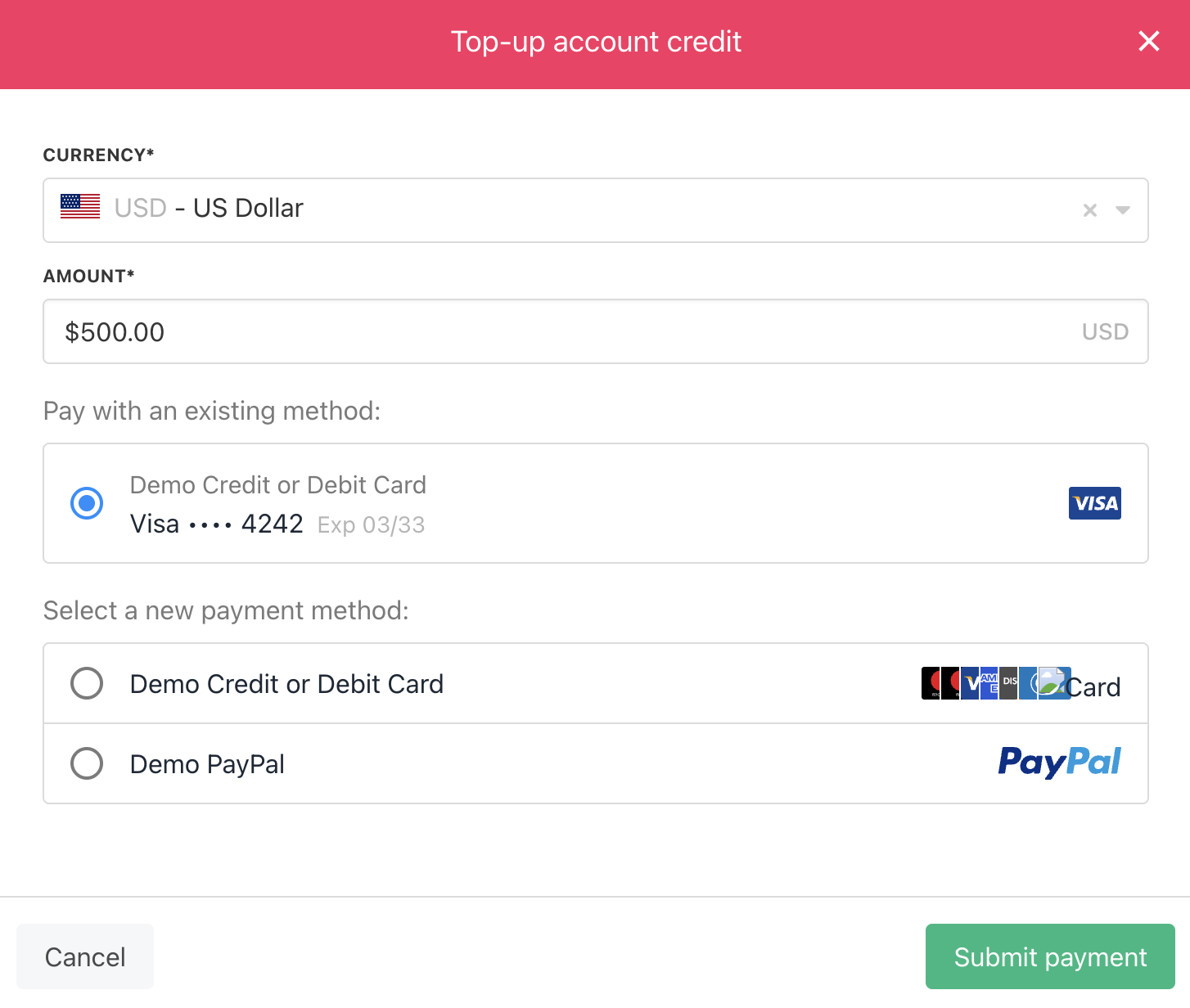
To add money to an account:
1. Click the **Top up** button.
2. Enter an amount.
3. Fill in the fields on the payment page.
### Adding funds
To add money to an account:
1. Click the **Top up** button.
2. Enter an amount.
3. Fill in the fields on the payment page.
 ## Updating address/company details for individual services
Clients can update their address and VAT number by [adding company details in their profile settings](https://docs.upmind.com/client-self-service/client-area/how-do-my-clients-change-account-settings). The new company details can then be applied to future renewal invoices by assigning them to individual contract products.
1. Go to **Products and Services**.
2. Select the contract product you would like to update.
3. Go to the **Settings** tab.
## Updating address/company details for individual services
Clients can update their address and VAT number by [adding company details in their profile settings](https://docs.upmind.com/client-self-service/client-area/how-do-my-clients-change-account-settings). The new company details can then be applied to future renewal invoices by assigning them to individual contract products.
1. Go to **Products and Services**.
2. Select the contract product you would like to update.
3. Go to the **Settings** tab.
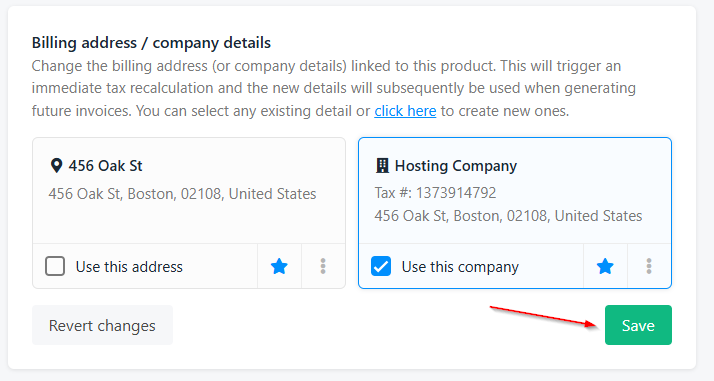
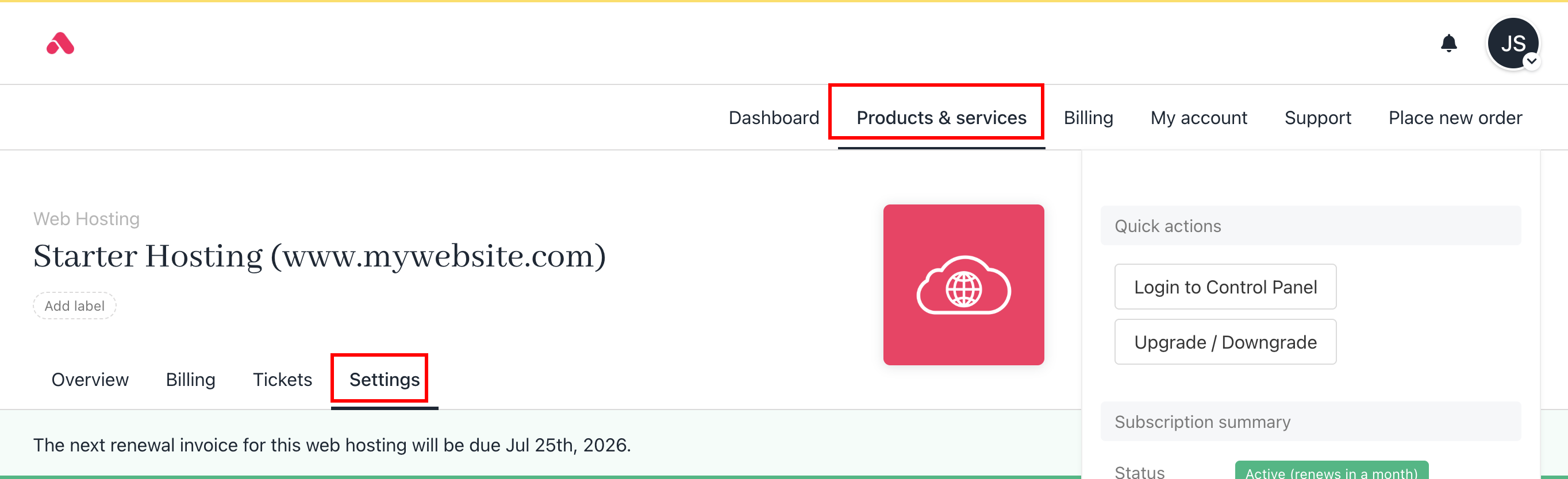 4. Scroll down to the **Billing Address/Company Details** section.
5. Select the company details you wish to use and click **Save**.
4. Scroll down to the **Billing Address/Company Details** section.
5. Select the company details you wish to use and click **Save**.