> ## Documentation Index
> Fetch the complete documentation index at: https://docs.upmind.com/llms.txt
> Use this file to discover all available pages before exploring further.

# How Do My Clients Register and Log in

> Your customers follow these steps.

This article reviews the steps that potential clients follow to create an account in your store. We also show Admins and store staff [how to resend an account verification link](https://docs.upmind.com/using-upmind/client-management/how-to-manage-client-settings) to clients.

## Creating an account

The first step is to share your store's client-side login URL. That URL looks like this:

[https://yourstorename.upmind.app](https://yourstorename.upmind.app)

Or if you have used a custom domain, then you can share your store domain name.

Next, your clients:

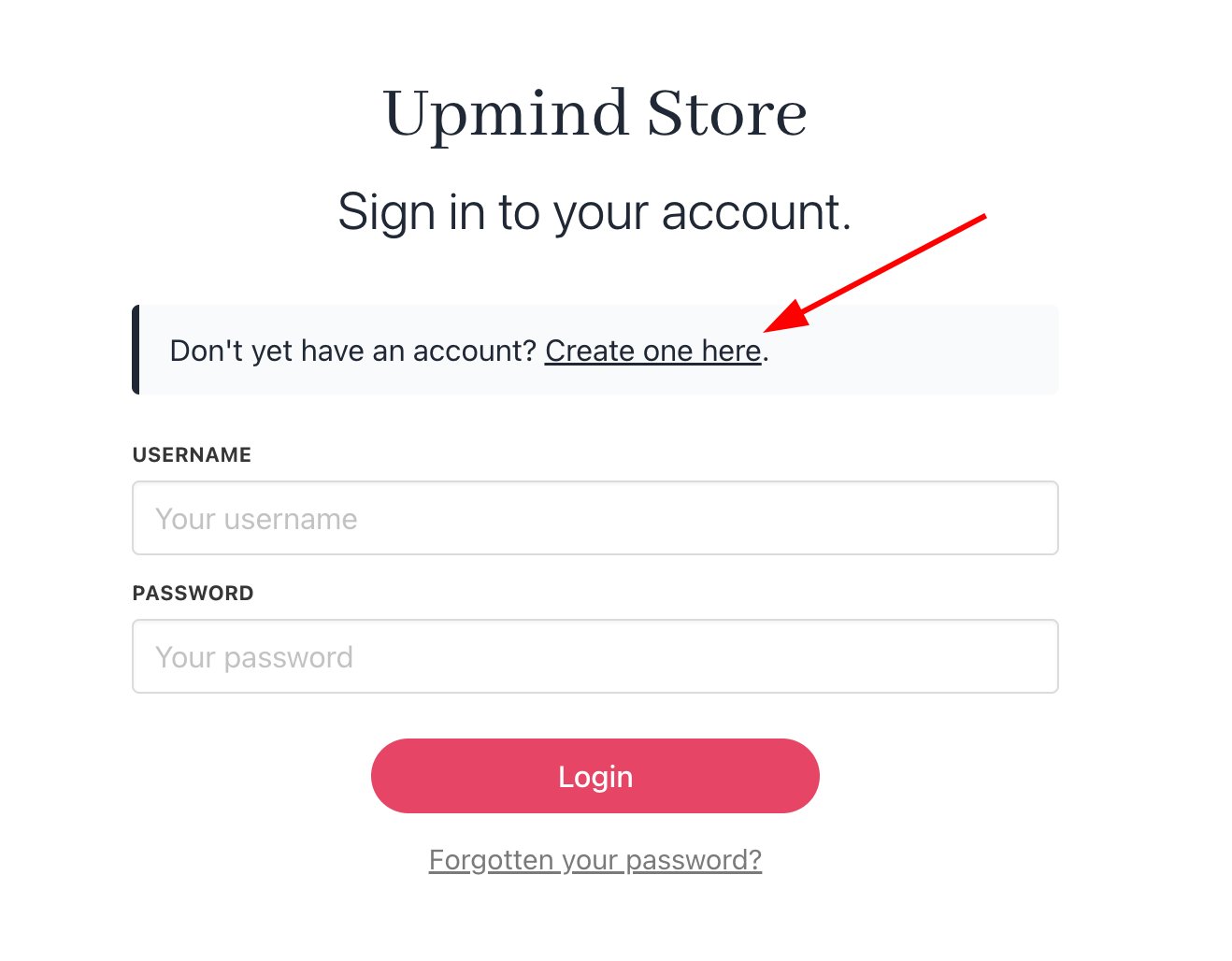
1. Go to the login page.
2. Click the **Create one here** link.
<Frame caption="Click Create one here">
  <img src="https://mintcdn.com/upmind/6knUVC8F1nK4E5CY/images/fb/c63e5a67cce3d3e3.png?fit=max&auto=format&n=6knUVC8F1nK4E5CY&q=85&s=c1fc0aa95437e3b6a4123634ec63e1a3" alt="Click Create one here" className="mx-auto" style={{ width:"75%" }} width="1318" height="1028" data-path="images/fb/c63e5a67cce3d3e3.png" />
</Frame>

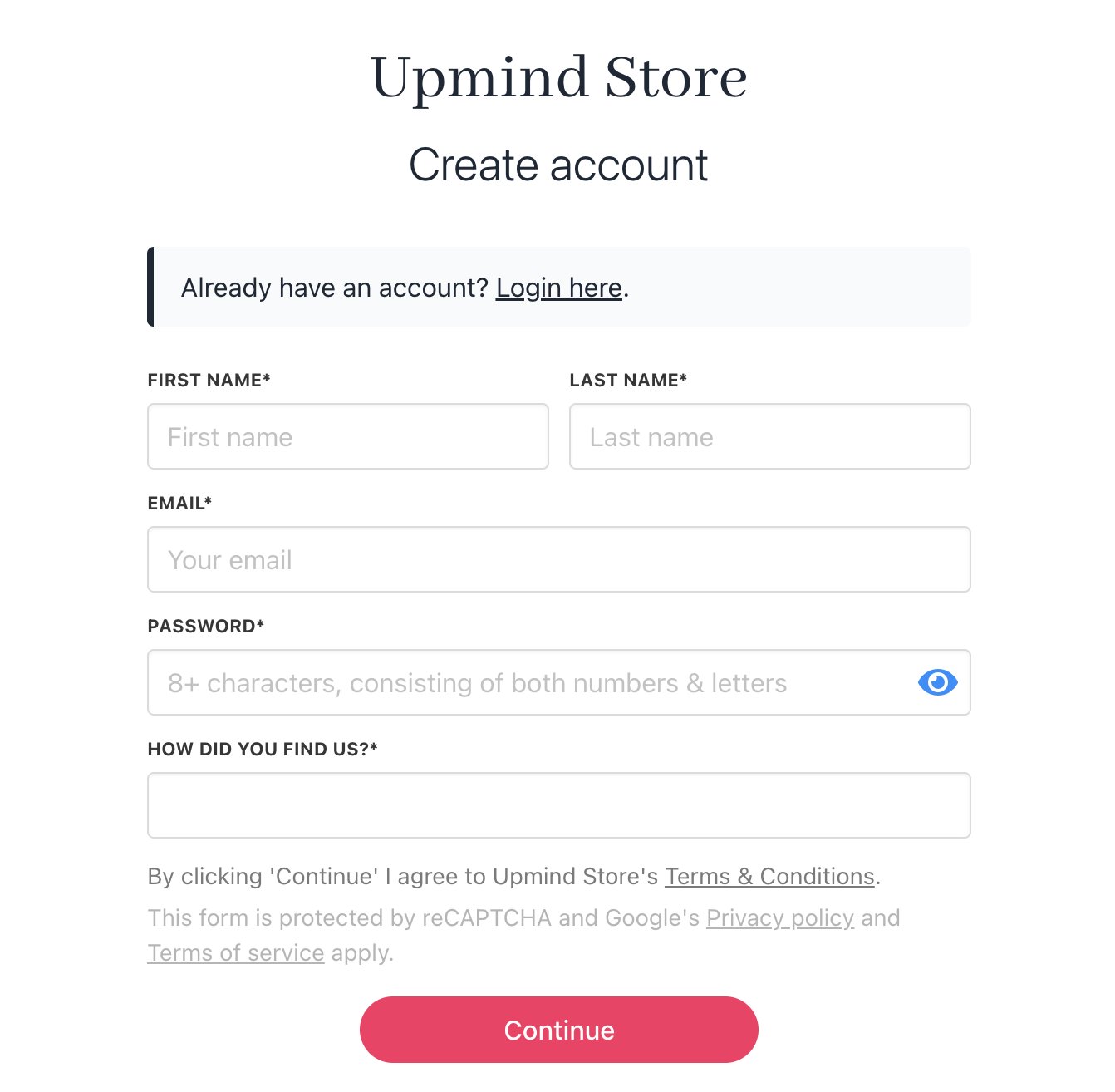
3. Fill the fields.
4. Click Continue.
<Frame caption="Fill the fields">
  <img src="https://mintcdn.com/upmind/wRuKrNY12tQZY8Rr/images/fb/39eebb1adab05104.png?fit=max&auto=format&n=wRuKrNY12tQZY8Rr&q=85&s=3b7b57793711eeeadaa8fd7e01c7069b" alt="Fill the fields" className="mx-auto" style={{ width:"77%" }} width="1342" height="1314" data-path="images/fb/39eebb1adab05104.png" />
</Frame>

## Resending a verification code

If a client fails to verify their account, admins or store staff can resend the verification code to the client's email address.

1. Go to the Upmind dashboard.
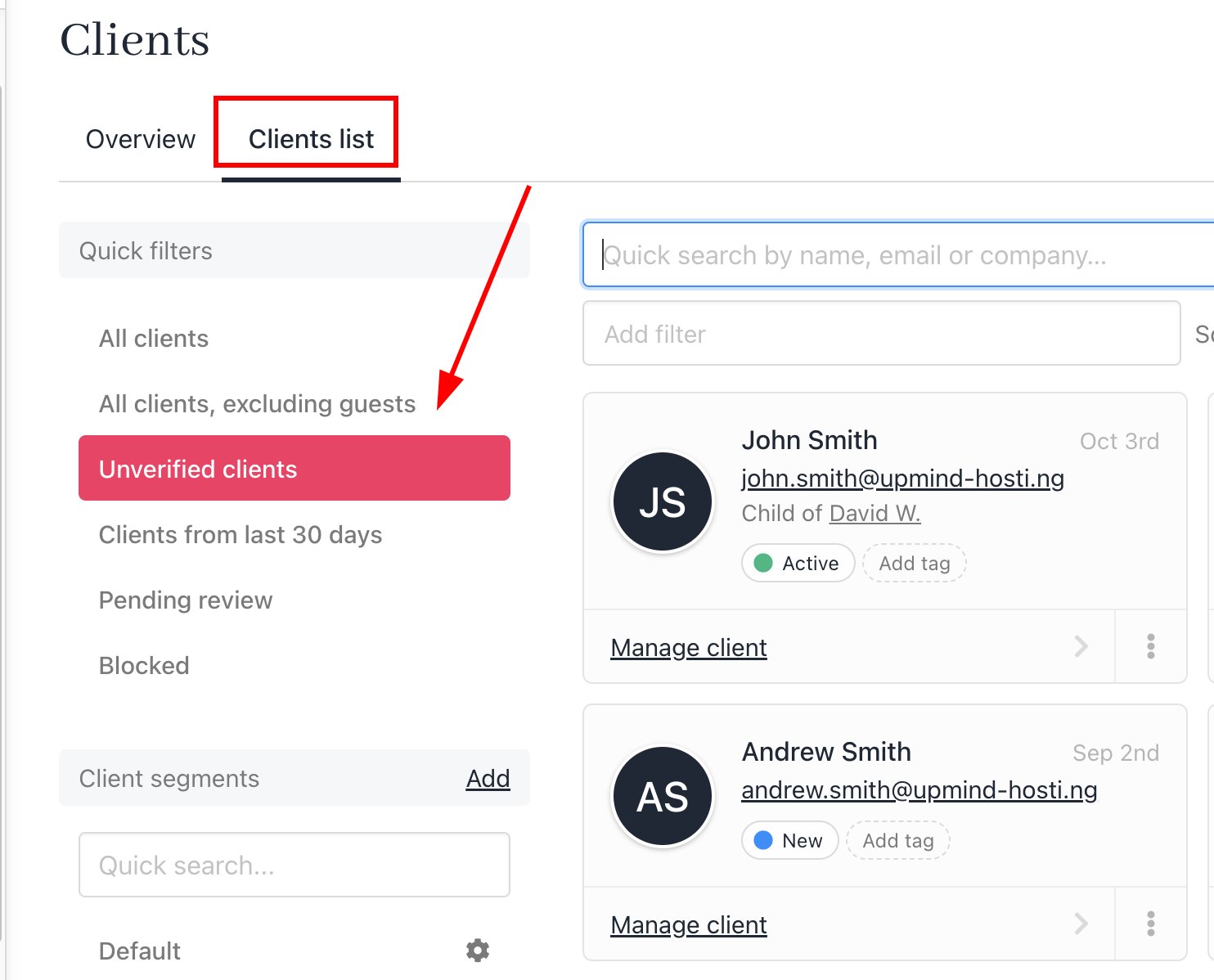
2. Click Clients on the left side menu.
3. Click the Clients list menu tab.
4. Click the Unverified clients subheading.
<Frame caption="Click Unverified clients">
  <img src="https://mintcdn.com/upmind/z5ofg3t7by4uN44v/images/fb/ea0f4405cfee1af6.png?fit=max&auto=format&n=z5ofg3t7by4uN44v&q=85&s=a5f19268f5cfea7aafb0ed4430e6d674" alt="Click Unverified clients" className="mx-auto" style={{ width:"87%" }} width="1484" height="1198" data-path="images/fb/ea0f4405cfee1af6.png" />
</Frame>

5. Click the client name.
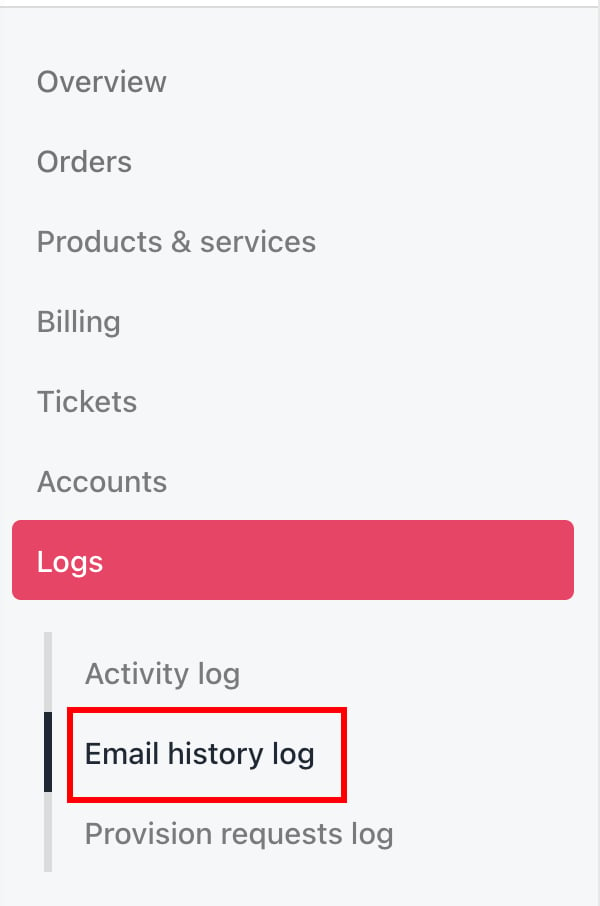
6. Go to **Logs** > **Email history log**. Find the verification email.
<Frame caption="Logs > Email history log">
  <img src="https://mintcdn.com/upmind/uxzVUXAKtJ2bRWCI/images/fb/652f727ce9319845.png?fit=max&auto=format&n=uxzVUXAKtJ2bRWCI&q=85&s=e4c81693e666168572d2b1d9fa948aed" alt="Logs > Email history log" className="mx-auto" style={{ width:"59%" }} data-og-width="600" width="600" data-og-height="906" height="906" data-path="images/fb/652f727ce9319845.png" data-optimize="true" data-opv="3" srcset="https://mintcdn.com/upmind/uxzVUXAKtJ2bRWCI/images/fb/652f727ce9319845.png?w=280&fit=max&auto=format&n=uxzVUXAKtJ2bRWCI&q=85&s=bd46374dbe7e035f013897a6e572fbe5 280w, https://mintcdn.com/upmind/uxzVUXAKtJ2bRWCI/images/fb/652f727ce9319845.png?w=560&fit=max&auto=format&n=uxzVUXAKtJ2bRWCI&q=85&s=68e4408697d6e017e502e8fe8ae5d276 560w, https://mintcdn.com/upmind/uxzVUXAKtJ2bRWCI/images/fb/652f727ce9319845.png?w=840&fit=max&auto=format&n=uxzVUXAKtJ2bRWCI&q=85&s=79d6815faed47ff659c97cb13f2020e4 840w, https://mintcdn.com/upmind/uxzVUXAKtJ2bRWCI/images/fb/652f727ce9319845.png?w=1100&fit=max&auto=format&n=uxzVUXAKtJ2bRWCI&q=85&s=4c66f2394ca40db43272ebeca216daef 1100w, https://mintcdn.com/upmind/uxzVUXAKtJ2bRWCI/images/fb/652f727ce9319845.png?w=1650&fit=max&auto=format&n=uxzVUXAKtJ2bRWCI&q=85&s=679062123e5a44563940b4bfc1b3e334 1650w, https://mintcdn.com/upmind/uxzVUXAKtJ2bRWCI/images/fb/652f727ce9319845.png?w=2500&fit=max&auto=format&n=uxzVUXAKtJ2bRWCI&q=85&s=cec7d90cff458d86b34996ce9745d2fa 2500w" />
</Frame>

7. Click the gear icon.
8. Click **Resend**.

## Client verification and login

The client opens the email from your store and clicks the verification link.
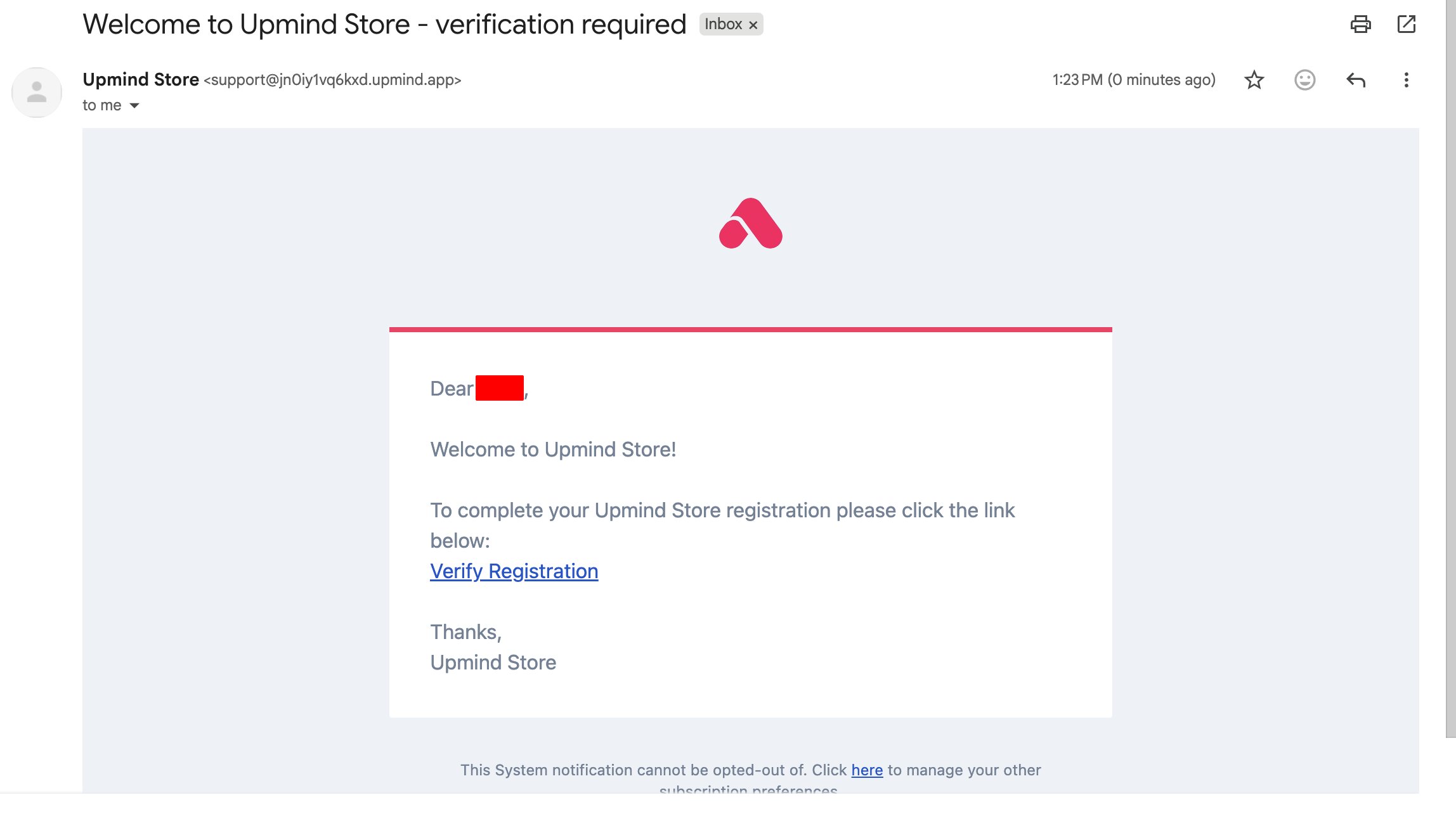
<Frame caption="Verification link">
  <img src="https://mintcdn.com/upmind/kAlrCUxI2nwYz4_i/images/fb/21e49138db295e04.png?fit=max&auto=format&n=kAlrCUxI2nwYz4_i&q=85&s=48674cd4781166e839889c92f2278f03" alt="Verification link" className="mx-auto" style={{ width:"97%" }} width="2296" height="1284" data-path="images/fb/21e49138db295e04.png" />
</Frame>

1. Enter login credentials.
2. Click the **Login** button.
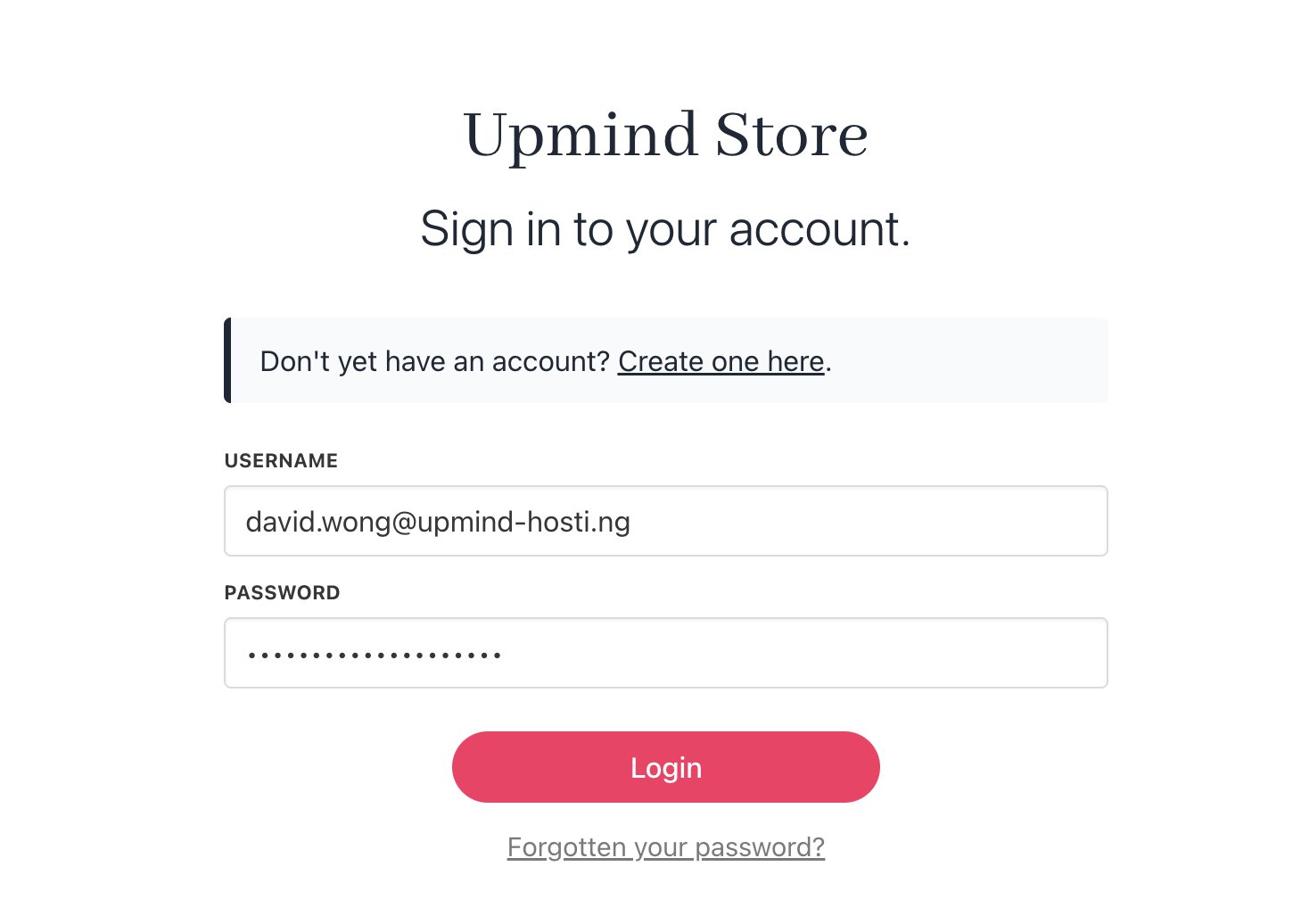
<Frame caption="Click Login">
  <img src="https://mintcdn.com/upmind/uxzVUXAKtJ2bRWCI/images/fb/691ade315ccdb3d6.png?fit=max&auto=format&n=uxzVUXAKtJ2bRWCI&q=85&s=12ff313bb7c57c2831efaf1bff93993a" alt="Click Login" className="mx-auto" style={{ width:"84%" }} width="1450" height="1036" data-path="images/fb/691ade315ccdb3d6.png" />
</Frame>

* The store opens, and the client is signed in.
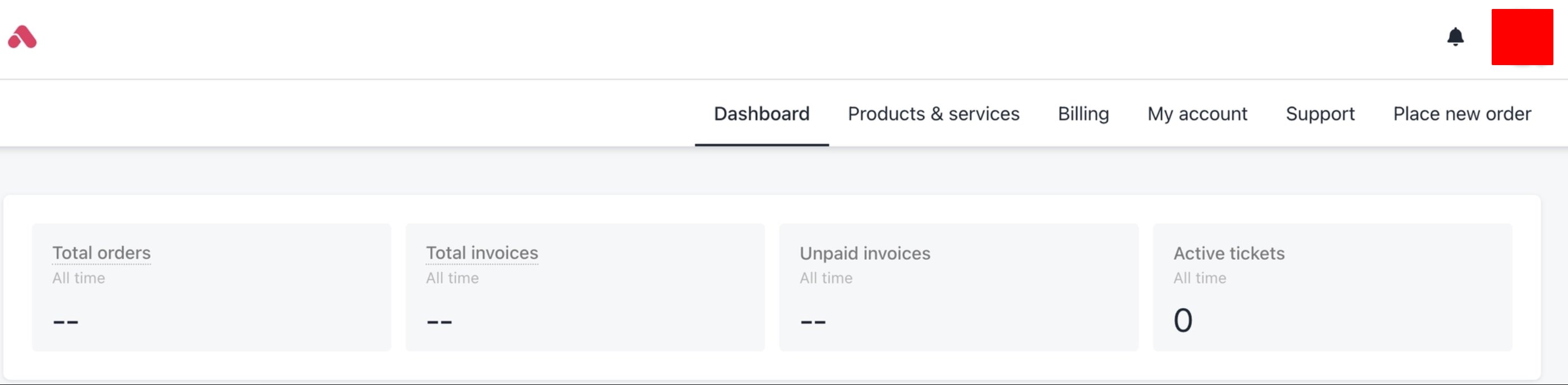
<Frame caption="Client view of store">
  <img src="https://mintcdn.com/upmind/ObllJJl59DabnmMn/images/fb/ceeb11593ea8bccd.png?fit=max&auto=format&n=ObllJJl59DabnmMn&q=85&s=66fec3116ebbea0d0f133c3967971793" alt="Client view of store" className="mx-auto" style={{ width:"98%" }} width="2794" height="686" data-path="images/fb/ceeb11593ea8bccd.png" />
</Frame>
