> ## Documentation Index
> Fetch the complete documentation index at: https://docs.upmind.com/llms.txt
> Use this file to discover all available pages before exploring further.
# How Do My Clients Place an Order
> As the customer completes the order processing, placing an order is easier with Upmind.
This article shows clients how to purchase one or more items. Clients learn how to add items to a basket, enter a payment method on the **Checkout** page, and locate an order summary.
## Opening the shop page
The first step is to open the Shop page. This is where clients can see your catalogue and read product information.
1. Log in to the store account.
2. Click the **Place new order** menu tab.
If you enable [Guest checkout](/setup-and-configuration/orders-services/how-to-enable-guest-checkout), clients do not need to log in to their store account to access the product catalogue.
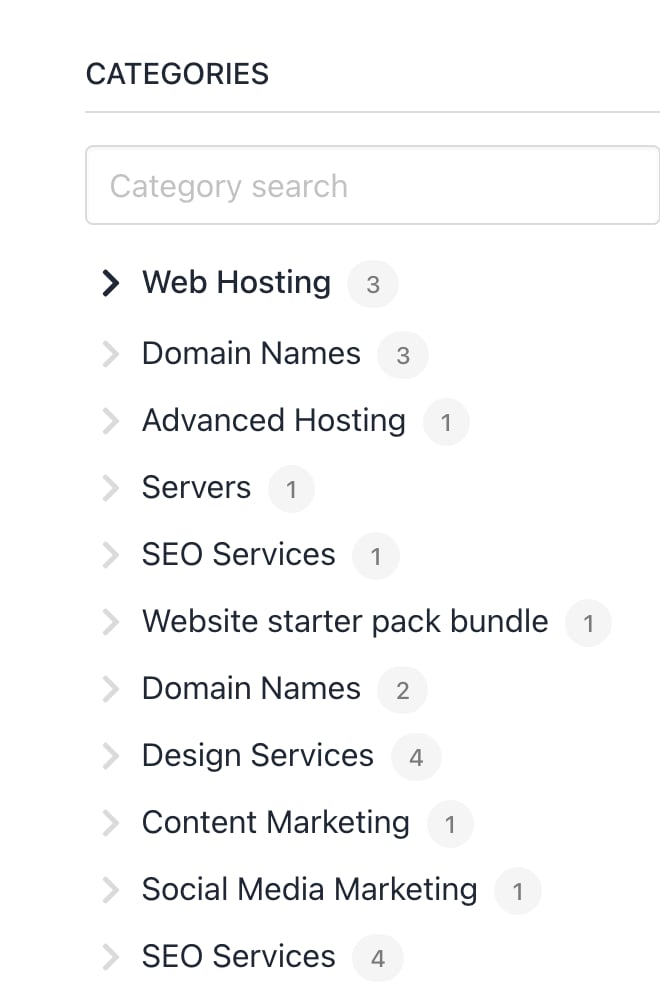
 3. On the next page, select a product category on the left menu (if available).
 ## Product information
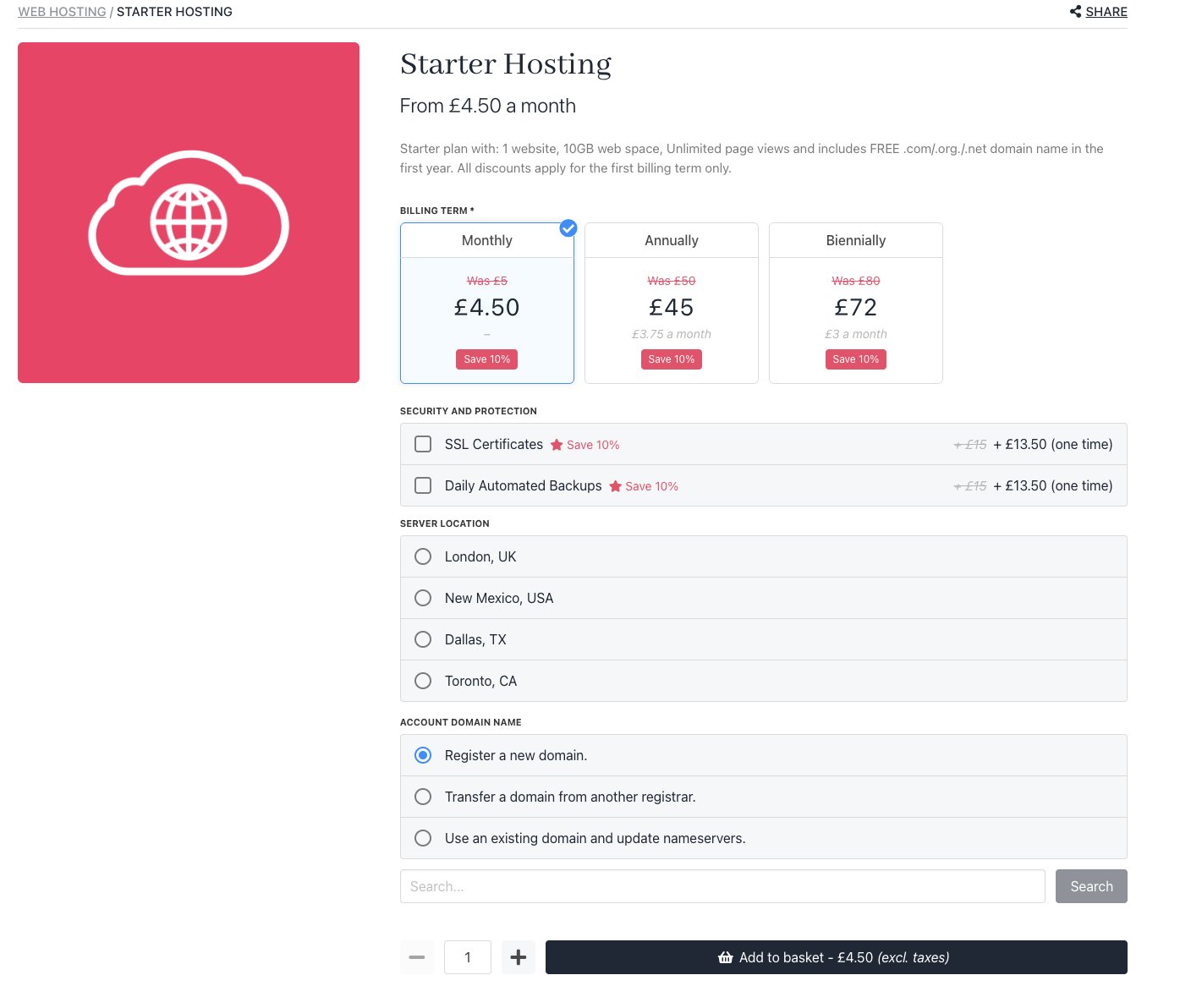
Clients can read the product description and decide whether or not to buy the product.
At this point, clients have two options:
1. Click the button to add the product to the basket.
2. Click the back button to exit the product information page and return to the catalogue.
Clients can click the image (if available) to open the product information page.
## Product information
Clients can read the product description and decide whether or not to buy the product.
At this point, clients have two options:
1. Click the button to add the product to the basket.
2. Click the back button to exit the product information page and return to the catalogue.
Clients can click the image (if available) to open the product information page.
 ## Understanding the basket page
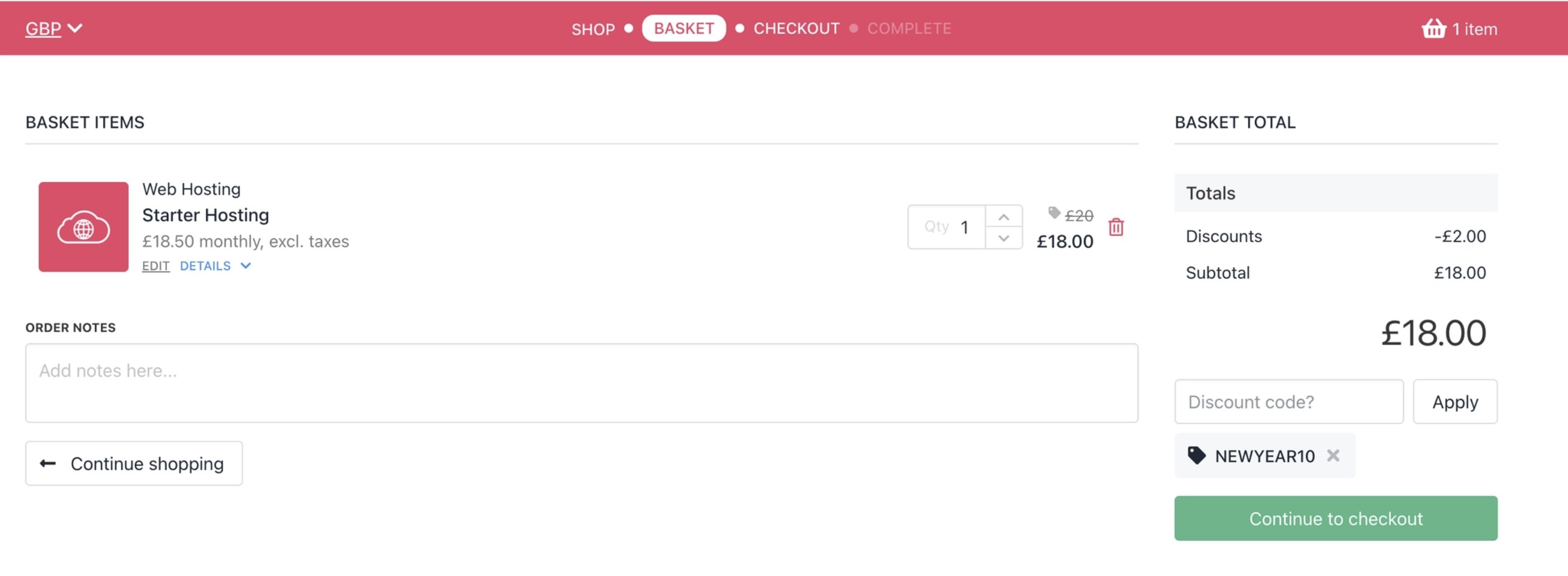
On the Basket page, clients have several options.
1. Click the **Trash** icon to remove the item.
2. Add information to the custom field (if created by the store owner).
3. Click the **Continue** shopping button.
4. Add a [discount code](/using-upmind/marketing-tools/how-to-create-a-promo-code-for-a-group-of), if available.
5. Click the **Continue** to checkout button to complete the transaction.
This is the client's last chance to confirm the items in the basket before paying.
## Understanding the basket page
On the Basket page, clients have several options.
1. Click the **Trash** icon to remove the item.
2. Add information to the custom field (if created by the store owner).
3. Click the **Continue** shopping button.
4. Add a [discount code](/using-upmind/marketing-tools/how-to-create-a-promo-code-for-a-group-of), if available.
5. Click the **Continue** to checkout button to complete the transaction.
This is the client's last chance to confirm the items in the basket before paying.
 ## Understanding the checkout page
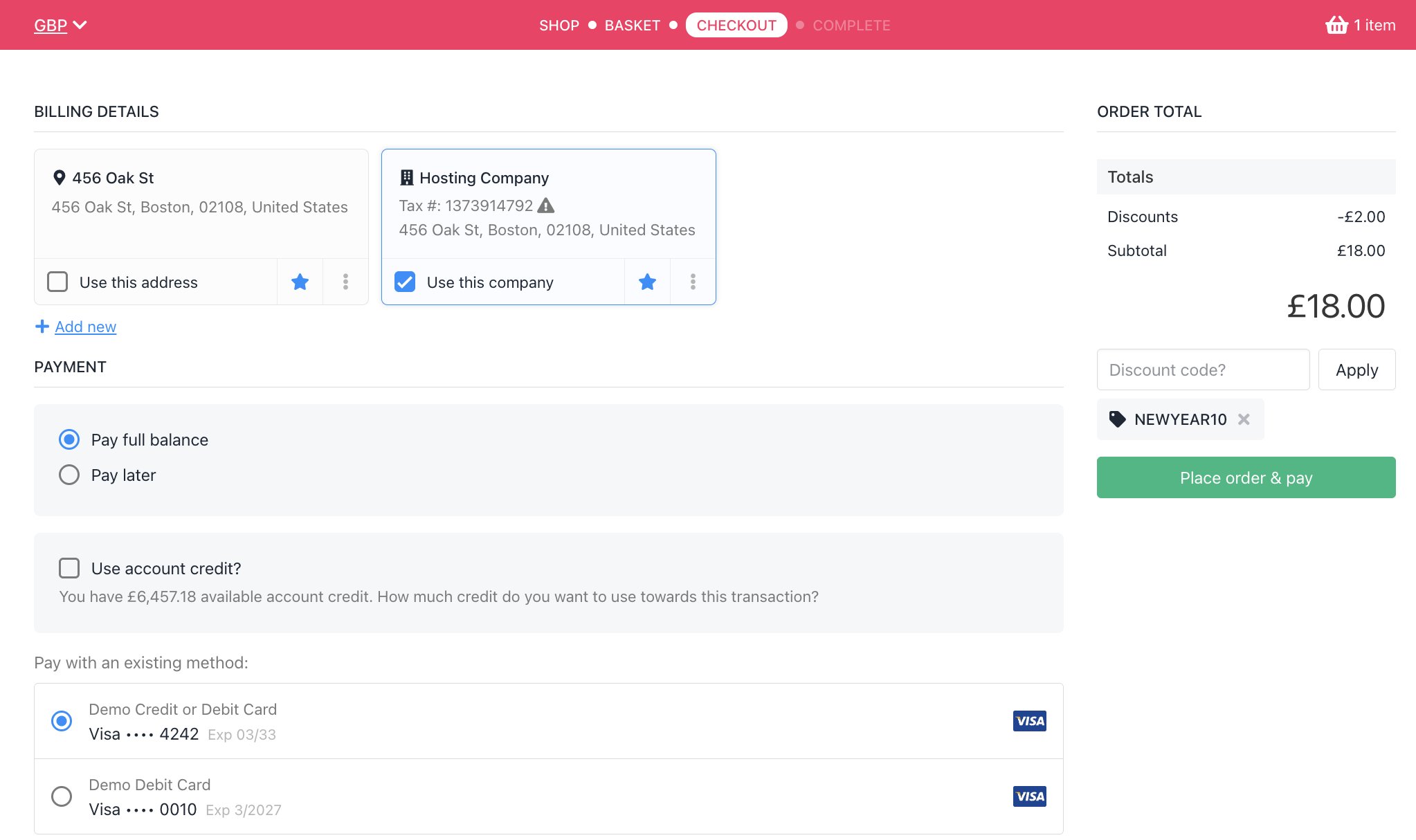
The client-side **Checkout** page design depends on how the store owner configures [store settings](/setup-and-configuration/branding/how-to-configure-business-settings). Generally, clients should complete four steps.
1. Confirm or edit the shopping address.
2. Add or confirm the [payment method](/client-self-service/client-area/how-do-my-clients-add-a-payment-method).
3. Add a discount code, if available.
4. Click **Place order & pay**.
## Understanding the checkout page
The client-side **Checkout** page design depends on how the store owner configures [store settings](/setup-and-configuration/branding/how-to-configure-business-settings). Generally, clients should complete four steps.
1. Confirm or edit the shopping address.
2. Add or confirm the [payment method](/client-self-service/client-area/how-do-my-clients-add-a-payment-method).
3. Add a discount code, if available.
4. Click **Place order & pay**.
 ## Reviewing the order
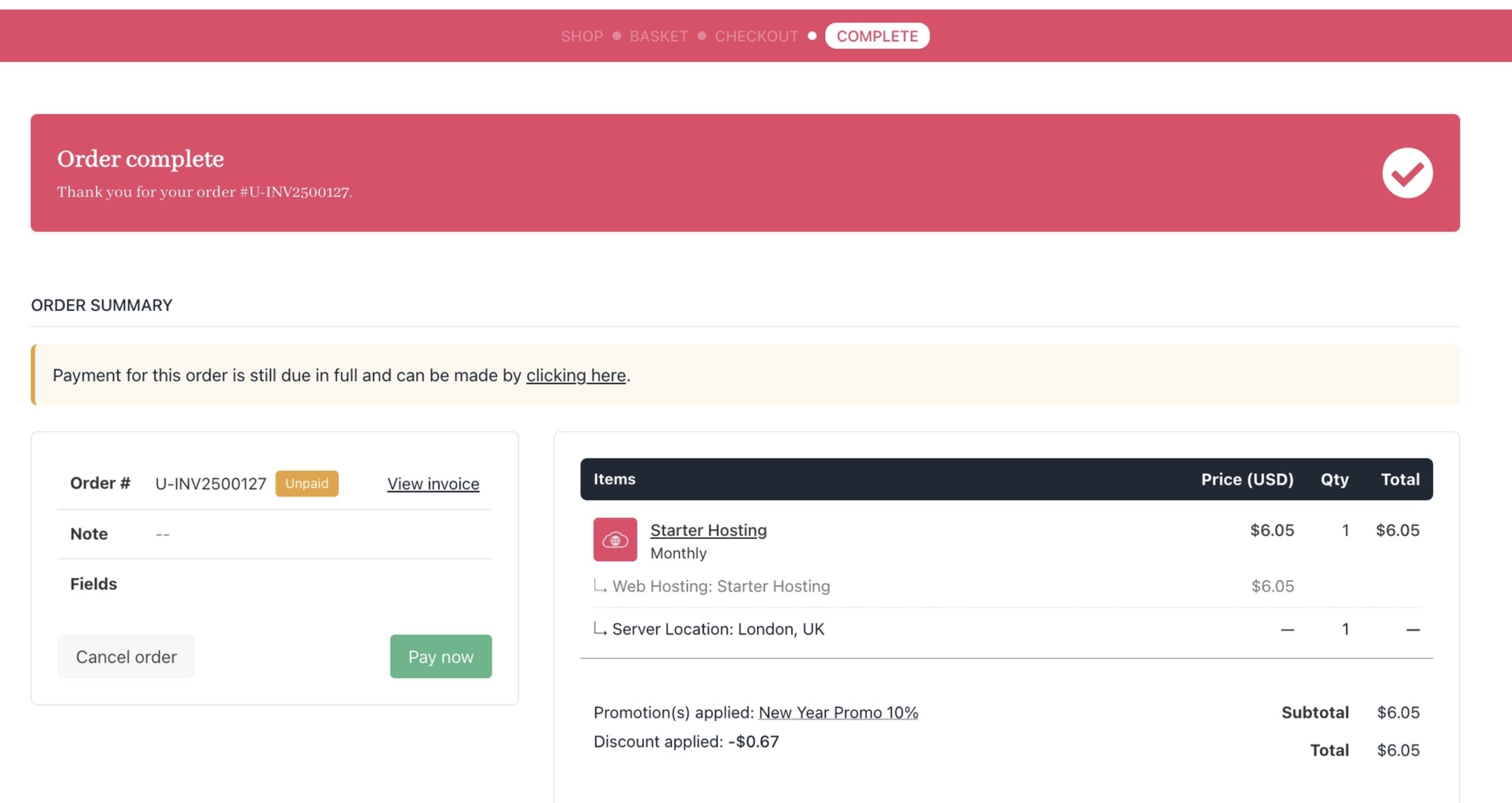
After the client pays, Upmind displays the Order summary page.
1. Clients can review the order.
2. View the invoice.
3. See the order number.
4. Cancel the order.
## Reviewing the order
After the client pays, Upmind displays the Order summary page.
1. Clients can review the order.
2. View the invoice.
3. See the order number.
4. Cancel the order.
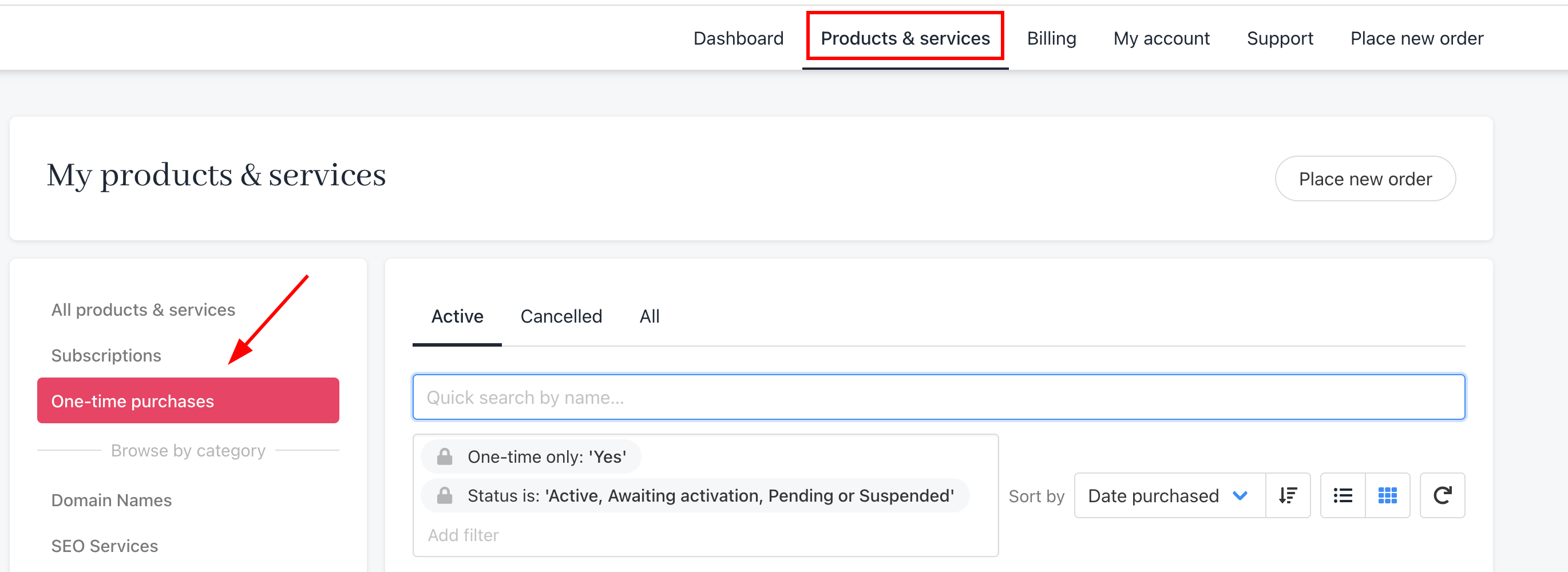
 Clients can also review orders on the **Products & Services** page.
1. Click the **Products & Services** menu tab.
2. Click **Subscriptions** or **One-time purchases** on the left menu.
Clients can also review orders on the **Products & Services** page.
1. Click the **Products & Services** menu tab.
2. Click **Subscriptions** or **One-time purchases** on the left menu.