> ## Documentation Index
> Fetch the complete documentation index at: https://docs.upmind.com/llms.txt
> Use this file to discover all available pages before exploring further.
# How Do My Clients Manage Tickets
> Customers can open new tickets and request support.
In this article, we show you how clients can read active tickets and post replies. We also show you how clients can open a new ticket.
## Opening my tickets page
1. Log in to the store account.
2. Click the **Support** menu tab.
 ## Viewing open tickets
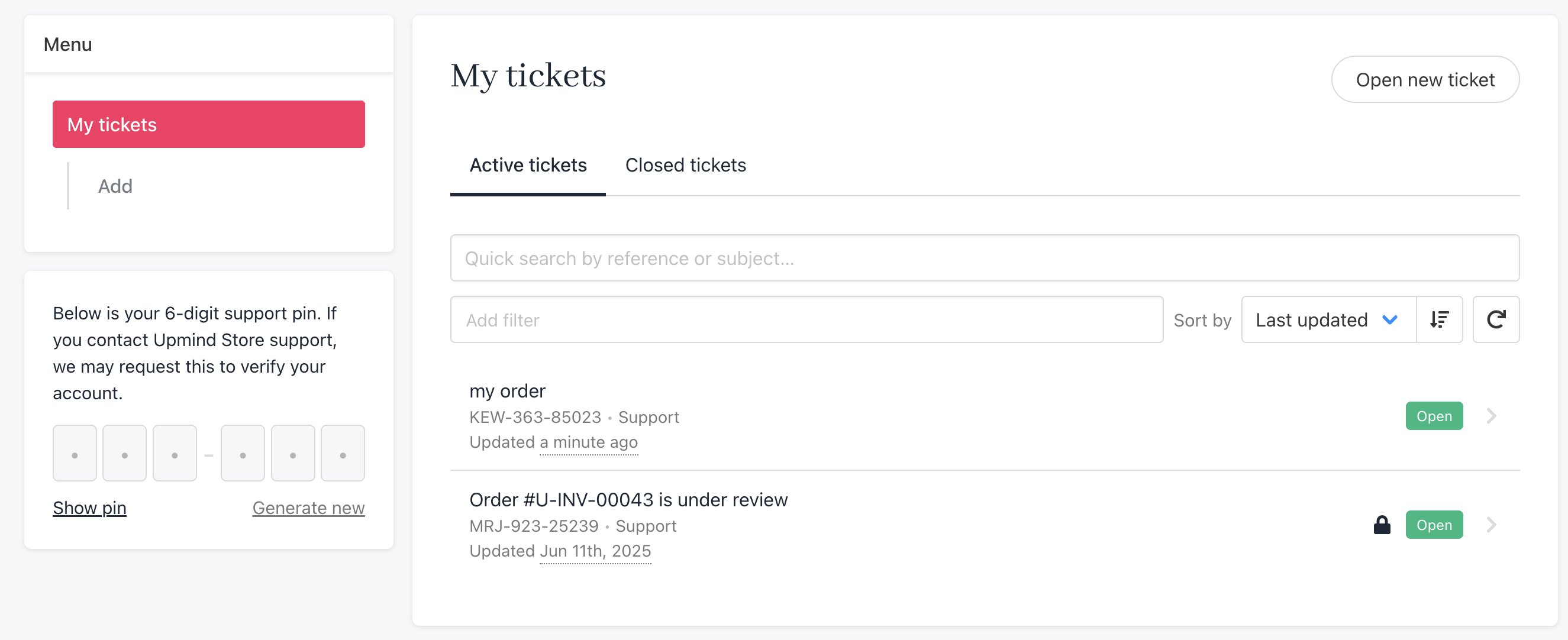
The **My tickets** page displays a list of open tickets and their status.
To view a ticket in detail:
1. Click a ticket name.
## Viewing open tickets
The **My tickets** page displays a list of open tickets and their status.
To view a ticket in detail:
1. Click a ticket name.
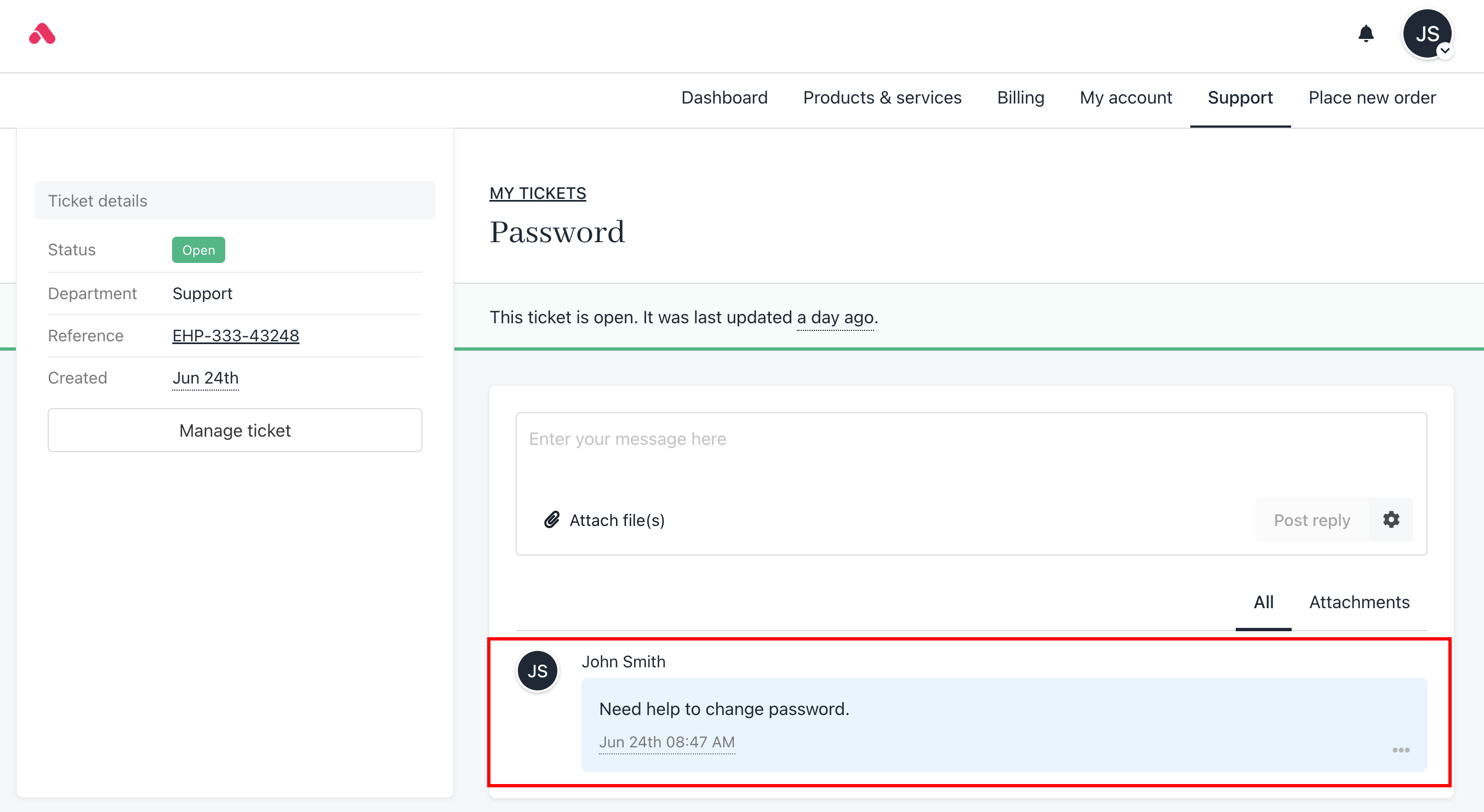
 2. Scroll down the page to view the messages (if any) in the thread.
 ## Sending a reply
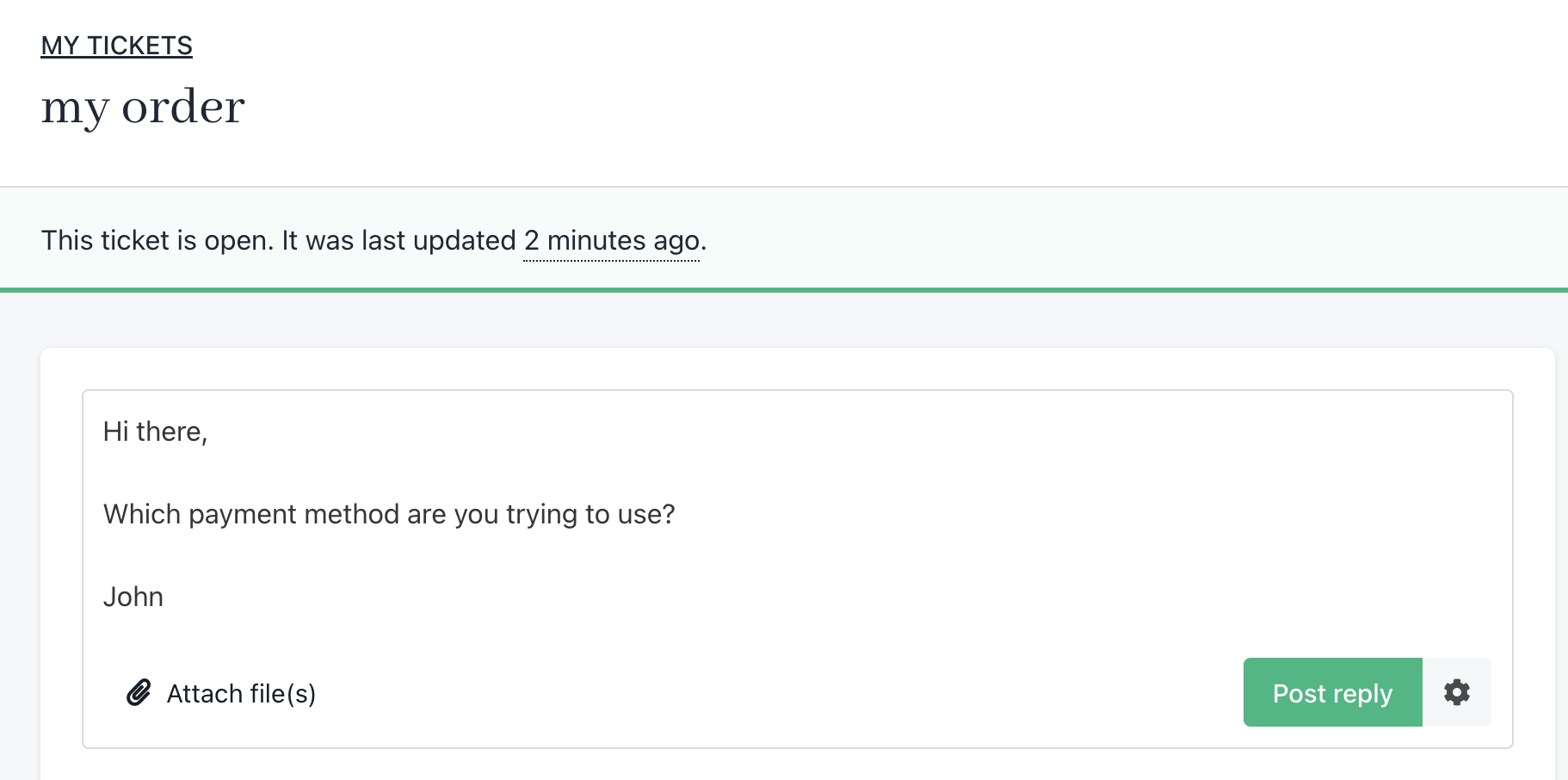
To reply to an active ticket:
1. Go to the top of the page.
2. Enter a message in the field.
3. Click **Post** reply.
## Sending a reply
To reply to an active ticket:
1. Go to the top of the page.
2. Enter a message in the field.
3. Click **Post** reply.
 ## Opening a ticket
There are two ways to open a new ticket.
### Opening a ticket from support
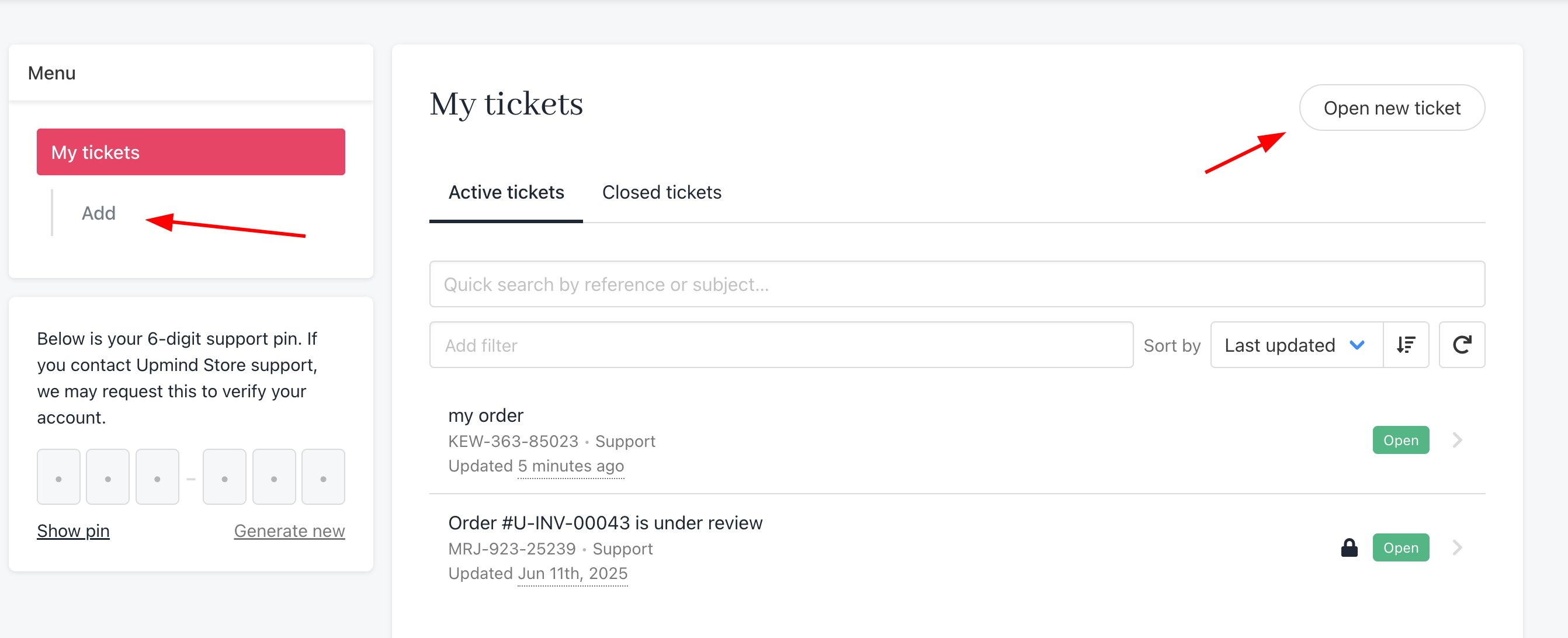
1. You can either click the **Add** button on the left menu or click **Open new ticket**.
Clients can also click the Open new ticket button.
## Opening a ticket
There are two ways to open a new ticket.
### Opening a ticket from support
1. You can either click the **Add** button on the left menu or click **Open new ticket**.
Clients can also click the Open new ticket button.
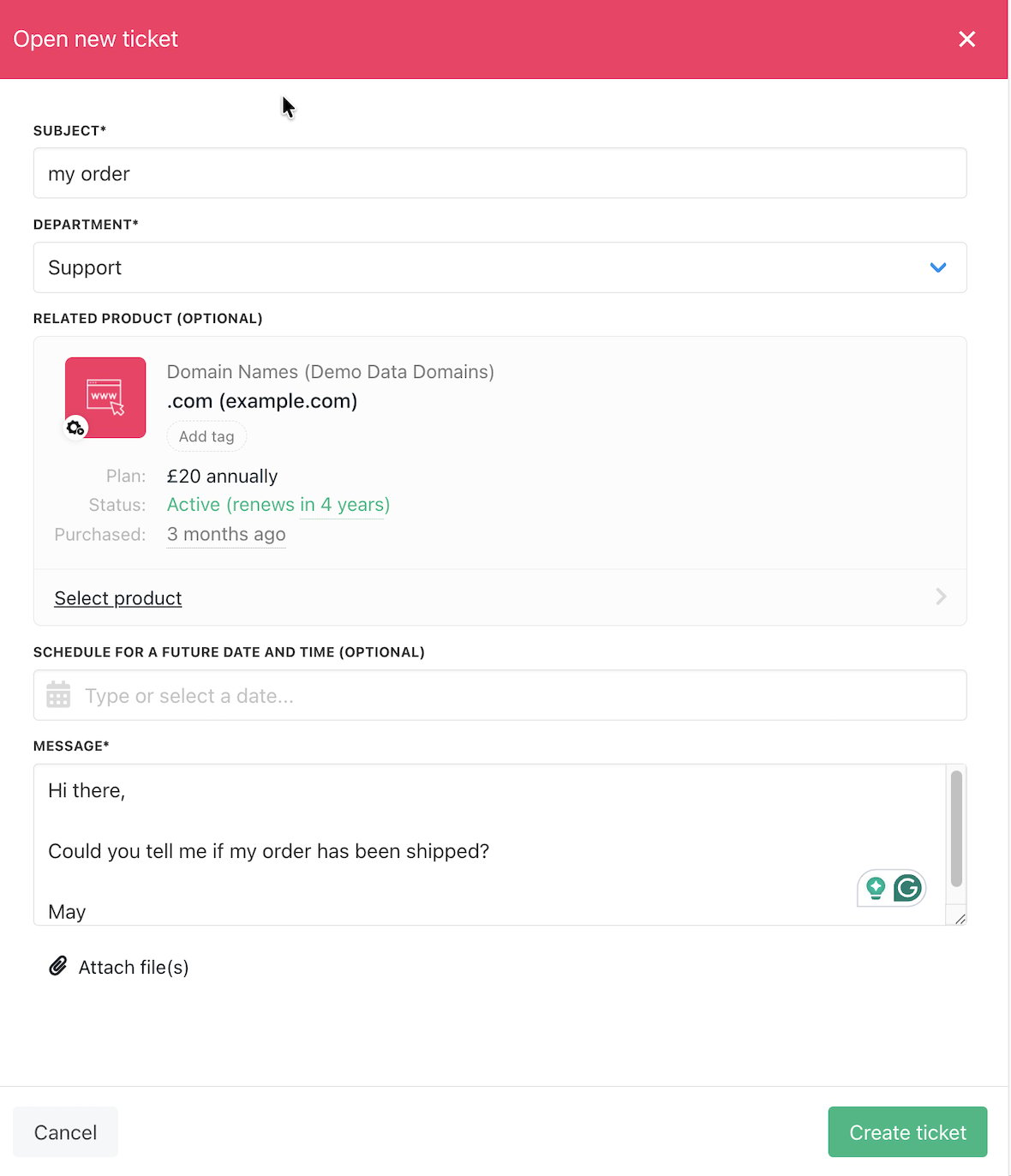
 2. Fill the fields.
3. Click the **Department** button and select a specific store department (optional)
4. Click the **Select product** button to reference a specific item. (optional)
5. Click **Create ticket**.
2. Fill the fields.
3. Click the **Department** button and select a specific store department (optional)
4. Click the **Select product** button to reference a specific item. (optional)
5. Click **Create ticket**.
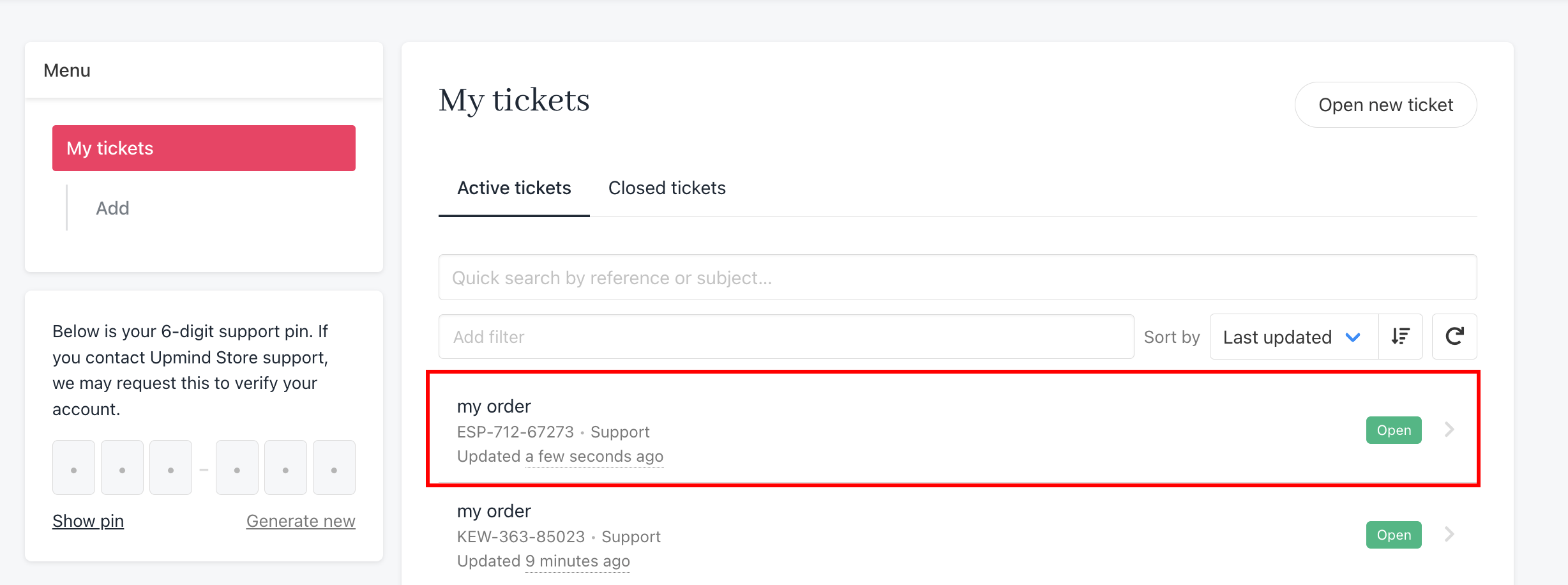
 * Upmind adds the open ticket to the **Active ticket** list.
 ### Opening a ticket from products & services
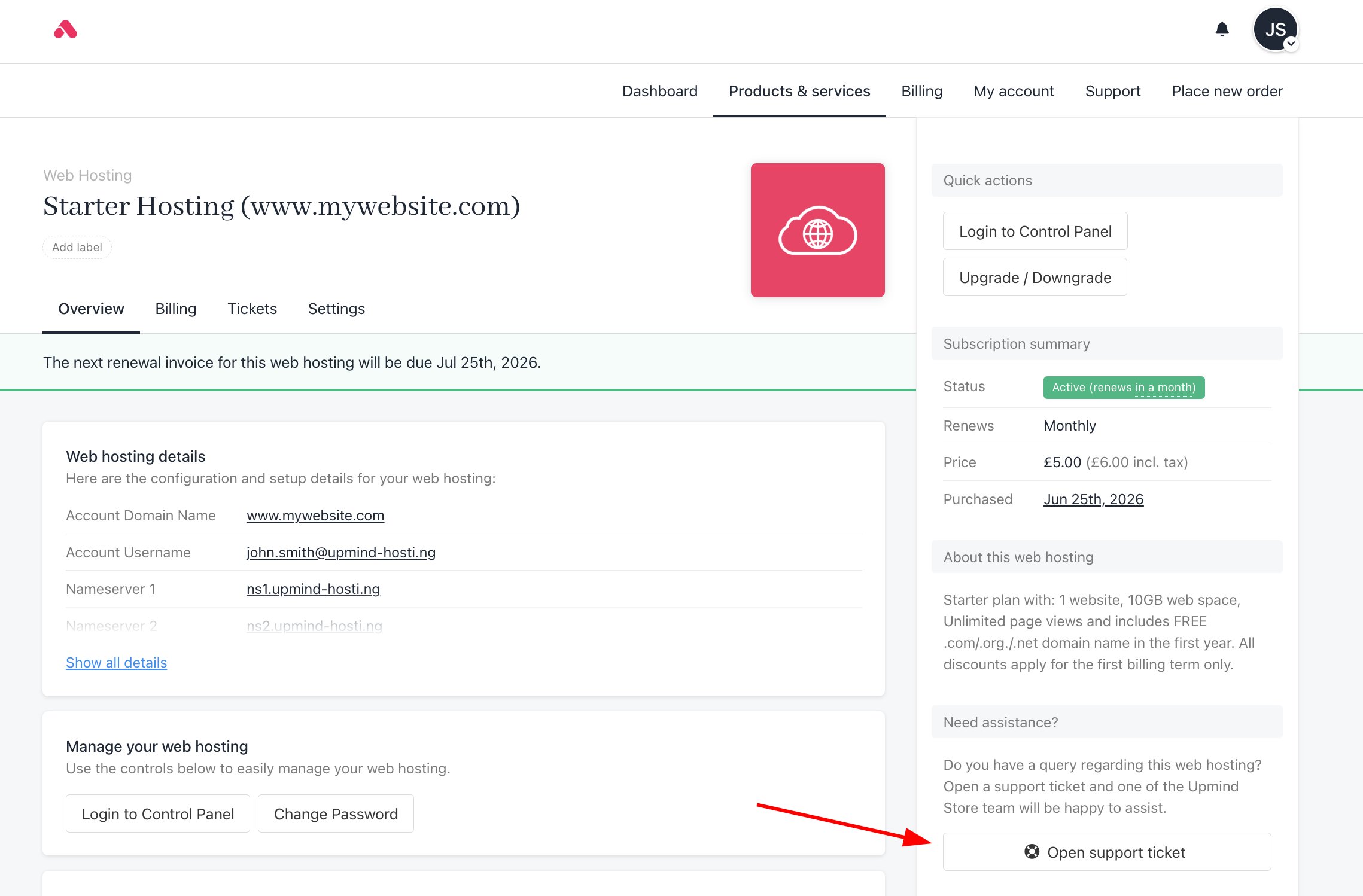
If a client has a question related to a specific product, they can open a support ticket directly from the product page:
1. Go to **Product & Services** and select the relevant product.
### Opening a ticket from products & services
If a client has a question related to a specific product, they can open a support ticket directly from the product page:
1. Go to **Product & Services** and select the relevant product.
 2. Click **Open Support Ticket** and fill in the necessary details.
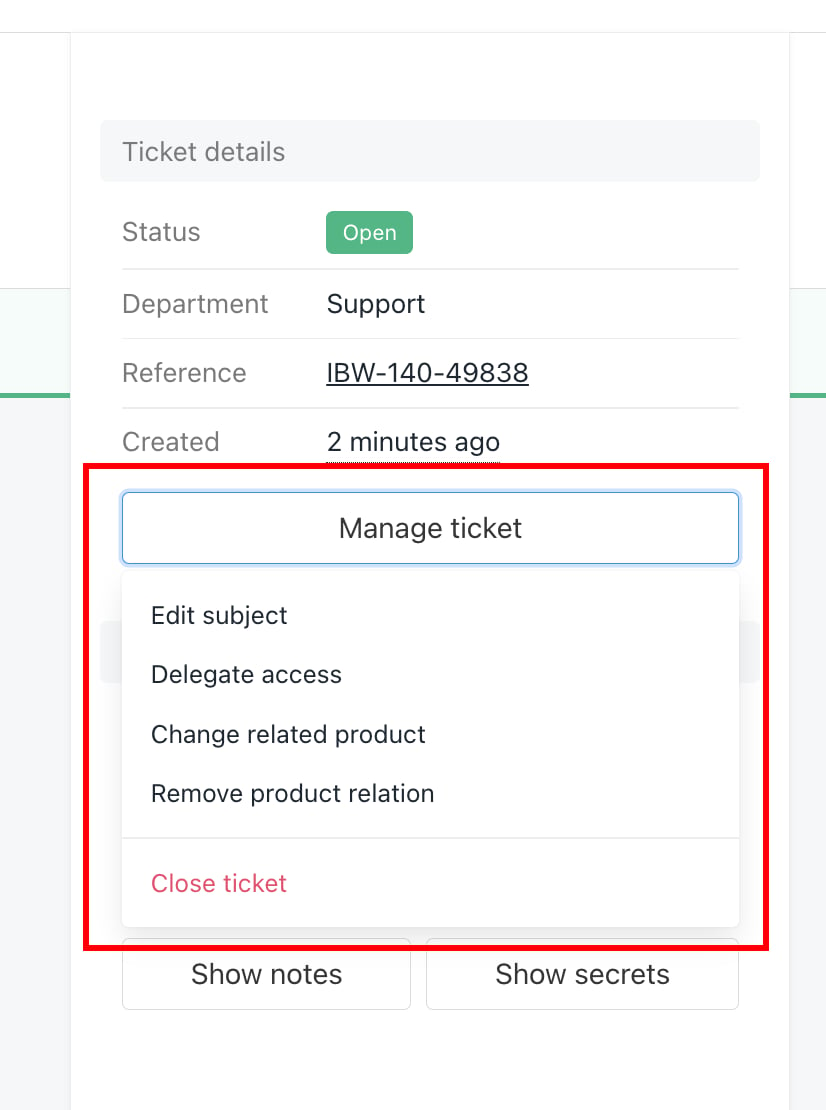
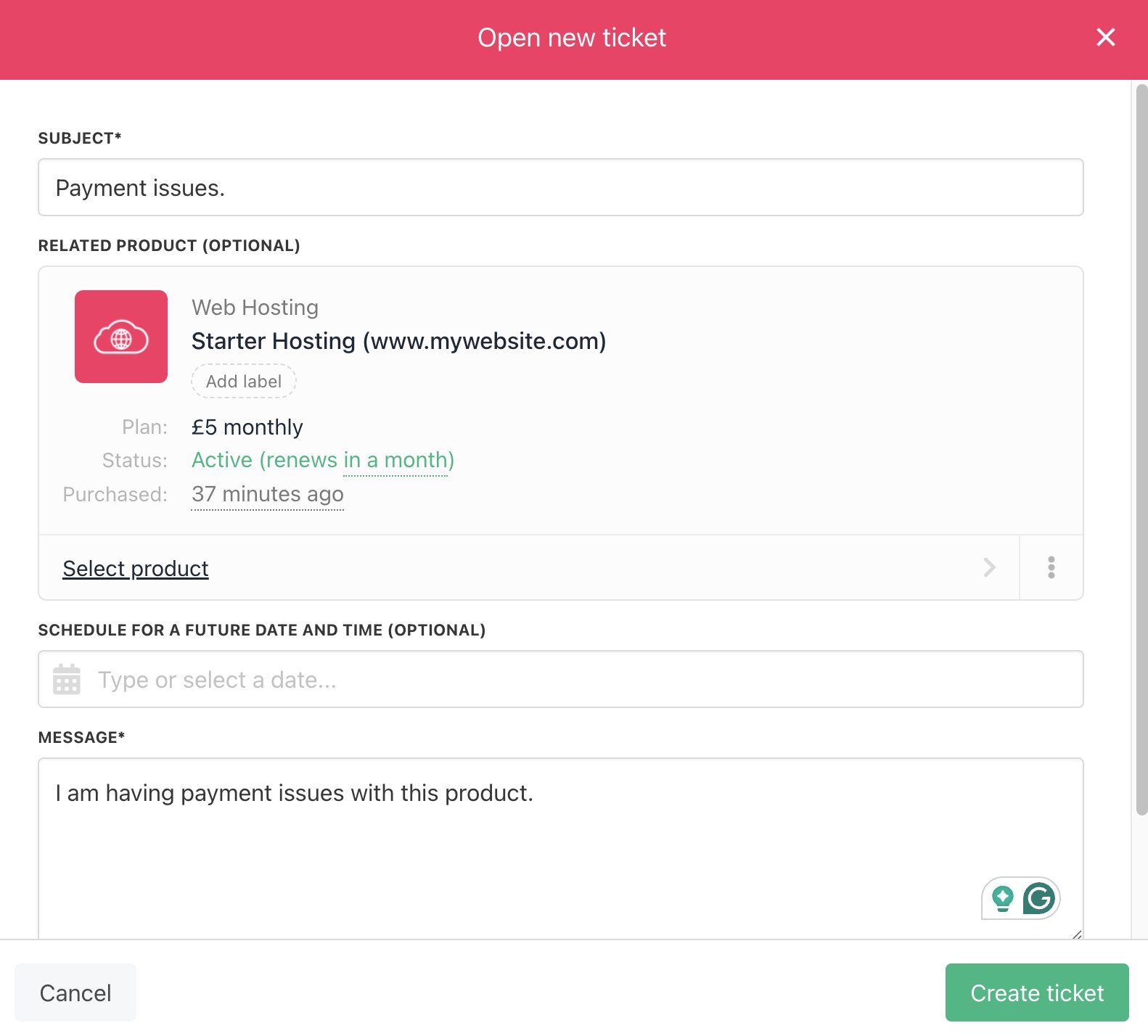 3. Once the ticket is created, clients will have access to the following options.
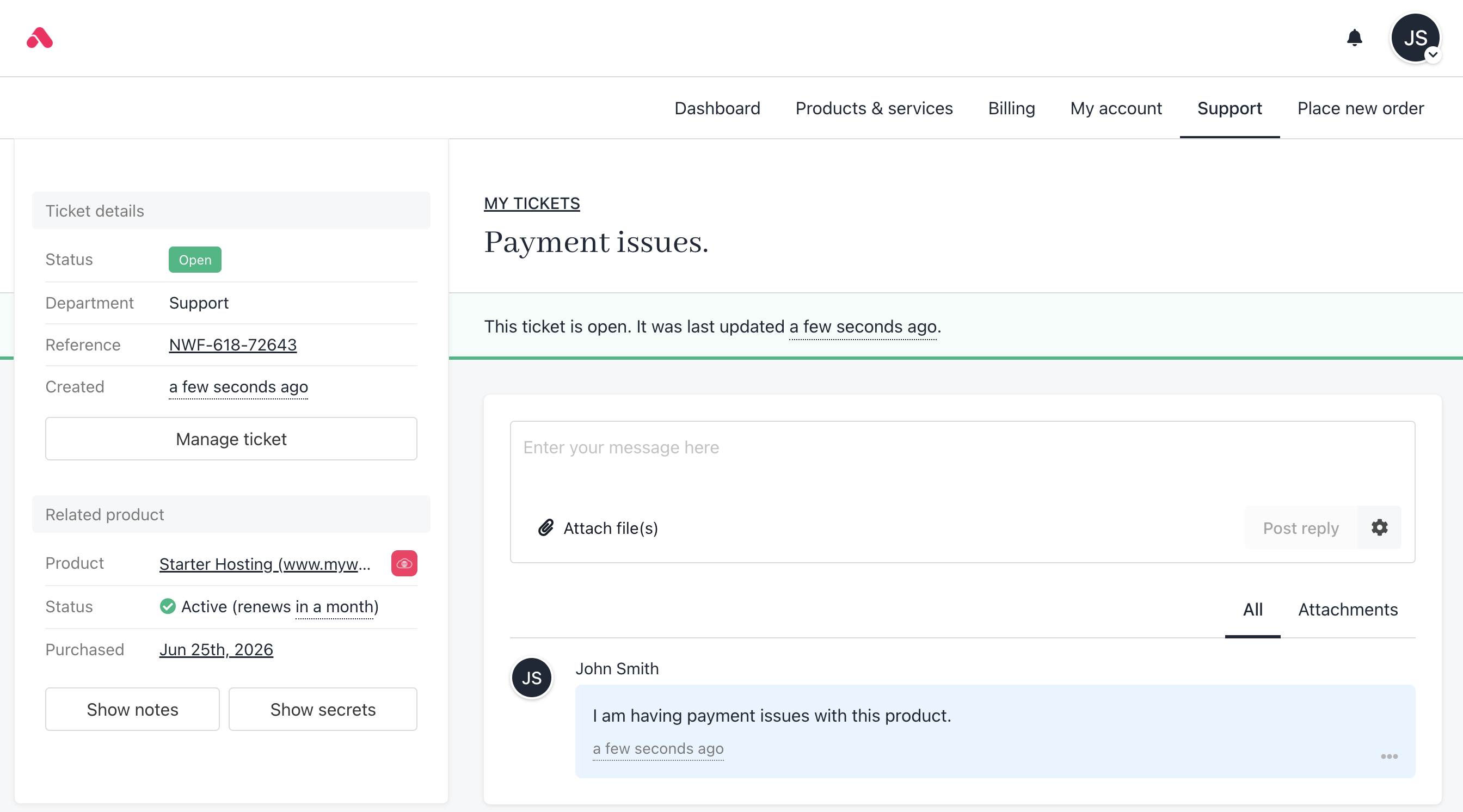 * Show Notes – View internal notes related to the ticket.
* Show Secrets – Access sensitive information tied to the request.
#### Manage Ticket includes the following actions:
* Edit Subject – Modify the ticket title.
* Delegate Access – Allow another user to handle the ticket (see our guide [here](https://upmind.featurebase.app/help/articles/1497771-how-to-add-delegates-in-your-admin-and-client-area)).
* Change Related Product – Link the ticket to a different product.
* Remove Product Relation – Unlink the ticket from the product.
* Close Ticket – Mark the ticket as resolved.
* Show Notes – View internal notes related to the ticket.
* Show Secrets – Access sensitive information tied to the request.
#### Manage Ticket includes the following actions:
* Edit Subject – Modify the ticket title.
* Delegate Access – Allow another user to handle the ticket (see our guide [here](https://upmind.featurebase.app/help/articles/1497771-how-to-add-delegates-in-your-admin-and-client-area)).
* Change Related Product – Link the ticket to a different product.
* Remove Product Relation – Unlink the ticket from the product.
* Close Ticket – Mark the ticket as resolved.