> ## Documentation Index
> Fetch the complete documentation index at: https://docs.upmind.com/llms.txt
> Use this file to discover all available pages before exploring further.
# How Do My Clients Create Contract Delegates
> As your customer can add third parties to a subscription, creating contract delegates helps you stay organised and free.
In a [previous guide](/using-upmind/service-desk/how-to-create-ticket-delegates), we showed you how **Admins**, store staff, and clients can add delegates to a ticket. This article describes another way to use the delegate tool. In addition to enhancing internal communication with your store **Admins** and **Staff**, the delegate tool gives clients the ability to bring third parties into their store account.
## Use case example
Here's a scenario to demonstrate the delegate tool in action.
* Company A is a web hosting reseller.
* Company B purchases a web hosting contract for two years.
* Company B adds Dev Team 1 as a delegate to redesign Company B's website.
The delegate tool gives Dev Team 1 access to the web hosting contract but not full access to Company B's entire online platform (as might be the case if Dev Team 1 were added as a user with extensive permissions).
## Access rights
Any client can invite one or more delegates to access the client-side of a contract with your Upmind store. These delegates can:
* view contract product registration, renewal dates, and status
* undertake provisioning actions (e.g., log in to a hosting account, update domain nameservers)
* create support tickets in relation to the contract product
* view tickets others have created in relation to the contract product, from the point at which they were added as a delegate
These delegates cannot:
* manage billing for a contract product
* cancel, upgrade, or modify the contract product
* add or remove delegates
Clients can invite delegates to access a subscription contract. This feature does not work with one-off purchases.
## Inviting a delegate
The first step is to open a contract and invite a delegate. The client should:
1. Log in to the store account.
2. Click the **Products & Services** menu tab.
 3. Click **Subscriptions** on the left side menu.
4. Under the **Subscriptions** heading, select a contract.
5. Click the **Settings** menu tab.
3. Click **Subscriptions** on the left side menu.
4. Under the **Subscriptions** heading, select a contract.
5. Click the **Settings** menu tab.
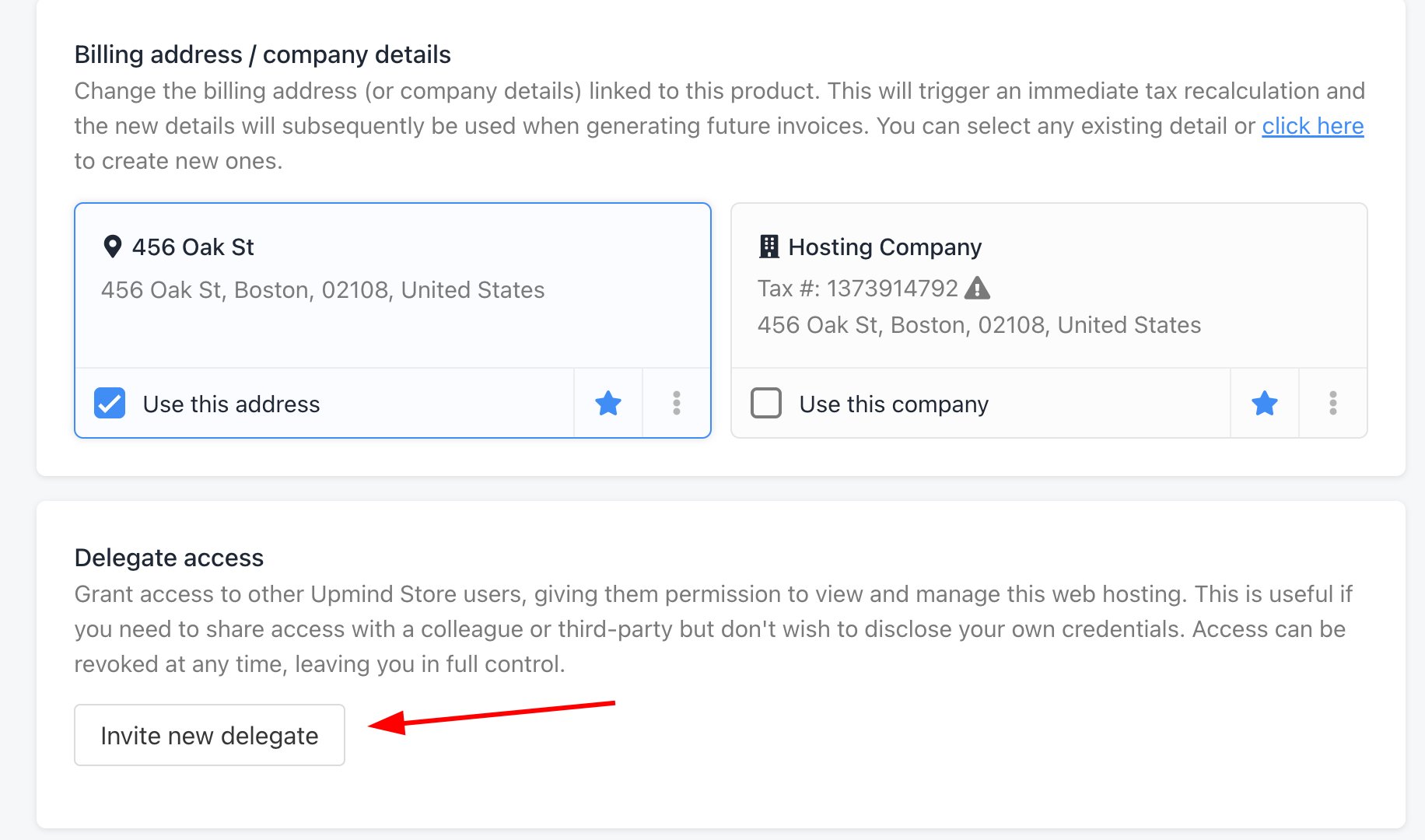
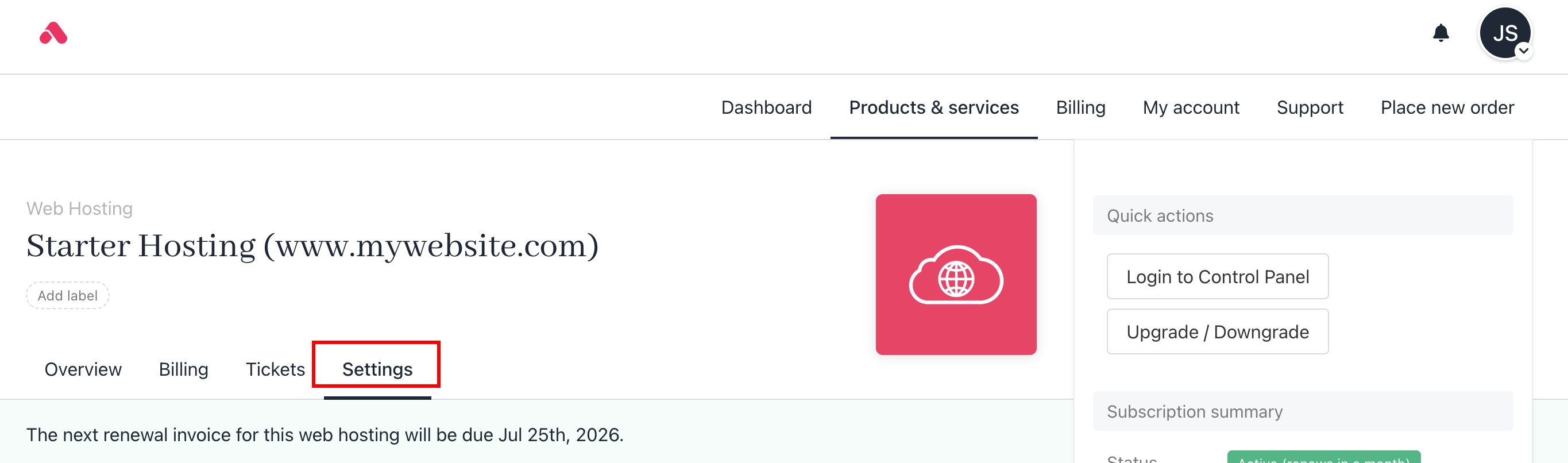 6. Click the **Invite delegate** button.
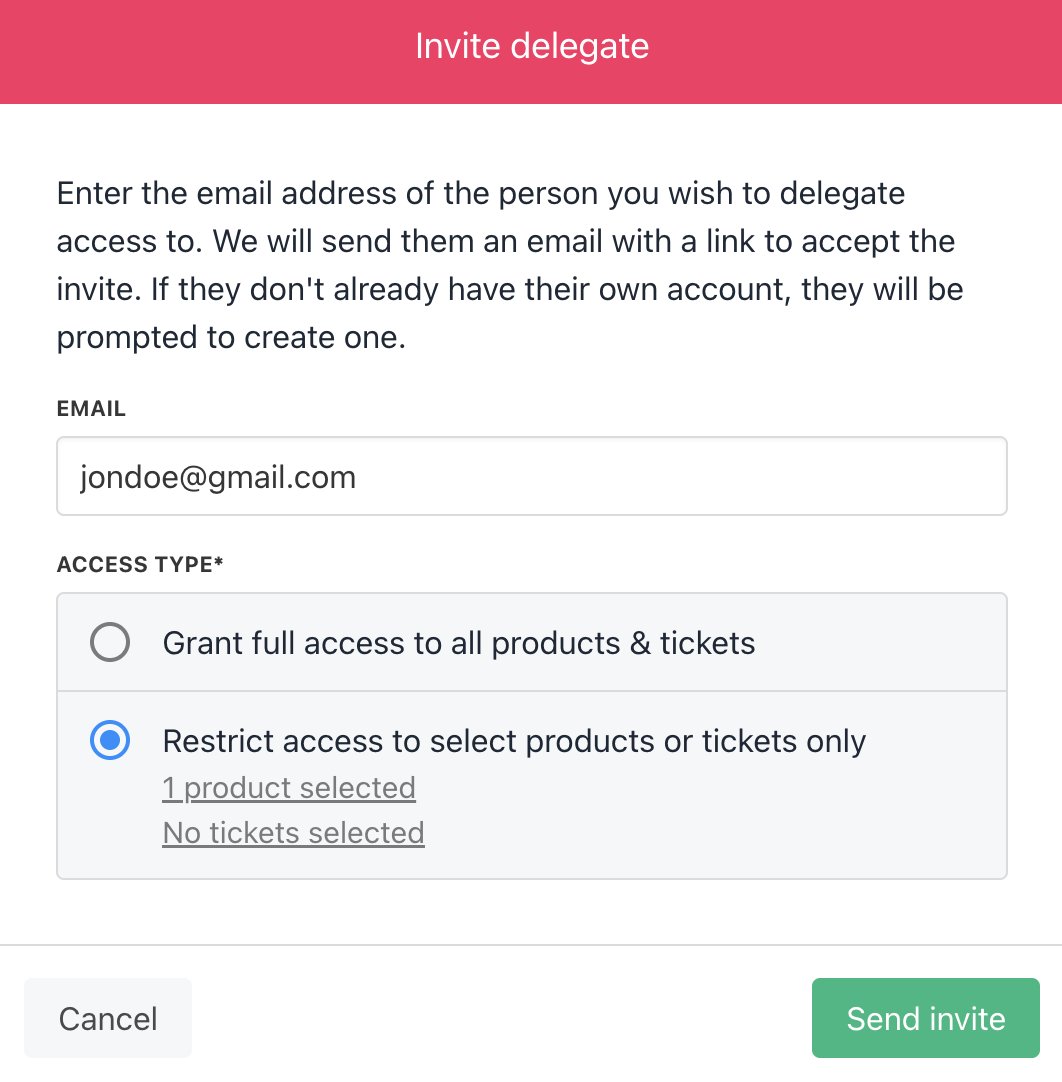
 7. Enter the delegate's email address.
8. Click **Send invite**.
To receive an invite, the delegate must have a store account.
7. Enter the delegate's email address.
8. Click **Send invite**.
To receive an invite, the delegate must have a store account.
 ## Delegate view
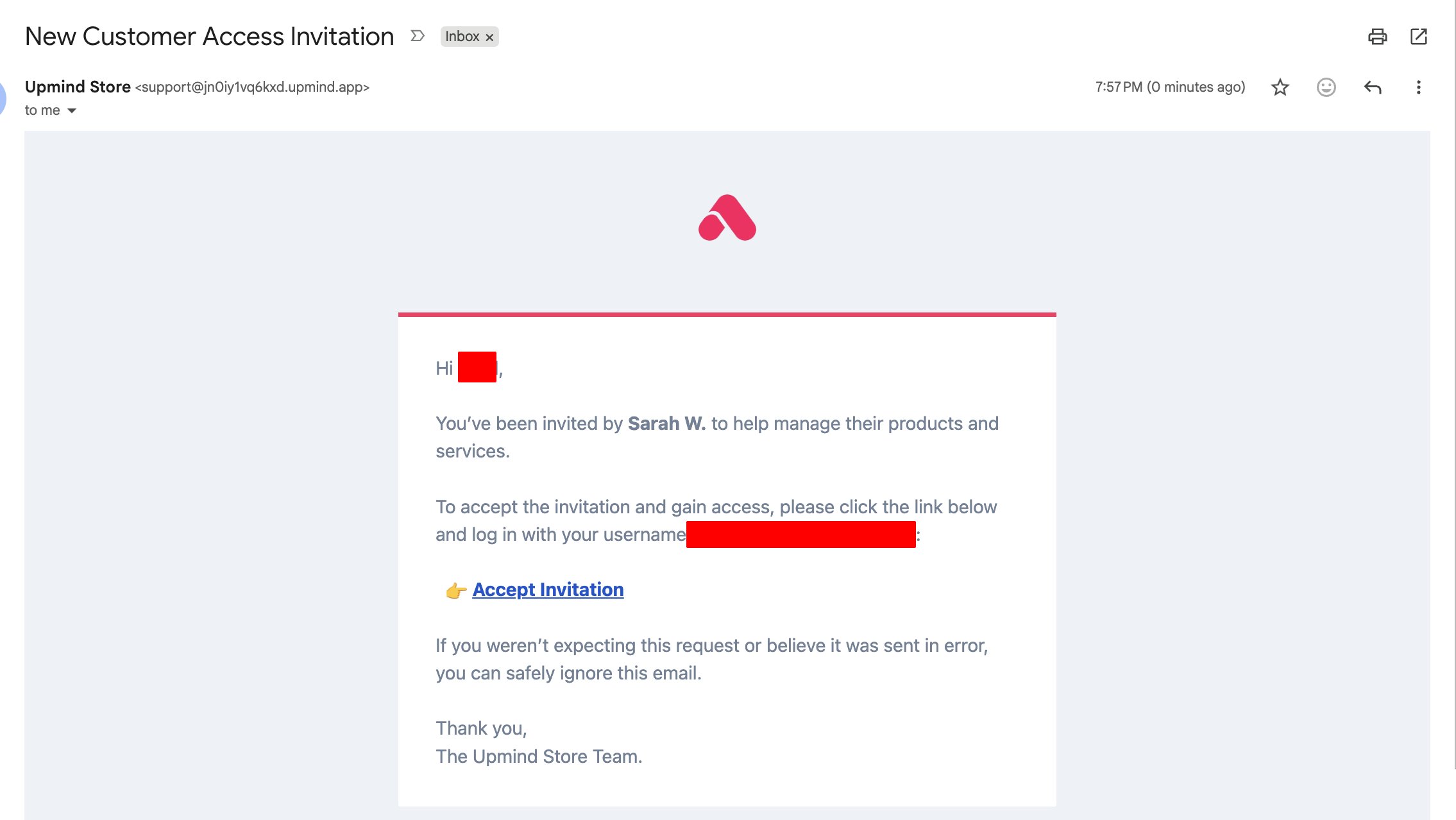
The delegate receives an email message with a link to accept the invitation.
## Delegate view
The delegate receives an email message with a link to accept the invitation.
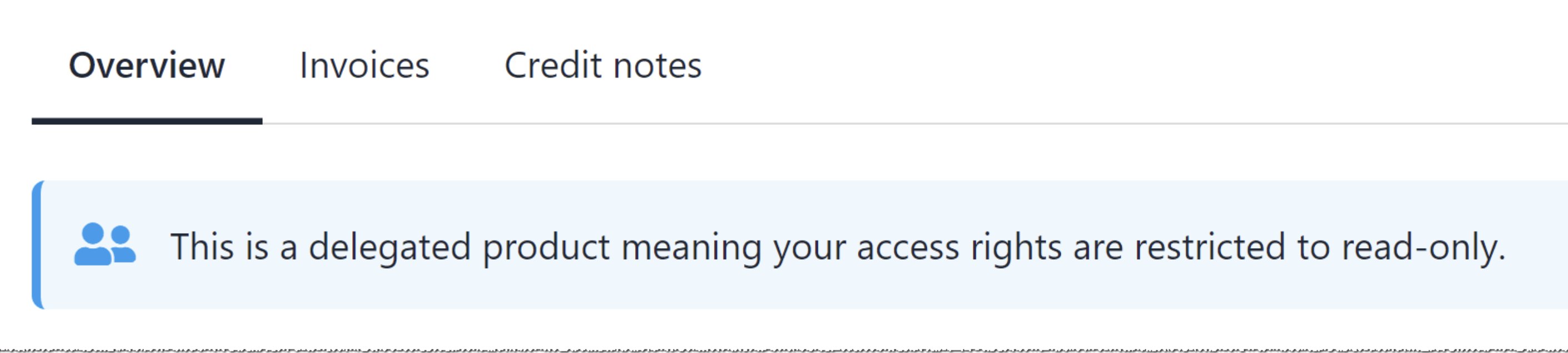
 After clicking the accept link, Upmind displays the delegate account under the **Products & Services** menu tab.
 ## Cancelling delegate access
The client can cancel delegate access to the contract at any time.
1. Click the **Products & Services** menu tab.
2. Click the contract.
3. Click the **Delegates** menu tab.
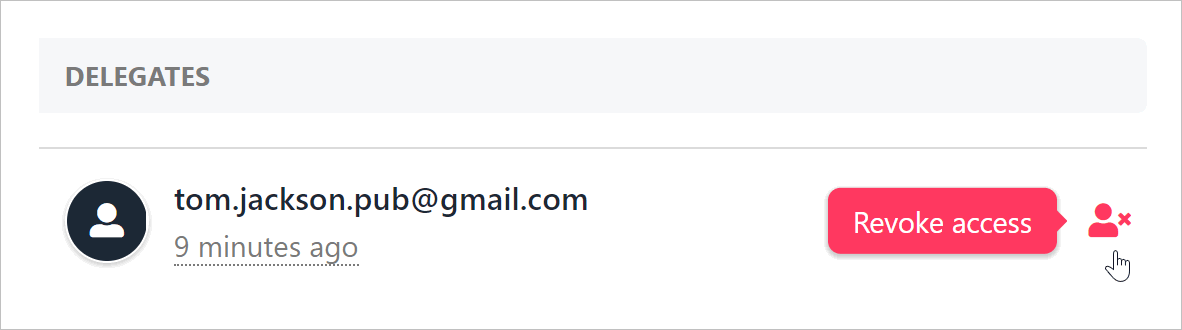
4. Hover the person icon next to Accepted.
5. Click **Revoke access**. Upmind removes the delegate from the contract.
## Cancelling delegate access
The client can cancel delegate access to the contract at any time.
1. Click the **Products & Services** menu tab.
2. Click the contract.
3. Click the **Delegates** menu tab.
4. Hover the person icon next to Accepted.
5. Click **Revoke access**. Upmind removes the delegate from the contract.