> ## Documentation Index
> Fetch the complete documentation index at: https://docs.upmind.com/llms.txt
> Use this file to discover all available pages before exploring further.
# How Do My Clients Add a Payment Method
> As your customers are choosing the payment method, you can add any payment gateway to it.
This article shows you how clients can add a payment method to their accounts. This includes methods for one-time purchases and recurring payments. You also learn how clients can remove a payment source.
## Adding a payment method
There are two ways to add a payment method:
* From the account dashboard
* At the checkout
## Dashboard method
1. Log in to the store account.
2. Click the **Billing** menu tab.
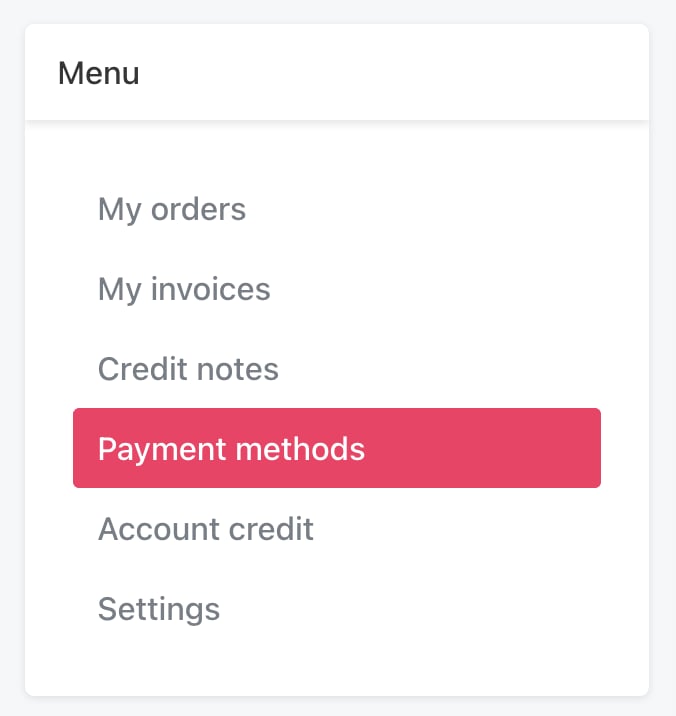
 3. On the left menu, click **Payment methods**.
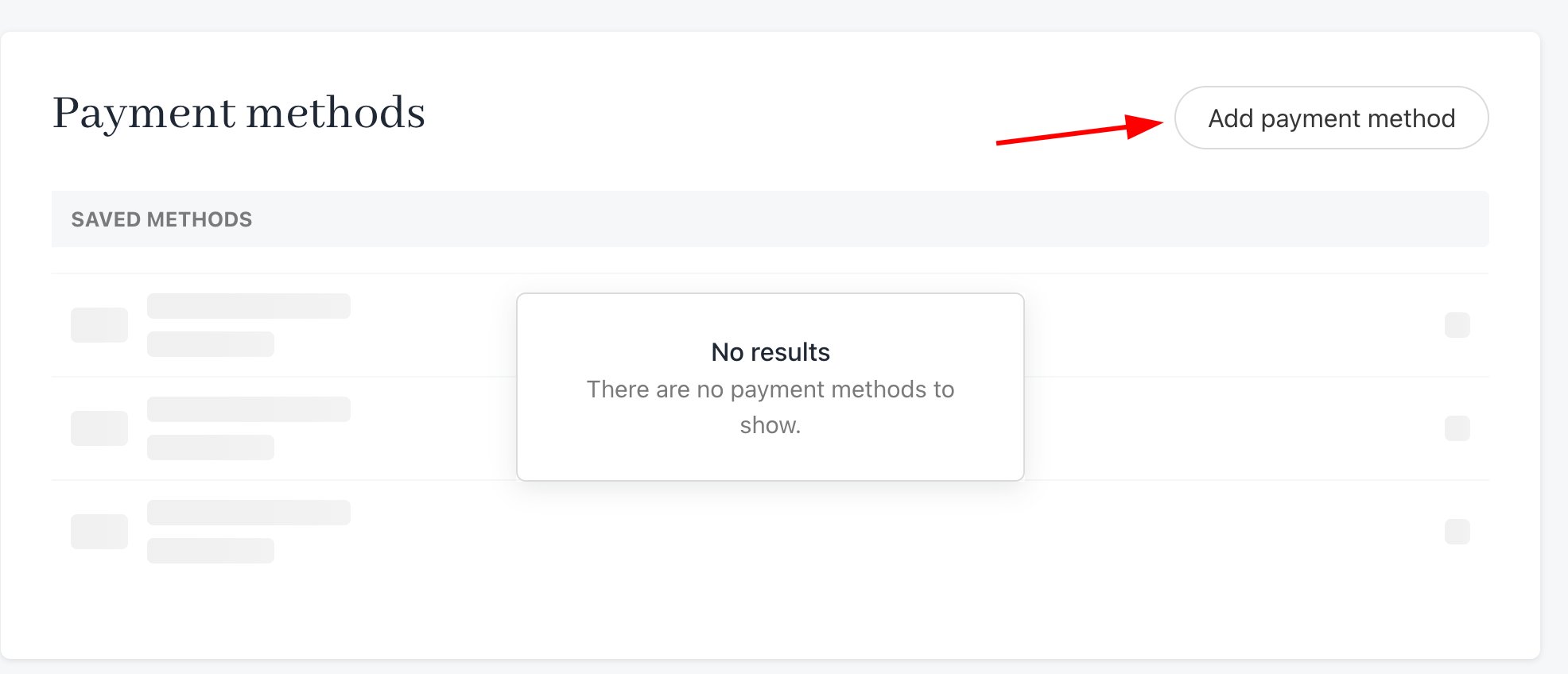
 4. Click the **Add payment method** button.
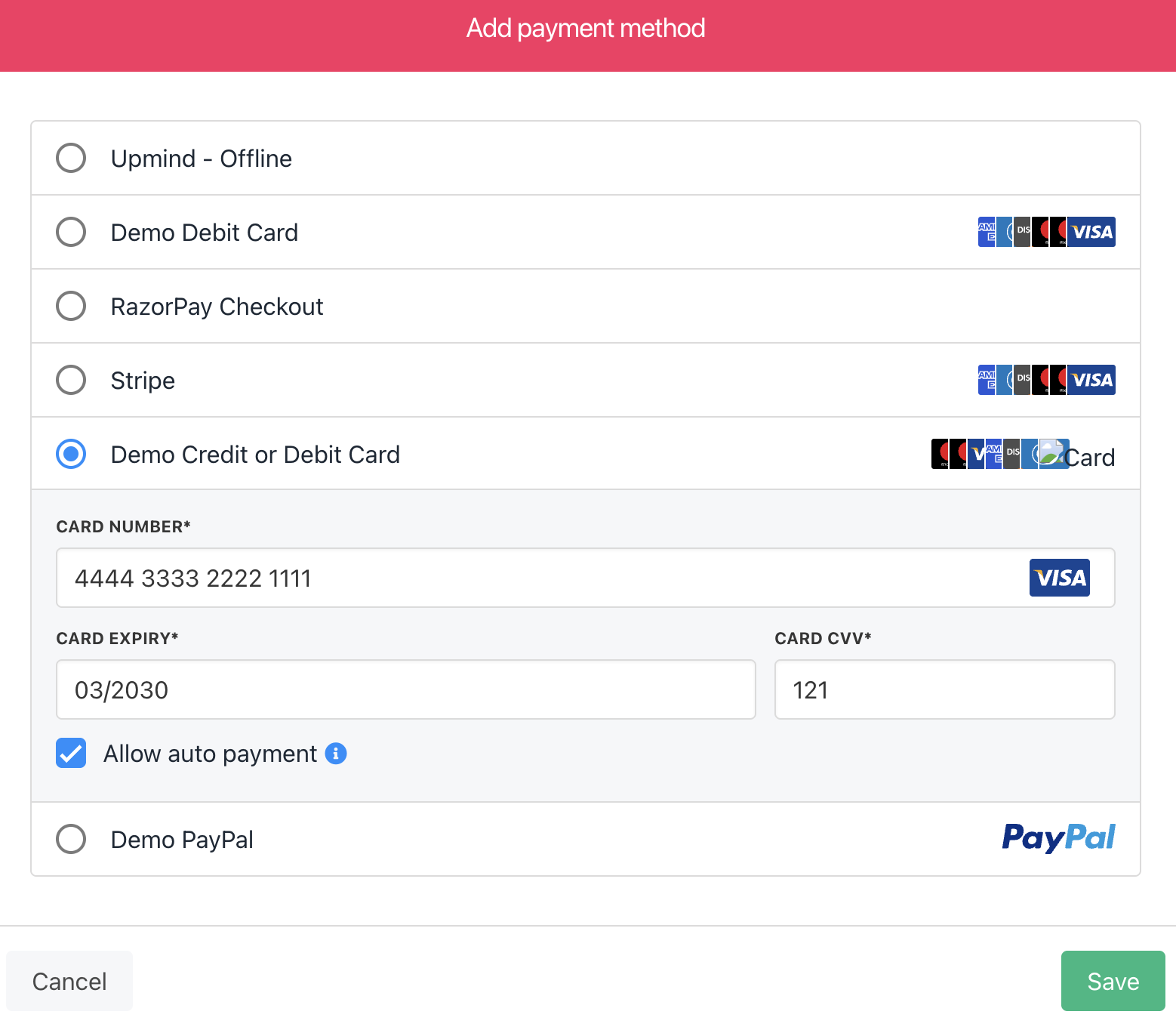
 5. Fill the fields and then click **Save**.
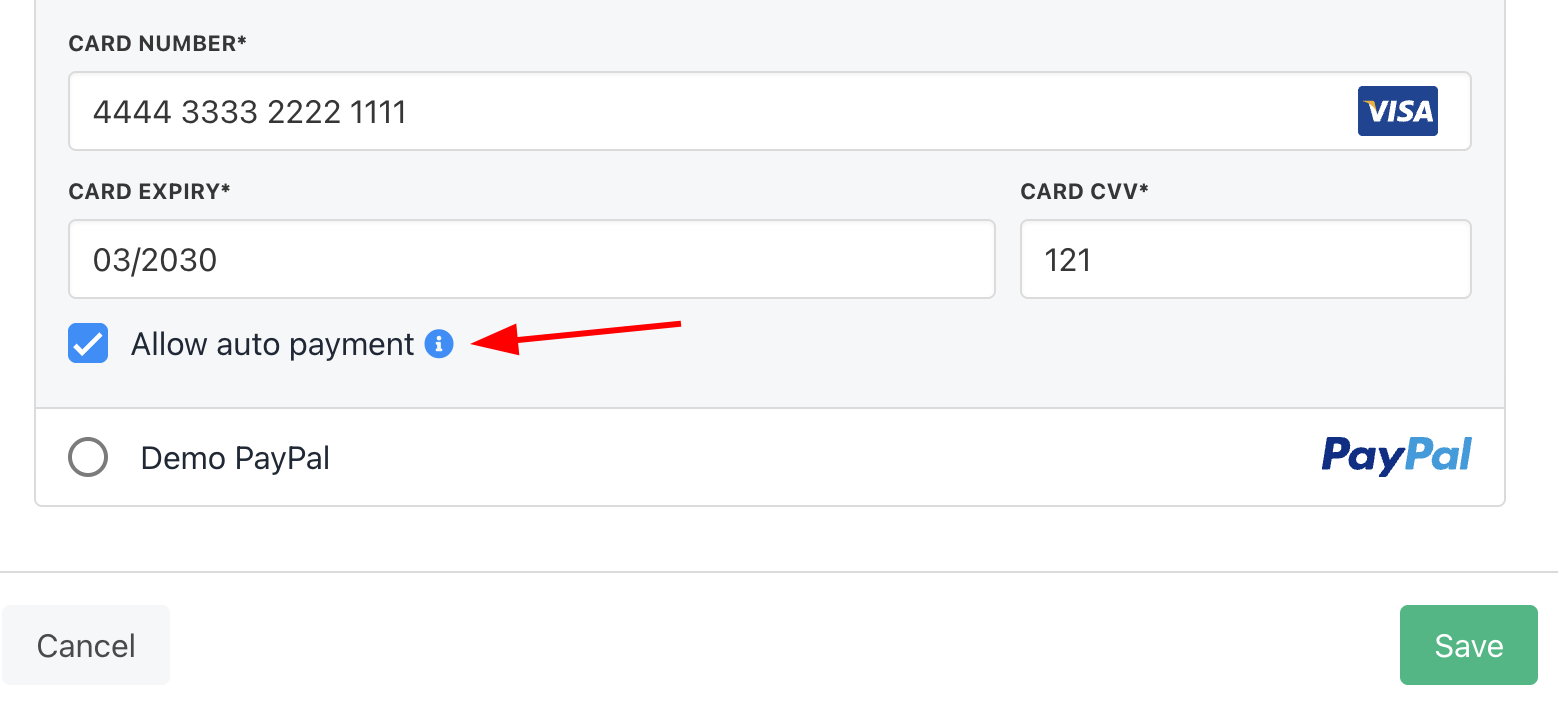
 ## Allowing recurring payments
Clients can control how this payment method manages auto-renewals (e.g., recurring subscription payments).
1. Check the box to automatically allow recurring payments on this payment method.
2. Uncheck the box to prevent auto-renewals on this payment method.
## Allowing recurring payments
Clients can control how this payment method manages auto-renewals (e.g., recurring subscription payments).
1. Check the box to automatically allow recurring payments on this payment method.
2. Uncheck the box to prevent auto-renewals on this payment method.
 ## Checkout method
Your clients can add a new payment method at the checkout.
1. Fill the fields.
2. Click the **Place order & pay** button.
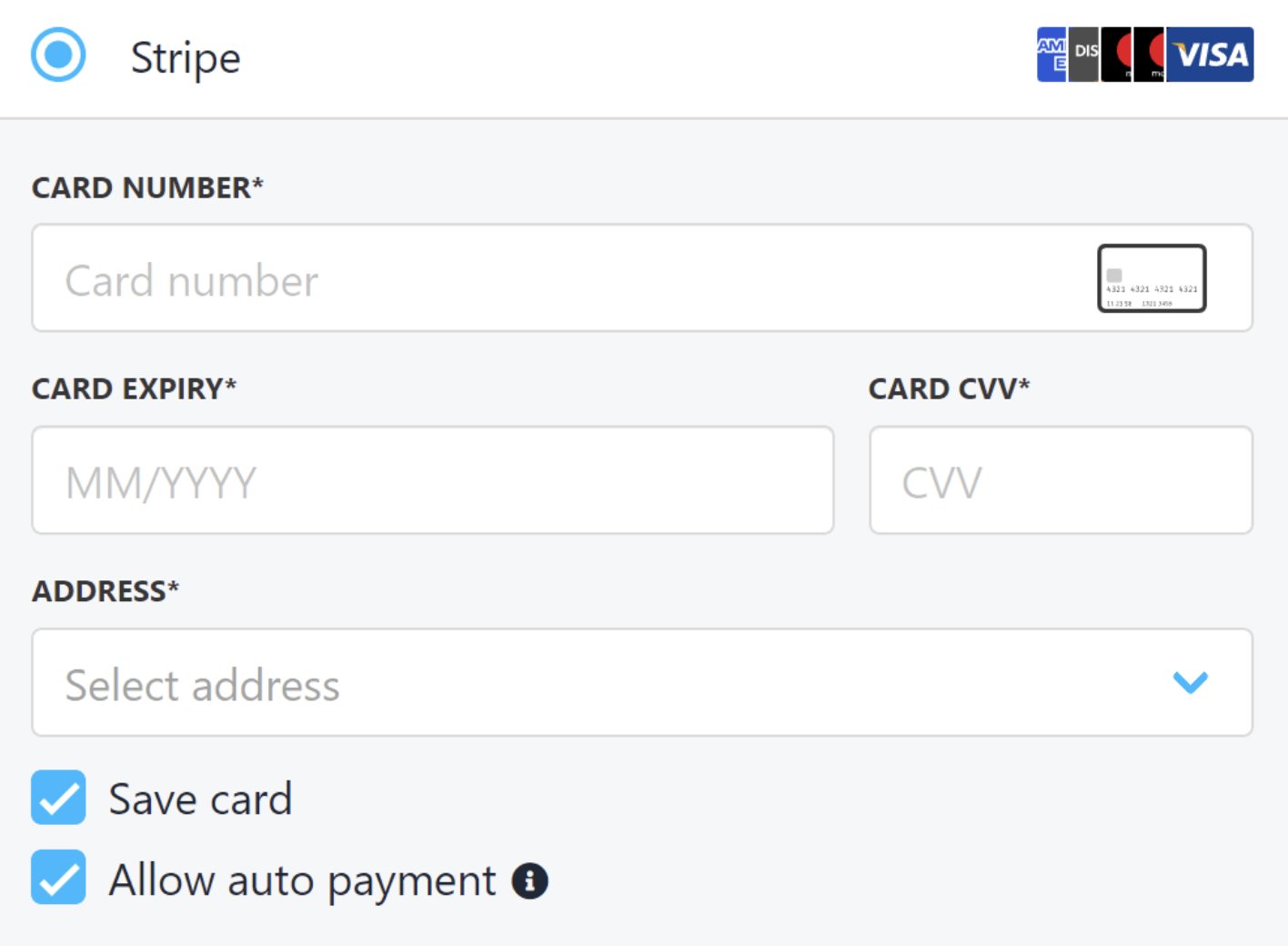
Two boxes are checked by default. Clients can uncheck the boxes to change the settings.
* Save card (save payment method details in the client's account).
* Allow auto payment (e.g., recurring payments).
## Checkout method
Your clients can add a new payment method at the checkout.
1. Fill the fields.
2. Click the **Place order & pay** button.
Two boxes are checked by default. Clients can uncheck the boxes to change the settings.
* Save card (save payment method details in the client's account).
* Allow auto payment (e.g., recurring payments).